
How to Add Music to Your Digital Signage
To add music to your digital signage, you typically upload audio files (like MP3s) into your digital signage software, then associate them with your playlists or digital signage screens. Most platforms allow you to upload music files into your media library and drag and drop them into playlists, deciding whether the music should play in the background continuously or only during specific scheduled content or slides. According to IFPI’s landmark Engaging with Music 2023, it found that on average, respondents listened to 20.7 hours of music each week, up from 20.1 hours per week in 2022.
In this blog, we’ll explore how to add music to your digital signage effectively, while showing how background music plays with your visual content create a richer, more dynamic digital signage solution. From enhancing the customer experience to saving space and making your scheduled content more immersive, music files integrated directly into your digital signage player can transform the way your digital content connects with audiences.
What are the Benefits of Adding Music to Digital Signage?
The benefits of adding music to digital signage extend beyond just background audio. By combining music files with digital signage content, businesses can capture attention, eliminate the need for extra audio equipment, and create dynamic content experiences across multiple displays. This makes it easier to play music alongside images, video, or scheduled content while keeping everything managed in one digital signage system.
According to a Nielsen Global Survey (2021), 75% of consumers say music improves their mood and increases their likelihood of staying longer in a retail environment, evidence that adding audio files to your digital signage solution directly improves the customer experience.
1. Grab Attention
Grab attention by adding music or sound effects to your digital signage screen, creating a memorable experience in high-traffic areas. With so much digital content and visual noise competing for focus, simply displaying the same content may not be enough. When you play background music or introduce unexpected audio cues, people instinctively look toward the digital sign to find the source of the sound.
For example, you could add audio alerts or short sound effects during scheduled content like promotions or announcements, or keep music playing in the background during key time slots to draw attention to your screen. This ability to combine audio and visual content ensures your digital signage player not only displays content but also engages multiple senses for maximum impact.
2. Eliminate Extra Equipment
Eliminate extra equipment by leveraging the built-in speakers of your digital signage screens instead of setting up separate audio systems. Normally, businesses need multiple Bluetooth or wired speakers spread across a space to ensure consistent music playing in the background without volume imbalances. Managing playlists on separate devices also creates unnecessary complexity.
With a digital signage solution, you can upload music files directly into your media library and play music across multiple displays simultaneously, even in different zones or locations. Since most digital signage screens already have built-in speakers, you can skip the hassle of additional equipment while still customizing playlists, scheduling audio, and managing your digital content seamlessly from one app or platform.
3. Create Dynamic Content
Create dynamic content by combining background music with your digital signage visuals. Playing audio files along with images, scheduled content, or videos instantly transforms your display content from static to immersive. Appealing to both auditory and visual senses makes your digital signage more memorable and keeps customers engaged longer.
For example, businesses can add audio to highlight a campaign, pair playlists with video templates, or use sound effects during specific transitions. With digital signage software, you gain the ability to edit, manage, and customize different playlists for each screen, creating a dynamic experience across multiple locations. This not only improves the customer experience but also ensures your digital signage solution stands out in any industry.
Add Music to Your Digital Signage: Steps to Follow

Add music to your digital signage, here’s the steps to follow to ensure a smooth setup that lets you play background music seamlessly across your digital signage screens. By following this process, you’ll be able to upload media files, manage playlists, and configure settings to deliver the perfect customer experience.
According to Statista (2023), 75% of global consumers say that music positively impacts their mood in retail environments a clear reason why pairing visual content with background music is a powerful business strategy.
Step 1: Download Digital Signage Software on Hardware
Download digital signage software on hardware to set the foundation for your display content. Download software on your smart TV or digital signage player allows you to control your media player remotely, manage multiple screens, and play background music with ease.
Follow the steps below to get started:
- Visit the app store on your smart TV.
- Type “AIScreen Digital Signage Software” in the search bar.
- Click the “Install” button to download the AIScreen App.
- Open it, and note the 4-digit pairing code showing on your screen.”
Step 2: Create an Account in the Digital Signage Management App
Create an account in the digital signage management app to link your screen with the cloud-based dashboard. This account allows you to upload media, manage playlists, and sync background music across zones.
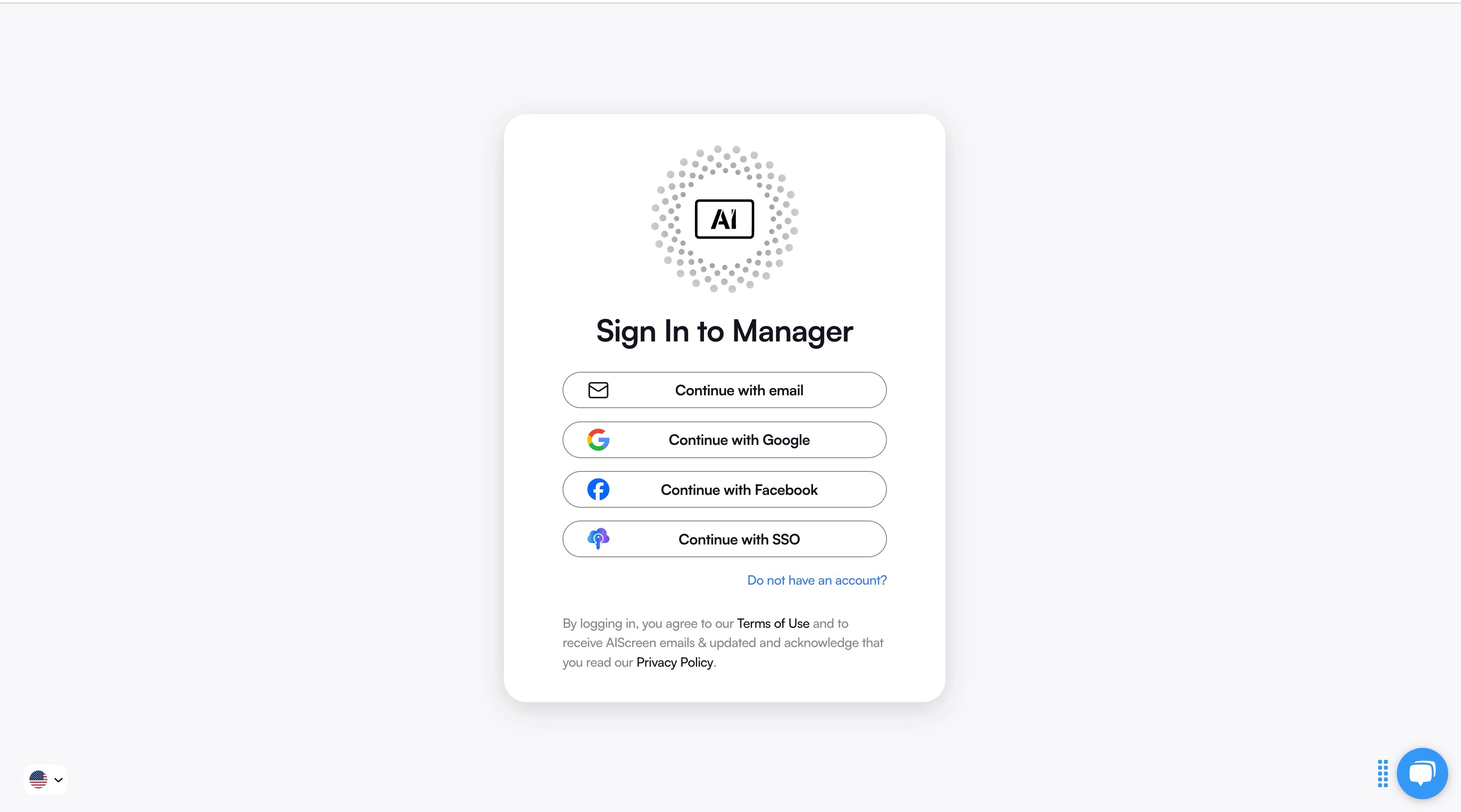
You can create your account in just two steps:
- Visit the AIScreen login on your laptop or computer.
- Sign up by entering your name, email, and password. For quick onboarding, sign up with a Google or Facebook account.
Once signed up, log in to your manager account and explore your web-based dashboard for managing digital signs.
Step 3: Pair Devices with Software
Pair devices with software to connect your screen and enable full control of your playlists and audio features. This ensures your managers can play music, schedule media, and customize display content remotely.
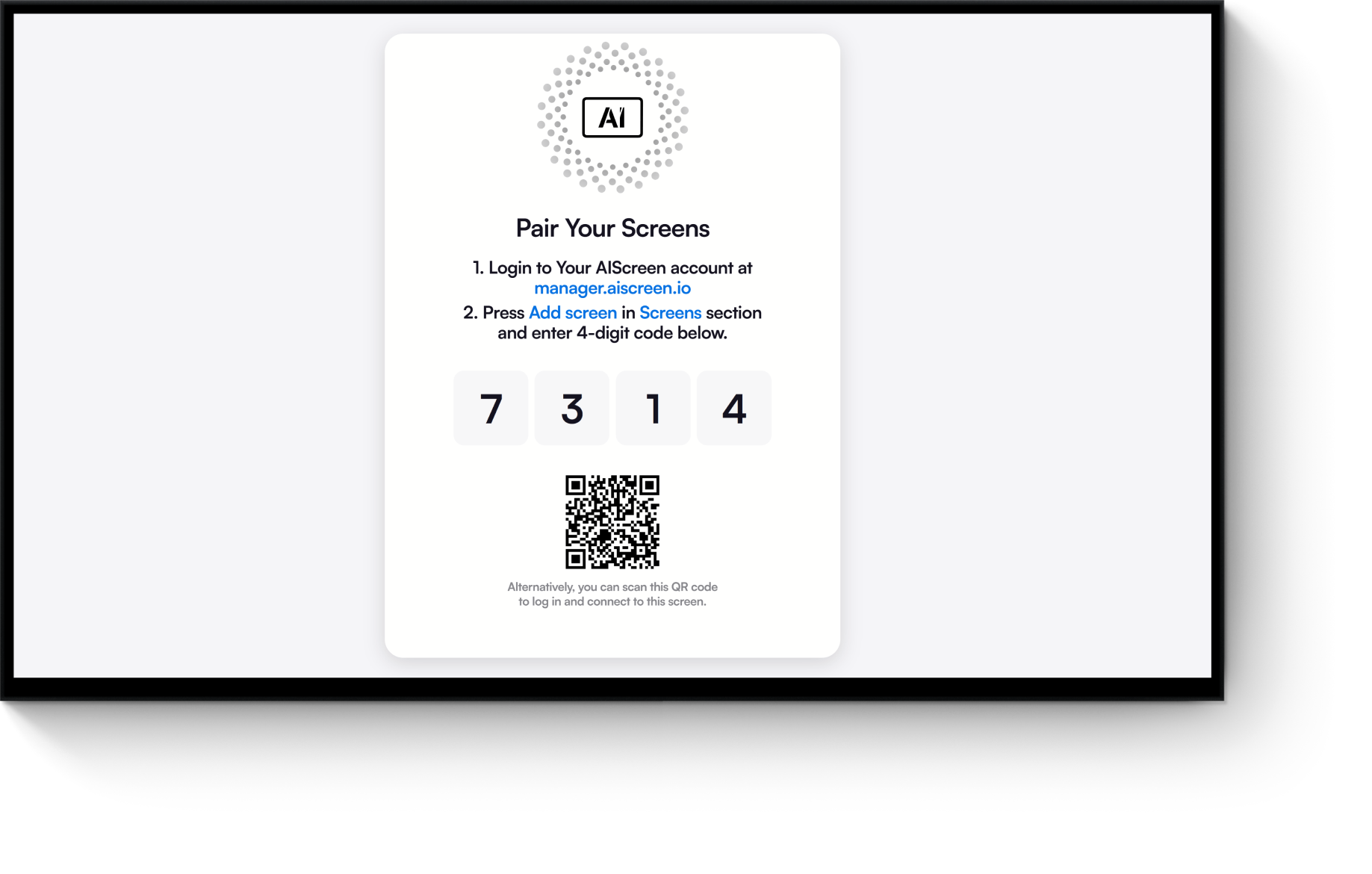
Here’s the step-by-step guide to pair your display with the software:
- Log in and click “Add Screen” in the dashboard.
- Enter the 4-digit pairing code displayed on your TV screen.
- Name your screen and choose orientation (horizontal or vertical).
- Click the “Pair” button to complete the setup
Step 4: Upload Your Audio
Uploading your audio files is the first step toward building a customized background music library for your digital signage screen. By adding your music files to the playlist manager, you gain full control over what plays in your display and how it integrates with your visual content.
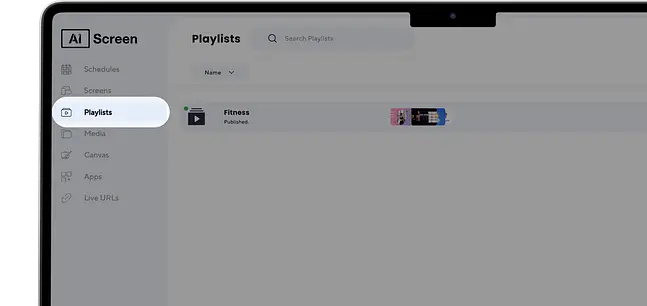
- From the main menu on the left-hand side, click on “Playlists.”
- This will open the playlists section, where you can view existing playlists or create new ones.
Step 5: Create a Music Playlist
Creating a dedicated music playlist allows you to organize your background audio and match it with your images, videos, or other media features for a seamless display experience. Instead of randomly adding tracks, a playlist gives structure and flow to your signage, keeping the audience engaged.
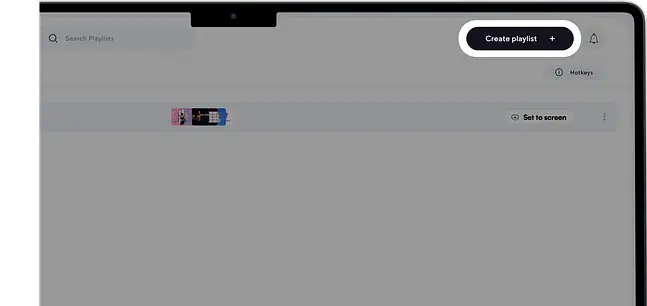
- Click the “Create New Playlist” button at the top-right corner of the screen.
- A new playlist editor will open, allowing you to start customizing your playlist.
Step 6: Add Audio to the Playlist
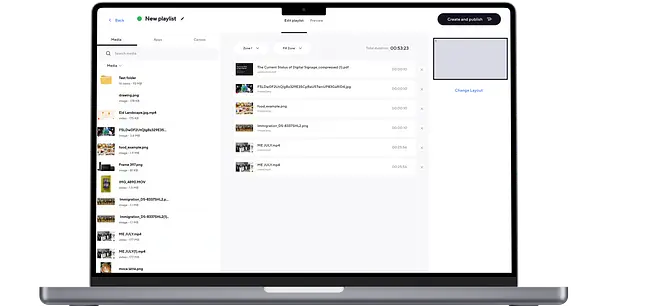
Adding audio to the playlist is where your digital signage begins to feel alive. By combining music files with images, videos, and other media files, you create dynamic content that delivers both visual and auditory engagement on your digital signage screen.
To add content, select and upload media such as videos, images, or documents:
- Click the “Upload” button and choose files from your computer.
- Alternatively, drag and drop files directly into the playlist area for faster workflow.
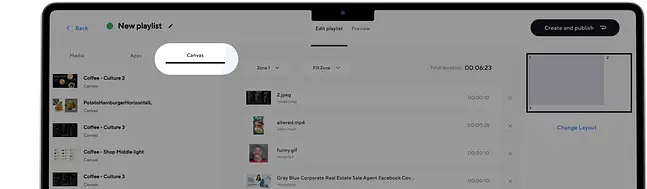
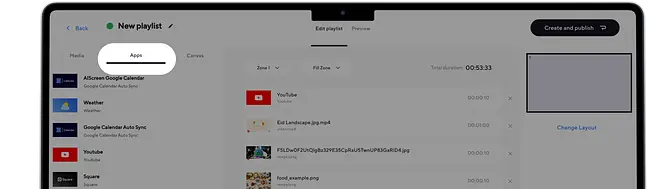
You can also enhance your playlist with apps or additional features. Navigate to the “Apps” section to include widgets, live feeds, or integrations that complement your media. For more advanced layouts, organize your content into zones, allowing you to display audio, video, and visual content in structured sections across your tv screen or display. This level of customization ensures your audience enjoys a professional and engaging experience.
Step 7: Configure Audio Settings
Configuring audio settings, once your playlist is ready, this allows you to fine-tune how your background music plays alongside your visuals. These settings give you control over playback order, timing, and overall content delivery on your digital signage screen.
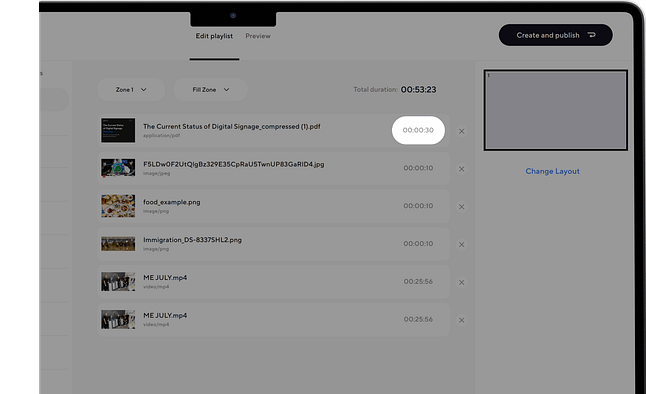
Reorder items in your playlist:
- Use drag-and-drop to move items up or down to set the playback order.
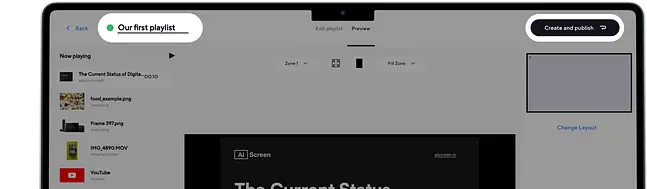
Adjust the duration of each item:
- Click on the time field next to each content item.
- Enter the desired duration (e.g., 00:10 for 10 seconds).
Step 8: Schedule or Publish the Music
Schedule or publish the music to automate playback across your digital signage screens. This ensures your media is displayed at the right time, with background music synced to the right zones.
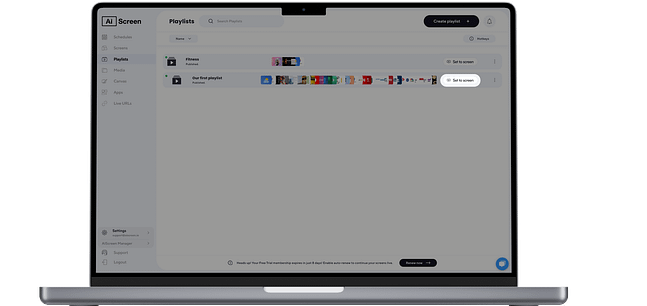
Here’s how to do it:
- Create a Playlist: Create and upload content to your new playlist. Arrange files in sequential order.
- Create a New Schedule: Click on the “Schedule” tab in your dashboard and tap “Create New Schedule.”
- Add a Playlist to the Schedule: Select the time slot (start date, time, and duration) for the content you want to play automatically. Confirm and add the playlist.
- Assign Devices, Review, and Save: Click “Add Device” to select the digital signage screen(s). Click “Save,” and your music and content will play at the scheduled time.
What are Best Ideas of Digital Signage Content Using Sounds & Music?
The best ideas of digital signage content using sounds & music give businesses creative ways to combine background music, audio files, and visual content to engage audiences across different screens and zones. By pairing sound with digital signage screens, you can play music alongside video, images, or scheduled content, turning simple slides into memorable experiences.
According to Deloitte’s 2020 Consumer Experience Report, 70% of customers say they are more likely to revisit a business that uses music and sensory elements to enhance its environment. This means adding music files to your digital signage system doesn’t just entertain, it directly influences customer behavior and overall satisfaction.
Create an Engaging Experience
Create an engaging experience by using background music to shape the mood of your business space. For example, a cafe might play soothing tracks to set a relaxing tone, while retail stores can use upbeat playlists to energize customers. Digital signage software allows you to upload music files, sync them with images or video, and publish playlists that align with your brand’s personality.
For instance, in a spa you might display content such as calming background images paired with soft inhale-and-exhale sounds, giving customers a moment of mindfulness before their appointment. This ability to play music directly through a digital sign transforms your visual content into an immersive sensory experience.
Record Sales and Promotions
Record sales and promotions to make announcements more powerful. Instead of relying solely on staff to inform customers about current offers, you can play audio recordings of promotions at scheduled intervals on your digital screens. Upload audio files like pre-recorded sales alerts, connect them to playlists, and publish them across multiple zones to reach customers instantly.
This is especially valuable for businesses short on staff, since a digital signage player can loop promotions, sales notes, or seasonal offers without requiring manual effort. By combining visual content with promotional audio, your digital sign ensures customers don’t miss a sale while creating a more engaging experience.
Provide Emergency Instructions
Provide emergency instructions effectively by combining visual content with background audio. During emergencies, your digital signage screen can play music or sound alerts to instantly grab attention, followed by clear audio instructions on what to do. This combination of display content and sound ensures people act quickly, even in noisy or crowded spaces.
For example, you can create an emergency playlist within your digital signage app that automatically switches scheduled content to safety messages, pairing on-screen text with urgent audio. This simple yet powerful feature ensures your business leverages both sight and sound for critical communication.
Enhance Slide Content with Audio
Enhance slide content with audio to make image slideshows, product demos, or ads more compelling. While background images and video can show product features visually, audio files help explain or emphasize key points without requiring viewers to read long text on a screen.
For example, instead of filling your digital signage display with text-heavy slides, you can add music or short voiceovers that describe the product benefits while images rotate. Customers are far more likely to listen than to read long content, and when you play background music alongside visuals, your screen delivers a richer, more effective experience. To make your visuals even more effective, many businesses also explore how to optimize digital signage images for maximum clarity so every slide looks sharp, professional, and easy to understand from any viewing distance.
How to Troubleshoot Sound Errors With Digital Signage
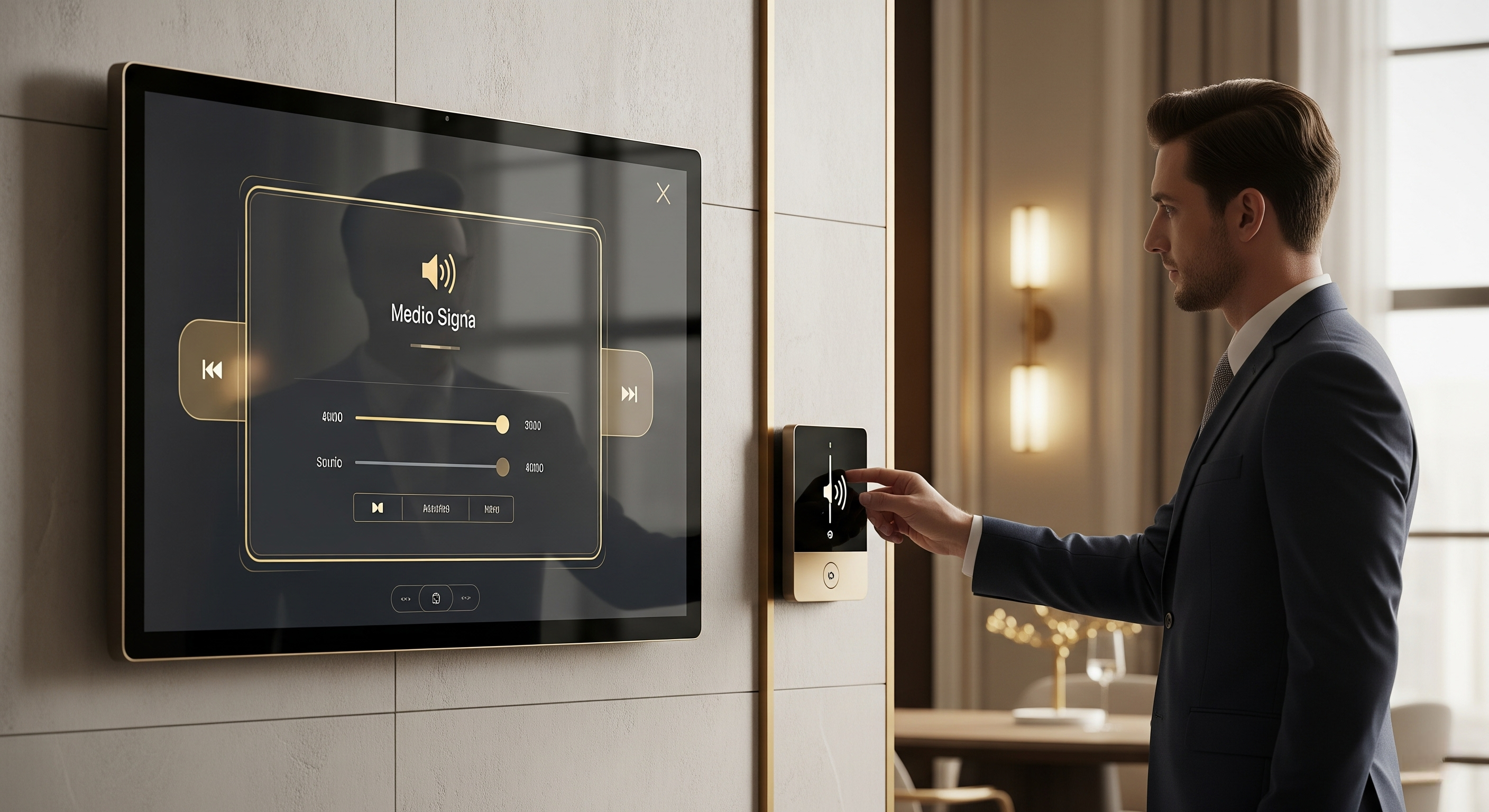
To troubleshoot sound errors with digital signage you’ll want to check both software and hardware settings to ensure background music and audio files play correctly. Whether you’re running a digital signage player across multiple zones or just one screen, common issues like syncing problems, missing files, or muted speakers can disrupt the customer experience.
The following resources and steps can help businesses quickly resolve sound-related challenges and keep scheduled content playing seamlessly.
Comprehensive Help Section
Comprehensive help section resources provide step-by-step guides for setting up and troubleshooting sound integration. Most digital signage platforms offer detailed instructions, FAQs, and even video tutorials covering how to upload audio files, manage playlists, and adjust speaker settings on your digital signage screen.
For example, if your background music isn’t playing correctly or files aren’t syncing, you can access support articles within your app that explain how to edit or publish playlists. This section often becomes the sweet spot for resolving audio issues quickly without needing additional assistance.
24/5 Support
24/5 support ensures you can get live assistance whenever audio errors prevent your digital content from playing correctly. If your issue goes beyond the help section, such as problems with a digital signage player not recognizing audio files, you can connect with trained experts through live chat or email.
With direct access to real people instead of bots, businesses gain the power to solve sound issues quickly. Whether it’s background music not syncing across multiple screens or a file upload error, having 24/5 support ensures your business continues to display content smoothly without disruption.
Digital Signage Screen and Player Guides
Digital signage screen and player guides are essential when sound problems stem from hardware rather than software. Sometimes the issue isn’t with the app or content but with HDMI connections, audio-out ports, or screen volume settings.
For example, if your media player is connected but no background music is playing, check whether your digital signage screen is muted or whether the audio file is supported. Reviewing your player’s operating manual gives you the ability to pinpoint hardware-related sound errors, ensuring your digital content continues to play seamlessly across zones and multiple screens.
Get Started with Audio-Enabled Digital Signage- Start Your Free Trial Now
Get started with audio-enabled digital signage – start your free trial now and unlock the power of background music in transforming your digital signage screens into engaging experiences. By adding music files alongside visuals, businesses can create more dynamic content that resonates with customers. Whether it’s soft tunes in waiting areas, upbeat playlists in retail zones, or synchronized tracks with video displays, music enhances the atmosphere and ensures a memorable brand presence.
At AIScreen.io, our digital signage software lets you play background music directly on any digital signage screen or TV, making your media displays more immersive and adaptable. Additionally, advanced features like audio zones and custom playlists give you full control over what plays, when it plays, and where it plays. Start your free trial today and discover how simple it is to combine music and visuals into one seamless technology solution.


Frequently Asked Questions
What file formats are supported for music in digital signage?
The file formats supported for music in digital signage typically include common music files such as MP3, WAV, and AAC. These formats ensure smooth playback across your digital signage screens, allowing you to easily integrate background music into your media displays.
How can I add custom audio to digital signage playlists?
You can add custom audio to digital signage playlists by uploading your preferred music files directly into the content management system. Once uploaded, these audio tracks can be scheduled to play alongside text, images, or video on your digital signage screen.
Is it possible to loop music in digital signage displays?
Yes, it is possible to loop music in digital signage displays, ensuring continuous background music throughout the day. The looping feature allows music files to play seamlessly without interruption, making it ideal for retail environments, offices, or waiting areas.
How do I sync audio with video content on digital signage?
The way to sync audio with video content on digital signage is by pairing the chosen music files directly with your video assets. This feature ensures that the background music or narration is timed perfectly with the visuals on the screen, creating a polished and professional display. Additionally, advanced technology in most systems allows precise control over playback.
Can I control music playback remotely for digital signage?
Yes, you can control music playback remotely for digital signage using cloud-based features built into most platforms. This capability lets you manage background music, playlists, and audio zones from any location, ensuring your displays remain consistent across multiple sites.
