
How to Create Digital Signage Playlist

To create a digital signage playlist, you’ll typically start by logging into your digital signage software platform, navigating to the playlist management section, and then making a new playlist. You’ll then add your desired content, such as images, videos, or text, adjust the duration each item plays for, and preview the playlist before saving and assigning it to your digital signage displays. According to Digital Signage Today, 80% of businesses using digital signage report a significant increase in customer engagement, demonstrating the impact of well-managed playlists.
In this blog post, you will learn step-by-step how to create, edit, and schedule playlists that keep your screens engaging and organized. We’ll cover everything from uploading media files to setting durations, looping content, and publishing playlists across multiple displays. By the end, you’ll know exactly how to streamline your content scheduling and maximize the effectiveness of your digital signage.
What Is a Digital Signage Playlist?
A digital signage playlist is a curated collection of media content, including images, videos, and text, arranged in a specific sequence and schedule to display on digital screens, whether you run a hosted service or open source digital signage software. Much like a music playlist, it organizes your content and ensures it plays in the exact order you’ve designed.
70% of U.S. residents recall seeing a digital signage display within the past month (ScreenMedia Daily).
With playlists, you can control the duration, timing, and sequence of each piece of media, creating a smooth flow of information. For example, you might set a welcome video to play first, followed by a product promotion, then a news ticker, each running for a specified duration.
Playlists can run independently on a loop, or they can be combined into Channels for more advanced scheduling, similar to TV programming. This makes them a powerful tool for managing multiple content streams while keeping your displays organized and engaging.
Why Use a Digital Signage Playlist?
Use digital signage playlist for content scheduling because it simplifies how you organize content and ensures your screens always display the right media at the right time. The primary advantage is efficiency; rather than manually scheduling content one by one, playlists enable you to group, organize, and collect files such as images, videos, and dashboards into a seamless workflow.
For example, Richard and Stephanie, who work at a global corporate marketing firm, needed to manage event promotions across offices worldwide. Each location had its own unique time zone, safety protocols, and event details.
Digital signage captures 400% more views than static displays (Intel Corp).
By using the playlist editor, they were able to create as many playlists as needed, add media files with a playlist name, and set each playlist to play automatically.
They could even choose a random order for variety, click the settings button in the top right corner to edit, delete, or duplicate an existing playlist, and prepare everything in advance for the next slide of the event. This level of control helps reduce manual workload while increasing engagement.
The benefits of playlists for content scheduling are:
Efficient Scheduling: Easily create playlists that schedule media files, videos, and images to play in specific intervals.
Content Automation: Update existing playlists without manual adjustments; simply click, edit, or delete files when needed.
Enhanced Customer Engagement: Dynamic, engaging displays on a digital information board captivate viewers, whether in corporate team settings, retail environments, or hospitality settings.
Operational Efficiency: Reduce manual effort and ensure every screen consistently plays the right content at the right time.


How Do You Create a Digital Signage Playlist?
Create playlist for digital signage to organize and automate your media files across screens easily. This section walks you through every step, from installing the software to scheduling your final playlist.
By following these steps, you’ll be able to manage existing playlists, create new ones, and ensure your content plays smoothly and professionally.
Step 1: Install the Digital Signage Software on Device
Install the digital signage software on device to manage content remotely. Begin by downloading the AIScreen app on Fire TV, Android device, or Raspberry Pi. Connect your device to a stable Wi-Fi network. Then log in to the web dashboard, upload your files or graphics, and arrange your playlist.
This ensures you can play and update signage content at any time without needing to physically access each display. Platforms like AIScreen enable you to control, create, and schedule digital signage playback for multiple locations from a single dashboard. This is where digital signage software becomes essential.
Step 2: Log in or Sign Up to a New Account
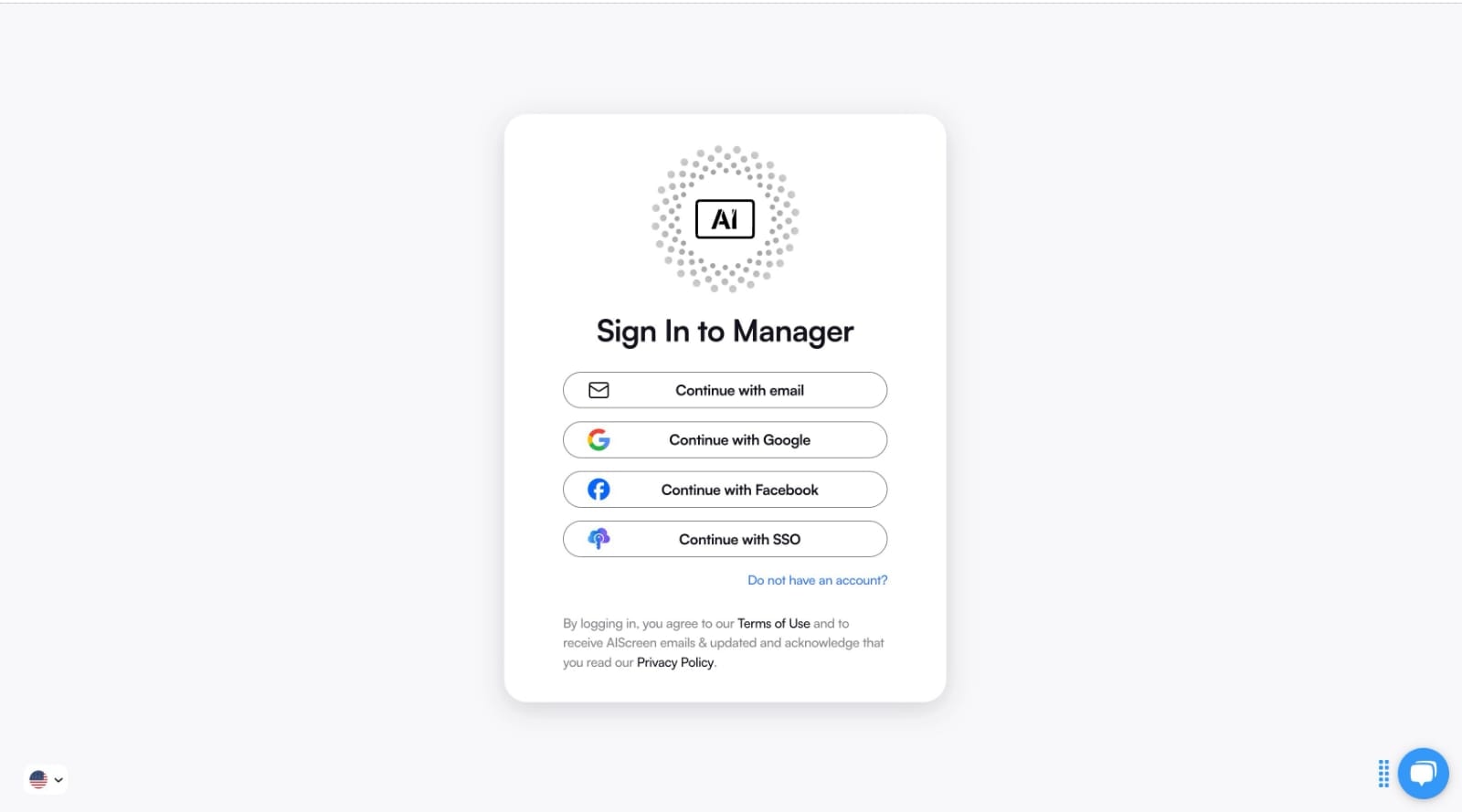
Log in or sign up to a new account in the AIScreen platform to unlock full functionality. Head to AIScreen, click “Sign Up,” and enter your business details. Verify your email, complete your profile, and add your screens.
Once you log in, you can upload images, videos, or slides, organize your content by campaign, and utilize the built-in tools to target your audience.
Both beginners and advanced users can benefit, as the system makes scheduling menus or presentations straightforward. Access your AIScreen account by logging in with your credentials and heading straight to your dashboard.
Step 3: Go to Playlists
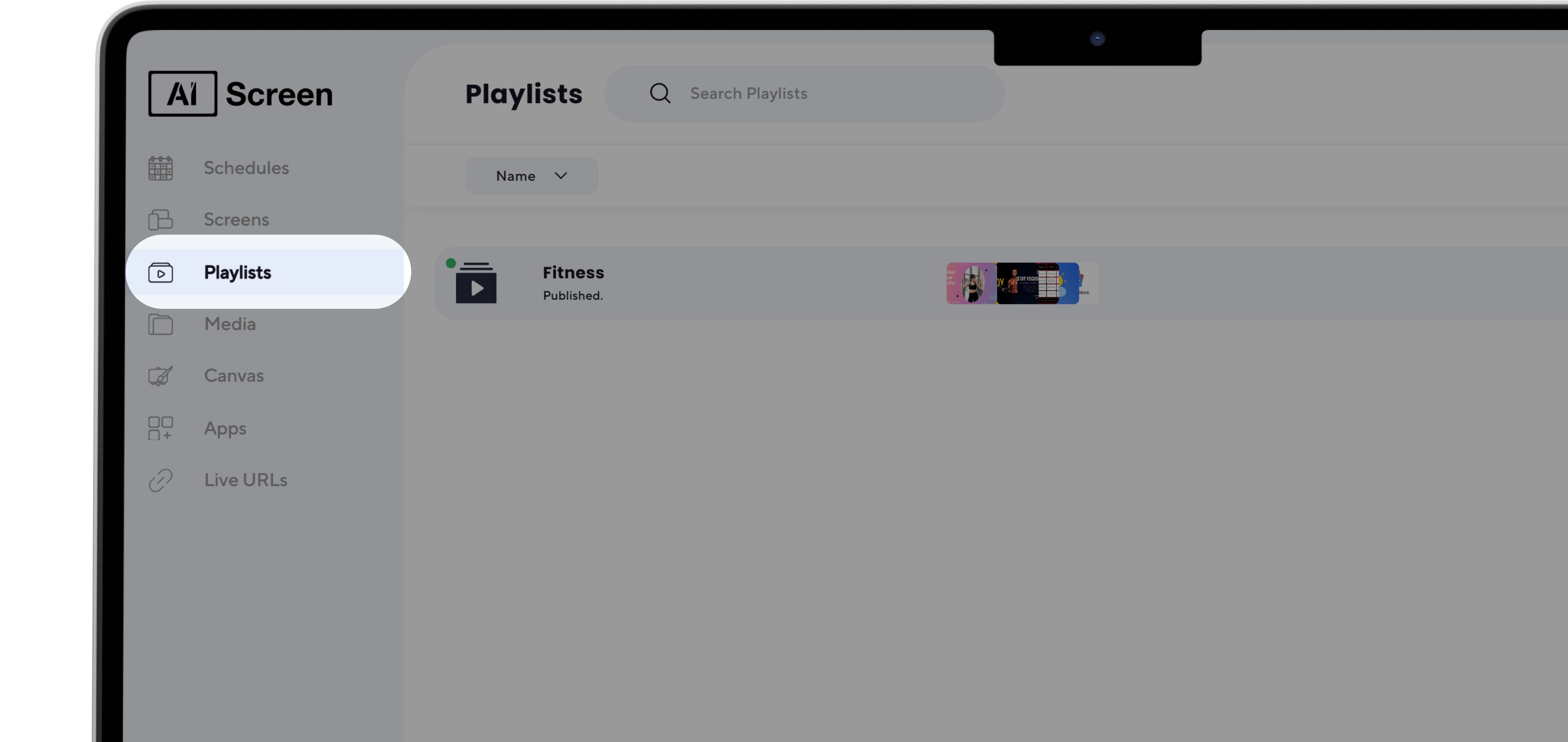
Go to playlists from the main menu on the left-hand side of your dashboard. This section is central for managing content scheduling.
Once inside, you can view existing playlists or click “Create” to begin a new one. The Playlists tab ensures all your media and apps are properly grouped for playback.
Step 4: Start a New Playlist for Digital Signage
Start a new playlist for digital signage by clicking the “Create New Playlist” button in the top right corner of the screen.
A playlist editor will open, allowing you to customize your sequence. Assign a playlist name to keep content organized. This feature is invaluable when managing multiple playlists across various screens.
Step 5: Upload Digital Signage Content
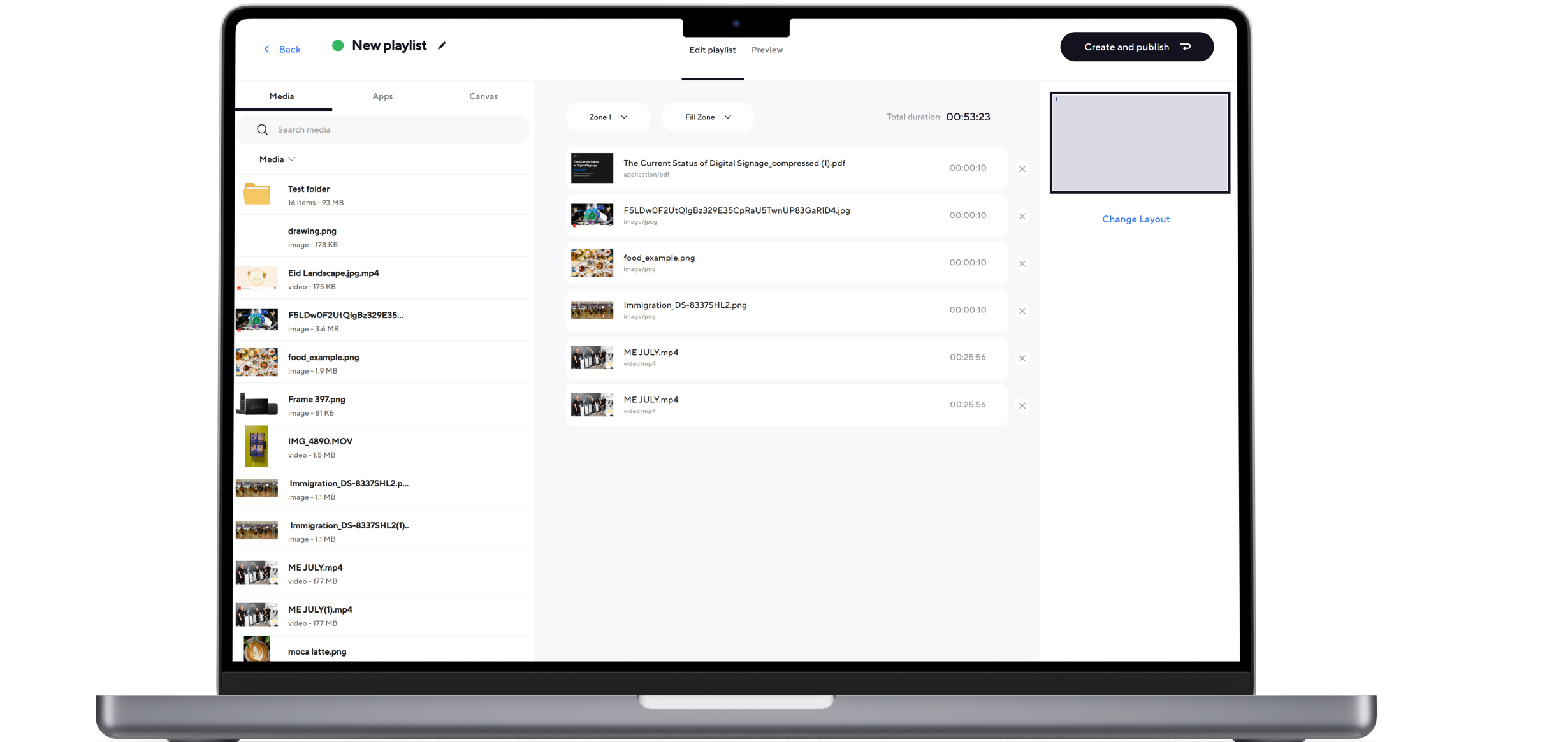
Upload digital signage content by selecting media files such as images, videos, or PDFs. Click the “Upload” button or drag and drop files into the playlist area.
You can also add apps like news feeds or social media widgets to enrich your playlist. To create content efficiently, use supported formats and resolutions for optimal playback quality. Organize content into distinct zones for a structured layout.
Step 6: Set Content Duration on Display
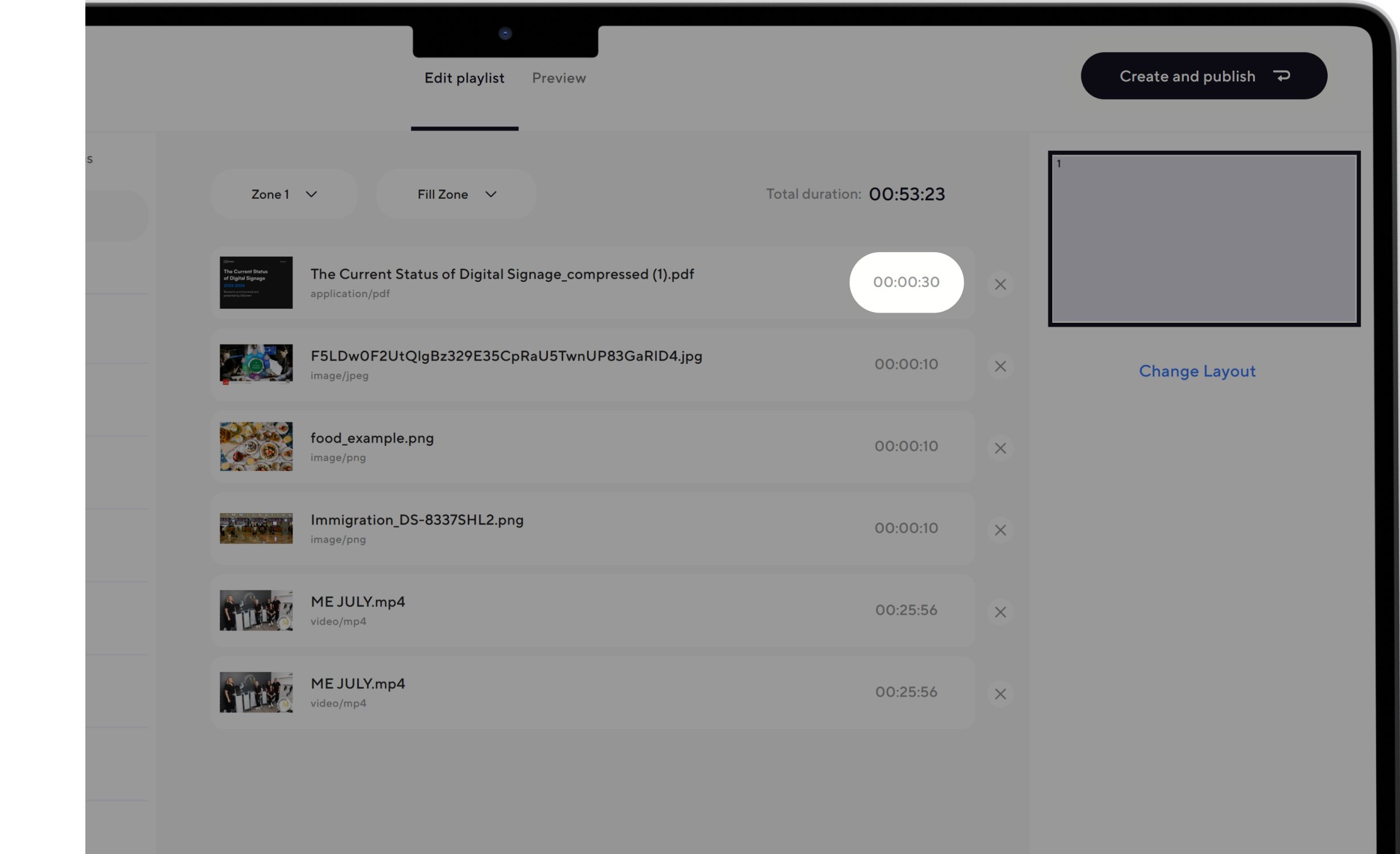
Set content duration on display by assigning how long each item should play. Use drag-and-drop to reorder your playlist items.
Next, click on the time field next to each piece of media and enter the duration (e.g., 00:15 for 15 seconds). This step helps balance your mix of images, videos, and text, ensuring the screen rotation feels smooth and engaging.
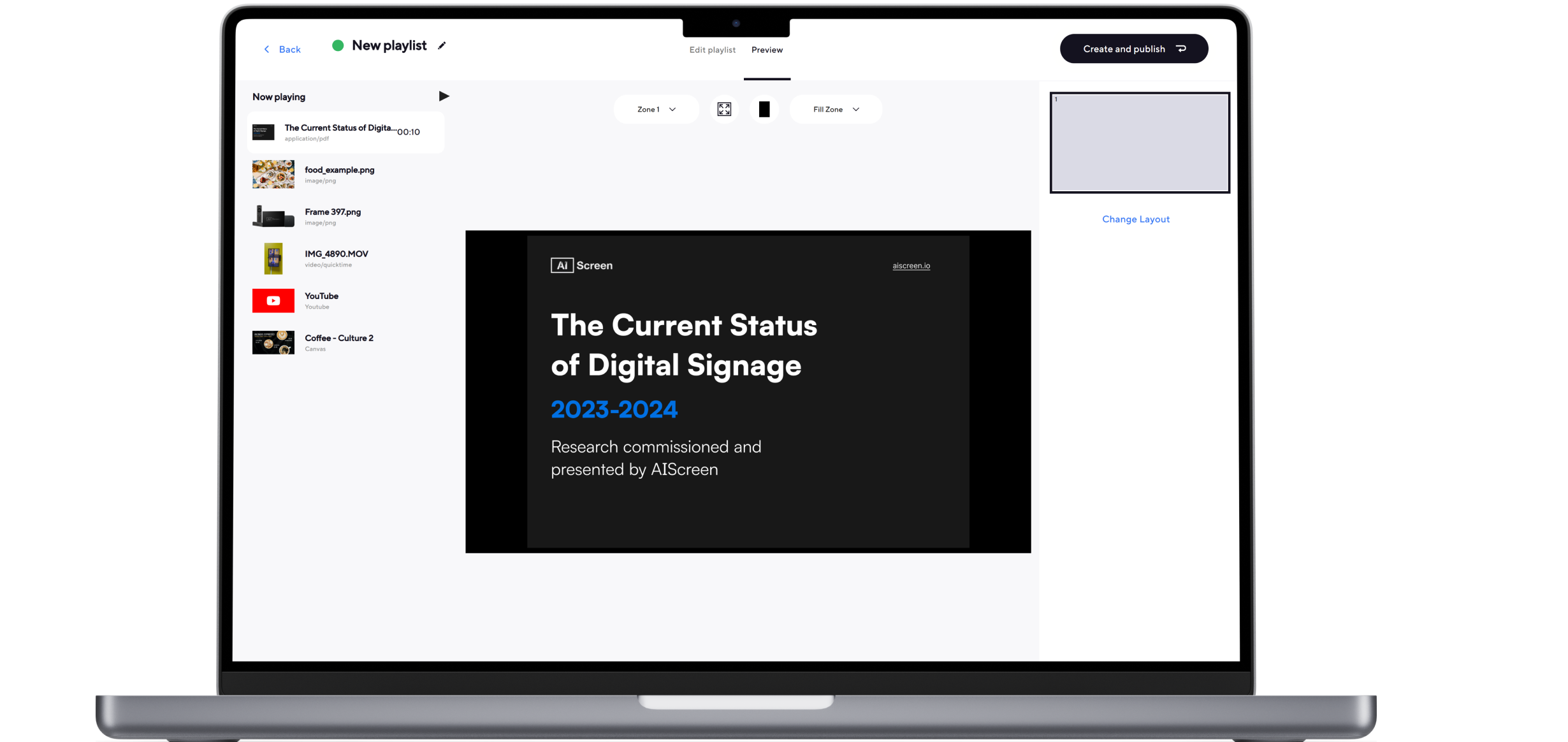
Step 7: Preview and Modify Your Playlist
Preview and modify your playlist by clicking on the “Preview” button. This lets you see how the playlist will play in real-time on your screen.
Check the layout, order, and duration of all files. If changes are needed, click to edit or delete items until you’re satisfied. This ensures your media looks polished before going live.
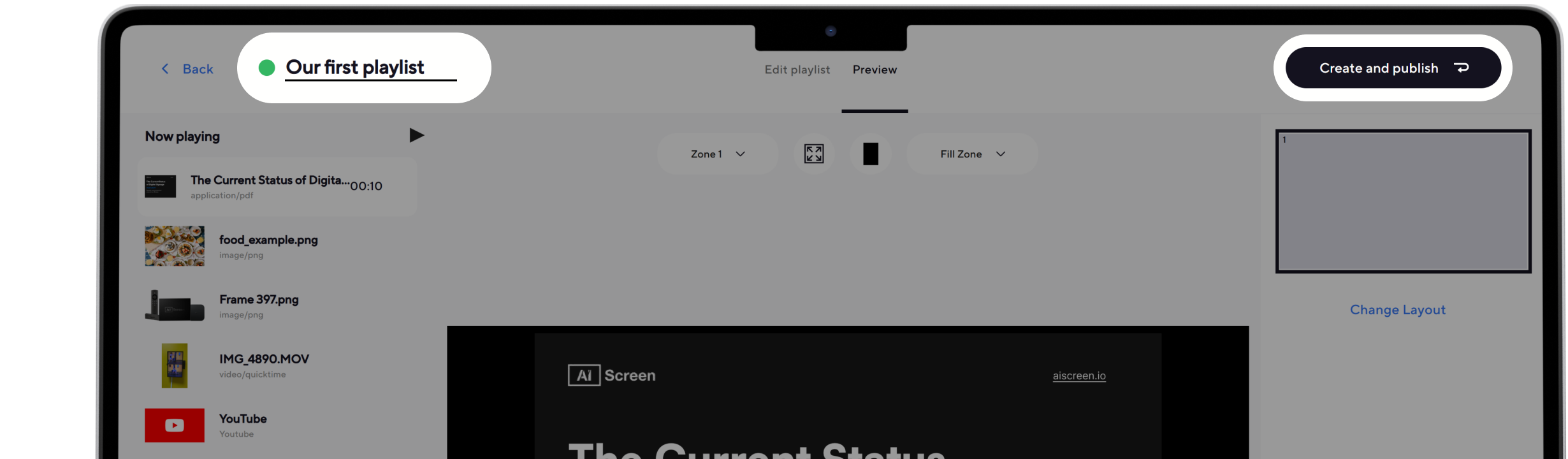
Step 8: Name and Save Your Playlist
Name and save your playlist once you’re ready. Use a descriptive playlist name so your team can easily find it later. Click “Save,” then choose “Create and Publish” to finalize your playlist.
Keeping files labeled properly ensures efficiency when you have as many playlists as needed for different campaigns.
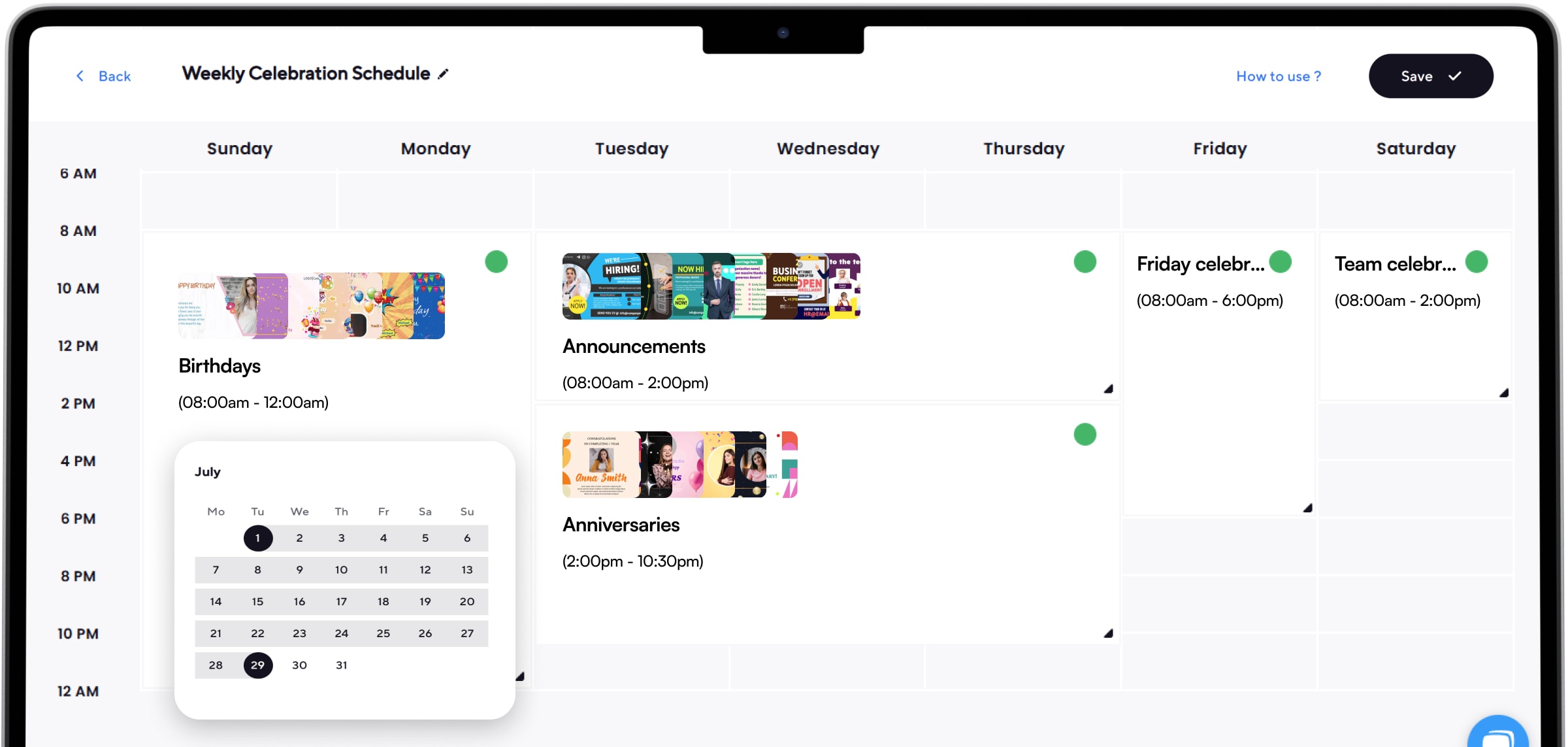
Step 9: Schedule or Make it Live on the Screen
Schedule or make it live on the screen directly from your dashboard. You can schedule content for specific times of the day, week, or month, or launch it immediately to all connected screens. This flexibility ensures that the right content is played at the right time without requiring manual updates.
Once you schedule content, it runs automatically according to your setup. After your playlist is active, consider applying these practices to event environments. Learn how to create effective digital directional signage for events to guide attendees, manage traffic flow, and deliver real-time updates seamlessly. Before making it live, steer clear of these common digital signage content mistakes to keep your playlist polished and effective.
How Can You Create a Digital Signage Playlist with Engaging Digital Signage Content?
To create a digital signage playlist, start by organizing your media into a clear sequence based on audience, location, and viewing time. Mix videos, images, announcements, promotions, social feeds, and other digital signage content to keep screens useful and engaging.
A well-planned playlist should balance promotional and informational content, avoid repetition, and schedule each item for the right time of day. Regular updates also help keep the display fresh and relevant.
Why Choose AIScreen for Playlists?
Go hassle-free with digital signage playlist creation and see how easy content scheduling can be. With AIScreen, the leading provider of digital signage software, you can create, organize, and schedule media across all your screens in just a few clicks.
Start your 14-day free trial today and explore every feature, from playlist editor to scheduling tools, designed to save time and keep your displays engaging. Contact us for more details.
Frequently Asked Questions
What types of content can I add to a digital signage playlist?
Types of content you can add to a digital signage playlist include images, videos, text slides, live feeds, social media apps, dashboards, and widgets. Most platforms also support PDFs, HTML links, or custom apps, giving you flexibility to create dynamic and engaging displays.
Can I customize the order of content in my playlist?
Yes, customizing the order of content in your playlist is possible using drag-and-drop controls inside the playlist editor. This allows you to arrange files in the sequence you prefer, or even choose random order to keep the display fresh and engaging for viewers.
How do I set the duration for each media item in my playlist?
The duration for each media item in my playlist is set by clicking on the time field next to the selected file. Enter the number of seconds or minutes you want that content to display. This ensures that each piece of media plays for the correct amount of time before transitioning to the next slide.
Is it possible to schedule a playlist to play at specific times?
Yes, you can schedule a playlist to play at specific times using the scheduling feature built into the software. You can set start and end times for campaigns on a daily, weekly, or monthly basis, making it simple to display targeted content precisely when it’s most relevant.
How do I loop a digital signage playlist?
Loop a digital signage playlist is as simple as enabling the loop option in the playlist settings. Once activated, your media files will continuously play in the order you’ve set, ensuring your screens are never left blank.
