
What Is Multi-Display Software and How Does It Work?

Ads spread across multiple screens grab attention faster—it’s science. A study by the Advertising Research Foundation found that blending TV and digital ads boosts ROI by over 60%. That’s the power of multi-display platforms—more screens, more impact.
AIScreen’s data backs this up, showing businesses using multiple monitors for promotions see 35% more engagement than those sticking to a single screen. This guide breaks down multi-display software, explaining how it works, why it matters, and how businesses can set up and manage multiple displays efficiently to get the most out of every pixel.
What Does Multi-Display Software Do?

A multi-monitor setups help distribute content across connected monitors rather than cramming everything onto one display. Whether you’re a developer managing lines of code, a designer previewing graphics, or a business running digital ads, this software enhances productivity and organization.
- Split screens across multiple displays to work on different tasks simultaneously.
- Control content from one system tray without constantly switching between windows.
- Use hotkeys to switch active monitors and reposition apps effortlessly.
- Customize wallpaper, taskbars, and window position profiles for personalized workspaces.
Why Does It Matter?
A multi display setup matters because it isn’t just for tech professionals. Retailers use it to create immersive digital signage, while corporate teams run presentations across multiple screens. Even gamers and streamers leverage dual-monitor tools to improve their experience by keeping chat, tools, and the main action separate.
In business settings, digital displays powered by multi monitor software make messaging dynamic and adaptable. Imagine showcasing real-time product updates on one screen, customer reviews on another, and interactive ads on a secondary monitor—all controlled seamlessly from a PC, tablet, or laptop.
How Does Multi-Screen Software Manage Multiple Monitors?

Optimized Control for Multiple Displays
A primary monitor serves as the main control hub, while secondary monitors expand workspace or display additional content. Dual monitor tools allow smooth window transitions, reducing the need for constant manual adjustments.
- Cursor movement across monitors – Prevents lag and misalignment.
- Customizeable profiles – Saves app layouts for consistent setups.
- Taskbar per screen – Keeps applications separated for better workflow.
- Hotkey shortcuts – Instantly switch, minimize, or activate windows across multiple displays.
Custom Monitor Settings for Performance
Each screen can be adjusted independently for clarity and efficiency. Whether on a personal desk computer or mobile device, users can fine-tune their multi monitor setup to match workspace needs.
- Display orientation – Rotate screens for vertical or horizontal layouts.
- Resolution and brightness adjustments – Match settings across connected displays for consistency.
- Wallpaper customization – Assign different backgrounds to each screen for organization.
Efficiency in Multi Display Setups
For businesses, programmers, and content managers, multi monitor setups improve efficiency by keeping essential programs, presentations, and dashboards visible without clutter. The ability to assign tasks across one monitor or multiple displays keeps workflows seamless and reduces distractions.
What Are the Best Use Cases for Multi Display Setups?
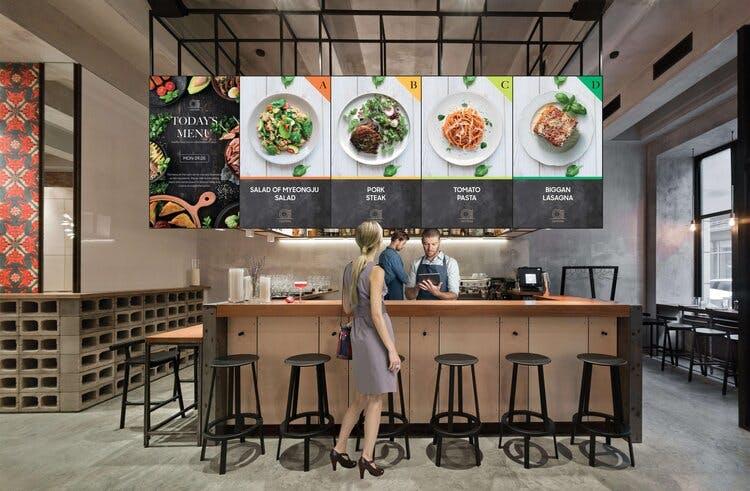
Below are the best use cases where dual monitor tools and extended screen functions provide the most impact.
Retail and Advertising
In retail environments, extended screen setups power digital signage for ads, promotions, and customer engagement. Stores can create attractive window displays to promote pricing updates on one screen, product demos on another, and live social media feeds in real time. Microsoft-compatible displays allow easy updates, ensuring the latest promotions stay visible.
Corporate Offices and Presentations
Businesses benefit from expanded screen setups for dashboards, analytics, and presentations. A desktop with a dual monitor setup helps finance teams track data while working on reports. Clients in meetings can see high-priority slides while secondary content remains available for quick access.
Security and Surveillance

Surveillance teams rely on multi-monitor tools to monitor multiple camera feeds simultaneously. Using separate screens, security personnel can zoom in on incidents, track live footage, and keep alert logs open without losing key visuals.
Education and Training
Lecture halls, classrooms, and training centers utilize multi-monitor tools to split content between instructors and students. A professor might display reference materials on one screen while annotating on another, ensuring students follow along seamlessly.
Gaming and Streaming
Gamers and streamers use dual monitor setups to keep their primary monitor focused on gameplay while the additional screen manages chat, overlays, and streaming settings. With customized settings, they can fine-tune their experience for smooth performance.
Which Features Should You Look for in Multi-Monitor Software?

Below are essential features to look for when selecting the best option.
Remote Management and Configuration
Users should be able to adjust monitor settings without needing physical access to each active window. Remote tools allow seamless changes to resolution, brightness, and orientation, making them ideal for businesses managing digital signage or multi-screen workstations.
Independent Content Management
A solid multi-monitor solution should let users assign different programs, applications, or media to each display. Whether working with a desktop PC, a laptop, or an extended display system, independent window placement improves organization and usability.
Automation and Scheduling

For industries using extended monitors for advertising, presentations, or information tracking, automation features (like a built-in screenmanager) reduce manual work. Scheduling tools allow users to set timed content changes, keeping displays updated without constant intervention.
Seamless Cursor and Input Functionality
A strong dual monitor tool should offer smooth cursor movement, preventing lag when navigating between displays. Some software solutions also allow a single keyboard and mouse to run multiple monitors, reducing workflow interruptions.
Compatibility with Various Systems
Whether using Windows, macOS, or Linux, the software should match with different operating systems. Support for Microsoft-based workstations, extended display ports, and universal connections ensures flexibility across different setups.
Multi-Display Connectivity
Beyond traditional desktops, some tools allow integration with laptops and additional external devices. This feature is useful for developers, professionals, and content creators who work across multiple platforms.
How to Set Up Multi-Monitor Software for the Best Performance?
Step 1: Install a the Right Program

Choose a software solution that allows flexibility in window placement, content management, and layout customization. If using a free version, verify that it includes key features like task management and adjustments.
Step 2: Connect and Activate the Displays

Attach additional monitors to the desktop and access the display settings. If the computer doesn’t recognize a display, use the “detect” feature to manually locate and activate it.
Step 3: Customize Window Behavior

Use built-in tools to customize how windows interact across displays. Some programs allow you to create specific rules for minimizing, maximizing, or repositioning windows.
Step 4: Adjust the Mouse Pointer and Navigation
A misplaced mouse cursor can slow productivity. Modify pointer speed and alignment to prevent gaps or delays when moving across monitors. Some functions allow for scrolling adjustments to make navigation smoother.
Step 5: Optimize the Taskbar for Efficiency
Choose whether each monitor has its own taskbar or if all applications remain on the main bar. This helps reduce clutter and keeps the workspace organized.
Step 6: Enable Additional Dual Monitor Tools
Explore edge snapping, window grids, and shortcut mapping to improve workflow. Many multi-monitor software solutions offer settings that improve usability, such as custom hotkeys, automated layouts, or preset window arrangements.
Power Your Multi-Unit Setup with AIScreen


A cluttered multi-unit network slows you down. With AIScreen, managing multiple TVs becomes seamless, whether for advertising, presentations, or real-time updates. Optimize workflows, prevent issues, and keep everything running smoothly.
Start your 14-day free trial today and experience effortless multi-unit management with AIScreen!
