
How to Set Up Digital Signage for Lobby Spaces?
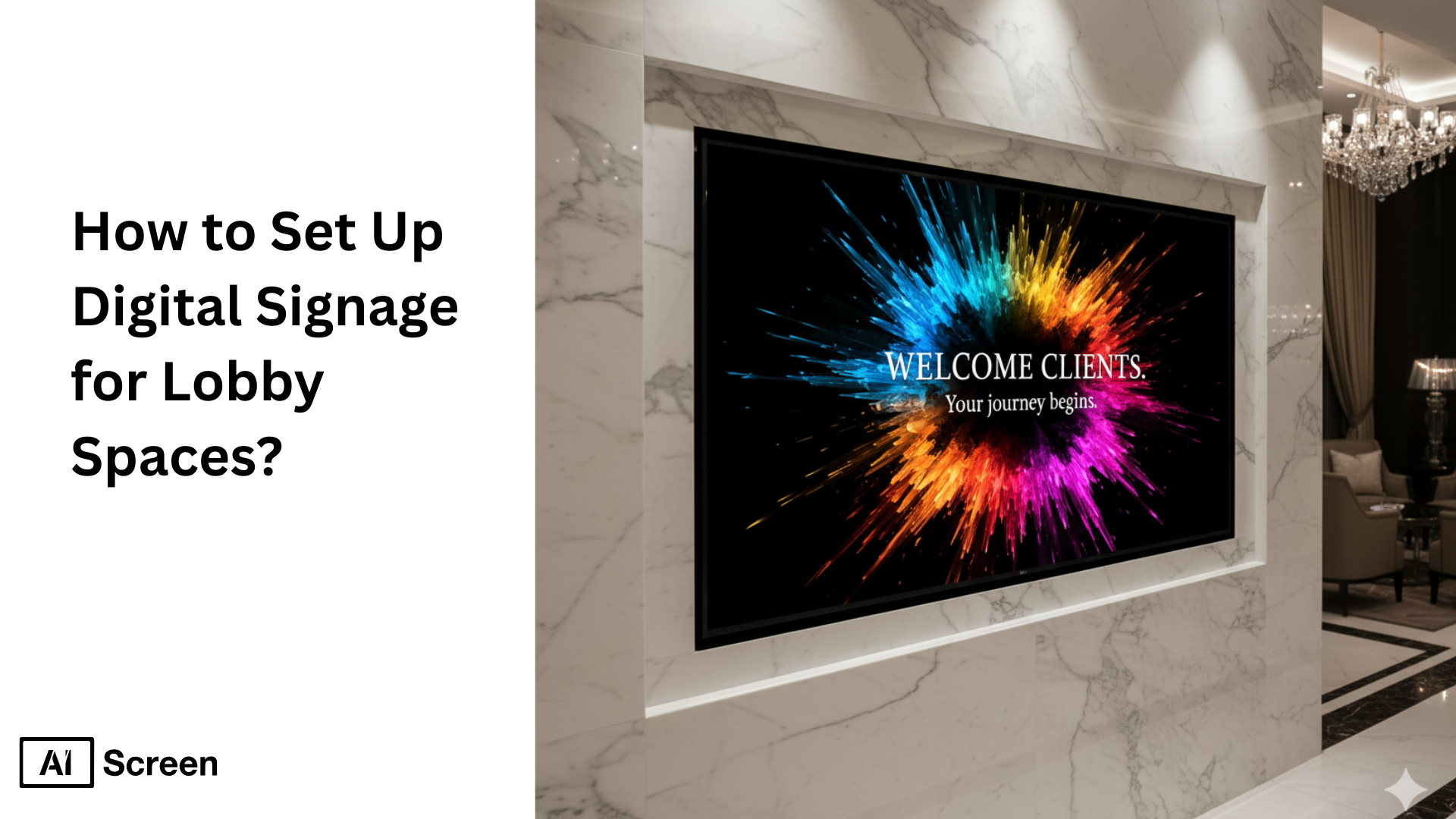
To set up digital signage for lobby spaces, start by setting clear goals, selecting the optimal hardware and software, creating content that drives guest engagement and sales, and regularly monitoring your signage’s performance through timely updates. According to the Nasscom-Community, 80% of brands choose digital signage to meet their business objectives. By integrating smart, interactive digital displays with cloud-based management, hotels can transform their lobbies into dynamic hubs that showcase branding and vital information, leaving guests with a warm and welcoming first impression.
In this article, we will explore the key benefits of digital signage software in lobby settings, including how it elevates the guest experience, enhances communication, and streamlines operational workflows. This comprehensive overview is designed to equip hotels, corporate offices with the insights and practical steps needed to deploy an impactful digital signage system that not only enhances the visitor experience but also strengthens overall communication effectiveness throughout the property. To put these steps into practice, explore AIScreen’s dedicated digital lobby signage solution.
What is Digital Signage for Lobby Spaces?
Digital signage for lobby spaces refers to installing LCD screens, LED panels, or interactive touchscreens in hotel lobbies, restaurants, office buildings, and healthcare centers’ reception areas. These lobby displays share welcome messages, announcements, and real-time updates with visitors as they enter a building.
These lobby screens or display options transform lobbies into dynamic communication hubs by delivering a range of digital content, including interactive features for building directions, wait times, event schedules, company news updates, and promotional messages.
How do these digital signs perform as electronic displays? They are supported by unique digital signage software for lobby spaces that offers the flexibility to update lobby display content instantly and tailor information to the audience, enhancing both guest experience and operational efficiency.
Lobby digital signage screens enable seamless management of digital promotional content and allow businesses to showcase branding, provide essential information, and engage guests effectively.
AIScreen provides a wide range of powerful cloud-based solutions for creating, scheduling, and monitoring digital lobby displays with ease. The company’s digital lobby signs platform ensures that visitors receive timely, relevant information while enjoying a modern, visually appealing environment that reflects strong brand identity.
Why Digital Signage is Important for Lobby Spaces?
Digital lobby signage is important for lobby spaces as it enhances visitor engagement, fulfills all safety protocols, and streamlines communication with dynamic displays that update instantly. Whether in hotel lobbies, corporate offices, or professional services, digital lobby signs provide a modern and efficient way to welcome and inform guests.
If you are new to the hospitality business, you can use this technology to improve your brand image while improving operational flow in office lobbiesor large reception desk areas, from hotels to corporate offices. Though the soul of this advanced technique also flourishes in the hearts of the existing hospitality service providers seeking significant expansion of their business.
Here is why digital signage lobby involves scaling up by delivering more relevant content across multiple locations, supported by practical examples and research:
- Welcoming Visitors with Dynamic Branding: The 92nd Street Y, a cultural and community center located in Carnegie Hill in New York City, uses high-resolution LED video walls to create an immersive brand experience right at the entrance through vibrant images, videos of performances, and upcoming events. According to industry research, 80% of consumers prefer visiting restaurants and stores that have visually appealing digital menu boards, making this a powerful engagement tool.
- Providing Directions and Floor Information: Okta’s NYC lobby and many other corporate offices integrate interactive digital signage displays for interactive wayfinding. These displays allow visitors to easily visit large buildings without heavily depending on staff assistance. Advanced digital directories and interactive maps reduce their stress level and save time, enhancing the overall visitor experience.
- Displaying Live Wait Times or Queues: Digital Signage Today reports that the real-time digital signage in healthcare lobbies has been shown to increase patient satisfaction by 30% by reducing perceived waiting time and uncertainty. This demonstrates the value of delivering information on time.
- Showcasing Events, Announcements, or News: Corporate spaces and hotels often display live event schedules, announcements, safety instructions, or news feeds on lobby screens for maximum audience engagement. For example, companies like Google, Salesforce, and Amazon incorporate large LED screens in their office lobbies, broadcasting brand-related content and live updates. This reinforces its innovative image while keeping visitors and employees informed.
Technology platforms like AIScreen provide cloud-based management for digital signage for lobby spaces. The company enables centralized control and instant updates across multiple screens in lobbies from various industries, supporting interactive and visually compelling experiences that resonate with visitors.
How to Set Up Digital Signage for Your Lobby: A Step-by-Step Guide
Setting up digital signage in your lobby to welcome and inform guests is much easier than staying alert all the time at reception to greet them. A smooth installation of digital signage lobby software and efficient content management make internal messaging and handling multiple users easy. This guide provides a clear, step-by-step process to ensure you select the right components, position your displays effectively, and create compelling content that resonates with your audience.
Step 1: Choose the Right Display for Your Lobby
Choosing the right display is the key to creating an effective lobby digital signage setup. You can choose from LED, LCD, or touchscreen – any type of display based on your content needs, typical viewing distances, and visitor interactions.
However, our experts advise considering screen size and resolution for clear visibility. Larger screens (43-55 inches) with Full HD or 4K resolution work well for most lobbies. Brightness matters a lot; generally, indoor screens provide around 450 nits to ensure readability without glare.
Here, we are presenting two strong choices available from AIScreen’s product catalog, including:
1. Insignia 55-Inch Smart Fire TV
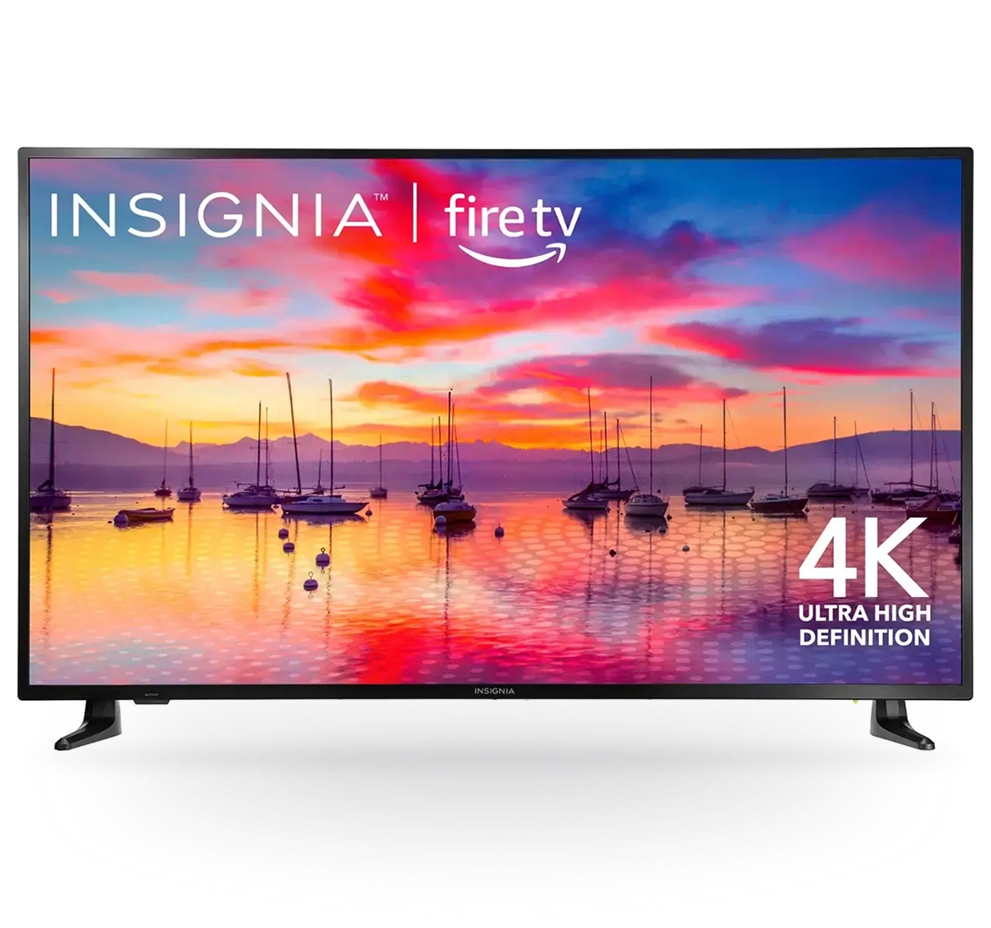
Insignia 55-inch smart fire TV delivers stunning 4K Ultra HD resolution with HDR10 for vivid, lifelike colors that make it perfect for large lobby spaces. Insignia screen features built-in Fire TV, allowing seamless access to streaming apps and Alexa voice control for easy navigation. With DTS Studio Sound and versatile connectivity options, it supports engaging, high-quality digital signage content with reliable performance.
- Screen Size and Type: 55 inches, LED display.
- Resolution: 4K Ultra HD (3840 x 2160) with HDR10 support for vivid colors and sharp contrast.
- Brightness & Viewing Angle: Standard indoor brightness around 250-300 nits; wide viewing angle of 178° both horizontal and vertical.
- Smart Features: Built-in Fire TV with Alexa Voice Control via remote, supporting popular streaming apps (Netflix, Prime Video, Disney+, Hulu) and gaming through Amazon Luna.
- Audio: DTS Studio Sound for immersive audio output, includes digital optical output and headphone jack.
- Connectivity: 3 HDMI ports (one with ARC/eARC), composite AV, USB 2.0, Ethernet LAN, headphone jack, coaxial jack.
- Dimensions & Design: Sleek flat design, comes with a stand; dimensions approx. 123.7 x 71.9 x 22.1 cm (with stand).
- Additional Features: Voice remote control, support for Alexa skills, video calls, smart home integration.
2. Toshiba 43-Inch Smart Fire TV
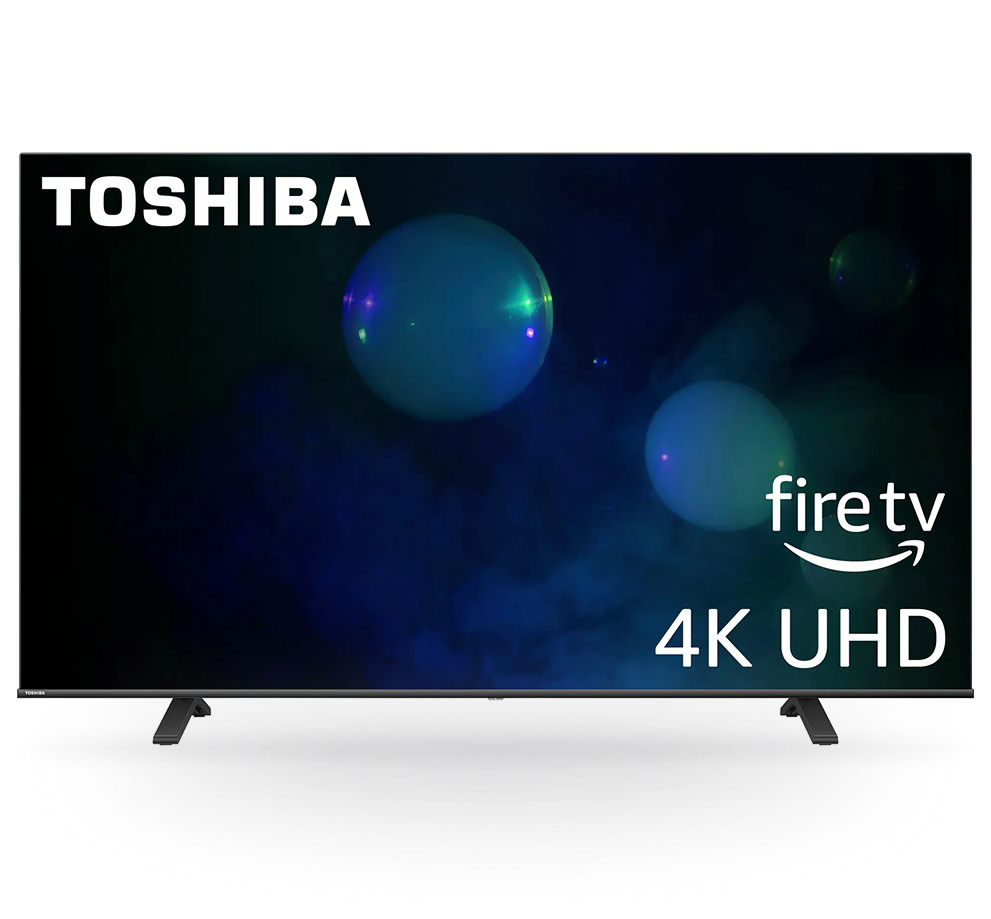
Toshiba 43-inch smart fire TV is ideal for smaller lobby areas. It offers crisp Full HD 1080p resolution and comes with an integrated Fire TV for streaming popular apps and Alexa voice remote for hands-free control. It is compact and efficient and provides clear visuals and robust smart features, making it a great option for concise and effective lobby digital signage.
- Screen Size and Type: 43 inches, LED display
- Resolution: Full HD 1080p (1920 x 1080) resolution, suitable for smaller lobby spaces
- Brightness & Viewing Angle: Designed for indoor use with adequate brightness for clear visibility; wide viewing angles typical of LED panels
- Smart Features: Integrated Fire TV with access to apps like Netflix, Prime Video, and others, Alexa Voice Remote included
- Audio: Clear audio with built-in speakers and options for external audio connections
- Connectivity: Multiple HDMI inputs, USB ports, Ethernet port, digital audio outputs, and headphone jack
- Dimensions & Design: Compact and lightweight design ideal for smaller areas, compatible with wall mounts and standard stands
- Additional Features: Easy content updates via Fire TV, voice control, and streaming capabilities
For businesses seeking a more striking impact can also learn how to set up a flying screen with digital signage to create a dynamic, suspended display effect.
Step 2: Download Digital Lobby Signage Software
Download digital lobby signage software using a straightforward process that lets you manage your lobby displays remotely with ease. We, at AIScreen, provide a popular cloud-based solution designed to simplify content updates and scheduling in real-time. Let’s proceed with the installation process further, following the given steps:
- Open your Smart TV’s app store and search for “AIScreen Digital Signage Software.”
- Click on the “Download” button.
- Install the AIScreen app on your display.
This cloud-based approach lets you download and start uploading content in real-time from anywhere, ensuring your lobby signage always stays current and engaging.
Step 3: Log in to Account in the Digital Lobby Signage App
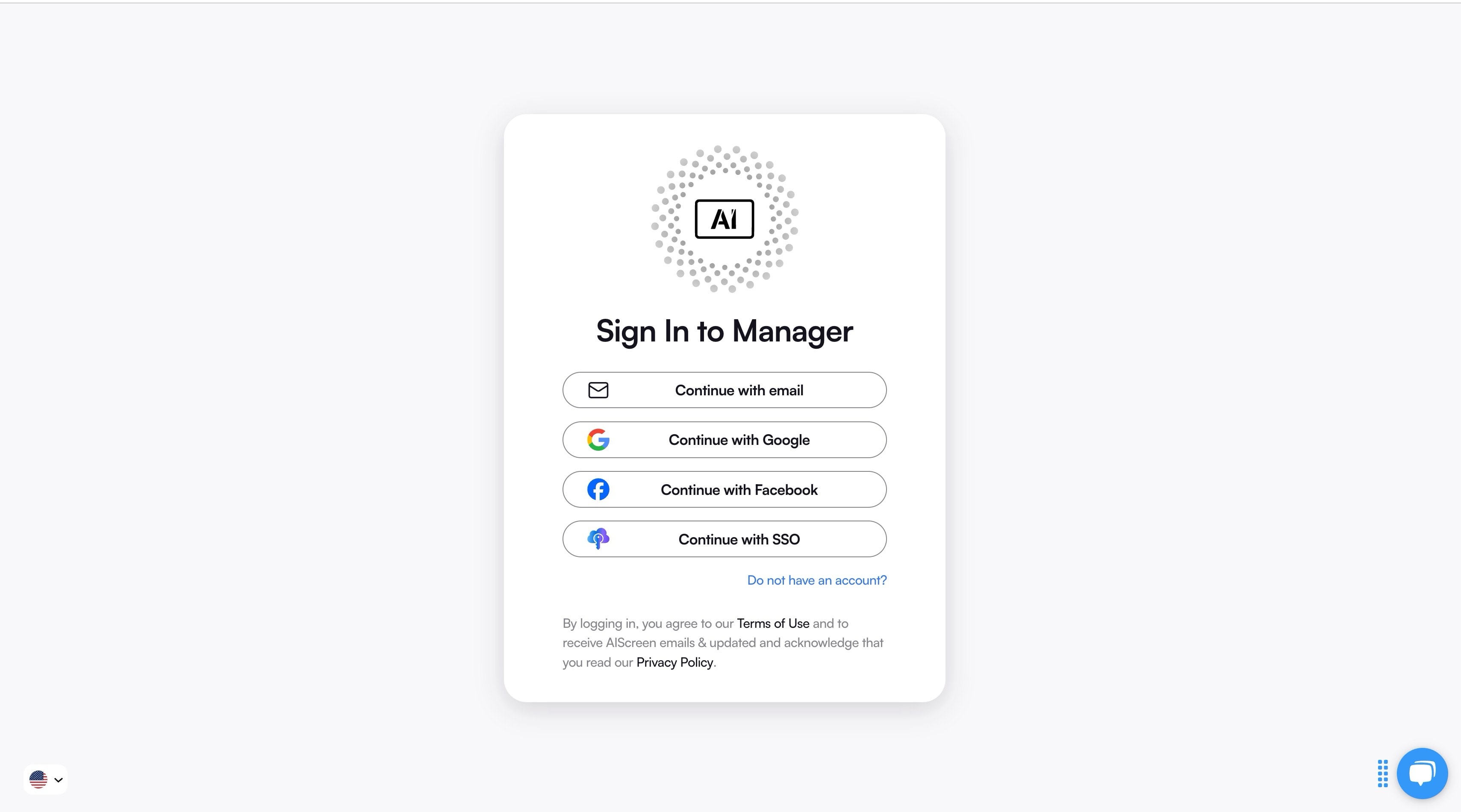
Log in to your account in the digital lobby signage app once you have installed the AIScreen app on your lobby display. Logging in helps to manage your content quickly and easily. Follow the login process for easy access to the app by following the points:
- Open the AIScreen app on your smart TV or device.
- Enter your email and password from your AIScreen account on the login screen.
- Once logged in, you will see a user-friendly interface that lets you effortlessly upload, organize, and schedule your lobby signage content.
- Navigate through simple menus to add new playlists, update messages, or change display settings anytime.
- Your changes sync instantly across connected screens, so your lobby content stays fresh without hassle.
Our platform’s intuitive interface ensures that even first-time users can manage digital signage for lobby spaces like professionals, taking full control of your lobby’s visual communication.
Step 4: Pair Your Lobby Display with the Software
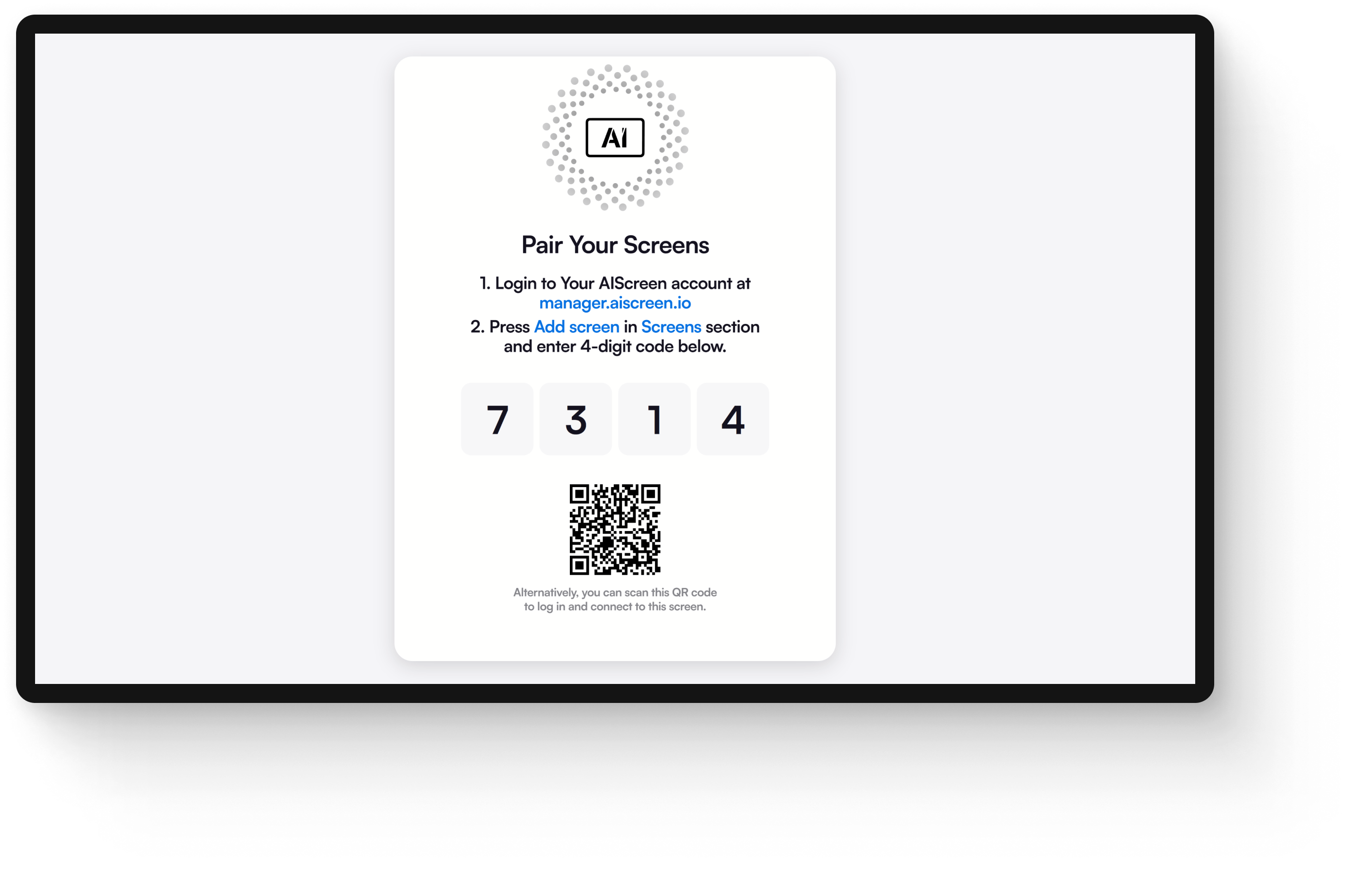
Pairing your lobby display with the digital signage software ensures seamless content delivery and control. Here follows a simple step-by-step guide to get it done realistically:
- Connect your display to the internet via Wi-Fi or Ethernet for stable access.
- Open the AIScreen app on your TV or media player. You will get a 4-digit pairing code that appears on the screen.
- Log in to your AIScreen management dashboard on a computer or mobile device.
- Click “Add Screen” in the dashboard and enter the 4-digit pairing code shown on the display.
- Name your screen for easy identification, and select the screen orientation (horizontal or vertical).
- Confirm and complete pairing by clicking the “Pair” button.
- Test your connection by uploading content and verifying it correctly appears on the display.
Troubleshooting Tips:
- Always make sure that both devices are on the same network for smooth pairing.
- Restart your TV and router if the connection fails.
- Double-check the pairing code to avoid entry errors.
- Update the AIScreen app and software to the latest version for the best compatibility.
With these realistic steps and tips, your lobby display will sync perfectly with the software, enabling real-time remote management.
Step 5: Upload or Customize your Lobby Template
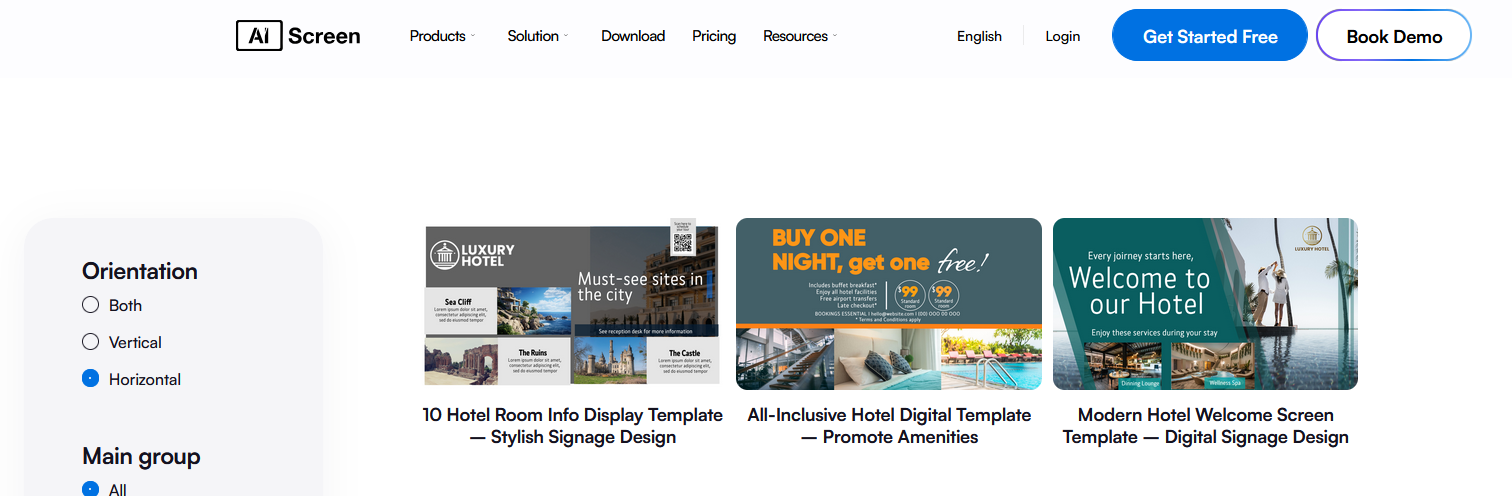
Upload of customize your lobby template with a wide range of ready-made templates and customization options available with us at AIScreen. Here is how to get started realistically:
- Log in to your AIScreen account and open the dashboard.
- Navigate to the “Canvas” or “Template Library” section from the side menu.
- Browse the extensive collection of professionally designed lobby templates we have in stock, tailored for branding, directions, or events, and aim for feedback collection.
- To customize, select a template and click “Use Template”. This opens the template editor to let you maximise capturing attention.
- Upload your brand assets like logos, images, or videos by dragging them into the designated areas.
- Edit text fields to add event details, directions, or welcome messages. Select fonts and colors to match your brand style and the latest trend.
- Preview your design and make adjustments, ensuring all elements are clear and well-placed.
- Save your customized template and assign it to your lobby screen for instant display.
Our customized templates help you save time and maintain a professional look that can be updated effortlessly to keep your lobby messaging fresh and engaging.
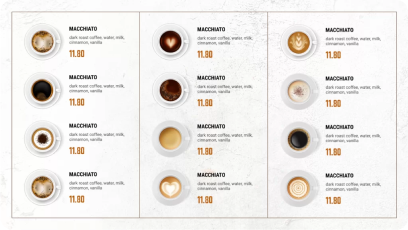
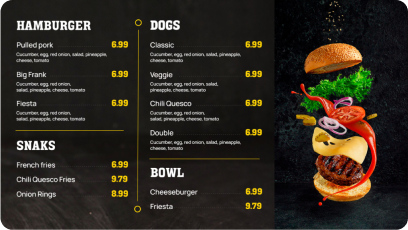
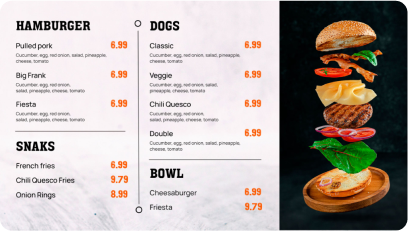
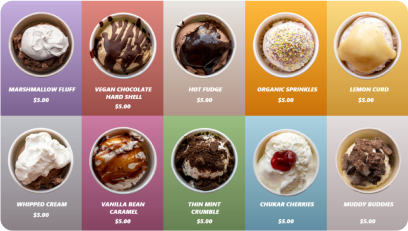
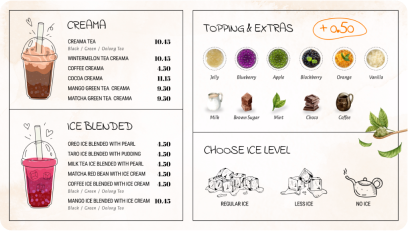
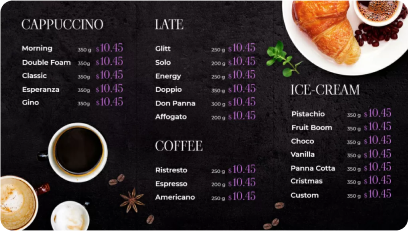
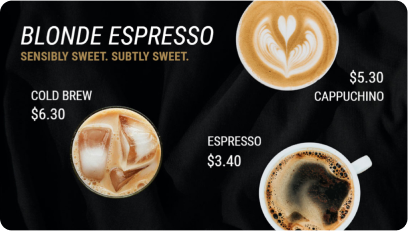
Discover 1500+ customizable digital signage templates
Set Up Digital Signage for Lobby Spaces With 1500+ Templates
Check our templates




Step 6: Create the Playlist and Launch
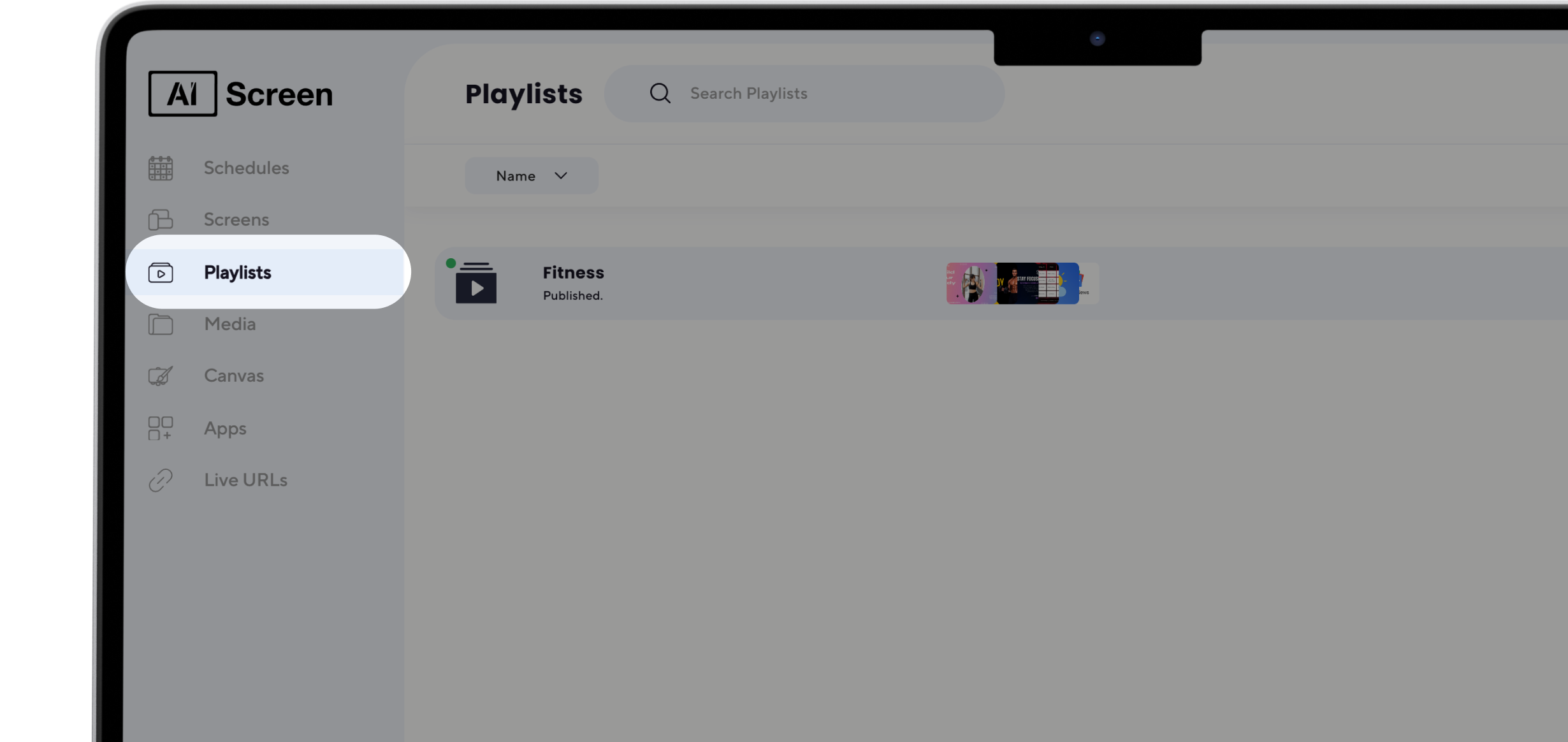
Creating a playlist allows you to organize your lobby content in the form of images, videos, text, and apps into a seamless and rotating display. Follow these practical steps to set the playlist and launch your digital signage display:
- Log in to your AIScreen dashboard and open the “Playlists” section.
- Click on “Create New Playlist” to open the playlist editor.
- Upload media files like logos, event videos, or directional images by dragging them into the playlist area or clicking the upload button.
- Arrange your media in the desired order using drag-and-drop, and set the display duration for each item.
- If needed, add apps or widgets such as clocks, weather, visitor check-in app, or news feeds to complement your signage content.
- Use the “Preview” feature to see how your playlist appears on the screen and make any necessary adjustments.
- Save your playlist and assign it to your screen or digital lobby screens through the device list.
Don’t forget to test your display for readability and visual appeal before finalizing. This ensures that the text sizes are clear from a distance and videos play smoothly. Adjust brightness or content duration if needed for optimal impact.
Once tested, your dynamic lobby playlist will engage visitors with timely and attractive messaging on an automated loop. Many businesses, like outsiders or local businesses, adopt this technology to obtain a massive outcome.
Check out the display schedule to know more about the detailed scheduling options with us at AIScreen.
Improve Your Lobby Experience with AIScreen Digital Signage!
Improve your lobby experience with us at the AIScreen digital signage platform and transform your lobby into a vibrant and engaging space. Designed for businesses of all sizes, our cloud-based digital signage software for lobby spaces offers easy integration with any screen, allowing you to manage your content effortlessly from anywhere.
Whether it is welcoming guests, sharing live updates, or promoting events, our user-friendly platform and customizable templates make it simple to deliver dynamic, real-time messaging that resonates.
With over a massive range of professionally designed templates and ready-made apps, we tailor your signage to perfectly match your brand and audience needs. The real-time updates also mean your lobby content stays fresh, impactful, and responsive to changing priorities.
So, say goodbye to static posters and signs and hello to a modern, interactive lobby experience. It will boost your visitor engagement, reduce wait times, and create a welcoming atmosphere, all with AIScreen.


FAQs
Can I use a regular TV in my lobby for digital signage?
Yes, you can use regular or consumer TV screens as long as they support HDMI input and you pair it with a compatible digital signage player. Commercial-grade TVs are preferred for durability of long operating hours, but many consumer TVs work well for smaller-scale or short-term use.
What content works best for lobby signage?
Content that works best for lobby signage covers welcome messages, building directories, internal communication, social media feeds, current events or announcements, and shares live updates like wait times. Combining images, videos, and dynamic text keeps signage engaging and informative for a variety of visitors.
Can I update lobby signage remotely?
Yes. You can definitely update lobby signage remotely using AIScreen’s cloud-based content management system that allows you to manage and update your lobby displays or multiple digital screens from anywhere in real-time, eliminating the need for on-site changes and ensuring your messages stay current.
Do I need the internet for lobby digital signage to work?
Yes. You would need internet connectivity for lobby digital signage to work for real-time updates, remote content management, branding messages, and dynamic & engaging content like social media feeds and latest company news; whereas, some content can be locally stored and played without internet.
What is the ideal screen size for a lobby display?
The ideal screen size for a lobby display depends on the viewing distance. For close viewing (up to 5 feet), 40-55 inches is ideal for smaller reception areas. Medium distances (up to 9 feet) suit 55-65 inches for office lobbies, and larger spaces requiring long-distance viewing benefit from lobby TV displays 65 + inches for spacious hotel lobbies or corporate offices.
