
How to Set Up In-Store Advertising Digital Signage Software for Brick-and-Mortar Retailers

To set up in-store advertising digital signage software for brick-and-mortar retailers, begin by selecting reliable digital signage software and compatible hardware like screens and media players. Next, craft engaging content, schedule it strategically, and maintain regular updates and performance analysis. A recent report by Forrester shows that companies or stores using digital signage management software experience a 35% boost in communication efficiency, making it essential for scaling a digital signage ecosystem and improving audience engagement.
In this article, you’ll find a step-by-step guide to setting up digital signage software, optimizing advertising content, and launching in-store digital campaigns effectively for retail success.
What is in-store Advertising Digital Signage Software?
In‑store advertising digital signage software is the engine behind your digital displays in retail environments. It empowers brick‑and‑mortar stores to showcase dynamic content, like promos, video walls, digital menu boards, interactive digital kiosks, and vibrant images, across multiple screens with just a few clicks.
A 2022 Statista report shows that over 75% of shoppers say digital signs in stores improve purchase decisions, underlining how digital signage technology enhances customer experience and foot traffic.
This digital signage software enables retailers to manage dynamic content remotely, schedule display screens for targeted promotions, swap static images for animated visuals, and integrate interactive elements like smart mirrors or self‑checkout kiosks.
Whether you’re launching a campaign for impulse buys or showcasing social media feeds on digital billboards inside your store, the right digital signage solution makes setup and control intuitive.
Why Use Digital Signage Software for Brick-and-Mortar Retailers Advertisement

Use digital signage software for brick‑and‑mortar retailer’s advertisement because it transforms retail signage displays into effective sales channels that boost engagement, drive sales, and elevate brand visibility. Research from Harvard Business Review confirms that retail digital signage can increase sales by up to 30% when placed in high‑traffic areas.
By switching from expensive printed posters to a digital signage system, retailers gain flexibility, remote updating capabilities, and real-time content delivery. For example, a clothing retailer might instantly update digital screens with flash‑sale deals, encouraging spontaneous purchases. As one store manager shared:
“Our vibrant displays and interactive touch screens helped us engage customers 24/7, even without sales associates present.” This approach cuts printing costs, supports rich media formats (video, transparent LED displays, interactive digital signage), and adapts to peak foot traffic or holiday promotions on the fly.
Step-by-Step Guide to Setting Up Digital Signage Software for Brick-and-Mortar Retailers Advertising
To setting up digital signage software for brick-and-mortar retailers, advertising involves choosing the right hardware, installing the software, connecting screens, and customizing content to align with your retail advertising goals.
From LED panels to interactive displays, each element must support seamless communication and in-store engagement. By leveraging cloud-based signage solutions, retailers can schedule, update, and manage digital displays remotely across multiple locations.
According to Statista, 59% of retailers reported improved customer engagement and promotional responsiveness after implementing digital signage, showing its powerful impact on advertising performance.
Step 1: Select the Right Display for Brick-and-Mortar Retailers Advertising
Selecting the right display for a brick-and-mortar retailer’s advertising is necessary. According to Statista, the global digital signage software market was valued at $1.3 billion in 2023, underscoring rising demand for scalable, easy-to-use solutions.
For small cafes or offices, consumer TVs like the Insignia™ F30 Series offer basic digital signage functionality. Larger businesses may benefit from the Amazon Fire TV Omni Series, known for its smart capabilities and interactive features. If your TV isn’t smart, integrate a signage media player like AIScreen OS, Raspberry Pi, or Fire TV Stick. There are several types of TV display suitable for digital signage, including:
Insignia™ Class F30 Series LED 4K UHD

- Resolution: 720p HD, clear for menus and visuals
- Smart Features: Built-in Fire TV with Alexa Voice Remote
- Apps & Streaming: Access to 1M+ shows and apps via Alexa
- Price Range: $170 – $299
Amazon Fire TV Omni Series 4K UHD Smart TV

- Display Sizes: 43”–75” 4K UHD LED Display
- Smart Features: Hands-Free Alexa Voice Control
- Video & Audio: HDR10, HLG, Dolby Vision, HDMI eARC
- Connectivity: Multiple USB & HDMI Ports, Bluetooth & Wi-Fi
- Additional: Built-in Fire TV OS, Screen Mirroring, Wall-Mount Compatibility
- Price Range: $299.99 – $1,049.99
Step 2: Install and Set Up the Digital Signage Software
Install and set up digital signage software on your smart TV; you’re setting the stage for a gorgeous, attention-grabbing board. This step of installing digital signage software is your foundation; it’s what makes everything else possible.
Once installed, you’ll have full control over your digital screens. You can easily connect to your digital screen solution using the cloud and manage your content from any device, anywhere you have internet access.
Follow the steps below to get started:
- Visit the app store on your smart TV.
- Type “AIScreen Digital Signage Software” in the search bar.
- Click the “Install” button to download digital signage software.
- Open it, and note the 4-digit pairing code showing on your screen.
Step 3: Create an Account in the Digital Signage Management App

Create an account in the digital signage management app to pair your screen with the cloud-based dashboard for content synchronization.
You can create your account in just two steps:
- Visit the login page on your laptop or computer.
- Sign up by entering your name, email, and password. For quick onboarding, sign up with a Google or Facebook account.
Once signed up, log in to your manager account and explore your web-based dashboard for managing digital signs.
Step 4: Connect and Pair Your Event Devices with the Software

Connect and pair your devices with the software after successfully logging into your manager account, with the menu management application, so that your admins and managers can control your digital signage screens and content remotely.
Here’s the step-by-step guide to pair your display with the software:
- Log in and click “Add Screen” in the dashboard.
- Enter the 4-digit pairing code displayed on your TV screen.
- Name your screen and choose orientation (horizontal or vertical).
- Click the “Pair” button to complete the setup process.
Step 5: Upload and Customize Your Advertising Content Templates
Upload and customize your advertising content templates with AIScreen, which comes with pre-designed, professional templates that are perfect for any place. You can easily customize digital signage templates with your services, pricing, and other things.
Additionally, according to Market Us Scoop, 67% of consumers report frequently purchasing products based on the visual content they see on digital signs. With AIScreen’s Canvas editor, you can edit your content, adjust prices, swap backgrounds, add your logo, and choose fonts that reflect your vibe.
Follow these steps to upload existing signs from your device:
- Go to the “Media” section on your dashboard.
- Click the “Upload” button.
- Select your media file from your device and upload it.
You can easily create content for your digital display with our editor, Canvas. You can customize our professionally designed digital display templates to design digital screens that reflect your branding.
Follow these simple steps to customize your display template:
- Navigate to “Canvas” and select a template you’d like to customize.
- Add images, animations, or videos to your chosen template.
- Incorporate branding elements like your restaurant’s logos, fonts & colors.
- Save your designs or publish them on the screen
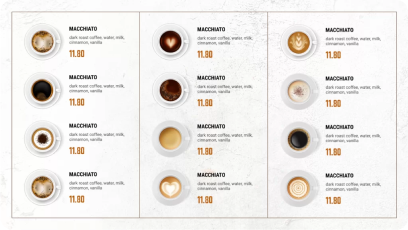
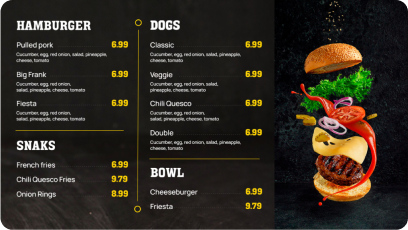
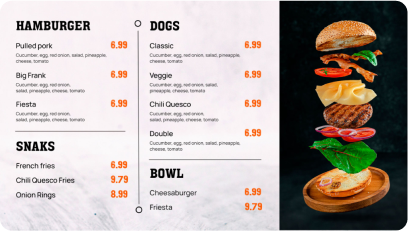
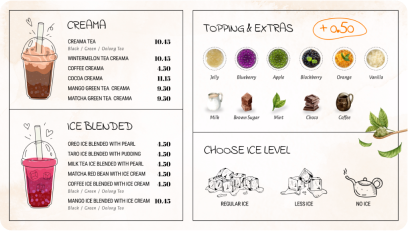
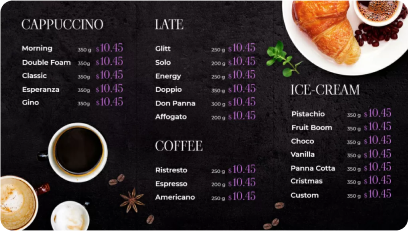
Discover 1500+ customizable digital signage templates
Set Up In-Store Advertising Digital Signage for Brick-and-Mortar Retailers With 1500+ Templates
Check our templates






Step 6: Schedule and Launch Your Content Live

Schedule and launch your content live with AIScreen; you can schedule different services to show at different times. You can create playlists and schedule your content that automatically switches based on time or day.
This ensures your screen always shows relevant, engaging content and helps you promote the right services at the right moment to the right audience.
Here’s how to do it:
- Create a Playlist: Create and upload content to your newly created playlist. Arrange files so that they are displayed in sequential order.
- Create a New Schedule: Next, click on the “Schedule” tab in your dashboard and tap “Create New Schedule” to create a schedule for a specific time slot. You can also check the display schedule guide.
- Add a Playlist to the Schedule: Select the time slot (start date, time, and duration) for the content you want to play automatically. Confirm and add the playlist you want to schedule.
- Assign Devices, Review, and Save: Click “Add Device” to choose the screens or players to slideshow scheduled content. Click “Save,” and it’ll be played at the specified time slot.
Stores operating Chromecast or ChromeOS devices can reference similar publishing processes described in how to set up Google digital signage software, ensuring consistent playback across all in-store screens.
Create Stunning Advertise for Brick-and-Mortar Retailers with AIScreen’s Digital Signage Software
Create stunning advertise for brick-and-mortar retailers with AIScreen’s digital signage software. AIScreen empowers brick-and-mortar retailers to elevate their advertising through dynamic digital signage displays. With just a few clicks, retailers can manage digital signage content across multiple screen displays, enhancing customer engagement and boosting in-store conversions.
Whether it’s interactive touch screens, digital kiosks, or digital menu boards, AIScreen makes it seamless to design, schedule, and deliver content that resonates with today’s shoppers. Enhance your retail digital signage displays with real-time updates, advanced content management systems, and integration support tailored for retail environments. Start transforming your in-store experience with AIScreen’s smart, scalable digital signage system.


Frequently Asked Questions
What are the key features of digital signage software for retail?
The key features of digital signage software for retail include dynamic digital displays, content scheduling, and integrations with retail management systems. It supports interactive elements, real-time updates, and remote access to boost customer engagement in retail stores.
How do I manage content on my in-store digital signage?
To manage content on your in-store digital signage, you use a centralized content management system that allows real-time editing, scheduling, and deployment across digital screens. AIScreen offers cloud-based tools that simplify content workflows for brick-and-mortar stores.
How do I integrate digital signage with my retail management system?
To integrate digital signage with your retail management system, AIScreen provides support for APIs and data syncing across tools. This ensures that promotions, product data, and real-time pricing are reflected instantly on digital signs.
Is it possible to schedule content on digital signage for specific times?
Yes, it is possible to schedule content on digital signage for specific times using AIScreen’s intuitive scheduling features. You can target different audiences throughout the day, adapting messages on your display screens to foot traffic patterns.
How can digital signage improve in-store marketing efforts?
Digital signage improves in-store marketing efforts by delivering engaging, real-time messages via interactive screens and dynamic displays. It helps engage customers, promote high-margin products, and guide shoppers with self-checkout kiosks or smart mirrors.
