
How to Set Up a Flying Screen With Digital Signage

To set up a flying screen with digital signage, you begin by suspending a flying screen display from above, creating a floating visual experience. This setup enhances digital signage in high‑traffic areas like airports, shopping malls, and event venues. Flying screens help grab attention by hovering in sight lines where traditional floor or video walls displays can’t reach, while digital signage software ensures seamless content delivery and control. According to a report by Digital Signage Today, well-placed digital displays can boost recall by up to 60% and improve wayfinding engagement.
In this blog, we provide a step‑by‑step setup guide and visibility optimization tips for flying screen installations. We’ll explain how to position your screens, manage digital signage content, and remotely control the operating systems for ongoing updates.
What Is a Flying Screen In Digital Signage Display?

A flying screen in digital signage display is an ultra-lightweight, transparent LED display designed to be carried by drones or other aerial platforms so it can show videos, images, and text in mid-air. The flexible, ultra-light components of flying screens reduce the danger of heavy objects falling. According to Statista (2023), 59% of retailers using digital signs saw improved customer engagement and quicker promotional responses.
What makes a flying screen valuable in digital signage is that it turns the sky into a visible communication surface while still supporting the core strengths of digital signage network, such as multimedia playback, remote content updates, and live messaging. For setup guidance, you can follow how to set up digital signage for step by step guide to setting up digital signage displays to manage or create dynamic content effectively.
Why Business Should Choose Flying Screen?
Business should choose flying screen because it creates higher visibility, stronger engagement, and more dynamic outdoor communication than a fixed ground display can usually provide. Public safety messages can be displayed rapidly using flying screens during emergencies, such as evacuation orders or traffic directions. According to Research and Markets, the global drone light shows market is projected to grow from USD 3.1 billion in 2021 to USD 26.4 billion by 2031, at a 23.9% CAGR.
Flying screen provide dynamic branding opportunities at public spaces which helps businesses to maximize brand exposure during events. Drone-mounted LED screens can be used for dynamic scoreboards or showing instant replays in sports venues.
How to Set Up a Flying Screen for Maximum Impact?
To set up a flying screen for maximum impact start by selecting the appropriate digital signage hardware and paid or free digital signage software. Choose digital screens or LED digital displays that offer strong computing power, high brightness, and support for real-time updates to display critical information like flight information, boarding times, and dining options.
Step 1: Choose the Right Flying Screen

Choose the right flying screen by selecting a lightweight suspended display that fits the venue height, viewing distance, load requirements, and content goals.
Step 2: Choose the Mounting & Suspension System
Choose the mounting & suspension system to ensure safety and improve efficiency, selecting the right mounting system is essential when setting up a digital sign. Whether you opt for cables, poles, or frames, your digital signage must be secure and stable. Our digital signage solutions include heavy-duty mounts designed for all display size, ideal for small businesses or enterprise-level needs.
Step 3: Install and Set Up Digital Signage Software
Install and set up the digital signage software by opening the app store on your smart TV, searching for AIScreen Digital Signage Software, and clicking Install to download it. After the installation finishes, open the app and note the 4-digit pairing code displayed on the screen, because you will use that code to connect the display to your signage account in the next step.
Once installed, you’ll have full control over your digital screens.
Step 4: Create an Account in the Digital Signage Management App

Create an account in the digital signage management app to pair your screen with the cloud-based dashboard for content synchronization.
You can create your account in just two steps:
- Visit the login page on your laptop or computer.
- Sign up by entering your name, email, and password. For quick onboarding, sign up with a Google or Facebook account.
Once signed up, log in to your manager account and explore your web-based dashboard for managing digital signs.
Step 5: Pair your Device with the Software

Pair your device with the software by logging in to the dashboard and clicking Add Screen, then entering the 4-digit pairing code shown on your TV screen. After that, name your screen, choose the correct orientation as horizontal or vertical, and click Pair to complete the setup process.
Step 6: Customize Content Template for Aerial Viewing

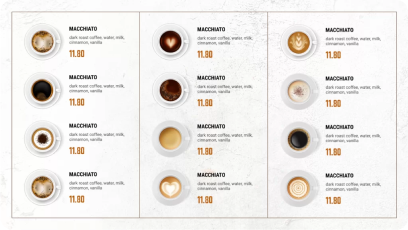
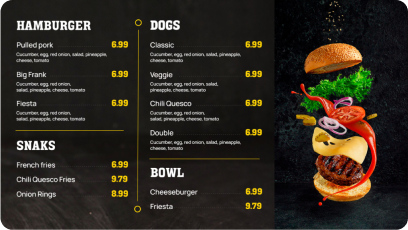
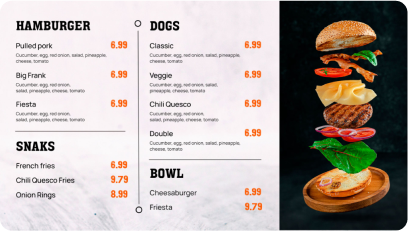
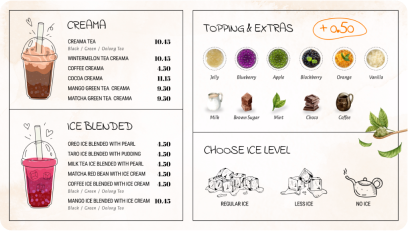
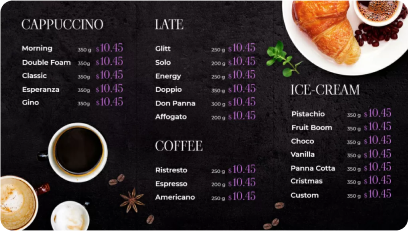
Customize content template for aerial viewing with AIScreen, which comes with pre-designed, professional templates that are perfect for any place. You can easily customized templates with your services, pricing, and other things.
Discover 1500+ customizable digital signage templates
Set Up a Flying Screen With Digital Signage With 1500+ Templates
Check our templates






Step 7: Set Up the Display Schedule and Launch

Set up the display schedule and launch your content live with AIScreen; you can schedule different services to show at different times. You can create playlists and setup display schedule for dynamic content that automatically switches based on time or day.
This ensures your screen always shows relevant, engaging content and helps you promote the right services at the right moment to the right audience.
Here’s how to do it:
- Create a Playlist: Upload your content and organize it in the desired sequence so it plays in the correct order.
- Create a New Schedule: Go to the Schedule tab in your dashboard and click create new schedule to define a specific time slot for your content.
- Add Playlist to the Schedule: Select the start date, time, and duration, then assign the playlist you want to run automatically during that time.
- Assign Devices, Review, and Save: Click Add Device to select the screens or players, review your setup, and save to apply the schedule.
How to Manage Flying Screen Content Across Multiple Displays
To manage flying screen content across multiple displays use a digital signage software platform and content management system that controls the full digital signage network, schedules dynamic content, and synchronizes playback across as many screens as the setup requires. According to Grand View Research customized multi-screen signage solutions growing the market to $45.33B by 2030 (7.7% CAGR), proving content success across multiple displays.
A strong flying display setup works when the software, hardware, and media are aligned with the display size, content purpose, and business goals for each display. That makes it easier to create dynamic campaigns, update images, videos, and advertisements, and deliver a consistent viewer experience across digital displays, video walls, kiosks, and other signage solutions used across various industries.
How Can Multi-Monitor Tools Improve Flying Screen Content Control?
Multi-monitor tools improve flying screen content control by improving the operator-side workflow, not by directly controlling the flying screen itself. They help operators keep the CMS, preview window, and live monitoring tools on separate monitors so content changes, scheduling tasks, and playback checks can be handled faster and with fewer mistakes. The actual content shown on the flying screen is still managed through the signage platform, media player, or video controller.
For teams comparing workstation setup options, reviewing the best multi monitor tools software for productivity can help identify which tools are most useful for preview control, window organization, and faster content operations across multiple screens.
Flying Screen Setups That Deliver Stronger Display Performance
A strong flying screen setup depends on choosing the right display, using the correct mounting system, setting up the digital signage software properly, and managing content in a way that fits aerial viewing and multi-display coordination. When those parts work together, businesses can improve visibility, keep messages consistent, and deliver clearer content across high-traffic environments.
AIScreen supports that performance by giving businesses a centralized digital signage software platform to schedule content, pair devices, manage multiple displays, and publish updates from one place. That makes it easier to keep flying screen content aligned across screens, maintain display consistency, and turn a flying display setup into a more practical tool for communication, advertising, and audience engagement. Get stronger flying screen display performance with AIScreen today!


FAQs
What is the maximum screen size recommended for a flying digital sign?
The maximum screen size recommended for a flying digital sign ranges between 55 to 65 inches. This ensures safety, balance, and optimal visibility from various angles. Lightweight LED screens are usually preferred for suspended displays.
Is it safe to hang digital signage from ceilings?
Yes, hanging digital signage from ceilings is safe when proper mounting systems and certified hardware are used. It’s crucial to follow weight guidelines and consult professionals for secure installation. Regular safety inspections also help prevent potential hazards.
Can I control multiple flying screens remotely?
Yes, controlling multiple flying screens remotely is entirely possible using cloud-based digital signage software with intuitive interface. This allows for synchronized content scheduling, real-time updates, and seamless management. It’s especially useful for large-scale campaigns or retail stores chains.
What content formats are supported on flying screens?
Content formats that are supported on flying screens include video files (MP4, MOV), images (JPEG, PNG), HTML5, and even live data feeds. Most digital signage systems ensure compatibility with popular multimedia formats. Always check software specifications for best performance.
Do I need special permission to install flying signage in commercial spaces?
Yes, you need permission to install flying signage in commercial spaces from the property owner or landlord, and you may also need local sign, building, or fire-safety approval depending on how the sign is suspended, where it is installed, and whether it affects egress, accessibility, or electrical work
