
How to Turn TV into Digital Signage?
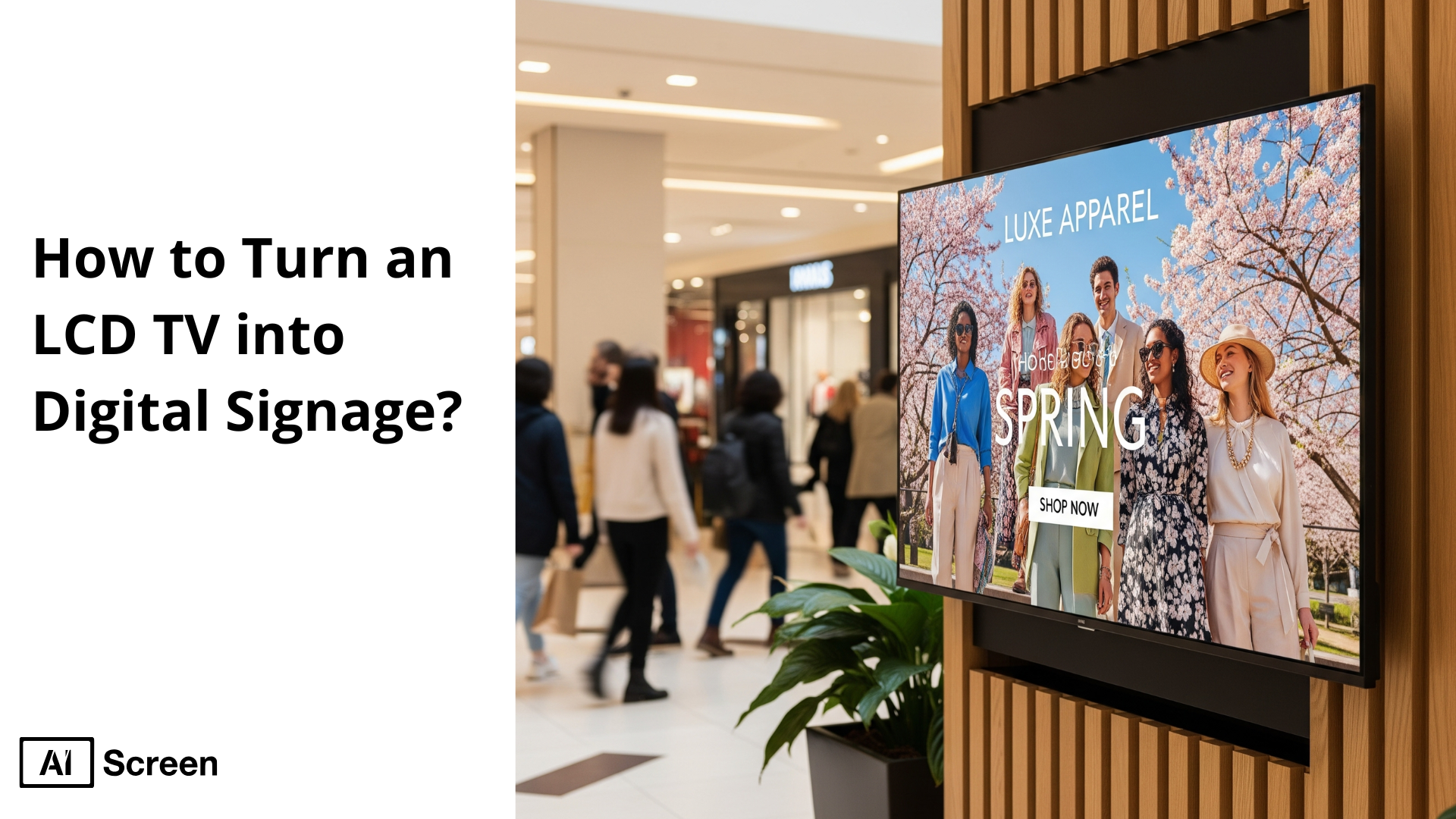
To turn an LCD TV into digital signage, you should connect it to a digital signage media player (such as AIScreen OS, Chromecast, Amazon Fire Stick, or a specific media player) and install digital signage software while maintaining remote content management. Smart TVs often include built-in web browsers together with app stores, which enable users to directly install signage apps, thus simplifying the process. The digital signage market shows rapid growth, as Grand View Research indicates it will reach $45.9 billion by 2030, while over 67% of present users plan to expand their digital out-of-home advertising investments over the next years.
This article presents step-by-step instructions to convert any LCD TV screen into an operational digital signage display while providing evidence from recent research about its effectiveness and return on investment. Businesses implement digital signage on their existing TVs to showcase products, ensure better indoor and outdoor displays, improve customer connections, engage audiences, and strengthen brand visibility while driving increased sales. After all, brands convey information better with digital signage and achieve sales growth up to 33% after adopting digital signage, as Fugo.ai reports.
What Is Digital Signage?
Digital signage refers to a powerful communication tool that uses TVs and monitors to show real-time, dynamic content, including images, videos, text, and interactive media. Many businesses achieve this through TV digital signage software, which enables remote content management, scheduling, and automated updates across multiple screens. The current digital signage technology operates in retail stores, hospitality businesses, corporate buildings, transportation centers, and public spaces by delivering instant updates for product promotion alongside customer engagement improvement.
DigitalSignageToday’s studies demonstrate that digital signage surpasses traditional posters in visibility since it attracts 400% more viewership and generates 48% higher brand recognition. Hence, the technology helps businesses distribute focused information and fast trend responses while creating immersive customer connections.
Can You Use an TV for Digital Signage?
Yes, we can use LCD TVs for digital signage as they offer affordability along with versatility and broad market availability that a business needs. The conversion process for signage purposes requires only the regular TV to be connected to an external media player. LCD signage offers much brighter displays while supporting content delivery of static images with more interactive elements through to HD video, social media feeds, and real-time updates.
Digital signage solutions that use LCD TVs provide more cost-effective solutions than commercial-grade signage screens, enabling small businesses and budget-limited organizations to implement these solutions. LCD TVs work well for most indoor applications when correctly placed and run after you choose digital signage software, despite being intended for shorter usage in brighter settings.
What Equipment Do You Need to Use a TV for Digital Signage?
The equipment you need to use an LCD TV for digital signage includes digital signage display screens, media players, mounts or stands, and digital signage software. All components within your digital signage network play essential roles to create an integrated, scalable, and affordable solution that benefits small businesses and large organizations.
Digital Signage Display: Digital signage display is the core visual element that is typically a standard LCD TV or a smart TV screen. The use of LCD TVs from different brands provides affordable opportunities for making powerful visual communications. The smart TV brands provide screens to ensure brilliant visuals while being available in multiple sizes to match different environments and support 4K resolution. The modern LCD TVs provide flexible digital signage capabilities through their multiple HDMI cables and USB ports, as well as built-in Wi-Fi features. You should choose displays with high nits brightness for high-traffic areas under bright daylight conditions, since this ensures your messages will remain visible to the audience.
Media Players: A media player acts as the essential bridge between LCD TV systems and digital signage software. It can operate through AIScreen OS, Chromecast, Amazon Fire Stick, or any other compatible device. If you’re exploring higher-end streaming hardware, understanding what is Apple TV for digital signage can help you determine whether Apple’s ecosystem is a good fit for your deployment.
The media player serves as the core operating system layer, enabling signage software applications to run through its HDMI connection to your TV. It also manages the internet connection—via Wi-Fi, Ethernet, or 4G/LTE—to support centralized control, strong network security, and remote troubleshooting across multiple screens and locations.
Mounts or Stands: Mounts or stands are the frequently overlooked equipment, but they constitute an essential part of the digital signage systems. Digital signage screens find their perfect visibility position through wall mounts, ceiling mounts, and display stands, which are used to place them at strategic heights, such as menu board level in retail stores and public areas, and side-by-side video wall configurations. Commercial-grade mounts provide safety features and extend product lifespan by stopping accidental drops and creating clean cable arrangements for standard TV installations and sophisticated digital signage displays.
Content Management Software like AIScreen: Content management software like AIScreen facilitates successful signage deployment using powerful digital signage technology. AIScreen’s content management system provides users with tools to upload content, schedule displays, monitor them, and access design templates from anywhere. The software functions either through an external media player or can be directly installed on compatible smart TVs through the Google Play Store and built-in browsers. Through this software, users can easily manage content across various screens, and the best part is, they can implement quick campaign deployment with delivering real-time updates, scheduling and complete analytics features. Selecting appropriate signage software stands as an essential requirement for making dynamic content, network management, and delivering a smooth viewing experience to your audience.
If you are working with a smart TV, you may not need an external digital signage player or other devices. A smart TV can often run signage software via its built-in browsers or app stores as input options. To learn more, see can a smart TV be used for digital signage?.
How to Turn Your TV into Digital Signage: 7 Steps
To convert your LCD TV into digital signage, you should follow some necessary steps, from choosing the right TV, installing the software, to signing up for the right management app, scheduling content, and finally going live. A simple process to convert your LCD TV into a digital signage display elevates your business communication methods. It is cost-efficient and ensures audience engagement while providing dynamic content updates, remote management features, and a brighter display than traditional static signs. AIScreen transforms your LCD TV into a digital signage display through an optimization approach that reduces upfront costs while providing flexible content management and scalable network capabilities. Each necessary step to configure AIScreen digital signage software is explained in detail in this guide.
Step 1: Choose the Right LCD TV
Choose the right LCD TV that requires attention to screen size based on viewing distance and resolution choice between Full HD (1080p) or 4K for clear images, and brightness measured in nits for both indoor and outdoor displays and applications. Check that your TV has two essential input features, which include at least one HDMI port for media player connection and extra USB ports for external digital signage devices or potential future additions.
Step 2: Connect the LCD TV to a Media Player
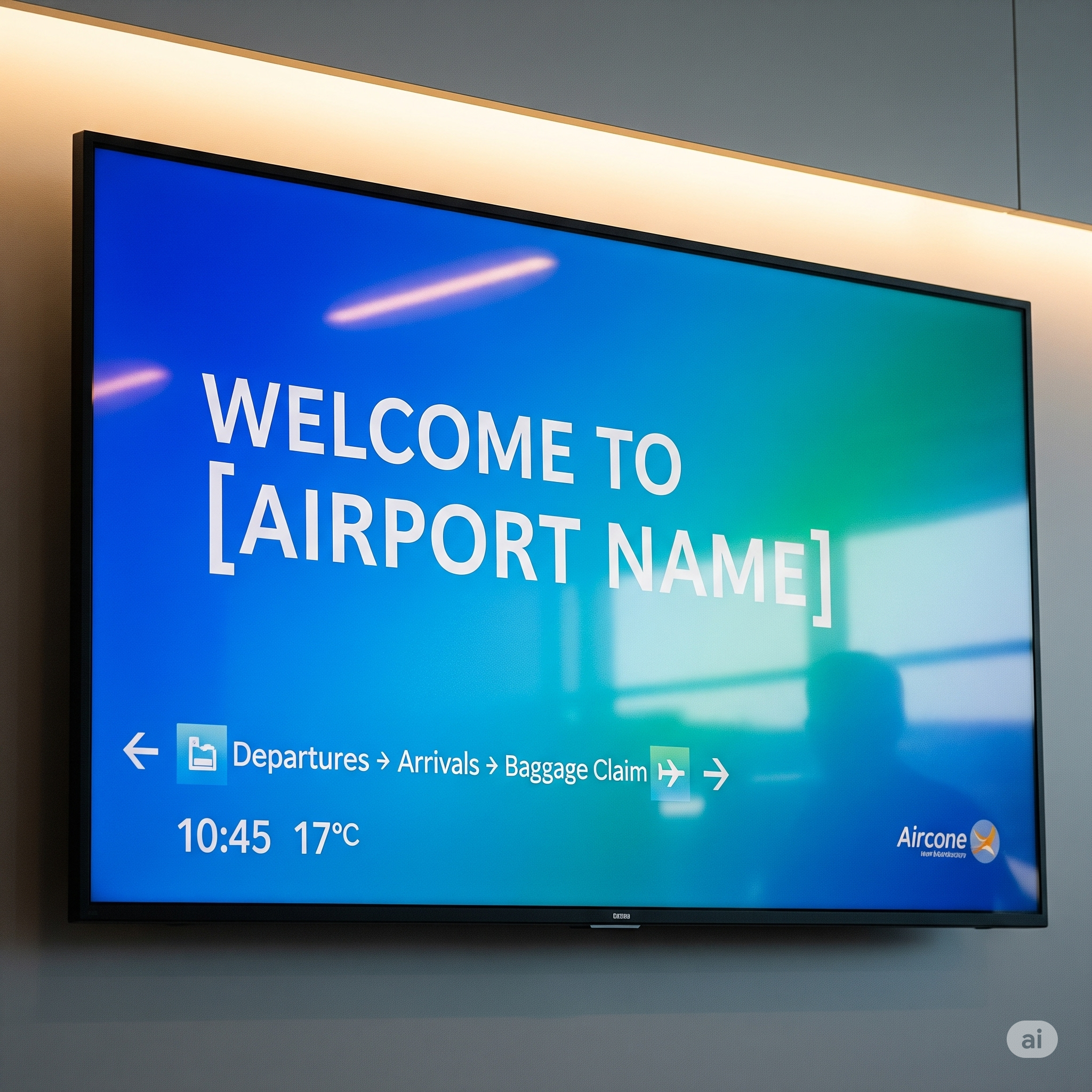
Connect the LCD TV to a media player that could be a Chromecast, Amazon Fire TV Stick, or other streaming devices. The media player setup and other digital signage players connected through HDMI work for standard TVs and devices without built-in smart functionality.
The display device needs to share the same Wi-Fi network as the player to establish seamless connections for content downloads and remote control functions. Smart TV users can bypass this step because their devices can access app stores or download apps directly, so they should move on to software installation.
Step 3: Install and Set Up Digital Signage Software
Install and set up digital signage software by downloading the AIScreen app directly on Android, Fire TV, Windows-based media players from their respective app stores, or download it from the AIScreen website. For smart TV users, navigate to the built-in app store, then search “AIScreen Digital Signage Software” before tapping “download” to download digital signage software by AIScreen.
Open the AIScreen app on your device. The 4-digit pairing code becomes visible for display. Review the AIScreen system requirements by ensuring your device has a stable internet connection and it matches one of the compatible operating systems (Android, Fire OS, Windows, or webOS) for a seamless experience, along with enough storage capacity.
The application launch may require troubleshooting checks for software updates and network connection verification between all hardware components that share either Wi-Fi or Ethernet connectivity. Users can resolve issues by restarting devices, updating operating systems, and clearing app caches when necessary.
Step 4: Sign Up with the Digital Signage Management App
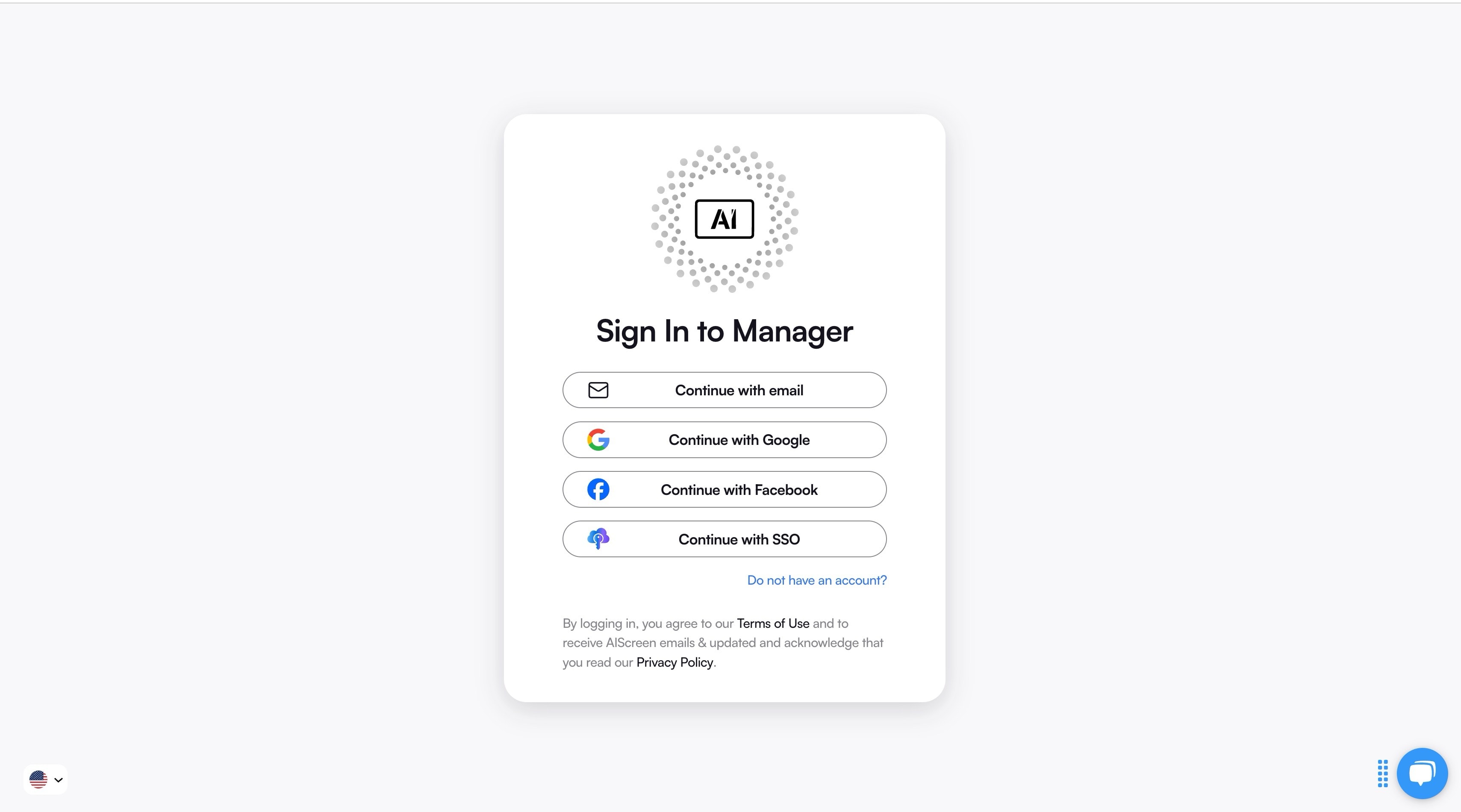
Sign up with AIScreen’s digital signage management app through any laptop, desktop, or tablet device. Create your AIScreen account by providing your business name, email, and choosing a secure password during the registration process. The registration process provides fast access through Google or Facebook account connections.
The registration process leads users to access the cloud-based Content Management System dashboard. This system’s interface allows users to perform remote content uploads, schedule digital signage displays, and manage content in real time.
Step 5: Pair Your Device with the Software
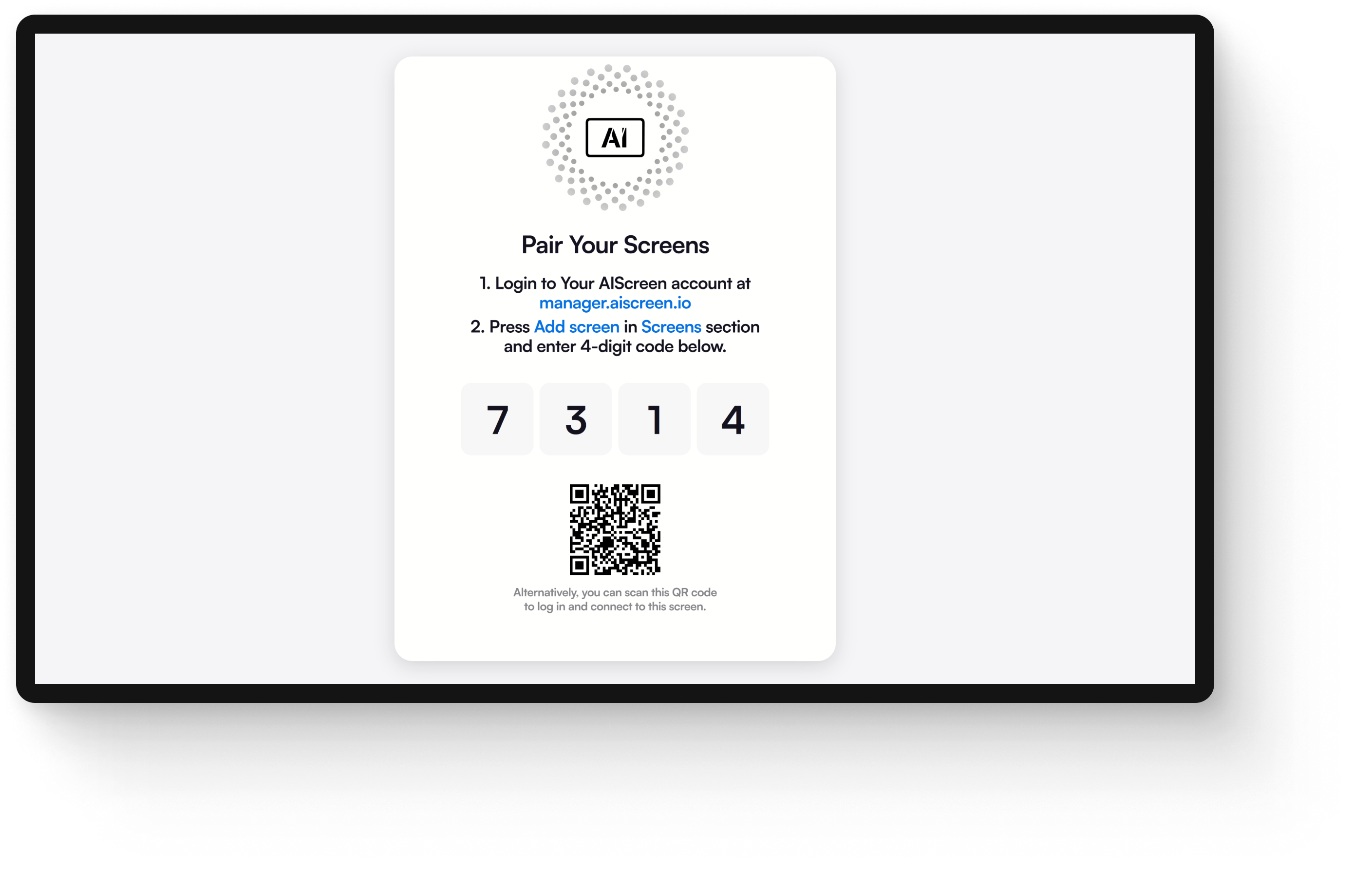
Pair your device with the software using the 4-digit pairing code, which appears on your TV or device screen, to access the web CMS dashboard. You need to give your display a name and set its location during this process, as it is important when you are managing multiple screens in complex digital signage systems.
Right after setting up the screen playback, you should immediately check that the pairing operation was successful and content streaming functions properly. The troubleshooting process requires users to have strong network connectivity between the devices and the TV. Check the cable connections before you start using the device. Users should update both app and OS versions and perform a factory reset as their final option when troubling issues persist.
Step 6: Upload or Customize Your Template
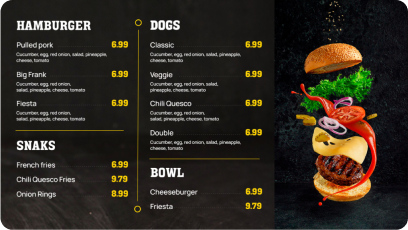
Upload or customize template using your original digital signage content, such as menu boards, ads, or promotions. AIScreen provides a large collection of digital signage templates. These are well optimized for readability and visual impact.
The pre-made templates require modification for color, text, and image adjustment, as well as scheduling and branding changes to meet your campaign needs using interactive content. The templates include dynamic capabilities that support real-time data integration alongside multimedia elements such as images, videos, and animated text with interactive call-to-action functionality.
Discover 1500+ customizable digital signage templates
Turn an LCD TV into Digital Signage With 1500+ Templates
Check our templates










Step 7: Set Up the Display Schedule and Go Live
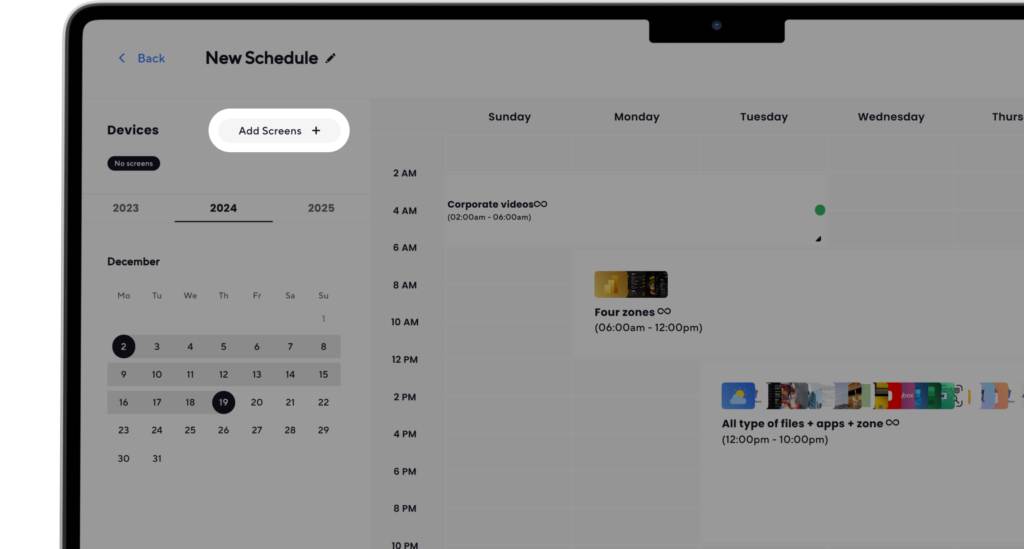
Set up display schedule and go live using drag-and-drop scheduling for setting content rotation times. Also, set the campaign windows and playlists based on time of day, promotional periods, and business hours. Businesses operating in multiple locations can assign separate display schedules to their individual screens or screen groups.
Press the “Go Live” button to start monitoring system performance. The AIScreen system allows immediate content updates and automatic fail-safes for internet outages, utilizing offline playback and analytics reporting to track content performance without much technical specifications.
How to Create Digital Signage Multimedia?
To create digital signage multimedia, you can use AIScreen digital signage software to display attractive content on your business TV. You should use interactive elements like striking call-to-action texts, videos, graphics, and interesting templates. The success of your digital signage majorly depends on creating multimedia content that effectively communicates to audiences. Bright visual elements with short messages, video, and animated elements help users notice the content. Prioritize readability (large, bold fonts) and brand consistency.
A combination of images with text and video content will deliver the highest level of audience engagement, which seems restricted in the case of traditional signage. Display short videos or motion graphics to enhance viewer engagement because 80% of digital signage viewers watch video content compared to 20% who view text displays, as DigitalSignageToday affirms.
Every screen goes through some pre-design templates to bring forward your brand identity. The digital signage platform enables users to initiate interactions while simultaneously guiding customers toward physical locations using engaging prompts like “Visit our new collection” and “Scan for discount”. A successful digital signage strategy needs regular content updates alongside real-time data integration (weather and news) and audience and environmental adjustments for maximum impact.
Turn Your TV into Digital Signage with AIScreen!
Turn your TV into digital signage with AIScreen, using AIScreen-empowered versatile signage tools facilitating real-time updates, an intuitive interface, scalable pricing, and exceptional customer service. Businesses across the retail, education, and hospitality industries trust AIScreen for their wide digital signage network, ability to streamline communications, and boost engagement with ease. So, get started and discover how AIScreen can modernize your space.


FAQs
Can any LCD TV be used as a digital signage screen?
Yes, LCD TVs can definitely be used as a digital signage screen, especially when they get paired with an external digital signage player and compatible software. The aim remains to display real-time information and engage your targeted audience.
What’s the difference between a TV and a commercial signage display?
The difference between a TV and a commercial signage display is that commercial signage displays are engineered for longer run times, brighter displays, and durability. Standard TVs are cost-effective but may have lower brightness and are not intended for 24/7 use.
Which software works best to turn my TV into a signage system?
The software that works best to turn your TV into a signage system is AIScreen. It offers a range of features for scheduling, remote troubleshooting, and template design to let your digital signage be perfectly displayed in multiple locations.
Can I display content offline using my TV as signage?
Yes, you can display content offline using your TV as signage, as many digital signage solutions allow for offline playback once the content is downloaded to the media player, which is ideal for locations with poor internet connectivity.
Is there a free way to test digital signage on my TV?
Yes, there is a free way to test digital signage on your TV, as some providers offer free trials or open-source digital signage software. This allows you to experiment before committing to a paid plan.
