
How to Set Up Zoom Room Digital Signage
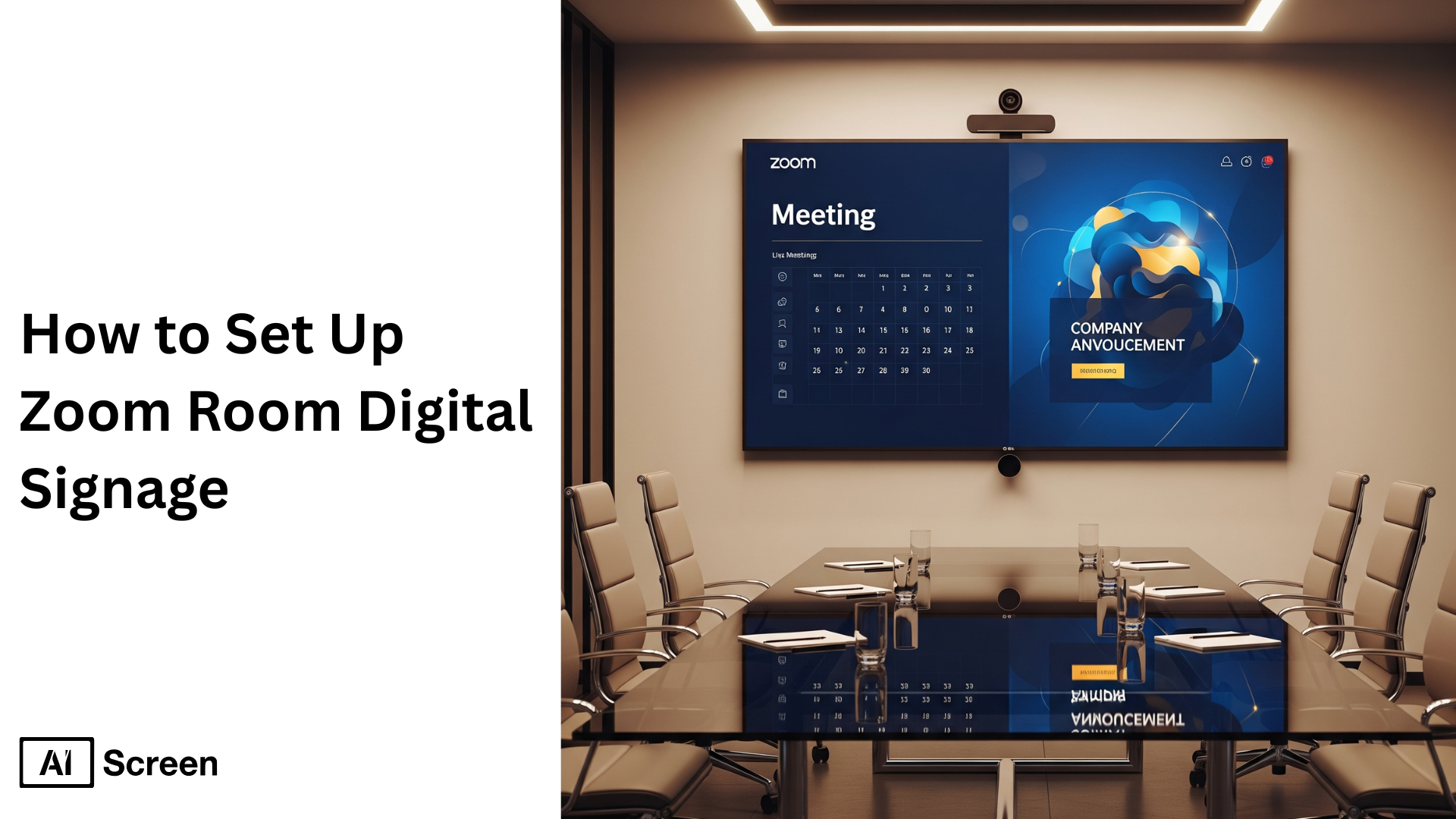
Setting up Zoom Room digital signage is straightforward and effective. Start by creating a Zoom Room dedicated to signage, configure its settings, and then upload and manage the content you want to display. Use the Zoom web portal to create a “Digital Signage Only” room and select content from images, videos, or Zoom Asset wallboards. You can also add an external video streaming service, integrate Zoom meetings, or pull from the default content list.
In this blog, you’ll learn how to integrate Zoom Rooms with AIScreen step by step. Discover how to manage content, schedule playlists, and display messages across all your organization’s screens. With this setup, your meeting rooms won’t just host meetings, they’ll share announcements, brand messages, and important updates seamlessly.
What Is Zoom Room Digital Signage?
Zoom room digital signage screens can display meeting schedules, announcements, or dynamic content directly within Zoom Room screen setups. So, if you’ve ever thought, “Couldn’t this display do more than just show video meetings?” So, yes, it can do it all, but how?.
Within the Zoom web portal, the admin will click on Room Management, navigate to account settings, and toggle on the digital signage tab. From there, you can upload images, stream external video, or publish playlists through the content library. Want a display next to the location of your meeting room? Just select Zoom Rooms from the left side hierarchy, choose the room name, define the display period, and click publish.
By using Zoom Room digital signage software, your Zoom account becomes more than a video streaming service; it becomes a centralized system for communication, scheduling displays, and sharing content across several locations. Wouldn’t it be smarter if every shared space could deliver both collaboration and information at the same time?
What Problems Does Zoom Room Digital Signage Solve?
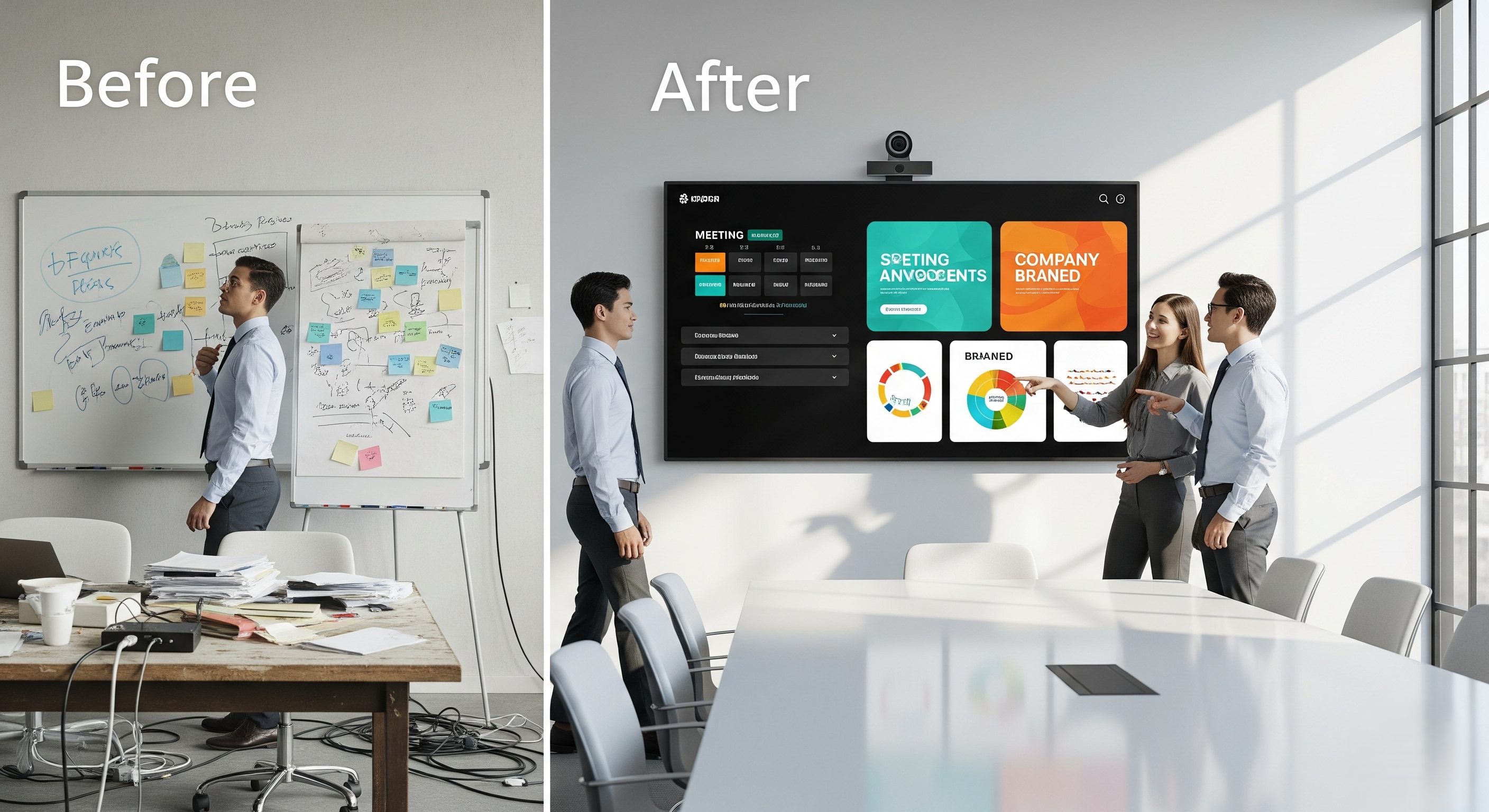
Have you ever walked into a meeting space that felt cluttered, confusing, or just plain outdated? That’s the exact problem Zoom Room digital signage is designed to solve. By turning every Zoom Rooms screen into a digital communication hub, it eliminates mess, improves efficiency, and helps your brand shine.
Here’s how Zoom digital signage makes a difference:
- Cluttered meeting spaces: No more bulletin boards and sticky notes scattered around. With Zoom, everything is digital. Admins can use the Zoom account to upload images, share images, or schedule playlists so that content appears neatly on your signage display, keeping the workspace polished.
- Inefficient communication: Last-minute changes to meetings or rooms? Without signage, they get lost in the shuffle. With Zoom, you can click add item, use the edit button, and schedule playlists that show the correct room name, scheduled meeting details, floor name, or even room type menu, all in real time.
- Branding challenges: Standard whiteboards don’t reflect who you are. With Zoom digital signage content, you can upload images, drag files, or create playlists that integrate your HQ icon, branded video, or logos into each display across several locations.
By solving these pain points, Zoom Rooms digital signage makes every shared space, scheduled meeting, and individual room more valuable. From one dashboard, admins can click Room Management, enable the digital signage toggle, edit access, or publish playlists from the content library. With just a few clicks, add content, click finish, and you transform messy, underused screens into smart, professional communication tools.
How to Set Up Zoom Room Digital Signage: Steps to Follow
To set up Zoom Room digital signage effectively and efficiently, follow the steps given below. This structured approach ensures your digital signage system is stable, secure, and optimized for long-term success. From server installation to display calibration, the process covers both hardware and software readiness, making your deployment smooth and reliable.
But which software would be the best fit for powering your Zoom digital signage? That question often comes up when businesses compare the best digital signage software companies for single screen use and look for a platform that is simple to manage. That is where AIScreen.io stands out, offering a cloud-based solution with the tools needed to manage, schedule, and update content effortlessly.
Step 1: Choose the Right Display for Your Zoom Room
The first step in setting up Zoom Room digital signage is choosing the right display, but how do you know which screen truly fits your space and content goals? The answer depends on your environment and the kind of impact you want to create.
According to Statista, the global digital signage software market was valued at $1.3 billion in 2023, proving that businesses everywhere are investing in scalable, easy-to-use display solutions. For small offices, consumer displays like the Insignia F30 Series deliver basic digital signage functionality. Larger setups may benefit from the Amazon Fire TV Omni Series, which comes with smart capabilities and interactive features.
And if your display isn’t smart? No problem. You can always pair it with a signage media player such as AIScreen OS, Raspberry Pi, or Fire TV Stick to unlock advanced digital signage functions.
There are several types of TV displays suitable for digital signage, including:
Insignia™ Class F30 Series LED 4K UHD

- Resolution: 720p HD, clear for menus and visuals
- Smart Features: Built-in Fire TV with Alexa Voice Remote
- Apps & Streaming: Access to 1M+ shows and apps via Alexa
- Price Range: $170 – $299
Amazon Fire TV Omni Series 4K UHD Smart TV

- Display Sizes: 43”–75” 4K UHD LED Display
- Smart Features: Hands-Free Alexa Voice Control
- Video & Audio: HDR10, HLG, Dolby Vision, HDMI eARC
- Connectivity: Multiple USB & HDMI Ports, Bluetooth & Wi-Fi
- Additional: Built-in Fire TV OS, Screen Mirroring, Wall-Mount Compatibility
- Price Range: $299.99 – $1,049.99
Step 2: Download Digital Signage Software
Once you’ve picked the right display, the next step is clear, but which software should you trust to power it? The answer is to download software, because this is the foundation that makes everything else possible. Without it, your screen is just a screen. With it, you set the stage for a stunning, attention-grabbing board.
After installation, you gain full control over your digital screens. You can connect through the cloud, update content instantly, and manage everything from any device with internet access, whether you’re at the office or on the go.
Follow the steps below to get started:
- Visit the App Store on your smart TV.
- Type “AIScreen Digital Signage Software” in the search bar.
- Click the “Install” button to download the AIScreen App.
- Open it, and note the 4-digit pairing code showing on your screen
Step 3: Create an Account on the AIScreen Management Platform

Now that your software is installed, it’s time to unlock the real magic, create an account on the AIScreen.io management platform. But how do you make that connection seamless? By creating an account on the AIScreen Management Platform. This step ensures your screens and content stay perfectly synchronized, no matter where you manage them from.
You can create your account in just two steps:
- Visit the login page on your laptop or computer.
- Sign up by entering your name, email, and password. For quick onboarding, sign up with a Google or Facebook account.
Once signed up, log in to your manager account and explore your web-based dashboard for managing digital signs
Step 4: Pair Your Zoom Room Screen with AIScreen

After logging into your manager account, it’s time to connect your Zoom Room screen with AIScreen. This simple pairing step ensures your admins and managers can control digital signage screens and content remotely, all from one centralized platform. Think of it like connecting your phone to Bluetooth speakers; once paired, everything works seamlessly in sync without extra effort.
Here’s the step-by-step guide to pair your display with the software:
- Log in and click “Add Screen” in the dashboard.
- Enter the 4-digit pairing code displayed on your TV screen.
- Name your screen and choose orientation (horizontal or vertical).
- Click the “Pair” button to complete the setup process.
Step 5: Upload or Customize Your Zoom Room Signage Content Template
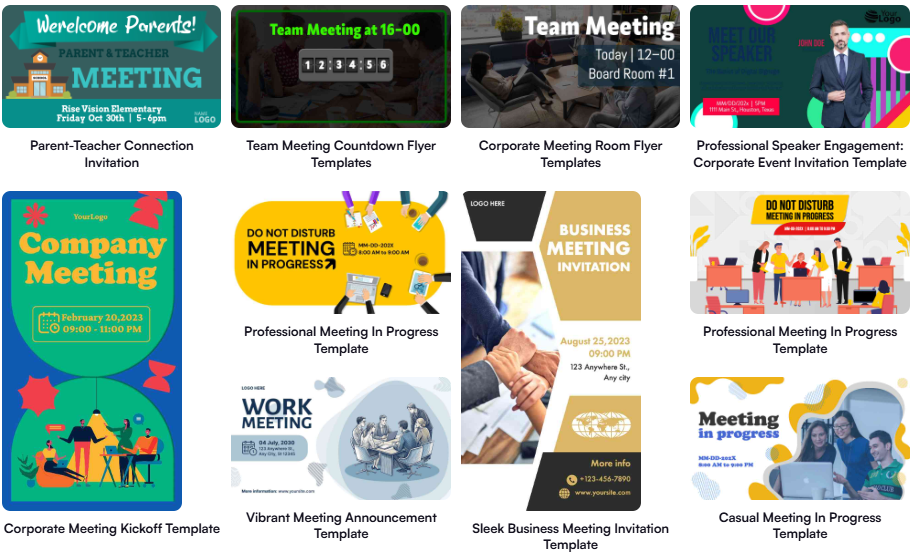
With our software, you don’t need to start from scratch, it comes packed with pre-designed, professional Zoom Room templates that you can tailor to your needs. Whether you’re showcasing services, updating pricing, or highlighting promotions, these templates save time while keeping your displays visually striking.
Imagine walking into a coffee shop where the menu board instantly grabs your attention with vibrant images and updated specials; that’s the same polished look you can create for your Zoom Room signage.
Additionally, according to Market Us Scoop, 67% of consumers report frequently purchasing products based on the visual content they see on digital signs. With AIScreen’s Canvas editor, you can edit your content, adjust prices, swap backgrounds, add your logo, and choose fonts that reflect your unique style.
Follow these steps to upload existing signs from your device:
- Go to the “Media” section on your dashboard.
- Click the “Upload” button.
- Select your media file from your device and upload it.
You can easily create content for your digital display with our editor, Canvas. You can customize our professionally designed digital display templates to design digital screens that reflect your branding.
Follow these simple steps to customize your display template:
- Navigate to “Canvas” and select a template you’d like to customize.
- Add images, animations, or videos to your chosen template.
- Incorporate branding elements like your restaurant’s logos, fonts & colors.
- Save your designs or publish them on the screen.
Step 6: Create a Playlist

Creating and managing playlists is like building your own channel, it saves time, keeps things organized, and makes your displays look professional without extra effort. You can do playlist creation for the dynamic content, rotate promotions, and keep your screens feeling fresh every day.
After all, wouldn’t you rather walk into a space where the screen always has something new to show instead of repeating the same slide? Playlists make it simple to maintain consistency, boost visibility, and enhance communication across multiple screens, so your audience stays engaged from start to finish.
Here’s how to do it:
- Navigate to Playlists: From the main menu, click “Playlists” to view or create new ones.
- Create a New Playlist: Click “Create New Playlist” to open the editor and start customizing.
- Add Content: Upload images, videos, or documents, drag-and-drop files, and add apps or widgets. You can also create a canvas for structured layouts.
- Adjust Content Duration: Reorder items with drag-and-drop and set playback time for each.
- Preview and Adjust: Click “Preview” to check layout, order, and timing, then refine as needed.
- Save and Name Your Playlist: Click “Save”, give it a unique name, and select “Create and Publish.”
- Assign to Device: Choose devices from the list, click “Set to Device,” and your playlist will display on selected screens.
Step 7: Schedule Your Content and Go Live
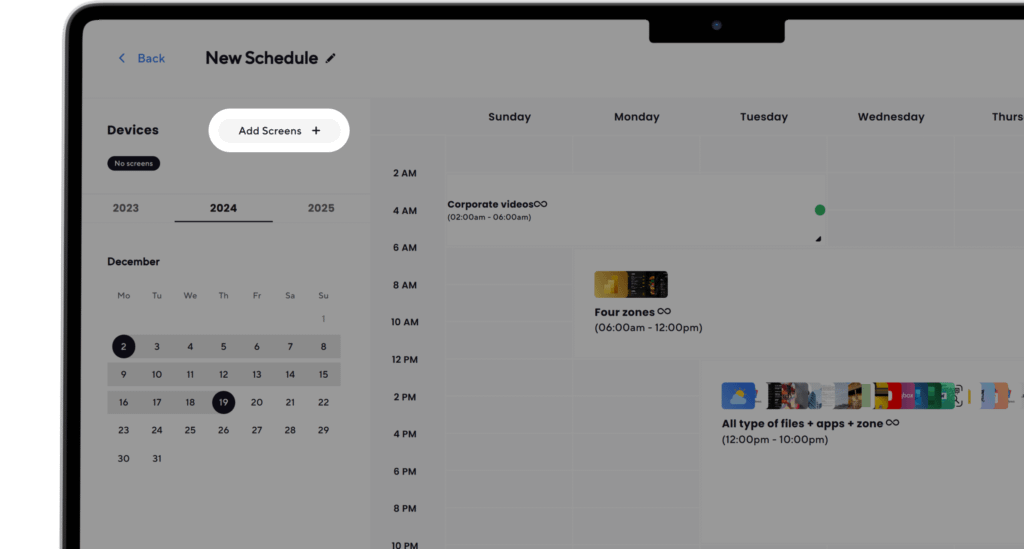
Schedule your content in AIScreen to run automatically. You can set different playlists for different times of day, like promotions in the morning, updates in the afternoon, or events in the evening.
Why manage it manually when your screen can do it for you? Well, content scheduling ensures your display is always fresh, relevant, and engaging for the right audience.
Here’s how to do it:
- Create a New Schedule: Next, click on the “Schedule” tab in your dashboard and tap “Create New Schedule” to create a schedule for a specific time slot. You can also check the display schedule guide.
- Add a Playlist to the Schedule: Select the time slot (start date, time, and duration) for the content you want to play automatically. Confirm and add the playlist you want to schedule.
- Assign Devices, Review, and Save: Click “Add Device” to choose the screens or players for slideshow scheduled content. Click “Save,” and it’ll be played at the specified time slot.
If your deployment includes many Zoom Rooms or signage devices, reviewing how to set up digital signage multiple displays will help you ensure synchronized scheduling across all screens.
Transform Your Meeting Space with Zoom Room Digital Signage- Start AIScreen Free Trial
Transform your Zoom Rooms into powerful communication hubs with AIScreen’s Zoom Room digital signage software. With a Zoom Rooms license, you can extend beyond video conferencing by using the digital signage tab in the Zoom web portal. AIScreen makes it easy to handle room management, organize screens next to the location, and simplify updates through account settings with just an edit button.
You can select digital signage, select Zoom Rooms, and navigate the left side hierarchy to assign a room name, define display periods, or target a particular floor. AIScreen’s tools let you drag files from your system’s file manager, build playlists, click create, and publish through the content library at the top right corner. Whether for an entire account or a scheduled meeting, you can control every display, activate with an activation code, and customize with the HQ icon. Start your free trial today and transform communication.


Frequently Asked Questions
Can I display Zoom meeting schedules on digital signage?
Yes, you can display Zoom meeting schedules directly on your digital signage. By going to the Zoom web portal and using the digital signage tab, you can add content, assign a room name, and show updates next to the location for everyone to see. This ensures schedules remain accurate and visible in real time.
How do I manage Zoom Room digital signage content?
Managing Zoom Room digital signage content is simple through the Zoom web portal. From room management, just click account settings, select the edit button, and organize your default content list or playlists. You can also upload files by clicking choose files on your computer.
Is it possible to display custom messages on Zoom Room signage?
Yes, custom messages can be displayed using the first option in the content editor. You can enable updates, add notes, and use the left side hierarchy to target specific rooms. Let’s take an example, you can create a branded message and assign it through your Zoom Rooms license.
How do I update digital signage in Zoom Rooms remotely?
You can update your signage remotely by logging into the Zoom web portal on any device. Simply click add room, select the display, and edit or replace the content list instantly. With an activation code linked to your display, updates appear in seconds.
How can I integrate Zoom Room signage with my calendar?
Integrating Zoom Room signage with your calendar is done through the Zoom Rooms license. Once enabled in account settings, your calendar events appear automatically in the digital signage tab, displaying meeting notes and details. This keeps room schedules synced with your signage without extra steps.
