
How to Display Announcements on a Digital Signage TV?
Have you ever noticed how bulletin boards always seem stuck in time? They’re cluttered, outdated, and easy to ignore. In today’s fast-paced world, digital signage has taken over as the smarter, more dynamic way to share updates, leaving behind traditional static signage. A modern digital reader board replaces that old bulletin board with content you can change in seconds. With AIScreen, you can instantly turn any TV into an engaging announcement display that keeps everyone informed, connected, and paying attention, all without any complicated setup or technical stress. According to a Nielsen study, digital displays capture 400% more views than static signs, making them highly effective for announcements.
This article walks you through everything you need to know about how to display announcements on a TV in 2025. You’ll discover how modern digital signage content ideas replace traditional bulletin boards, making communication faster and more engaging. Plus, we’ll show you how to create content with AIScreen that helps you easily display messages on a TV screen or share real-time updates from your browser, no cables, no confusion, just seamless setup and instant connection.
Why Browser-Based Digital Signage Is the Easiest Way to Display Announcements on a TV
Tired of tangled cables and clunky installations just to show a simple update on your office TV? A digital signage software takes all that hassle away. Instead of dealing with complicated setups, you just open your browser, log in, and instantly display announcements on TV across your workspace, retail store, or campus, which makes a multi-site signage rollout straightforward.
Whether you’re using a Smart TV, media player, or standard display, everything syncs effortlessly, so your message goes live in seconds, no IT support needed. According to Intel, digital signage can increase customer engagement by up to 47% when used for real-time information and updates.
What makes it even better is the flexibility. With a cloud-based digital signage solution like AIScreen, you can manage your own content remotely, from scheduling digital signage content, sharing emergency alerts, or posting upcoming events to showing social media feeds, motivational quotes, or team photos. It’s an easy, cost-effective way to keep your digital signage displays fresh and engaging with user-generated content while keeping your whole team connected, wherever they are.
How to Display Announcements on TV (Step-by-Step Guide)
So, you’re ready to take your announcements to the big screen? Perfect. This practical walkthrough will show you how to display announcements on a TV using AIScreen, with no coding, no tech stress, and no confusing setups, including success stories from various users. According to Deloitte, businesses using dynamic screens experience a 33% boost in message recall compared to traditional notice boards.
Whether you’re running a school, managing an office, or updating digital boards in a retail space, these steps make it incredibly easy to set up and manage your system. Follow along and you’ll be displaying dynamic, professional-looking content in just minutes.
Step 1: Choose a Browser-Compatible Smart TV

Before diving in, you’ll need a reliable TV for displaying messages that supports browsers like Chrome or Edge. The idea is to use something simple, no complex hardware or HDMI sticks. AIScreen works on most browser-compatible TVs that connect to Wi-Fi and support secure browsing, keeping your setup effortless and modern.
Steps:
- Pick a Smart TV that supports Chrome, Edge, or Firefox.
- Make sure HTTPS is enabled for secure access.
- Connect it to a strong Wi-Fi network.
- Adjust display settings for clarity and visibility.
Step 2: Open the Digital Signage Player URL
Once your TV is ready, open its browser and head over to player.aiscreen.io. This is where the magic starts, no downloads, no technical setup. You’ll see a unique pairing code appear instantly, making your screen ready to link with the AIScreen dashboard in seconds.
Steps:
- Open your TV browser.
- Visit the AIScreen player URL.
- Wait for the pairing code to appear.
- Keep the screen active for the next step.
Step 3: Connect Your TV to the AIScreen Dashboard
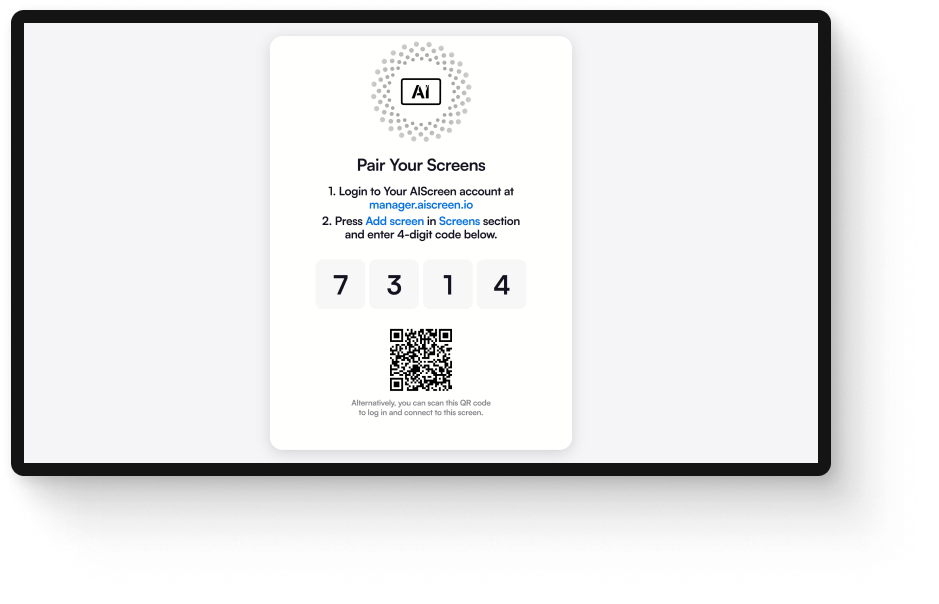
Now it’s time to pair your screen with your account. This quick connection links your display to the cloud, so you can manage and display announcements on TV from anywhere. Once paired, your content updates automatically, no cables, no local storage, just smooth streaming.
Steps:
- Log in to your AIScreen dashboard.
- Click “Add Screen.”
- Enter the pairing code from your TV.
- Save and confirm the connection.
Step 4: Upload and Organize Your Media Library
This is where your creativity truly takes center stage. You can upload a wide range of assets images, videos, and PDFs, to use as digital signage content. Keeping everything organized by arranging files into folders makes campaign management easier, especially when handling multiple locations.
Steps:
- Go to the Media tab.
- Upload PNG, JPG, MP4, or PDF files.
- Create folders for projects or campaigns.
- Use tags for faster search later.
This step is especially important if you’re learning how to add video in digital signage content, as videos make announcements more engaging and visually dynamic.
Step 5: Install Apps for Interactive Content
Want your screens to feel more alive? Add apps like weather widgets, clocks, and social media feeds to your playlists. These tools make your digital signage displays more dynamic and keep people engaged with fresh, real-time information.
Steps:
- Navigate to the Apps tab.
- Choose from options like YouTube, RSS feeds, or social walls.
- Customize settings for your audience.
- Save and add to your playlist.
Step 6: Add Live URLs for Real-Time Announcements
If your business shares dashboards, events, or news updates, this step is a game-changer. You can embed live URLs like Google Slides, data dashboards, or industry news to keep your digital displays in event spaces constantly refreshed.
Steps:
- Go to Live URLs in your dashboard.
- Click Create New Link.
- Paste a public link (e.g., dashboards, news).
- Save for instant use.
Step 7: Build Playlists Using Media, Apps, and Live URLs
Now comes the fun part: combining your content into playlists. This lets you control what plays, when, and for how long. By mixing dynamic content like apps and videos, your digital signage screens will stay visually exciting and relevant throughout the day.
Steps:
- Open the Playlist tab.
- Drag and drop media, apps, or live URLs.
- Arrange orders based on your campaign.
- Save and preview before publishing.
Step 8: Design Personalized Announcement Screens with Canvas
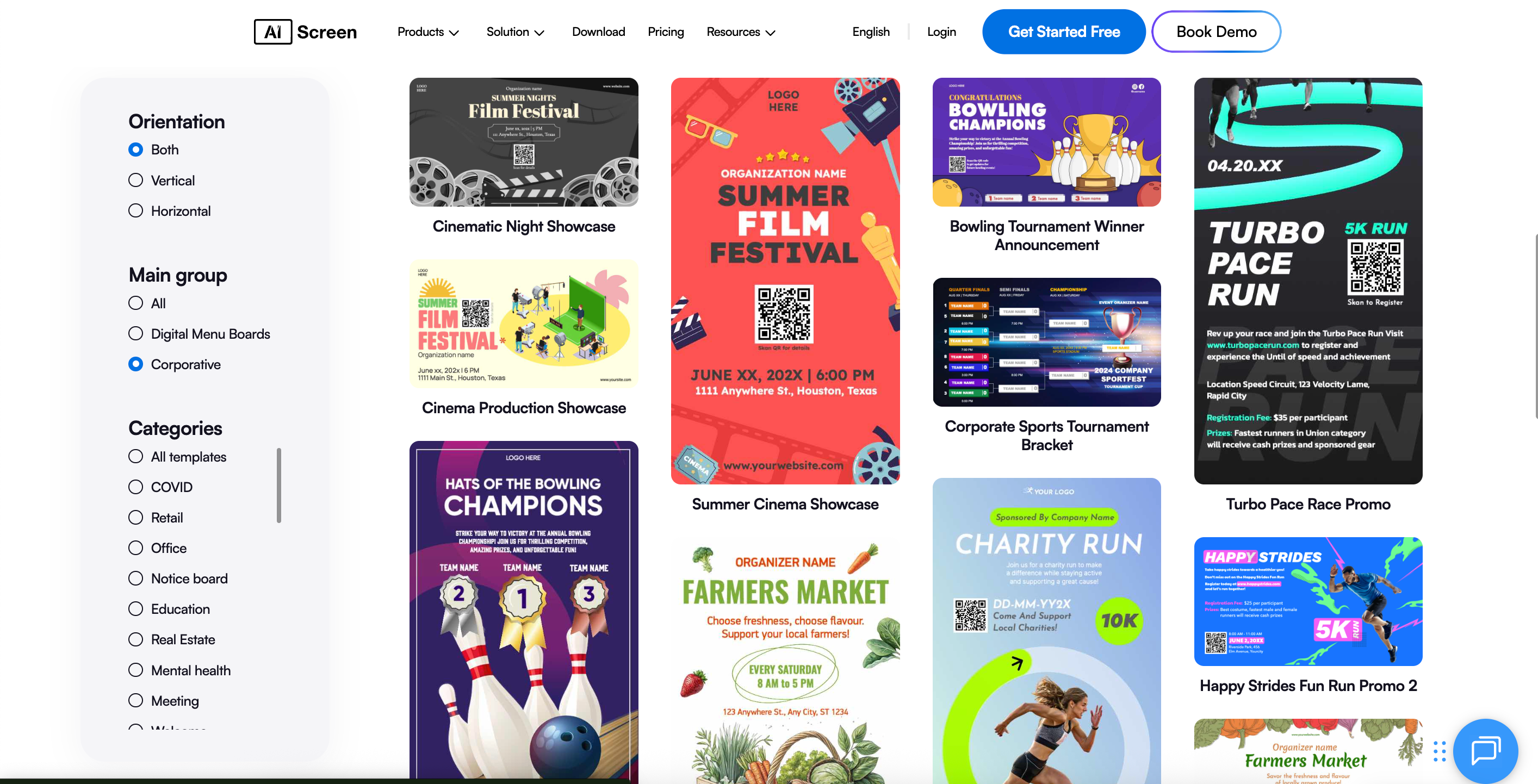
If you want to make your display announcements look stunning, AIScreen’s Canvas editor is your secret weapon. With drag-and-drop tools and ready canvas templates, you can create eye-catching designs that include short videos fitting your brand, event, or message.
Steps:
- Open Canvas Editor.
- Choose from pre-made templates or start new.
- Add widgets, text, or team photos.
- Save and assign to a screen.
Step 9: Schedule Content Playback for Perfect Timing
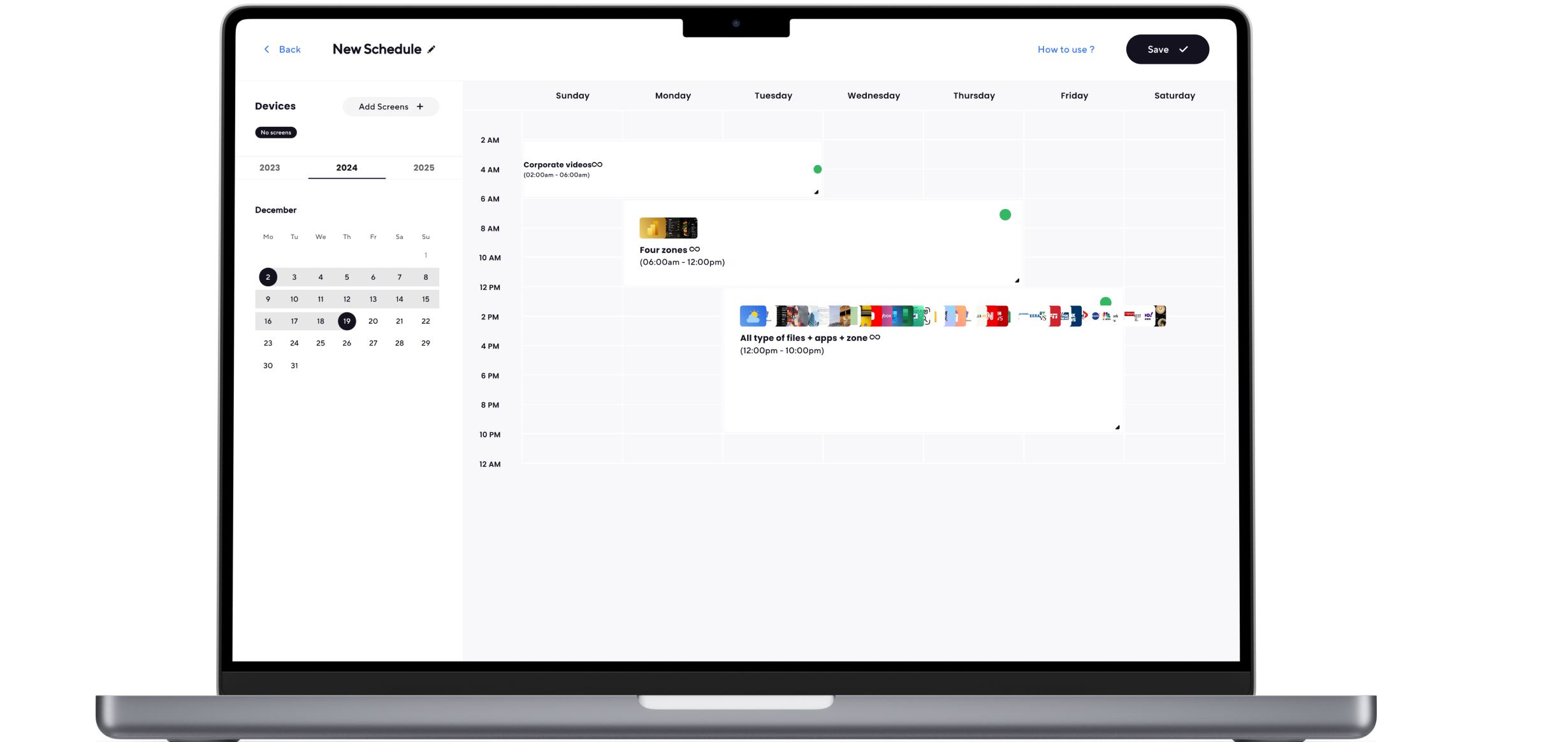
Timing is everything when it comes to communication. With AIScreen’s schedule content playback feature, you can automate when specific announcements appear, from morning greetings to emergency alerts or special offers, so you can run emergency alert digital signage that overrides every screen instantly.
Steps:
· Go to the Schedule tab.
· Select your target screen.
· Assign playlists to time slots or events.
· Automate recurring schedules.
Step 10: Launch and Display Messages on TV Screens
And that’s it, your content is ready to go live. Whether it’s daily digital signage content or one-time event announcements, AIScreen makes sure your messages reach more customers by reaching every screen instantly. Sit back and watch your digital displays come to life with minimal effort.
Steps:
- Click Set to Screen.
- Choose your screen or group of screens.
- Launch your scheduled playlist.
- Confirm it’s playing correctly on your TV.
What are the 31 Engaging Content Ideas to Display Announcements on TV Screens
Running out of ideas for what to show on your digital signage screens? Don’t worry; it happens to everyone. Whether you’re managing internal communications, promoting offers, including grand openings and loyalty programs, or just trying to keep your lobby lively, staying updated with industry trends and industry-specific news shows there’s always room for fresh inspiration. Following internal communication best practices can also help ensure your content stays relevant, clear, and useful for employees. According to Statista, around 63% of organizations now use digital signage to share company news, safety alerts, or HR updates, fostering friendly competition.
Here are 31 content ideas to inspire your internal playlists, advertising loops, and everything in between. Each one helps you display announcements on TV screens that inform, engage, and entertain, all while keeping your audience connected.
- CEO or Leadership Updates: Share monthly insights or video messages directly from your leadership team to keep employees aligned.
- Company News Highlights: Display quick updates on milestones, new launches, or wins to keep everyone in the loop.
- HR Policy Changes & Deadlines: Post reminders about new benefits, time-off updates, or submission deadlines.
- New-Hire Welcomes & Team Spotlights: Celebrate your latest recruits and recognize team achievements to boost morale.
- Birthday & Work-Anniversary Shout-Outs: Use digital signage displays to make employees feel appreciated with cheerful announcements.
- Safety Tips & Incident-Free Counters: Promote workplace safety using clear visuals and up-to-date metrics.
- Emergency Alerts & Evacuations: Instantly override all screens for emergency alerts or safety notifications.
- IT Maintenance & Downtime Windows: Prevent confusion with scheduled maintenance notifications.
- KPI Dashboards (Sales, NPS, SLAs): Show live data dashboards so teams can track performance in real time.
- Training Micro-Lessons & Tips: Stream bite-sized learning clips or quizzes using digital signage software.
- Event Promos & RSVPs: Hype upcoming internal events, workshops, or holiday celebrations.
- Room Schedules & Wayfinding: Use your screens as interactive displays for meeting room updates or navigation.
- Canteen / Restaurant Menus & Specials: Turn your screens into modern menu boards that showcase today’s specials.
- Wellness Tips & Benefits Reminders: Promote employee well-being and benefits awareness through engaging visuals.
- Sustainability Metrics & Goals: Display your company’s eco progress, energy savings, or recycling stats.
- Volunteer & CSR Initiatives: Highlight social impact stories or volunteer opportunities that make your employees proud.
- Live Social Wall (Moderated UGC): Stream posts from social media platforms like Instagram or X to bring your brand to life.
- Customer Testimonials & Case Studies: Share real stories and quotes from happy customers to inspire trust.
- Product Feature of the Week: Spotlight one item or feature to drive product awareness in retail stores.
- Internal Job Postings: Keep everyone updated on open positions within the company.
- Queue Status & Wait Times: Help reduce frustration by showing real-time queue or service updates.
- Weather, Traffic, Transit Updates: Keep visitors and employees informed with live feeds.
- Visitor Welcomes & Lobby Directories: Make guests feel special by displaying personalized greetings and building directories.
- Donor / Partner Recognition: Celebrate partnerships and showcase your partner brands proudly.
- Compliance Reminders (Phishing, Privacy): Remind teams about key policies and safe online practices.
- Conference Livestreams & Recaps: Stream internal or public events live across your screens.
- Countdown Timers (Launches, Events): Build excitement for product launches, upcoming events, or big announcements.
- Local Community Events: Support your local business scene by featuring nearby happenings.
- Campus / Class Schedules (Education): Help students and faculty stay organized with class or exam schedules.
- Retail Promos & Bundles: Use digital displays to highlight discounts, bundles, and seasonal promotions.
- Post-Event Surveys via QR: Encourage feedback by displaying QR codes linking to quick surveys.
From daily shout-outs to live social media feeds, every piece of digital signage content you post keeps your audience informed and inspired. Mix these content ideas creatively across multiple screens and locations, including live events, and you’ll turn your digital signage into a real storytelling tool that feels alive every single day.
What are the Best Practices for Display Messages on TV Screens
To make your communication more effective, it’s important to understand how to display messages on TV screens in a way that draws attention and delivers clarity. Whether used in offices, retail stores, or public spaces, digital signage screens should communicate quickly, include safety reminders, look professional, and align with your brand’s tone.
According to Grand View Research, the global digital signage market is projected to reach $45 billion by 2030, driven by growing adoption in workplaces and retail spaces. The right display techniques can turn ordinary updates into meaningful, high-impact visuals that people actually read and remember, especially when paired with affordable solutions and interactive digital signage examples for inspiration.
- Keep Text Short and Readable: Simplicity always wins on digital screens. Since viewers only glance for a few seconds, your message should be easy to read and understand instantly. Use short sentences, clean fonts like Arial or Roboto, and high-contrast color combinations. Avoid long paragraphs or small font sizes, focus on one key idea per slide so your digital signage display communicates clearly at first glance.
- Maintain Consistent Branding and Colors: Consistency builds recognition and trust. Every visual on your digital signage display should match your brand’s colors, typography, and logo placement. This reinforces your identity across multiple screens and makes your messages look polished and unified. A consistent visual style not only looks professional but also helps audiences instantly recognize your brand’s tone and message.
- Use Dynamic Visuals and Animations Wisely: Movement catches the eye, but too much can distract from your message. Smart use of animations, like subtle transitions, smooth fades, or minimal motion graphics, keeps the content engaging without overwhelming viewers. Adding dynamic content such as live updates, countdowns, or rotating visuals can help refresh attention while maintaining balance and clarity on your screens.
- Schedule Regular Updates: No one wants to see the same announcement day after day. Regularly refreshing your digital signage content keeps it relevant and engaging for your audience. Schedule weekly or monthly updates for promotions, internal news, or community highlights. Using digital signage software helps you plan these updates easily, ensuring that your screens always display timely, interesting, and useful messages.
- Analyze Performance Metrics: Tracking your screen performance helps you understand what truly works. Use built-in analytics tools in your digital signage software to measure engagement, like how long content plays, which messages attract the most attention, and when viewership peaks. These insights help you refine your display strategy, create better visuals, and make every display message on the TV screen more effective over time.
Ready to Turn Your Display into a Powerful Announcement & Advertising TV with AIScreen?
Ever wondered how easy it could be to turn your regular screen into a smart advertising TV that grabs attention? With AIScreen, you can transform any Smart TV into a cloud-powered announcement and ad display that runs right from your browser. No coding, no complex setup, just log in and start managing all your screens from one simple dashboard. It’s perfect for offices, schools, or retail stores that want to communicate clearly and consistently. According to Digital Signage Today, updating digital content regularly can improve audience retention by up to 60%.
AIScreen gives you full control to schedule, customize, and monitor content in real time. With 1500+ ready-to-use templates, a content management system with cloud-based updates, and detailed analytics, keeping your displays fresh and engaging has never been easier. So why wait? Start your free trial today and see how AIScreen can transform the way you display messages on TV screens, anywhere, anytime.


FAQs
What’s the easiest way to display announcements on a TV?
The easiest way to display announcements on a TV is by using a digital signage platform like AIScreen. It lets you upload content, like menu boards, menu items schedule updates, and control everything from your browser, no extra software needed. Just connect your TV, pair it with the dashboard, and you’re ready to go. This setup is ideal for offices, schools, and retail spaces.
Can I turn any TV into an advertising display?
Yes, you can turn any modern Smart TV into an advertising display with AIScreen. As long as your TV supports a web browser, you can connect it instantly and start displaying promotions, offers, and announcements. The platform helps manage multiple locations remotely with cloud-based control. It’s a simple, affordable way to enhance visual communication.
What types of messages can I display on TV screens?
You can display a wide range of messages on TV screens, from company announcements and HR updates to live dashboards, motivational quotes, or event reminders. AIScreen supports images, videos and allows you to upload digital signage content, static images, and real-time feeds, making your content dynamic and engaging. It’s perfect for internal communication or public advertising.
How often should I update my announcement content?
You should update your announcement content regularly to keep it fresh and relevant. Changing visuals weekly or rotating campaigns based on new announcements and events helps maintain viewer interest and makes employees feel valued. AIScreen’s scheduler makes it easy to automate updates, ensuring your messages stay timely and consistent.
Can I schedule different content for different TVs?
Yes, with AIScreen, you can schedule different content for different TVs across locations. Each screen can display unique playlists or announcements based on audience or timing. You can manage all this remotely through one dashboard, even for large venues, saving time and ensuring full control over your displays
