
How to Display a Webpage on TV with Digital Signage Software?

Ever wondered how to display a webpage on TV with digital signage software without adding extra hardware or technical complexity? Display a Webpage on TV With Digital Signage Software is easier than most businesses expect. Modern platforms let you display a web page on smart TV screens using browser-based signage content, removing the need for external players or complicated setups. With an AI-powered digital signage player, businesses can stream dashboards, news feeds, and social media as a live webpage on screen, keeping content fresh and always up to date. According to Gitnux, over 70% of customers are more likely to make impulse purchases after viewing digital signage ads, showing how effective real-time web content can be.
In this article, you’ll learn how to show a live webpage on screen using AIScreen’s intuitive platform. By simply entering a URL through the digital signage URL feature, your content appears instantly across Samsung Smart TVs, LG Smart TVs, desktops, and devices like Amazon Fire Stick or Raspberry Pi. From scheduling web content to streaming live data and internal dashboards, this guide shows how to make digital signage deployment seamless, scalable, and impactful.
Why Use Digital Signage Software to Display Webpage on TV?
You can use digital signage software to display web content on TV by presenting real-time, dynamic content to the audience. Your digital signage software for displays is not limited to just showcasing better visuals; AIScreen simplifies them to make businesses boost engagement, influence their customers, and manage their content.
Here’s why businesses are increasingly relying on digital signage software:
- Increased Visibility: Increased visibility is one of the biggest benefits of displaying a website on TV to capture the maximum attention of your audience. Use bold fonts, frequent clicks on special videos and images like breakfast or dinner menus, focus on quality LED displays, and attention-grabbing digital signs to make your product landing pages to promotional banners work. As per IIMA research, digital commercial displays lead to affect up to 50% of retail buying decisions and initially capture the attention of over 80% of shoppers in multiple stores. This data is enough to understand how your visitors cannot ignore your webpage displayed on most smart TVs, video walls, or even a regular TV.
- Real-time Updates: Real-time updates like Christmas or New Year offers, health checkup announcements, and internal competitions among employees provided through live content streaming are best facilitated by digital signage compared to static posters. Constant auto refreshes maintain the interest of the viewers and help in showing live data, social media feeds, and event schedules, especially to small businesses with limited budgets that may only have one screen.
- Streamlined Operations: Streamlined operations include managing digital signage remotely across multiple screens and locations, which reduces manual updates and wastage of time. AIScreen’s globally acclaimed, easy-to-operate multimedia content management system helps a lot in enhancing your webpage’s digital signage solutions advantages.
- Versatility: Versatility covers displaying a range of diversified content from video presentations, Google Slides, slide shows, to web-browser-based webpages, and internal web dashboards. Most businesses run live news channels and booking portals to provide versatile content to enhance visibility.
How to Broadcast a Webpage on TV with Digital Signage Software?
Broadcasting a webpage on TV using a digital signage software starts with logging into the software, adding the webpage URL, and scheduling content for display on TV.
AIScreen’s digital signage display setup is intuitive, quick, and easy. It simplifies the way you can use the “Live URL” feature to instantly display any webpage on your screen. Let’s explore the process to broadcast a website on TV, whether it is a schedule, a news feed, or even a presentation.
Step 1: Log in to Your Digital Signage Software
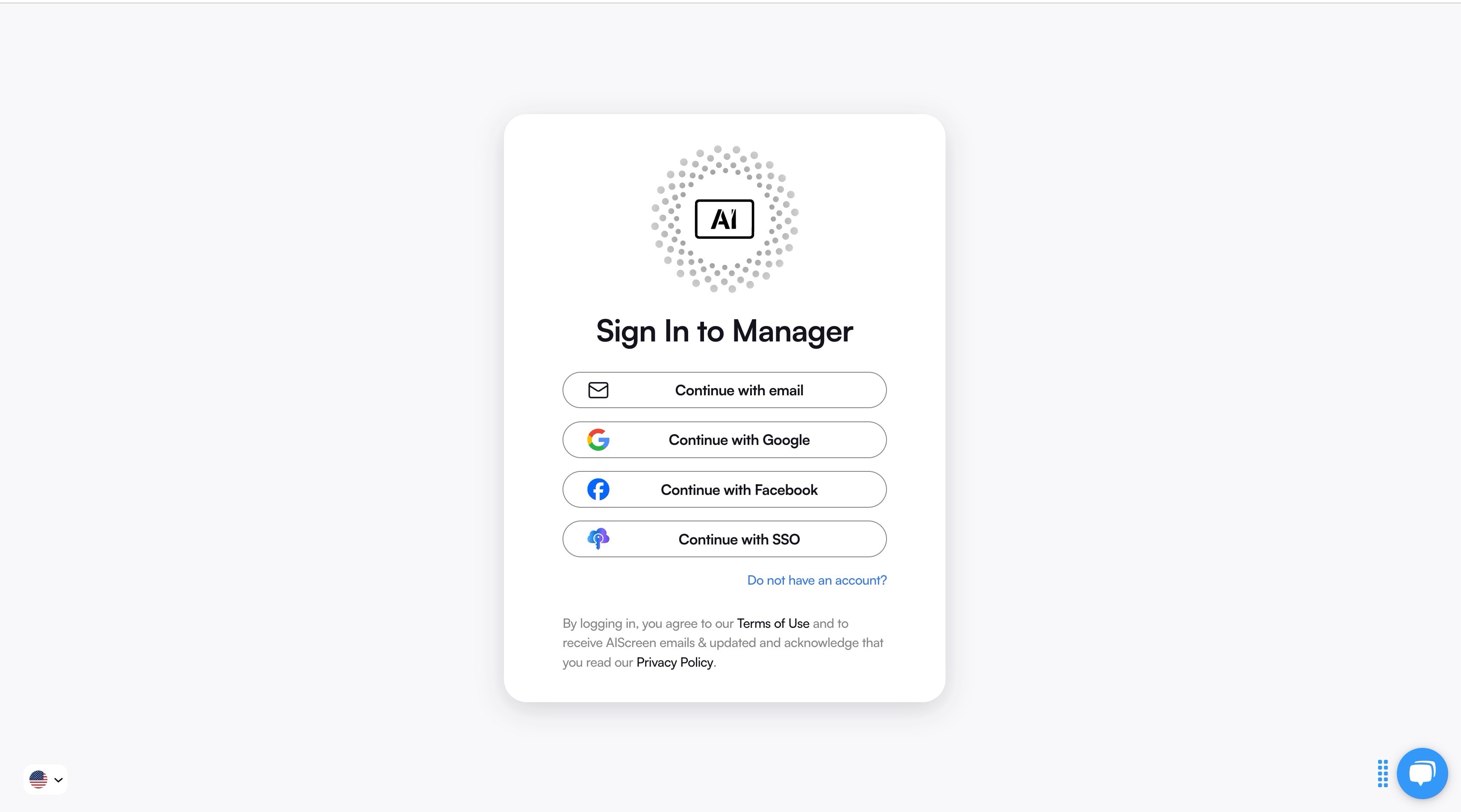
Log in or sign in to digital signage software utilizing your AIScreen dashboard by inputting your name, email, and password. If you are a new user, then sign up for the same to start managing content via a remote content dashboard. This centralized dashboard will help you control everything from uploading media to scheduling live webpage displays on your screens.
Follow the quick and cloud-based signage login procedure to the AIScreen software:
- Log in to AIScreen on your computer or phone.
- Turn on your TV or digital signage player and connect to the internet access.
- Open the AIScreen app on your TV and find the 4-digit pairing code.
- In the AIScreen dashboard, click “Add Screen” and enter the code.
- Name each screen clearly to identify them easily.
Step 2: Access to the ‘Live URL’ Section
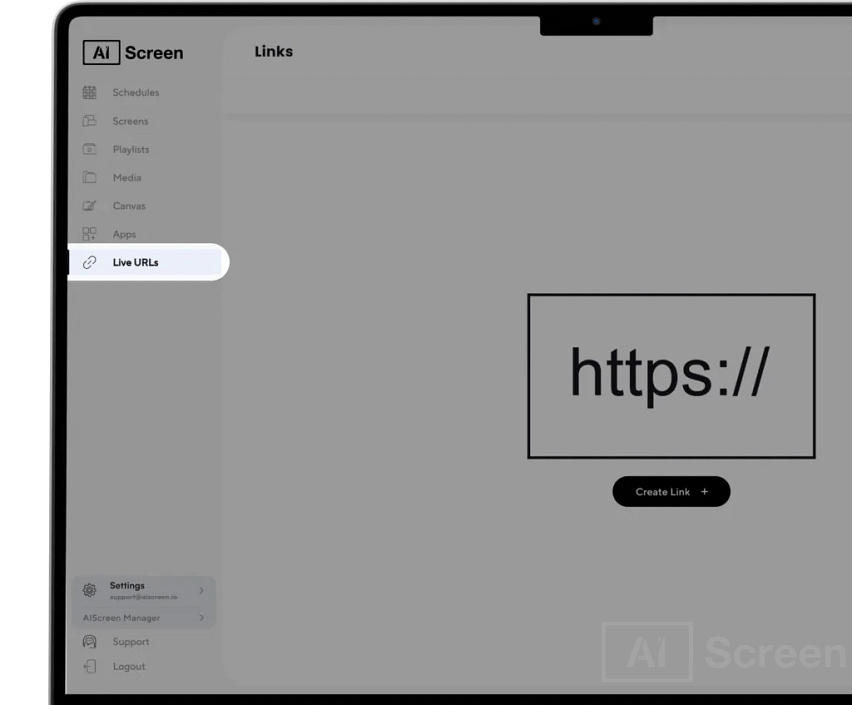
Move to the “Live URL” section once you are logged in to your AIScreen account and add your webpage source. It’s where you have to add the web page input that you want to display on your screen. Use the URL widget by simply pasting your desired web page address to start broadcasting live web content instantly.
Follow these steps:
- After logging in to your AIScreen account, you will be automatically navigated to the main dashboard.
- Look for the menu on the left sidebar.
- Select “LiveURLs” and click on it.
This dedicated space is responsible for managing digital signage content, such as every web-based feed or website you want to broadcast. AIScreen’s structured platform keeps your live links organized as well as ready for instant deployment to any screen or TV running on any operating system, at any time, with no expensive hardware required.
Step 3: Click to Add a New Web Link
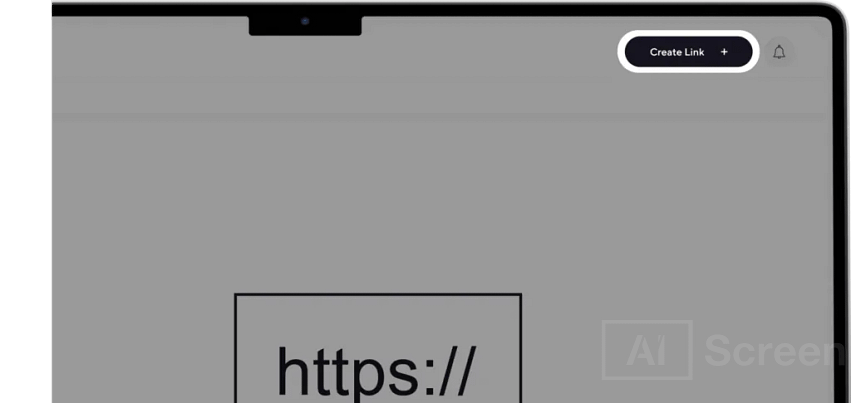
Click to add a new web link to decide and place exactly which webpage or web application will appear on your TV screens. Remember, AIScreen digital signage software doesn’t limit you to broadcasting just basic websites; instead, it supports live dashboards, social media feeds, presentations, video streams, and much more through this feature.
Follow these steps to add a new link:
- Click the “Create Link” button in the Live URLs area.
- You will be prompted with a new setup window.
Step 4: Paste the URL You Want to Display
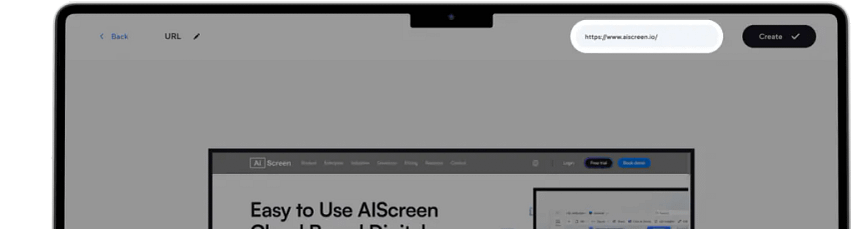
Copy and paste the public URL of the webpage you want to display on your TV in your dashboard’s Live URL section. Remember, the URL should display HTTPS webpages for security reasons. If required, whitelist URL parameters and learn the web authentication tips (SSO/cookies) to ensure smooth access and display.
Follow these steps to add a URL:
- Check the top of the dashboard to “add webpage URL” that you want to broadcast. It could be, for example, your company’s internal dashboard or a Google Data Studio report.
- Paste the URL in the “Write URL” field.
- Set the webpage to public if your web content requires logins or authentication. This way, your signage device will be able to access it without manual intervention.
Step 5: Name Your Content and Save It
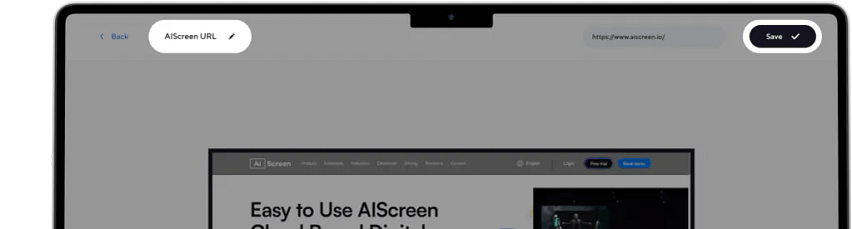
Name your content and save it to display content across multiple displays in different locations.
Follow these steps:
- Give each web link a clear, descriptive name that reflects its purpose and location. Examples include “Cafeteria Menu – Location A,” “Lobby Welcome Feed,” “Marketing Dashboard – HQ,” or even dynamic content such as how to display quotes on your TV for internal motivation or customer engagement. Clear naming makes it easier to scale, troubleshoot, and update content later, especially when managing regular TV setups, video walls, or multi-location displays.
- After naming, click “Save” to confirm and create your new live link. You are free to return, edit, or remove links at any time as your content needs.
Effortlessly Showcase Webpage with AIScreen’s Digital Signage Software
Effortlessly showcase the webpage with AIScreen’s digital signage solutions, requiring minimal setup, zero coding, and the simplest learning curve. Whether you are into education, hospitality, retail, or a corporate environment, you can simply set up your live URLs for display through the AIScreen webpage on TV.
Experience how AIScreen turns ordinary TVs into dynamic communication hubs and helps you connect with your audience like never before. The company’s powerful screen content automation and real-time signage updates keep your displays fresh and engaging without much hustle.
Choose AIScreen’s digital sign free plan or upgrade to the professional plan, offering advanced features like remote management, multiple screens, and URL-based display management to start displaying webpages on one screen, and scale up to multi-display networks in minutes.


FAQs
How do I use digital signage software to display a webpage on TV?
You can use digital signage software to display a webpage on a TV by installing it on a smart TV, media player, or computer connected to your TV screen. After this, log in to the online dashboard, insert the webpage URL, and schedule it to display using content rotation and auto-refresh features.
How do I schedule a webpage to display on TV?
You can schedule a webpage to display on TV by creating a playlist where you can set more than one webpage. Now, set display times and automate transitions. AIScreen enables you to control display settings across multiple locations and screens remotely.
What are the benefits of displaying a webpage on TV with digital signage software?
The benefits of displaying a webpage on TV with digital signage software include reduced manual updates, enhanced customer engagement, and savings on printing costs in high-traffic areas or public spaces.
How can I display multiple webpages on TV using digital signage software?
You can display multiple webpages on TV using digital signage software by creating a playlist within your content library, with each playlist to display in specific time intervals. This works best for rotating interactive content, social media feeds, and product pages across one or more TV screens.
Do I need an internet connection to display a webpage on TV?
Yes, you would need an internet connection to display a webpage on TV to showcase dynamic elements like stock updates, live news, or internal websites. Make sure your smart TV and devices are connected to proper Wi-Fi or Ethernet connectivity.
