
Google Chromecast with Google TV

Amazon Fire TV Stick is often compared with streaming devices like google chromecast with google tv, especially when users look for affordable and flexible streaming solutions. While both devices serve similar purposes, Chromecast stands out with its advanced google tv interface, personalization, and deeper integration with google products. According to Google, Android TV and Google TV now power over 270 million monthly active devices worldwide, making it one of the largest smart TV ecosystems globally.
In this blog, of Google Chromecast with google tv a complete guide, we will explain what Chromecast with Google TV is, how it works, and how to set it up. You’ll learn how to install apps, use it with digital signage software in restaurants or offices, evaluate pros and cons, and decide where to buy the right device for your needs.
What Is Google Chromecast with Google TV?
Google Chromecast with Google TV is a plug-and-play streaming device that connects to your TV’s HDMI port and turns it into a smart TV with Android-based functionality. Unlike previous versions, this device includes a remote control, built-in google tv interface, and direct access to apps without needing a phone. This shift makes it more than a casting tool, it becomes a complete streaming entertainment system.
The google tv brings personalized recommendations based on viewing habits, allowing users to discover movies, tv episodes, and live tv content easily. It integrates google play movies, YouTube, and multiple selected services into one interface. At its core, it runs on android tv, giving access to over 10,000 apps, including Netflix, Prime Video, and Disney+. This ensures compatibility with most streaming devices and services.
It also supports 4K HDR, Dolby Vision, and brighter colors, delivering crystal clear picture quality on modern displays. However, some content may require subscriptions and may not be available in all regions.
How Does Chromecast Work?
Chromecast works by connecting to your TV via HDMI and streaming content over a Wi-Fi network while your phone or remote controls playback. During setup, the device connects to a wifi connection, links to your Google account, and pairs with the google home app. Once configured, it streams content directly from the internet instead of mirroring your phone.
This approach ensures fast streaming, reduced lag, and better performance. Your phone or tablet acts as a controller, sending commands rather than the full video stream. A reliable broadband internet connection is essential for smooth playback, especially for 4K HDR or live tv streaming.
Casting vs Native Apps
Chromecast supports both casting and native app usage, giving users flexibility in how they access content. In casting mode, you use a compatible mobile device like an android phone to stream content from apps like YouTube or Netflix. The device handles playback independently after receiving the command.
In native mode, you install apps directly on Chromecast via the google tv interface. This allows full control using the remote or voice search powered by google assistant. The advantage of native apps is stability and independence from your phone. Casting is more convenient for quick sharing or multi-device usage.
Role of Wi-Fi and Google Account
Chromecast relies on a stable Wi-Fi network and a Google account for syncing, personalization, and streaming functionality. The device must stay connected to the same wi fi network as your phone for casting to work. Internet speed directly impacts picture quality and streaming reliability.
Your Google account enables personal recommendations, subscription syncing, and access to google products like Photos and YouTube. It also supports smart home controls through google assistant. The google home app acts as the central hub for setup, device management, and advanced settings.
How Content Is Streamed and Controlled
Chromecast streams content directly from the internet while your device sends control commands like play, pause, or seek. This method reduces battery usage and ensures smoother playback. Whether you use a phone, tablet, or remote, the control layer remains lightweight.
Users can also mirror screens when needed, but direct app streaming provides better performance. Businesses use this system to display dashboards, presentations, and digital signage content, while larger setups may compare alternatives like what is Apple Mac Mini? for more advanced performance and control.
How to Set Up Google Chromecast with Google TV
Setting up Chromecast requires a TV with an HDMI port, a Wi-Fi connection, and a Google account, and it takes only a few minutes. The process is guided, simple, and does not require technical expertise. Most steps are handled through your phone using the google home app, while the TV displays instructions.
Step 1: Install the Google Home App (Android or iOS)
The Google Home app is required to configure Chromecast and connect it to your network. Download it on your android phone or iOS device, log in, and begin setup. It manages Wi-Fi connection, device pairing, and account authentication.
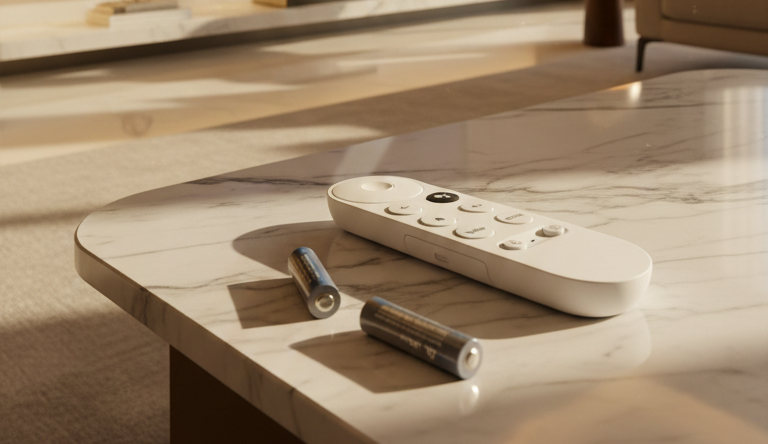
Step 2: Insert Batteries into the Google TV Remote
Insert batteries into the remote to enable pairing and navigation. Without batteries, the device cannot proceed with setup. Once connected, the remote allows control over apps, volume control, and settings.
Step 3: Plug Chromecast into HDMI and Power It On
Connect Chromecast to the HDMI port and a nearby electrical outlet for power. Using a wall outlet ensures stable performance. Switch to the correct HDMI input to begin setup.
Step 4: Choose Language and Open Google Home
Select your language and scan the QR code using the Google Home app. This links your Chromecast to your account and network securely.
Step 5: Add Chromecast with Google TV to Google Home
Register Chromecast in the Google Home app and assign it to a room. This helps organize devices and enables voice commands via google assistant.
Step 6: Accept Terms, Connect to Wi-Fi, and Sign In
Connect to Wi-Fi, sign in, and complete setup. Once done, Chromecast is ready for streaming and app installation.
How to Install and Open Apps on Chromecast with Google TV?
To install and open apps on Chromecast with Google TV, you use the built-in Google app store, your paired phone, or voice search through the remote. The device runs on Android television, so app management follows a structured, app-store-based system.
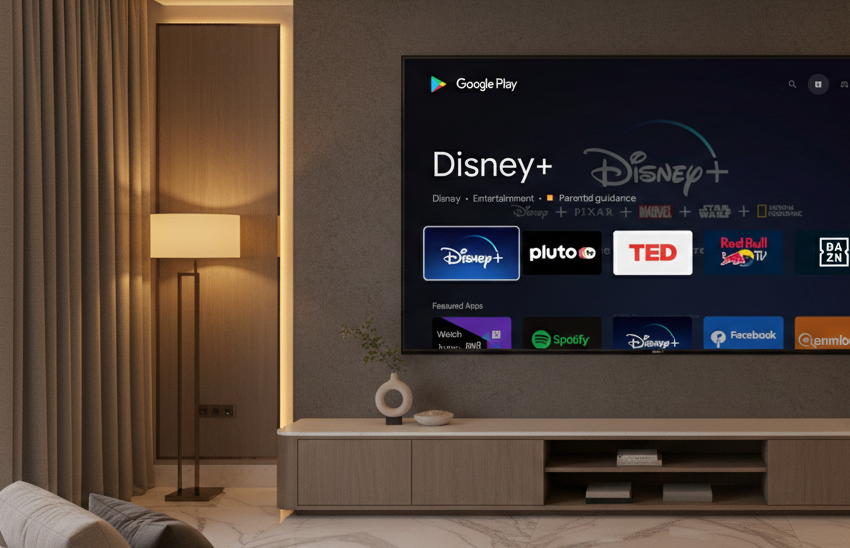
You can install streaming platforms, business dashboards, AIScreen signage apps, or other supported tools directly onto the device. The process is simple, profile-based, and controlled either through the Google smart TV remote or your connected smartphone.
Once installed, apps can be opened, rearranged, or removed in seconds.
Access Google Play Store
Open the Apps tab to access the store directly or install apps remotely from your phone. This makes it easy to manage apps across other devices without navigating the TV.
Search and Install Apps
Use voice search, typing, or the search bar to find apps. Chromecast supports the same apps as Android TV, including Netflix and Prime Video. The Chromecast with Google TV supports the same streaming apps as Android TV, including major players like Netflix, Hulu, and Prime Videos.
Open and Manage Apps
Launch apps using voice commands or the remote. You can rearrange, remove, or prioritize apps for faster access and better control.
The system supports 4K HDR, fast streaming, and casting, though Users have reported occasional stutters in video playback when casting from certain apps to the Chromecast with Google TV.


How to Set Up Digital Signage on Chromecast with Google TV?
To set up digital signage on Chromecast with Google TV, you install a signage app, pair the device to a cloud dashboard, and publish scheduled content to the screen.
This process shifts Chromecast from consumer streaming to business use, turning it into a cost-effective digital signage player for menus, announcements, dashboards, and promotional displays. With cloud control and auto-start capabilities, it supports 24/7 playback without manual intervention.
Step 1: Choose a Compatible Google TV for Your Setup
Choosing a compatible TV ensures your digital signage runs at the right resolution, brightness, and reliability level. For Chromecast device with Google smart TV deployments, the display must support HDMI input, stable power delivery, and continuous playback.
While commercial-grade panels are ideal for 24/7 environments, many consumer smart TVs also work effectively for small-to-medium signage setups. Below are examples of display types often used in budget-friendly digital signage installations:
There are several types of TV displays suitable for digital signage, including:
Insignia™ Class F30 Series LED 4K UHD
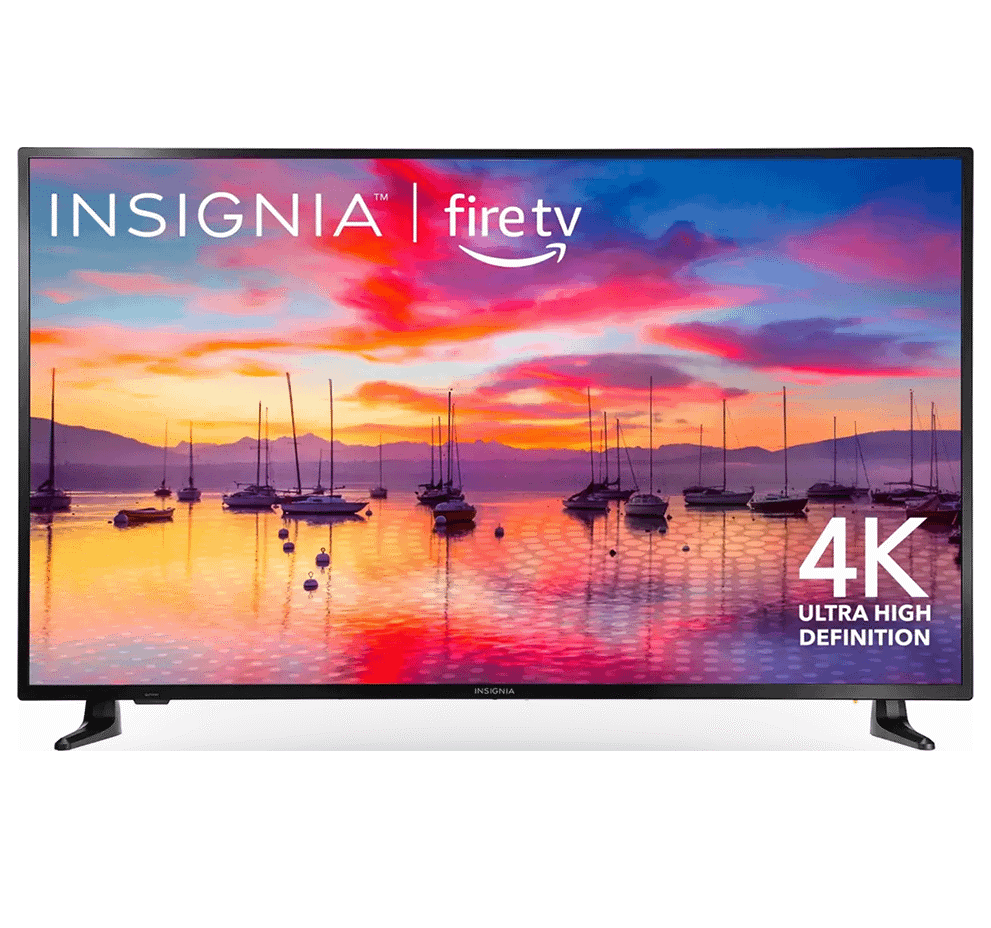
- Resolution: 720p HD, clear for menus and visuals
- Smart Features: Built-in Fire TV with Alexa Voice Remote
- Apps & Streaming: Access to 1M+ shows and apps via Alexa
- Price Range: $170 – $299
Amazon Fire TV Omni Series 4K UHD Smart TV
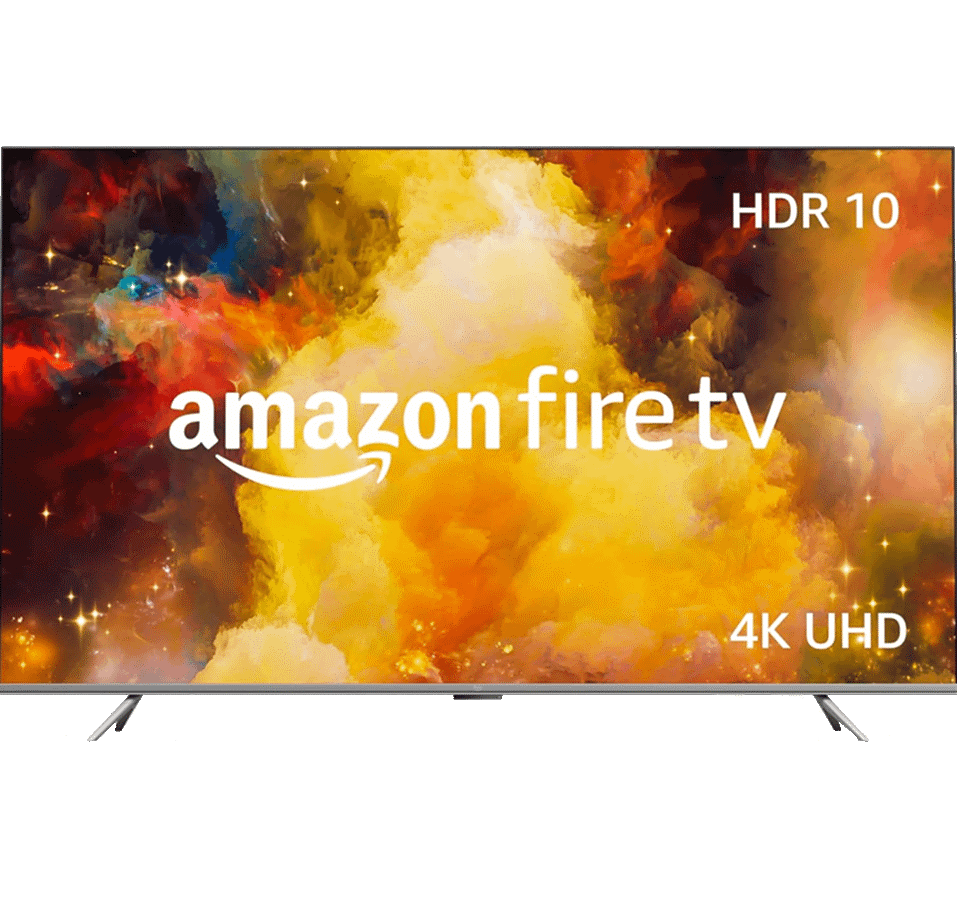
- Display Sizes: 43”–75” 4K UHD LED Display
- Smart Features: Hands-Free Alexa Voice Control
- Video & Audio: HDR10, HLG, Dolby Vision, HDMI eARC
- Connectivity: Multiple USB & HDMI Ports, Bluetooth & Wi-Fi
- Additional: Built-in Fire TV OS, Screen Mirroring, Wall-Mount Compatibility
- Price Range: $299.99 – $1,049.99
For professional deployments, commercial-grade displays provide higher brightness, longer operational lifespan, and improved durability compared to standard consumer smart TVs.
Step 2: Plug In Your Chromecast with Google TV
Proper physical installation ensures stable performance for mounted screens and always-on displays. In signage environments, consistent power and secure HDMI connections are critical for uninterrupted playback.
- Plug your Chromecast into the HDMI port of your TV/monitor.
- Connect the power cable to a wall outlet (avoid using the TV’s USB port for power, as it may not provide enough energy).
- Follow the on-screen prompts to connect to Wi-Fi and complete the initial setup using the Google Home app.
Step 3: Download and Set Up Digital Signage Software
Installing cloud-based signage software enables remote management, scheduling, and centralized control. A web-based system allows you to update content from your computer and push changes instantly without touching the TV.
- Navigate to the Apps tab on your Google TV home screen.
- Search for “AIScreen” in the Google Play Store.
- Select and install the AIScreen Digital Signage app.
This step completes the download digital signage software process and prepares your Chromecast for business deployment.
Step 4: Create an Account on the Digital Signage Management App
Creating an account connects your Chromecast screen to a centralized cloud dashboard for remote control and content management. This step allows you to synchronize media, schedules, and templates across one or multiple displays without physical access to the TV.
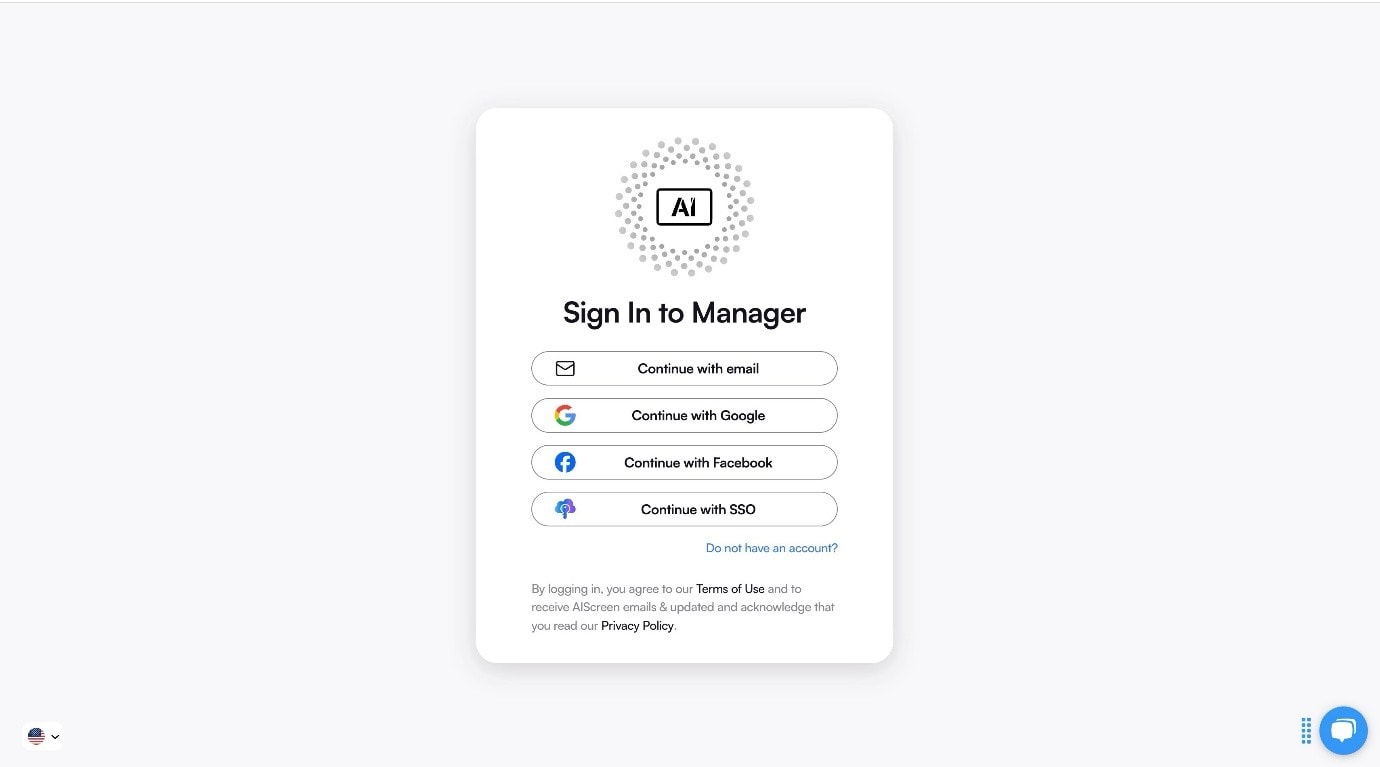
The dashboard becomes your control center for publishing updates, monitoring screens, and managing signage performance from any location. Create an account in the management app to pair your screen with the cloud-based dashboard for content synchronization.
You can create your account in just two steps:
You can create your account in just two steps:
- Visit the login page on your laptop or computer.
- Sign up by entering your name, email, and password. For quick onboarding, sign up with a Google or Facebook account.
Step 5: Pair the Devices with Your Digital Signage Software
Pairing links your Chromecast screen to your online dashboard for remote control and content publishing. The pairing code securely connects the TV to your digital signage software environment.
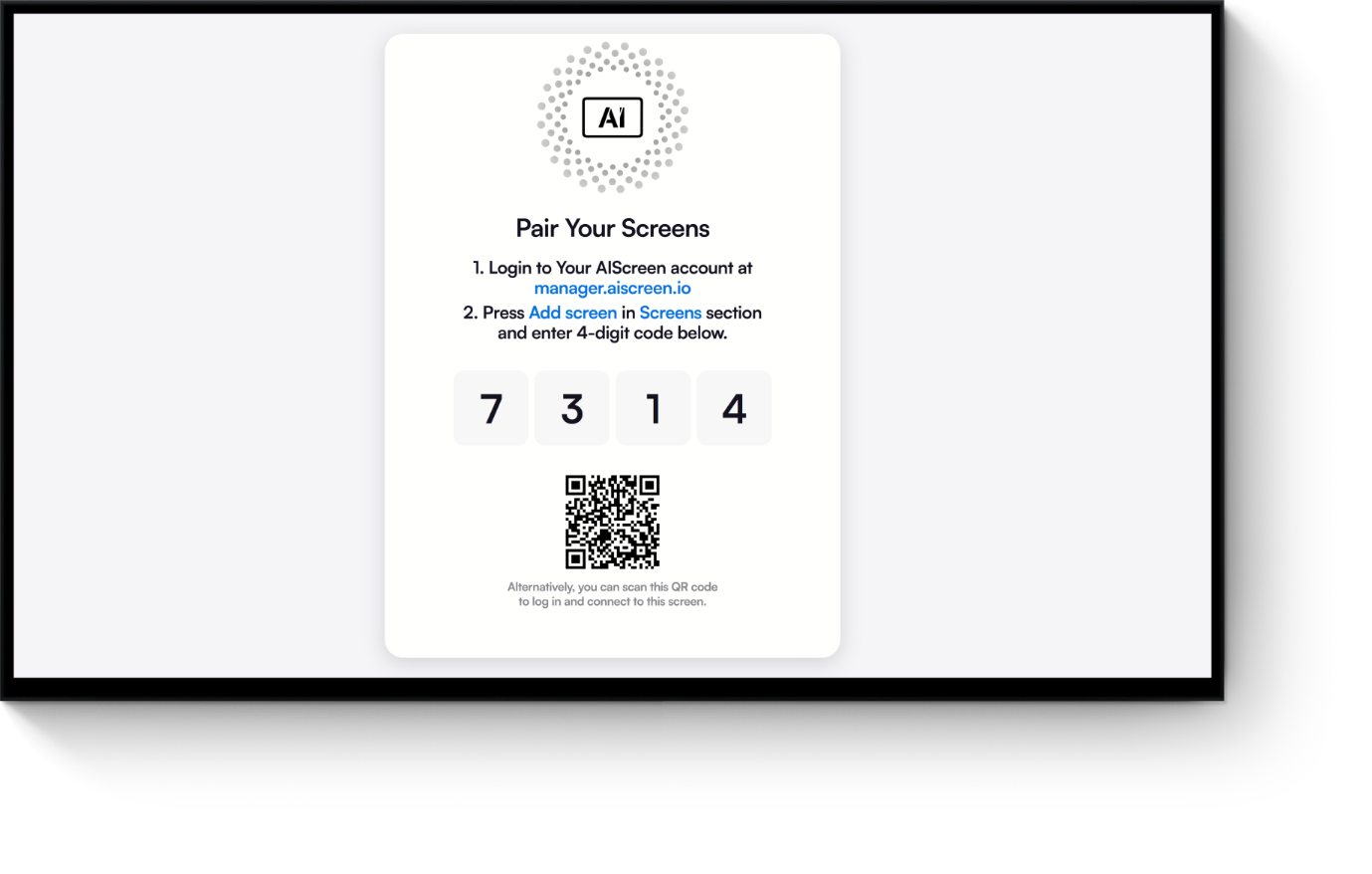
- Open the AIScreen app on your TV. A unique pairing code will appear on the screen.
- Log in to the AIScreen web dashboard on your computer.
- Navigate to Devices > Add New Device and enter the code displayed on your TV.
- Name your screen (e.g., “Lobby Display”) and assign it to a group
Step 6: Upload or Customize Your Digital Signage Templates
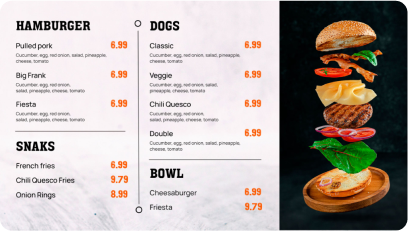
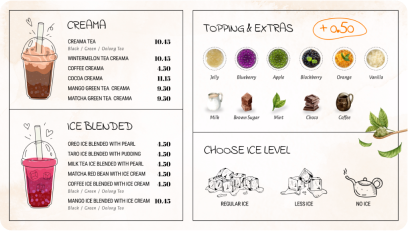
Uploading or customizing templates allows you to design branded menus, announcements, and promotional visuals tailored to your business. Visual content directly influences buying behavior and brand perception.
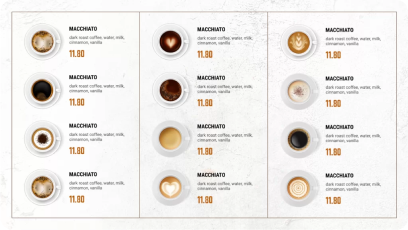
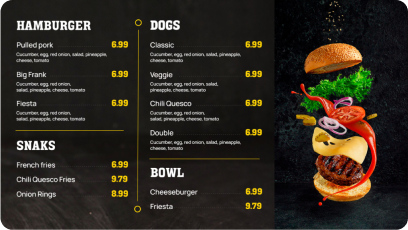
Upload and customize your advertising content templates with AIScreen, which comes with pre-designed, professional templates that are perfect for any place. You can easily customize digital signage templates with your services, pricing, and other things.
Additionally, according to Market Us Scoop, 67% of consumers report frequently purchasing products based on the visual content they see on digital signs. With AIScreen’s Canvas editor, you can edit your content, adjust prices, swap backgrounds, add your logo, and choose fonts that reflect your vibe.
Follow these steps to upload existing signs from your device:
- Go to the “Media” section on your dashboard.
- Click the “Upload” button.
- Select your media file from your device and upload it.
You can easily create content for your digital display with our editor, Canvas. You can customize our professionally designed digital display templates to design digital screens that reflect your branding.
Follow these simple steps to customize your display template:
- Navigate to “Canvas” and select a template you’d like to customize.
- Add images, animations, or videos to your chosen template.
- Incorporate branding elements like your restaurant’s logos, fonts & colors.
- Save your designs or publish them on the screen.
Discover 1500+ customizable digital signage templates
Discover 1500+ fully customizable templates for stunning digital menu boards.
Check our templates







Step 7: Set Up Display Schedule and Go Live
Set up the display schedule to control when and how content appears on your screens without manual switching. Use the scheduling feature to assign specific times, dates, or recurring intervals for playlists, promotions, or announcements.
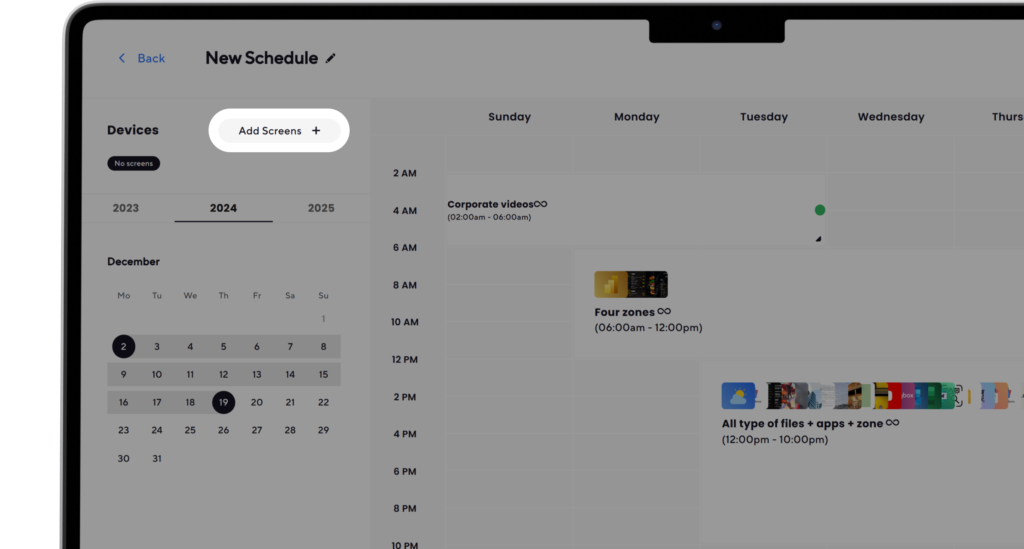
This enables day-parting strategies, timed campaigns, and automated recurring messages across single or multiple displays. Once the schedule is configured, publish the content to go live instantly and ensure seamless, continuous playback across all connected screens.
Here’s how to do it:
- Create a Playlist: Create and upload content to your newly created playlist. Arrange files so that they are displayed in sequential order.
- Create a New Schedule: Next, click on the “Schedule” tab in your dashboard and tap “Create New Schedule” to create a schedule for a specific time slot. You can also check the display schedule guide.
- Add a Playlist to the Schedule: Select the time slot (start date, time, and duration) for the content you want to play automatically. Confirm and add the playlist you want to schedule.
- Assign Devices, Review, and Save: Click “Add Device” to choose the screens or players to slideshow scheduled content. Click “Save,” and it’ll be played at the specified time slot.
Once saved, your Chromecast operates as a fully automated digital signage display.
Pros of Using Chromecast with Google TV for Digital Signage
Chromecast with Google TV offers strong value with easy setup, wide app support, and flexible content control. It supports streaming apps, live TV, and 4K HDR movies, delivering high-quality video content with Dolby Vision and Atmos support.
The Chromecast with Google TV is very fast and responsive, providing a standout performance for its price category. The new Google TV interface is fluid and user-friendly, offering a completely redesigned experience. Google TV provides superior search results and cross-app recommendations compared to Amazon Fire TV. Chromecast with Google TV is more powerful than Amazon’s Fire TV Stick 4K.”
The user interface is intuitive, offering personal suggestions based on viewing habits and personalized recommendations across services and subscriptions. Businesses can auto-launch signage apps, cast videos, and manage content through the Google Assistant button or remote.
It works on almost any TV, including an old TV with an HDMI port, making deployment easy. With support for favorite shows, music, and apps, it handles both entertainment and signage use cases effectively while keeping costs low.
Cons of Using Chromecast with Google TV for Digital Signage
Chromecast has limitations in performance, storage, and large-scale deployment. It is not built for complex digital signage networks or heavy workloads like multi-zone layouts and high-frequency dynamic updates.
It supports streaming 4K HDR content and has a more affordable version limited to HD. The 4K model supports Dolby Vision and Dolby Atmos.
While suitable for basic video content, dashboards, and promotions, it may struggle with advanced rendering or enterprise-level control. It also depends heavily on a stable internet connection and Wi-Fi, which can affect playback reliability.
Users have noted that the Google TV interface is more fluid and user-friendly compared to other streaming devices. The Chromecast with Google TV has received firmware upgrades shortly after its release, indicating that Google is responsive to software issues.
Compared to professional media players, it offers fewer advanced features, limited device management, and less scalability. Businesses with larger deployments may need stronger hardware for consistent performance.
Where to Buy Chromecast with Google TV?
Chromecast with Google TV is widely available through official and third-party retailers. You can buy it from the Google Store, Amazon, or electronics stores like Best Buy, Target, Walmart, Argos, and Currys.
It is part of the broader ecosystem of Google products, designed to work with smart home devices, subscriptions, and multiple services. Prices are affordable, and discounts are common during sales.
Before buying, check compatibility, minimum OS requirements, included accessories, and support for specific movies, apps, and services in your region. Hardware updates typically happen every few years, making older models more budget-friendly.
Learn with Our Guided Chromecast with Google TV Setup Walkthrough!
You can turn Chromecast into a signage-ready device quickly using the Google TV streamer environment and AIScreen. Install apps, connect your device, and publish content in minutes without complex setup.
The Chromecast with Google TV has a dedicated Live tab for YouTube TV, similar to Fire TV’s integration with live content. Chromecast with Google TV supports major streaming apps including Netflix, Hulu, Prime Video, Disney+, HBO Max, and Peacock.”
With support for casting, apps, and automated playback, businesses can deliver consistent video content, manage screens remotely, and create engaging displays. Start a 14-day free trial or request a demo to experience how easily Chromecast can power your digital signage setup.
FAQs
Can you use Chromecast without any cables?
No, using Chromecast without any cables is not possible because the device requires both an HDMI connection and external power. You must plug it into an HDMI port on your TV and connect it to a charging head plugged into a wall socket with sufficient power. Without both connections, the device won’t function properly.
How do I cast from Google Chrome on my laptop to a Chromecast?
Casting from Google Chrome on your laptop to a Chromecast requires both devices to be connected to the same WiFi network. Click the three vertical dots inside your Chrome browser, hover over Save and share, and click the ‘Cast’ button. Choose whether you want to cast the tab or your entire screen, then select the device name.
Can I use my smartphone as a remote for Chromecast?
Yes, using your smartphone as a remote for Chromecast is fully supported through the Google Home app. Open the app, tap and hold your Chromecast tile, and select Open remote to generate a pairing code on your TV screen. Once entered on your phone, your screen will display all the controls found on the Google TV remote.
Does Chromecast with Google TV support Bluetooth devices?
Yes, Chromecast with Google TV does support Bluetooth devices, allowing you to connect headphones, soundbars, and game controllers wirelessly. Open the Settings menu, go to Remote & Accessories, and select Pair Remote or Accessory while your Bluetooth device is in pairing mode.
What does the small button on the back of Chromecast with Google TV do?
The small button on the back of Chromecast with Google TV is used for factory resetting the device. Press and hold the button until the indicator light turns yellow and then white to initiate the reset process. This restores the device to its original settings.
What does the button next to the power button on the Google TV remote do?
The button next to the power button on the Google TV remote allows you to cycle through your TV’s HDMI and other input sources. This works as long as your television supports the Consumer Electronics Control (CEC) standard, enabling seamless switching between connected devices.
How do I manually check for software updates on a Chromecast device?
Manually checking for software updates on a Chromecast device ensures you’re running the latest firmware. Open the Settings menu, select System, then About, and click System update to search for and install any available updates automatically.
Why don’t the volume or TV input buttons work on my Chromecast remote?
When the volume or TV input buttons don’t work on your Chromecast remote, it’s often a settings configuration issue. Go to Settings > Remotes & Accessories and select Set up Remote buttons to configure compatibility. If your TV doesn’t support CEC, switch from Auto or TV volume control to Chromecast volume control.
Is Chromecast suitable for business use, or is it only for home entertainment?
Yes, Chromecast is suitable for business use, especially when paired with digital signage software for menus, dashboards, promotions, and announcements. Its low cost and app ecosystem make it practical for restaurants, offices, retail stores, and waiting areas looking for a simple display solution.
How much does Chromecast cost, and which model should you buy?
The cost of Chromecast varies by model, with Chromecast with Google TV typically priced as an affordable streaming device compared to traditional media players. For business or 4K display needs, the 4K version is the better option, while casual home users may find the HD model sufficient and more budget-friendly.
