
How to Remove Screen Clouding on LED & LCD Displays
To remove screen clouding on LED & LCD displays, you can tackle screen clouding by following targeted strategies, adjusting backlight settings, applying gentle physical fixes, making environmental tweaks, using software or calibration tools, and knowing when to fix or replace your display. According to RTINGS, backlight uniformity issues, like clouding and backlight bleeding, are widespread, even premium LCD panels often show measurable black uniformity deviations, where a standard deviation of just 1% can already impact image quality.
In this blog, you’ll learn step-by-step how to identify and reduce screen clouding on your LCD screen through fine-tuning picture settings, using gentle physical methods like a microfiber cloth, optimizing ambient lighting, and leveraging calibration or firmware updates. Plus, you’ll get guidance on knowing when it’s time to seek repair or replace the unit.
What Is Screen Clouding?
Screen clouding refers to those uneven light patches you might notice on your display, particularly during dark scenes, whether you’re using an LCD screen or an LED TV. Unlike stuck or dead pixels, which affect specific areas, backlight clouding can appear across the whole screen, becoming especially distracting during movies or when using digital signage software in business environments. This issue stems from how the panel’s backlight distributes light, often unevenly.
In fact, according to Dell, 41% of LCD monitors exhibit some form of backlight uniformity issues, including backlight bleeding or clouding, confirming that this isn’t limited to budget units but is a widespread challenge across LCD panel designs. If these panels power a storefront or lobby display, clean and uniform screens keep your digital signage software looking sharp for every viewer. Planning to roll these displays out across several locations? Check AIScreen pricing to size a deployment that fits your screens.
Backlight Bleed vs. Clouding: What’s the Difference?
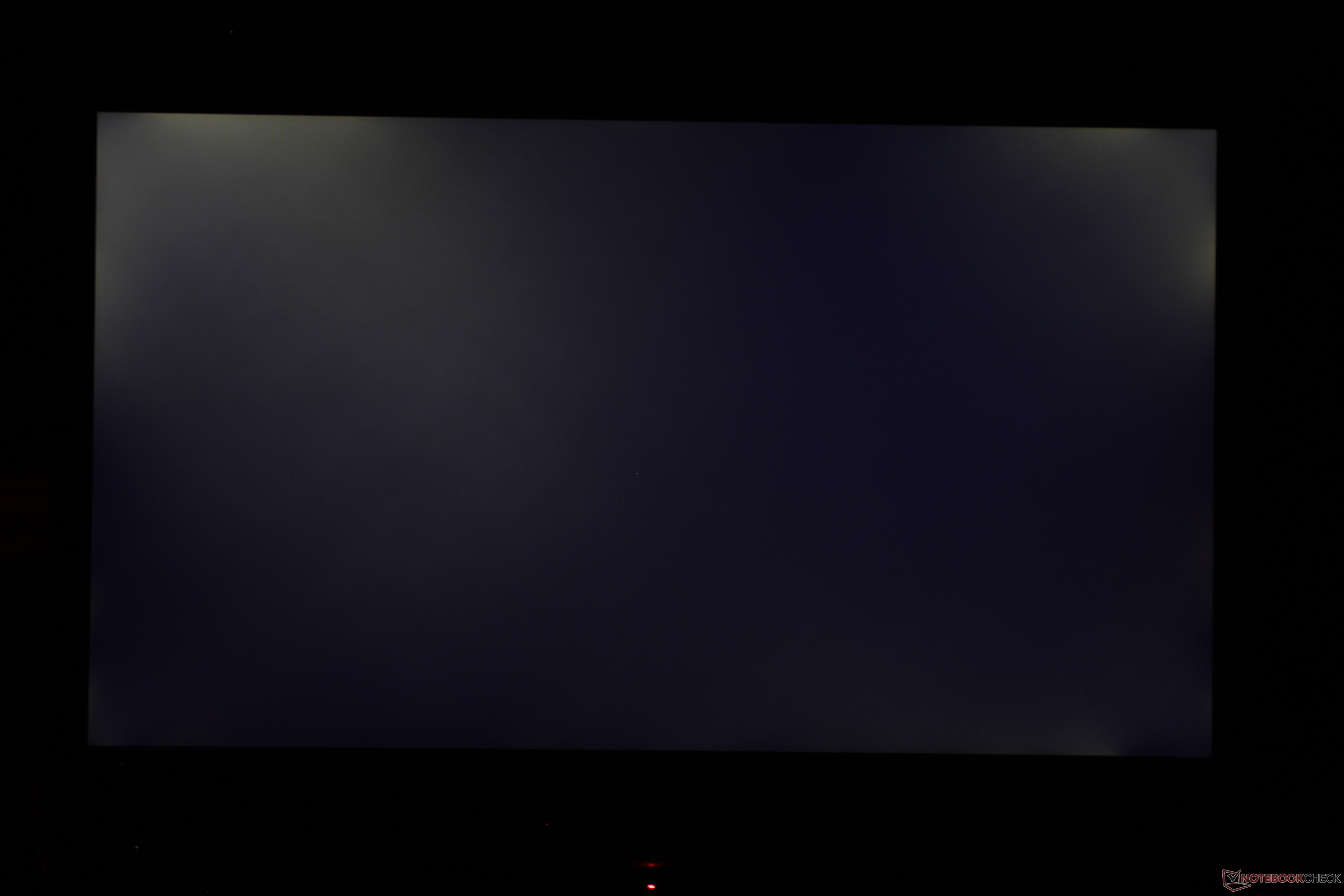
The difference between backlight bleed vs. clouding is that backlight bleed usually appears at the corners or edges of the screen, creating sharp, bright leaks that are most visible in dark viewing conditions. Clouding, on the other hand, results in irregular bright patches that spread across the panel, giving the screen a hazy or uneven look.
While bleed is caused by poor sealing or panel fit, clouding is often due to uneven backlight distribution, pressure on the panel, or environmental factors. In fact, according to Test Before You Buy, 2023, 41% of LCD monitors exhibit some form of backlight uniformity issues, whether bleeding or clouding, making it a common challenge across modern displays.
Common causes of clouding include:
- The backlight setting is too high, increasing intensity and uneven brilliance.
- Pressure on the panel, often from an improper setup or a tight frame.
- Manufacturing differences, meaning even the same model can have variations in presentation.
- Aging hardware makes clouding more noticeable over time.
Addressing these issues can help reduce annoying clouding and improve your TV or monitor’s image crispness.
How to Remove Screen Clouding on Your Display

To remove screen clouding on your display, start by lowering the brightness and adjusting picture settings to reduce lighter spots. Use local dimming features, test in a dark room with a white background, and adjust ambient lighting for balance. Gently press the screen with a microfiber cloth to avoid damaging pixels, and check viewing angles for improvements. If backlight bleeding or clouding issues remain across screens, firmware updates or professional repair may be required.
Step 1. Adjust Backlight Setting
Adjusting your display’s backlight setting is one of the simplest ways to reduce clouding issues and backlight bleeding. High backlight levels often exaggerate lighter spots, especially in a dark room or when viewing a white background. By lowering brightness and enabling features like local dimming, you can minimize uneven glow, improve viewing angles, and enhance overall picture quality without damaging the screen.
Tweak the Backlight Setting: High backlight settings can increase backlight bleeding, making it more perceptible in dark scenes. Lowering the intensity can help distribute light more evenly across the panel. On some televisions, like Samsung, enabling local dimming can reduce uneven brightness.
Calibrate Brightness & Contrast: Adjusting brightness settings can make a difference in image clarity. Lowering screen luminosity prevents excessive light bleed while tweaking contrast improves depth in dark images. Finding the right balance varies by model, but reducing both slightly is a good start.
Step 2. Apply Gentle Physical Fixes
Apply gentle physical fixes as physical adjustments can sometimes help reduce clouding issues and backlight bleeding without causing further damage. Small changes, like gently redistributing pressure or ensuring the screen is mounted evenly, can fix lighter spots and prevent uneven glow. Always be cautious, as pressing too hard can harm pixels or worsen the problem.
Use Soft Pressure on Affected Areas: If clouding appears in a specific spot, gently rubbing the screen with a microfiber cloth can redistribute light and improve uniformity. Apply light pressure, but avoid pressing too hard to prevent stuck pixels or dead pixels.
Evenly Mount the Display: Improper mounting can add pressure on one side, resulting in clouding, especially on the right side of the screen. Ensure the frame is secure but not overly tight. If clouding persists, consider a replacement or a new TV with better build quality.
Step 3. Environmental Adjustments

Environmental adjustments are important as your viewing environment plays a major role in how noticeable backlight bleeding or clouding appears. By controlling temperature, humidity, and lighting conditions around your TV, you can minimize visual distractions and extend display performance. Small changes in the setup can make a significant difference in picture clarity.
Optimize Room Temperature & Humidity: Extreme temperature changes affect TVs, worsening clouding over time. Keeping a stable network reduces the risk of permanent backlight issues.
Minimize External Light Reflections: Reflections from ambient light can make backlight bleed more perceptible, especially when watching movies. Adjusting the position of the display can reduce unwanted glare.
Step 4. Software & Calibration Tools
Software & calibration tools can significantly improve display uniformity by fine-tuning brightness and backlight intensity. When hardware adjustments and environmental fixes aren’t enough, these tools help balance luminosity, reduce visible clouding issues, and ensure a smoother viewing experience. They also allow you to test for backlight bleed and optimize settings for different lighting conditions.
Using Manufacturer Settings & Tools: If backlight bleeding remains an issue, resetting the TV or monitor to factory defaults can help. This removes any previous settings that may be causing uneven light distribution. Most displays have a reset option under picture settings in their menu.
Third-Party Calibration Tools: Third-party calibration tools, such as interactive screen software and professional utilities like DisplayCAL and CalMAN, allow precise control over screen luminosity and backlight intensity. When used alongside digital signage software, these tools help ensure consistent brightness across multiple displays and accurately test for backlight bleed, resulting in evenly lit screens optimized for both indoor and high-ambient-light environments.
These tools are also commonly used in professional environments where displays are shared for collaboration, such as learning how to set up smart screen share for meetings without visual distractions or uneven lighting.
Step 5. When to Consider a Fix or Replacement
To consider a fix or replacement, check if backlight bleeding persists despite calibration. Checking the LED or LCD warranty is the next step. Some manufacturers offer coverage for uneven backlight issues, especially if the problem is severe. A faulty panel or excessively bright patches may qualify for a replacement under warranty.
To request a repair, contact the manufacturer with photos of the screen displaying a dark picture to highlight the problem. If the issue worsens over time, securing a new monitor or new TV might be the best long-term solution.
If screen clouding persists even after adjustments and software calibration, it may be time to consider a replacement. While purchasing a new display is an option, many businesses also explore refurbished signage as a budget-friendly alternative.
How to Prevent Screen Clouding on LED & LCD Screens

To prevent screen clouding on LED & LCD screens, it’s important to combine proper maintenance, careful display selection, and correct installation practices. By taking preventive steps, you can reduce the chances of backlight bleeding, uneven brightness, or glow issues that affect picture quality over time.
Regular LED & LCD Monitor Maintenance: Keeping your LCD or LED TV in good condition reduces the risk of backlight bleeding. Dust buildup can affect the panel, leading to uneven display settings over time. Use a microfiber cloth to clean the entire screen gently, avoiding excess pressure that could create bright patches or stuck pixels.
Choosing the Right Display for Your Needs: Not all displays handle backlight bleed the same way. Some models have better uniformity, while others struggle with IPS glow in dark scenes. When buying a new monitor or new TV, consider:
- Backlight type: Edge-lit LEDs tend to have more clouding than full-array LED backlights.
- Manufacturer experience: Brands like Samsung focus on reducing light bleed, but even the same model may vary.
- Company needs: For digital signage, a premium panel ensures consistent picture clarity.
Proper Installation and Positioning
- Avoid exposing the screen to direct light sources that might highlight perceptible clouding.
- A well-mounted monitor with an adjustable frame prevents unnecessary pressure on the corners.
- Regularly check your cable connection to maintain stable picture clarity.
How Different Display Technologies Affect Screen Clouding

Different display technologies affect screen clouding because the way screens distribute light plays a major role in picture quality. Some displays naturally handle brightness and contrast better, while others are more prone to uneven lighting or visible patches. Here’s how different technologies compare:
LCD vs. LED: Which is More Prone to Clouding?: Both rely on backlight settings to illuminate the entire screen, but the way they distribute light affects the severity of screen clouding. Edge-lit TVs are particularly vulnerable because their backlight is positioned along the edges, making light patches more common, especially in dark scenes.
On the other hand, full-array LED TVs distribute the backlight evenly across the panel, reducing the risk of backlight bleeding. However, some units may have better light uniformity than others due to manufacturing differences.
IPS Glow vs. Backlight Bleed: A common issue in LCDs is IPS glare, which can be mistaken for backlight bleeding. IPS glow appears when viewing the screen from a position, causing a noticeable halo effect around the edges. In contrast, backlight bleeding is typically visible regardless of the viewing position and is caused by uneven settings rather than panel technology.
To minimize glow, users can adjust the angle of their monitor or TV to find the best position where it’s least obvious. Backlight bleeding, however, requires direct adjustments to brightness and contrast settings.
Why OLED Displays Avoid Clouding
OLED displays avoid clouding because each pixel in an OLED panel emits its own light, meaning there’s no need for a backlight. This results in true blacks, making dark scenes look more natural without the risk of bright patches or backlight bleeding.
While OLED displays offer superior picture quality, they are typically more expensive than LED TVs. However, for users who find TV clouding particularly annoying, upgrading to OLED can be a worthwhile investment.
Do Cheaper Monitors Have More Clouding?

Maybe, cheaper monitor have more clouding because budget-friendly monitors often use lower-cost components, including less advanced backlighting systems. This can result in uneven light distribution, making clouding more obvious, especially in darker scenes. Manufacturers of lower-end configurations may also apply less strict QA procedures, leading to inconsistencies between units.
Higher-end displays are designed with better backlight uniformity, reducing the risk of bright patches and uneven illumination. Premium models often include full-array backlighting or advanced dimming technologies, which help maintain consistent brightness across the screen. While a more expensive display isn’t always perfect, investing in value reduces the likelihood of persistent clouding issues.
How to Test for Screen Clouding

To test for screen clouding, here are some tips you can follow to check if your display suffers from uneven lighting. Start by playing a solid black or dark-colored background in a dark room, as this makes patches and bright spots easier to see. Slowly increase brightness levels to observe whether any uneven glow or white patches appear on the corners or edges.
You can also view the screen from different angles to distinguish between IPS glow and true backlight bleed. For more accuracy, use calibration or diagnostic tools that highlight uniformity issues and help confirm if the problem is screen clouding. According to RTINGS.com (2021), noticeable image quality degradation begins at just a 1% standard deviation in black uniformity, underscoring how even minor backlight uniformity issues, like clouding or flash lighting, can affect overall picture quality.
Tip 1. Using a Black Image to Spot Clouding: A simple way to check for digital signage TV clouding is by displaying a dark image on the TV or monitor in a dark room. If bright patches appear in certain areas, it’s a sign of backlight bleeding. Most people don’t notice these issues during regular use, but in dark scenes, they become much more visible.
To perform this test:
- Set the TV brightness to a moderate level.
- Display a black pciture using a USB drive, browser, or built-in settings.
- Observe the whole TV from different angles to check for noticeable clouding.
Tip 2. Checking for Clouding Out of the Box: It’s best to test for backlight clouding immediately after purchasing a new monitor or new TV. Some TVs may have worse backlight distribution than others, even within the same model range.
To notice issues early:
- Lower the backlight setting and see if bright patches become more or less visible.
- Adjust the contrast to check how the panel handles deep blacks.
- Compare the operation in a well-lit and dark room to see how noticeable the clouding is.
Tip 3. Comparing TV Styles and Variations: Even if two users buy the same TV type, their displays may not perform identically. Some units might have obvious clouding, while others have near-perfect backlight uniformity.
When buying from retailers like Best Buy, it’s helpful to check reviews from other buyers who own the same equipment. If clouding is a common complaint, it may be worth looking at a different unit or brand.
If TV clouding is immediately noticeable after arrangement, requesting a replacement or refund may be the best option.
Is Clouding a Problem in Bright Outdoor Environments?

Clouding a problem in bright outdoor environments arises when displays are exposed to direct sunlight or high-contrast conditions. Outdoor signage, like flying screens and window displays, requires high brightness settings to stay visible under direct sunlight. However, when a display has backlight clouding, uneven light distribution becomes more obvious, especially in dark scenes or high-contrast visuals.
Here’s how hazing can affect signage visibility:
- Bright patches can distort branding elements, making logos, text, and pictures harder to read.
- Uneven screen brightness impacts the condition of advertisements, making visuals appear inconsistent.
- TVs with clouding issues may display a picture that looks faded or patchy, reducing engagement
What Are the Best Displays for Outdoor Signage?
The best displays for outdoor signage are those that minimize backlight clouding and ensure long-lasting performance. To avoid backlight clouding, stores should invest in full-array LEDs or commercial-grade LCDs. These displays provide better backlight uniformity and are designed for outdoor lighting conditions, ensuring minimal backlight bleed and more consistent brightness settings.
Does Screen Clouding Affect Indoor Digital Signage?

Screen clouding affects indoor digital signage as indoor digital signage operates in controlled lighting environments where backlight clouding stands out more. Whether used for advertising, menus, or presentations, an LED TV or LCD TV with obvious clouding can make images look uneven and distracting to viewers.
How Can Clouding Impact Store Displays?
- Dark scenes in promotional content may highlight backlight clouding, reducing professional appeal.
- Uneven brightness settings can cause text and visuals to appear distorted.
- For corporate and retail signage, TV inconsistencies can affect brand perception and engagement.
What Can Companies Do to Minimize Clouding?
To minimize TV issues, lower backlight settings and fine-tune contrast for more even light distribution. Choose commercial-grade displays with better backlight technology to reduce visible clouding. Test new monitors and LED TVs before installation to check for backlight issues and ensure excellence.
Why Does Clouding Look Different from Certain Angles?

Clouding look different from certain angles because the visibility of the TV cloud often changes depending on the viewing position. Some LCDs show more pronounced clouding when viewed from the right side or at an extreme angle. This happens because the light from the back panel does not distribute evenly across the surface, leading to inconsistent brightness levels.
Another factor that can be mistaken for clouding is IPS glow. This effect occurs in certain types of panels when viewed off-center, causing a faint glow around darker areas. While it may look similar, IPS glow is more dependent on angle, whereas clouding remains visible even when viewed straight on.
External light sources can also impact how obvious clouding appears. Bright environments may mask mild clouding, while dim settings, particularly when displaying darker images, can make it more prominent. Adjusting display positioning and ambient lighting can sometimes minimize its effect.
Can Clouding Be Fixed with a TV Burn-In Method?
Yes, clouding be fixed with a TV burn-in method which is commonly used to reduce stuck pixels by displaying a static image or a shifting color pattern for extended periods. While this can help refresh certain display issues, it does not work for backlight clouding.
Some users attempt burn-in fixes by displaying a black screen or running color-cycling programs, hoping to redistribute uneven brightness. However, since clouding is caused by inconsistencies in backlighting rather than individual pixels, these methods are ineffective.
Unlike dead pixels, which are specific points of failure, clouding is an issue of light distribution across the panel. If software adjustments do not improve the uniformity, physical factors like panel pressure, TV positioning, or display condition may be the real cause. In such cases, manual calibration or a different display type may be the only solution.
Say Goodbye to Screen Clouding with AIScreen!
Say goodbye to screen clouding with AIScreen which can be distracting, but adjusting brightness, reducing backlight intensity, and proper display positioning can help. For severe cases, a premium screen with better light distribution may be the best solution.
For users needing reliable digital signage, AIScreen offers superior display solutions with advanced customization. Try AIScreen free for 14 days and ensure your content looks clear, professional, and engaging, without distracting visual inconsistencies.


FAQs
What causes screen clouding on LED and LCD displays?
The causes of screen clouding on LED and LCD displays usually come from uneven backlight distribution, poor panel uniformity, or low-quality manufacturing. It often becomes noticeable at wider viewing angles, where lighter spots and patches are more visible on dark screens.
Can screen clouding be permanently fixed?
Yes, screen clouding cannot usually be permanently fixed because it is a hardware-related issue rather than a software flaw. While calibration and adjusting local dimming can reduce the problem, it often reappears under certain conditions like dark room settings.
Does screen clouding worsen over time?
Yes, screen clouding can worsen over time as LED and LCD displays age and their backlight systems degrade. Changes in brightness uniformity may also become more obvious at certain viewing angles or when a white background is displayed.
Is screen clouding the same as burn-in or dead pixels?
No, screen clouding is not the same as burn-in or dead pixels because each issue affects the display differently. Clouding shows up as uneven lighting or glowing patches, while dead pixels are individual pixels that stop working and burn-in is a permanent ghost image.
Which types of displays are least affected by screen clouding?
The types of displays least affected by screen clouding are usually OLED panels and high-end LED models with full-array local dimming. These technologies allow more precise control over individual pixels, reducing uneven light distribution across the screen.
