
How to Setup Automatic Weather Station Software for Monitoring
Setting up automatic weather station software for monitoring is a powerful way to collect real-time weather data and make informed decisions. The global AWS market is projected to expand from $403.6 billion in 2023 to $806.7 billion by 2032, reflecting a Compound Annual Growth Rate (CAGR) of 8.0% during this period, as researched by AIScreen’s team.
This blog post will teach you how to set up and configure AIScreen’s weather monitoring software. We will guide you through each step, from registering your account to displaying weather data across your digital signage software system. By the end, you can harness live weather updates to improve decision-making and integrate them seamlessly into your operations.
What is an Automatic Weather Station?
An automatic weather station (AWS) is designed to collect and monitor weather data automatically without manual intervention. It includes various sensors that measure atmospheric parameters such as temperature, humidity, wind speed, wind direction, and barometric pressure.
The data collected by the AWS is typically transmitted to a central system or cloud platform for analysis and display. AWS systems are commonly used in agriculture, meteorology, and environmental monitoring to provide accurate, real-time weather information.
How to Set Up Software for Monitoring an Automatic Weather Station?
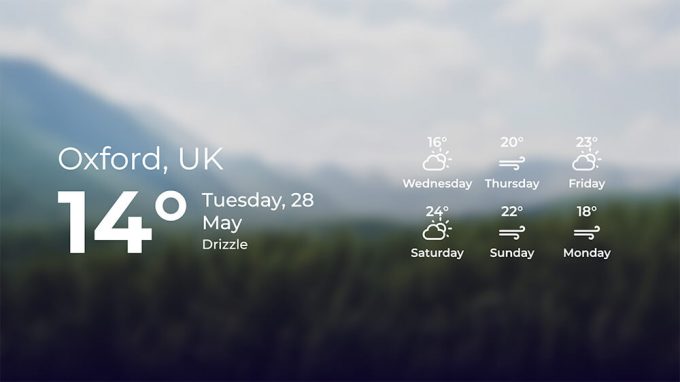
Follow these step to easily set up digital signage software for automatic weather station monitoring:
Step 1: Register and Log in for the Weather Monitoring App
- Register an Account: Visit AIScreen and create an account by following the on-screen instructions.
- Log in: Enter your registered email and password on the login page, then click “Log in.”

Step 2: Access the Weather Application
- Open the App Store: Select the “Apps” section from the left-hand menu after logging in. Click the “Open App Store” button in the upper right corner to access the app catalog.
- Locate the Weather App: In the App Store, click on the “Weather” application icon. In the subsequent window, select “Go to App” to open the Weather App.

Step 3: Configure the Weather App
Set Temperature Units: Choose your preferred temperature display format: Celsius or Fahrenheit.
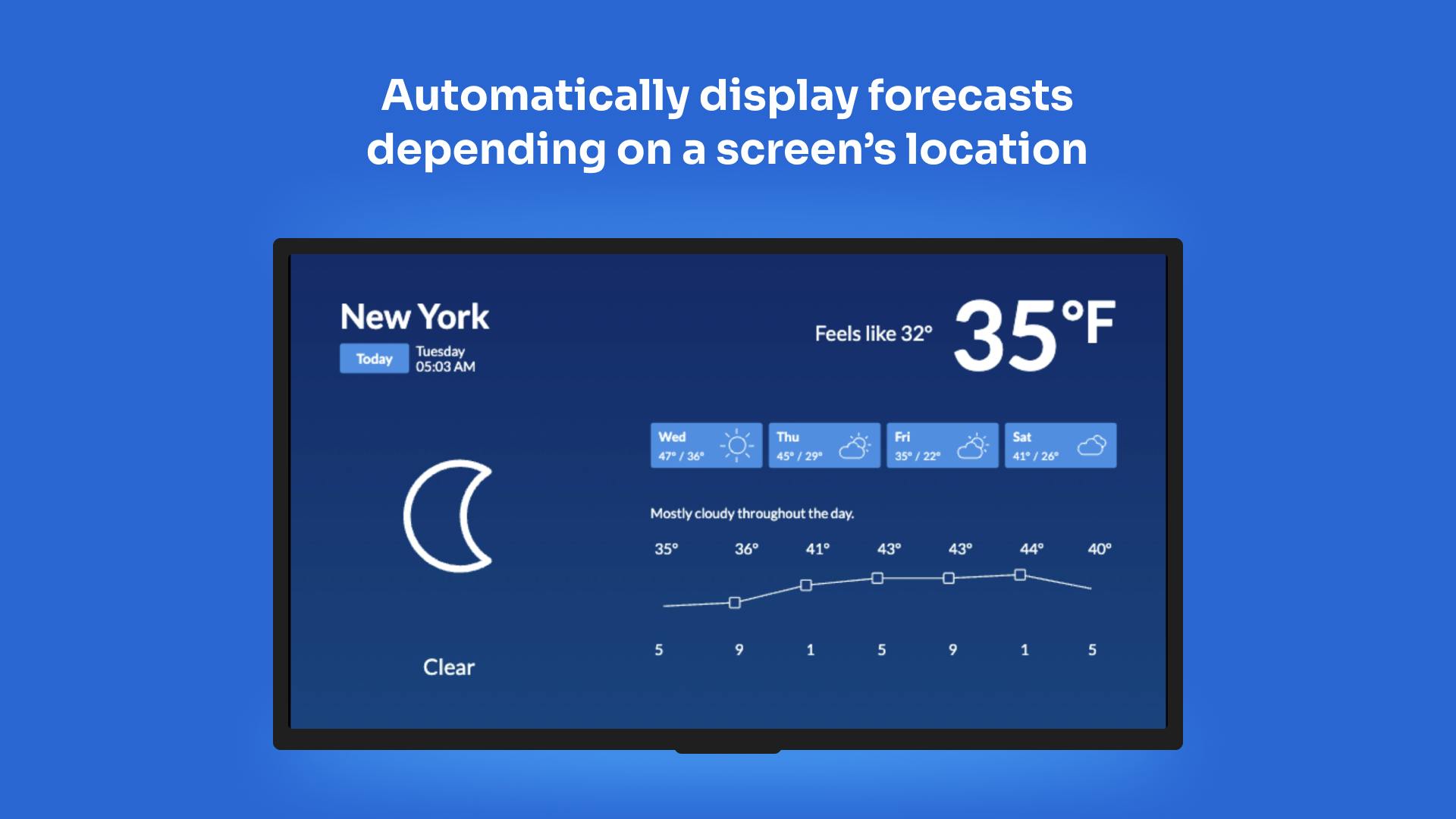
Select Locations: Enable the “Custom Location” option to specify up to three cities:
- Location 1: Enter the name of the first city (e.g., “New York, USA”).
- Location 2: Enter the name of the second city (e.g., “Paris, France”).
- Location 3: Enter the name of the third city (e.g., “Tokyo, Japan”). Alternatively, select the “Screen Location” option to display weather information based on the current screen’s location.
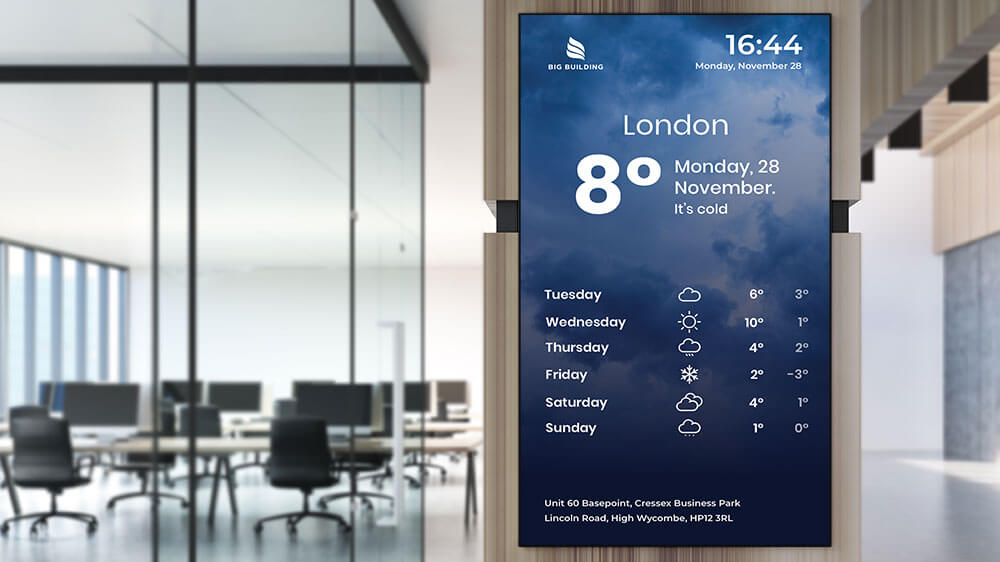
Name and Save: Assign a clear and descriptive name to this weather display configuration (e.g., “Lobby Weather Display”). Click “Save” to apply your settings and deploy the weather information to your screen.

What are the Basic Components of an Automated Weather Station?
The basic components of an automated weather station are:
- Weather Sensors:
These sensors measure different weather conditions, such as temperature, humidity, wind speed and direction, rainfall, air pressure, and solar radiation. They detect changes in weather and turn this information into electrical signals.
- Data Logger:
The data logger stores and records the information the sensors collect. It processes and organizes the weather data, essentially acting as the brain of the AWS.
- Communication System:
The system allows the AWS to send the collected data to a central server or display it in real-time. This can be done through a wired or wireless network, satellite communication, or a cellular network.
- Power Supply:
AWS needs a reliable power source to function continuously. It can be powered by solar panels, batteries, or both, ensuring the system works even in remote areas without access to the grid.


How Does an Automated Weather Station Work?
Here’s a simple step-by-step breakdown of how automated weather station works:
- Sensor Measurements:
Weather sensors constantly measure different weather conditions, such as temperature, wind speed, and direction. For example, the temperature sensor detects changes in temperature, while the anemometer measures the wind’s speed and direction.
- Data Conversion:
The sensors convert the weather data they collect into electrical signals, which are then sent to the data logger.
- Data Logging:
The data logger receives these electrical signals and records them along with the date and time of each measurement.
- Data Storage:
The data is stored in the data logger’s memory, which must have enough space to store all the weather data it collects.
- Data Transmission:
Based on the available network options, the stored weather data is sent to a central server or users using different communication systems.
- Data Analysis and Display:
Once the data is transmitted, it is analyzed to find patterns or trends. This data is then displayed to users, like meteorologists or farmers, through software or visual displays, helping them make decisions based on the weather information.

What are the Benefits of Using Automated Weather Station Software for Monitoring?
Using Automated Weather Station Software for monitoring offers several key benefits, including:
- Real-Time Weather Data: Gain instant access to accurate weather information, allowing businesses to make timely, informed decisions.
- Automation: Automates weather monitoring, reducing the need for manual data collection and ensuring continuous tracking.
- Improved Decision-Making: By monitoring live weather conditions, businesses can adjust operations, such as outdoor seating or agricultural practices, based on current weather trends.
- Enhanced Safety: Stay ahead of weather-related risks, such as storms or extreme temperatures, helping prevent safety hazards in outdoor settings or remote locations.
- Cost Efficiency: Reduce operational costs by automating weather data collection and reducing the risk of human error.
- Customizable Alerts: Set up alerts for extreme weather conditions to take immediate action and protect assets or people.
- Data Integration: Easily integrate weather data with other systems, such as digital signage software or inventory management, for better operational flow.
What is Smart Screen Share and Weather Station Data Integration?
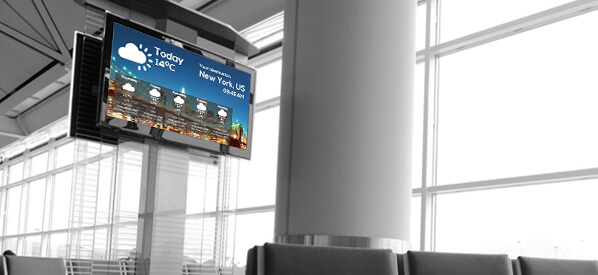
- Smart Screen Share allows businesses to display real-time weather updates across multiple screens.
- Ideal for informing customers or employees about changing weather conditions (e.g., storms, temperature shifts).
- It helps businesses make informed decisions, such as adjusting outdoor seating or scheduling weather-sensitive tasks.
- Provides automatic updates, creating dynamic, weather-responsive environments.
- Seamlessly integrates into digital signage solutions for a practical and informative experience.
How Do Employee of the Month Signs Work with Weather Station Software?
- Integrates employee of the month signs with live data of weather from AWS.
- Creates interactive content that highlights employee achievements while displaying current weather conditions.
- Recognizes employees for weather-related tasks, such as ensuring safety during adverse weather.
- Boosts employee morale and demonstrates the importance of real-time data of weather in operations.
- Links employee recognition to weather-sensitive operations, improving workplace efficiency.
What are the Applications of Automated Weather Stations?
Below are some key applications of AWS:
Agriculture:
AWS is widely used in agriculture to monitor weather conditions that impact crop growth, irrigation needs, and pest control. Farmers can optimize their farming practices, reduce water usage, and increase crop yields by tracking temperature, humidity, and rainfall.
Smart Cities:
In smart cities, AWS provides real-time data to monitor urban environmental conditions. This information can be used to manage public services like transportation, waste management, and energy use, helping to improve residents’ quality of life.
Environmental Monitoring:
AWS plays a crucial role in environmental monitoring by tracking weather conditions in remote or protected areas. This helps organizations monitor pollution levels, air quality, and weather patterns to address environmental concerns and ensure sustainability.
Disaster Management:
Automated digital signage weather stations are critical for disaster preparedness and response. By providing real-time data on weather conditions like rainfall, wind speed, and temperature, AWS helps authorities predict severe weather events such as floods, hurricanes, and storms, enabling better emergency response planning.
Transportation:
AWS is used in transportation digital signage systems to monitor road conditions, wind speeds, visibility, and other weather factors that affect safety. This data helps transportation authorities manage traffic flow, implement road closures, and provide accurate weather forecasts to travelers.
Research and Meteorology:
Meteorologists and researchers rely on AWS to collect long-term data of weather to study climate patterns, predict weather conditions, and support scientific research on climate change and weather phenomena.
Energy and Utilities:
In the energy sector, AWS helps track weather conditions that affect power generation, such as wind speeds for wind turbines or solar radiation for solar power. This information helps optimize energy production and ensure reliable supply.
Tourism and Recreation:
AWS can be utilized by tourism operators, especially in outdoor activities like hiking, skiing, or boating, to provide real-time weather updates and ensure tourists’ safety. It helps operators offer the most accurate weather forecasts for recreational activities and smart share screen for meetings.
Using AWS in these applications, organizations can optimize operations, reduce risks, and enhance decision-making based on reliable, real-time data of weather.
How to Troubleshoot Common Issues with Weather Station Software?
Here’s how to solve some common problems:
1. No Data Displayed on the Software
- Check Sensor Connections: Ensure the weather sensors are correctly connected to the data logger and transmitting data. If using external sensors, verify they are powered and functioning.
- Verify Network Connection: Confirm that your AIScreen digital signage platform is connected to the internet for live data transmission. Check Wi-Fi or network connectivity if necessary.
- Restart the Software: Close and reopen the AIScreen weather app to resolve any temporary glitches.
- Check Weather Station Configuration: Make sure that the correct settings (such as temperature, wind, humidity, etc.) are enabled to display data.
2. Inaccurate Data or Readings
- Calibrate Sensors: Ensure the weather sensors are calibrated according to AIScreen’s guidelines. Miscalibrated sensors may give inaccurate readings.
- Inspect Sensor Placement: Check for any physical obstructions near the sensors (such as dirt or debris) that may affect their readings.
- Update Software: Ensure that the software is updated to the latest version. Software updates often include bug fixes that may resolve data inaccuracies.
3. Slow or Interrupted Data Transmission
- Check Internet Connection: Slow data transmission can occur if your internet connection is unstable. Run a network speed test and verify connectivity.
- Restart Network Equipment: If using a wired or wireless network, restart your router or network equipment to restore a stable connection.
- Adjust Transmission Settings: If bandwidth is limited, reduce the data transmission frequency in the AIScreen settings to prevent delays.
4. Software Crashes or Freezes
- Restart the AIScreen Software: Closing and reopening the application can help resolve temporary freezing or crashing.
- Clear Cache and Cookies: If persistent issues persist, clear the web browser’s or application’s cache and cookies to improve software performance.
- Check System Resources: Ensure your device has enough RAM and CPU power to run AIScreen’s Weather Station software. Too many active processes can slow down performance.
5. Alerts and Notifications Not Triggering
- Verify Alert Settings: Double-check that alerts are set up correctly in AIScreen’s digital signage Weather Station app and that the correct trigger parameters are chosen.
- Check Notification Preferences: Ensure that the correct email address or phone number is entered for notifications and that your email provider or phone settings aren’t blocking notifications.
- Test Alerts: To ensure the alerts work, simulate extreme weather conditions (like high speed of wind or temperature) to check if the system triggers the alert.
6. Data Logging Issues
:max_bytes(150000):strip_icc()/spr-home-weather-stations-test-sainlogic-wireless-8-1-mary-speichinger-18-a4d7c7208ef84c74a265ce2520a3e46b.jpeg "How to Setup Automatic Weather Station Software for Monitoring 16")
- Check Data Logger Connection: If data isn’t being logged, ensure the data logger is correctly connected to your weather station and functioning.
- Verify Storage Capacity: Ensure the data logger has sufficient memory to store incoming data. If necessary, delete old data or extend storage.
- Review Logging Intervals: Confirm the data logging intervals are correctly configured in the AIScreen software settings.
How Does Automated Weather Station Software Stand Out from the Competition?
| Feature | AIScreen | Competitors |
|---|---|---|
| Seamless Integration with Digital Signage | AIScreen automatically integrates real-time weather updates into your digital signage system, displaying updated weather information across multiple screens. | Competitors typically lack this integration, requiring manual updates or using separate systems to display data of weather. |
| Automation and Data Accuracy | AIScreen automates the collection and transmission of data of weather, minimizing human error and ensuring continuous accuracy without manual data entry. | Competitors often rely on manual data entry, leading to potential inaccuracies or delays in decision-making. |
| Customizable Alerts for Extreme Weather | AIScreen sends instant alerts for extreme weather conditions, allowing businesses to act immediately (e.g., storms, temperature changes). | Competitors may offer data of weather but lack automated notifications or customizable alert systems for timely responses. |
| Solar-Powered and Remote-Ready | AIScreen’s weather stations can be powered by solar energy, making them ideal for remote, off-grid locations without access to electricity. | Many competitors require a constant power supply, limiting their use in remote or off-grid areas. |
How Do Third-Party Tools for Displays Enhance Automatic Weather Station Software?
Automatic weather station software becomes more powerful when integrated with third-party tools for displays, enabling seamless data visualization, real-time updates, and automated content delivery across digital screens. These integrations allow businesses and organizations to transform raw weather data into actionable, visually engaging insights for public displays, control rooms, and smart environments. By leveraging external display tools, users can improve accuracy, accessibility, and decision-making efficiency, making weather data more interactive and impactful across multiple use cases.
Set Up Your Automatic Weather Station Software With AIScreen
Setting up automated weather station software for monitoring with AIScreen provides businesses with real-time, accurate weather data to optimize operations and improve decision-making. AIScreen, a leading provider of digital signage solutions, seamlessly integrates weather data, helping businesses stay informed and responsive to changing weather conditions.
Whether for agriculture, transportation, or smart cities, AIScreen’s platform ensures efficient and reliable weather monitoring, enhancing safety, productivity, and operational efficiency.
Frequently Asked Questions
Can I integrate live weather feeds into my digital signage content?
Yes, you can integrate live weather feeds into your digital signage content using AIScreen because it supports weather API integration for real-time updates. This ensures your screens display accurate weather information from multiple sources seamlessly. With AIScreen’s digital signage software, businesses can create dynamic weather displays that engage their audience. This approach ensures relevant and up-to-date weather information for every location.
How to show weather alerts or warnings on digital signage screens?
To show weather alerts or warnings on digital signage screens, you can use AIScreen’s dynamic content management tools. These tools make it possible to push urgent notifications in real-time, ensuring your audience stays informed. By connecting with reliable data sources, your digital signage displays can present timely and critical updates. This approach ensures a consistent and effective communication channel for all weather conditions.
Which automatic weather stations support digital signage integration?
Automatic weather stations that support digital signage integration can connect seamlessly with AIScreen for displaying weather data. These stations, equipped with sensors for temperature, wind speed, and humidity, provide real-time weather information for any location. This ensures a smooth integration process that meets various business needs. By using AIScreen, businesses can access accurate data and display it across their entire digital signage network.
Is it possible to show multi-location weather on one signage display?
Yes, it is possible to show multi-location weather on one signage display using AIScreen’s weather app. This feature allows businesses to combine live weather updates from multiple sources into a single screen. By providing relevant information for various locations, you create a personalized experience for your audience. This flexibility helps businesses deliver valuable insights and enhance overall audience engagement.
What industries use automatic weather station digital signage systems?
Industries such as agriculture, aviation, transportation, research centers, universities, and smart cities commonly use automatic weather station digital signage systems to monitor environmental conditions and share weather insights with staff and visitors.
How to troubleshoot weather data not showing on signage screens?
To troubleshoot weather data not showing on signage screens, start by checking connectivity issues, verifying API integration, and confirming your data sources. AIScreen offers resources and support to quickly resolve these problems. Once configured correctly, your weather displays will show real-time updates without interruptions. This ensures optimal performance and a seamless viewing experience for your customers.
