
How to Set Up Signage Software with any Third Party Tools for Displays?

To set up signage software with any third party tools for displays , connect the digital signage software to the external tool, map the data source or app output, assign it to the right screens, test playback and permissions, and then schedule or publish the content across your display network. This enables seamless synchronization with data sources like POS, inventory tools, and event management platforms to automate signage content updates and personalize customer experiences for hospitality, retail, and event sectors. According to Grand View Research, the digital signage market is expected to exceed 8% CAGR from 2023 to 2024.
This article simply throws light on how you can set up your digital signage solutions using any third-party system. This article will also depict how AIScreen’s digital signage platform can seamlessly integrate with various third-party apps, APIs, and real-time data streaming devices to ensure real-time connection to your audience.
What Does Third Party Tools Integration Mean in Display Systems?
Third Party Tools integration in digital signage displays systems means connecting the digital signage platform to external apps, data sources, or business tools so digital content can update automatically and show live information on digital screen. In practice, this can include linking dashboards, social feeds, alerts, project tools, POS data, or internal databases to the display system so the screen shows current, synced, and more useful content instead of only manual uploads.
This matters because integration expands what a display system can do beyond static media playback. When third-party tools are connected, screens can pull real-time data, automate content changes, and support use cases like emergency alerts, social media feeds, KPI dashboards, live order status, or location-based messaging, which makes the display system more responsive and operationally useful.
What Are 10 Best Third Party Tools For Creating Digital Signage Content?

The 10 best third party tools for creating digital signage content are Canva, Google Slides, PosterMyWall, Figma, Power BI, Tableau, Google Sheets, YouTube, RSS feed tools, and TouchDesigner. These tools work well because they cover the main ways businesses create signage content today. According to Marketresearchfuture Remote management solutions with third-party integrations are growing at ~15% CAGR, essential for multi-location real-time updates in retail/hospitality
1. Canva

Canva is one of the best third party tools for displays when the goal is to create polished digital signage content quickly with templates, drag-and-drop editing, and team-friendly design workflows. It works especially well for promotions, menus, announcements, branded slides, and visual campaigns that need to look professional without requiring advanced design skills. Canva is a great way to create content quickly, but its free version has limitations.
2. Google Slides

Google Slides is a strong choice for creating digital signage content when the team wants presentation-style displays that are easy to edit, share, and keep on brand. It is especially useful for office updates, internal communications, schedules, announcements, and other content that benefits from collaborative editing and simple template reuse.
3. PosterMyWall

PosterMyWall is a practical third party tool for displays when the focus is on fast promotional content, event graphics, menus, and digital posters. Its digital signage templates and HD or 4K output make it useful for businesses that need ready-made layouts they can customize and publish quickly. PosterMyWall is designed for marketers to create digital posters and infographics.
4. Figma
Figma is one of the best options when digital signage content needs more custom layout control, stronger brand-system consistency, or collaborative design between teams. It fits businesses that want signage screens to look more tailored, especially for interface-style displays, branded environments, and custom visual systems.
5. Power BI

Power BI is a strong third party tool for creating digital signage content when the display needs live KPIs, operational dashboards, or data-driven visuals. It works well for offices, factories, retail chains, and other environments where screens need to show current performance data instead of only static graphics.
6. Tableau
Tableau is a good fit for digital signage content that depends on visual storytelling through dashboards and business data. It is especially useful when the display needs richer analytics visuals, shareable dashboard views, or more advanced data presentation than a basic slide-based tool can provide.
7. Google Sheets

Google Sheets works well as a third party display tool when the content starts as live tables, charts, schedules, or lightweight dashboards that teams update often. It is useful for internal screens, calendar-style boards, status displays, and operational content that changes frequently and needs simple collaboration. It is especially useful for office updates, internal communications, schedules, and announcement screens because it can be turned into presentation-style digital signage content with simple collaboration and template reuse
8. YouTube
YouTube is one of the best third party tools for creating digital signage content when the screen strategy depends on video, playlists, branded channels, or live broadcasts. It works especially well for promotional loops, educational content, entertainment screens, and live event streaming that needs a familiar video platform behind it.
9. RSS Feed Tools
RSS feed tools are useful for digital signage content when the goal is to keep screens updated automatically with headlines, announcements, blog posts, or news-style information. They are a good option for organizations that want low-maintenance dynamic content instead of manually replacing text-based updates every time something changes.
10. TouchDesigner
TouchDesigner is a better fit for advanced digital signage content that uses motion graphics, interactive visuals, projection-style output, or more creative real-time display experiences. It is not the simplest tool on this list, but it is powerful for teams building custom interactive displays or high-impact visual environments. TouchDesigner is a node-based visual programming language used to create interactive, real-time 3D graphics, motion graphics, and projection mapping.
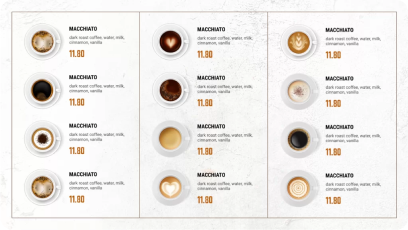
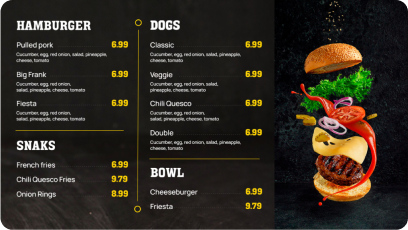
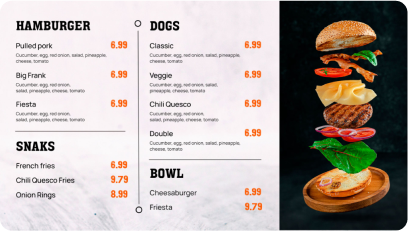
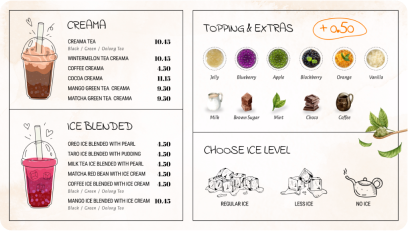
Discover 1500+ customizable digital signage templates
Set Up Digital Signage with any 3rd Party System
Check our templates







Why Should You Use Digital Signage Software with Third Party Tools?
You should use digital signage software with third party tools because it makes screen content more connected, more automated, and more relevant in real time. When a digital signage platform integrates with third-party apps, data sources, social media, POS systems, inventory tools, dashboards, or RSS feeds, it can display real-time content across single or multiple screens without relying on manual updates. According to Global Market Insights, digital signage software is the fastest-growing segment at 10.1% CAGR through 2034, driven by cloud integration and remote management.
Third party tools for displays turn digital signage from a basic content player into a more responsive communication system. Digital signage software works as a robust content management system (CMS) that lets users digitally create, manage, and display content across multiple screens. Integration automates signage content, enables real-time updates like flash sales, improves data-driven decisions, and creates more effective displays across retail, healthcare, airports, and other public spaces.
What Are Requirements for Integrating Third-Party Tools With Displays?
The requirements for third-party integration with display include compatible digital signage software like AIScreen, API or integration support, stable network connectivity, authentication access, and supported hardware devices such as media playeror smart TVs. A digital signage platform must support third-party applications through APIs, plugins, or built-in integrations.
It should also be compatible with different operating systems such as Windows, Android, or Chrome OS to ensure smooth performance across display screens. Additionally, cloud-based digital signage solutions allow centralized control across multiple displays and locations. API keys or secure credentials connect external tools, while stable internet ensures real-time data syncing and dynamic content updates across digital screens.
How To Set Up Third-Party System with Digital Signage Software In 7 Steps
To setup up third party system with digital signage software in 7 steps follow steps as below
Step 1: Select the Right Display
Select the right display to perfectly showcase information with digital signs, as it will only work best depending on the screens you choose. Choosing the commercial-grade displays will be the most suitable option for your display arena. This is because commercial-grade screens are best used in bustling environments like a restaurant, storefront, or outdoor festival.
We recommend:
Toshiba LED Smart Fire TV

- Key Features: 4K UHD display, DTS Virtual: X sound, wide viewing angles, and multiple HDMI inputs.
- Usage: Hotel lobbies, conference halls, waiting areas, and other large spaces needing clear visibility.
- Performance: It ensures bright visuals and smooth playback, even in high-traffic environments.
- Ease of Setup: It supports quick connectivity with media players and is fully compatible with popular content management systems.
- Scalability: It is best for businesses that need multiple screens running in sync or unique content across various locations.
- Value: It provides a cost-effective solution without compromising on display quality.
Step 2: Install and Set Up the Digital Signage Software
Install and set up the digital signage software on your system, once after selected the hardware device suitable for your display requirement. Check out a range of operating systems supported by the AIScreen’s cloud-based digital signage software platform, such as Android, Windows, and Raspberry Pi, to make sure your hardware and software are compatible with each other.
Looking for displaying live TV content alongside dynamic signage, follow this guide on how to set up digital signage software with Live TV easily? for a smooth and optimized setup.
Step 3: Create an Account in the Digital Signage Management App

Create an account in the digital signage management app by signing up for your AIScreen account. It will unlock a centralized dashboard in front of you for easy content management on digital screens and ensure uninterrupted playback. The AIScreen dashboard will help you easily and simply control multiple screens, assign playlists per location, and upload media without any difficult functionality included.
AIScreen’s centralized platform offers the following benefits:
- Simplified management and control for all your digital displays, no need to manage physically.
- Efficient content scheduling to create and schedule content playlists.
- Real-time signage device status monitoring from a single location to quickly identify and troubleshoot any issues.
- Remote updates to save time and resources.
Step 4: Connect and Pair Your Devices with the Software

Connect and pair your devices with the software. You will typically get a device code or QR code to link them. Your screen, media player, or third-party tool like POS should be connected to the digital signage software using a wired HDMI port, a wireless setup, or Wi-Fi. Ensure seamless integration, interactivity, and content synchronization using built-in pairing features.
There are two primary ways to connect your devices:
- Wired: Connects through HDMI, Ethernet, and offers a stable connection, which is ideal for permanent setups.
- Wireless: Connects through Wi-Fi, Bluetooth, and provides flexibility for devices that need to be moved.
Troubleshooting Tips:
- Check Connections: Make sure all cables are secure, and you have a strong Wi-Fi signal.
- Restart: Try restarting both the software and the device.
- Check Firewall: Make sure your network firewall is not blocking the connection.
Step 5: Upload and Customize Your Advertising Content Templates

Upload and customize your advertising content templates, such as videos, images, static ads, or animated menus. AIScreen’s well-designed TV, playback, and system setup, and perfectly curated customizable templates are your ticket to reaching the heart of the signage users to maintain their consistent branding efforts across multiple locations.
Upload the content by accessing the content library, uploading files, and using pre-made templates to fit the signage to your brand using branding guidelines, dynamic data integration, and re-arranging the layout to create an eye-catching interactive display.
Step 6: Integrate Third Party Tools For Displays
Integrate third party tools for displays system with your digital signage software to automate your signage display. If you have opted for an AIScreen digital signage solution, you will be facilitated to use two very powerful platforms – Square and Checkmate. Square syncs live menus from your third-party POS to your chosen screen, and Checkmate automates order interactive displays for restaurants. This enables the dynamic and accurate sharing of real-time data and easy content displays.
Automation helps in providing:
- Real-time updates
- Dynamic signage content
- Reduced manual effort
Step 7: Schedule and Launch Your Content Live

Schedule and launch your content live using the built-in scheduler in your software. It sets the content on a specified schedule to run based on location, time, or external triggers like limited promotions or happy hours. You can launch your content instantly and monitor real-time performance using the dashboard.
Scheduling your signage content:
- Create a Playlist: Create and upload content to your newly created playlist. Arrange files so that they are displayed in sequential order.
- Create a New Schedule: Next, click on the “Schedule” tab in your dashboard and tap “Create New Schedule” to create a schedule for a specific time slot. You can also check the display schedule guide.
- Add a Playlist to the Schedule: Select the time slot (start date, time, and duration) for the content you want to play automatically. Confirm and add the playlist you want to schedule.
- Assign Devices, Review, and Save: Click “Add Device” to choose the screens or players to slideshow scheduled content. Click “Save,” and it’ll be played at the specified time slot.
How to Fix Third-Party Integration Errors in Digital Signage Systems?
To fix third-party integration errors in digital signage systems start by checking connectivity, verifying API credentials, ensuring compatibility, and reviewing system configurations.
- Check internet connectivity
Ensure stable network access for real-time updates across digital screens. - Verify API keys and authentication
Confirm credentials are correct and have proper permissions. - Ensure platform compatibility
Check that the digital signage software supports the third-party applications and operating systems. - Review configuration settings
Double check endpoints, content mapping, and scheduling rules. - Update software and tools
Use the latest versions to avoid conflicts. - Monitor logs and system errors
Identify issues affecting media players or display devices.
Fixing these areas usually resolves most integration problems and ensures stable communication between the display system and external tools.
What Is the Difference Between Built-in Features and Third-Party Tools?
The main difference between built-in features and third-party tools is that built-in features are native functionalities included within the signage software, while third-party tools are external applications integrated to extend capabilities and add advanced features. Built-in features typically handle core tasks such as basic content scheduling, media playback, and simple layout management, offering stability, ease of use, and direct compatibility with the system.
In contrast, third-party tools provide advanced features such as automation, real-time data integration, advanced analytics, and external content synchronization, allowing the system to become more dynamic and scalable. While built-in features ensure reliability and simplicity, third-party integrations enable flexibility and customization depending on specific business needs.
What Are Safety Risks of Third-Party Tools in Digital Signage Systems?
The safety risks of third-party tools in digital signage systems include unauthorized content changes, insecure data access, malware exposure, broken emergency messaging, unstable screen performance, and weak control over who can publish or modify content. When external apps, plugins, widgets, or integrations are added without proper review, they can create security gaps that affect both screen reliability and operational safety.
These risks become more serious when digital signage is used for safety alerts, public communication, workplace instructions, or live operational updates. A poorly secured third-party tool can interrupt content delivery, expose credentials, delay critical messages, or push inaccurate information to one screen or multiple screens at once. That is why digital signage systems need controlled integrations, role-based access, update governance, and testing before any third-party tool is deployed into a live signage environment.
How to Measure Return After Integrating Third-Party Tools?
Integrating third-party tools into digital signage systems improves automation, content delivery, and overall system efficiency, but the real value lies in understanding the return these integrations generate.
After implementation, businesses need to evaluate how these tools impact key outcomes such as audience engagement, operational efficiency, and business goals like conversions or customer experience. Measuring these results helps determine whether the integration is delivering meaningful value.
To learn how to define metrics and accurately measure return on objectives (ROO) in digital signage, read our detailed guide on how to measure return on objectives in digital signage.
Turning Third-Party Display Integrations Into Measurable Value
Third-party display integrations create measurable value when they reduce manual work, speed up content updates, improve the use of live data, and make screen communication easier to manage across day-to-day operations. The strongest results usually come from integrations that support real workflow needs instead of adding disconnected tools that are harder to control.
AIScreen supports that outcome with 100+ built-in apps and integrations, 1,500+ ready-to-use templates, offline playback, split-screen zones, and centralized multi-location publishing, which makes it easier to turn connected tools into repeatable display workflows instead of one-off technical add-ons. That makes the result easier to measure through smoother content operations, fewer update delays, and better control over how integrated tools perform on screen. Start a free trial or schedule a demo with AIScreen to acquire a seamless setup.


FAQs
What third-party systems are compatible with digital signage software?
Third-party systems that are compatible with digital signage software include some common integrations such as POS systems like Square, inventory trackers, event management platforms, and even social media feeds.
How do I ensure that my digital signage software works seamlessly with third-party systems?
You can ensure that your digital signage software works seamlessly with third-party systems by choosing a signage platform like AIScreen that offers app integrations, API access, and real-time sync tools for avoiding manual processes.
Can I use digital signage software with third-party media players?
Yes, you can use digital signage software with third-party media players like AIScreen that support Android boxes, Amazon Fire TV, and other media players for scalable deployment of signage screens.
What are common challenges when integrating digital signage software with third-party systems?
Common challenges when integrating digital signage software with third-party systems are connectivity issues, lack of API support, and unsupported file formats that can hinder system integration. Hence, always opt for a flexible platform that yields the best results.
What third-party tools enhance the functionality of digital signage software?
Third-party tools that enhance the functionality of digital signage software are POS tools, Google Calendar, scheduling apps, and real-time weather/news. APIs enhance the capabilities of your signage with fresh, live data.
