
How to Set Up iPad Digital Signage Software

To set up iPad digital signage software, you’ll need to select a reliable digital signage app, install it on your iPad, and pair it with a cloud-based content management system (CMS). You’ll also need to enable Guided Access mode to lock your device into a secure kiosk-like experience. This transforms your iPad into an efficient digital sign, perfect for displaying menus, promotions, schedules, and more in real time. 65% of end-users plan to increase their digital signage spend on acquiring new displays, while 42% will spend more on content production, according to Digital Signage Today.
In this blog, we’ll walk through the step-by-step process of setting up AIScreen’s digital signage software on your iPad. You’ll also learn why businesses are shifting to iPads for digital signage purposes, especially in environments like retail stores, cafes, coworking spaces, and events. Our guide shows how to setup ipad displays with digital signage software from start to finish.
What is Digital Signage Software for iPad?
Digital signage software for iPad allows businesses to manage and broadcast dynamic signage content directly from the iPad. Whether you’re running digital menus in a coffee shop or creating interactive kiosks at trade shows, this digital signage software simplifies your signage experience with just a few taps.
The software typically supports content uploads, scheduling, screen pairing via pairing codes, and remote management. You can easily schedule content updates, display promotional videos, integrate social media feeds, or even use the iPad as a digital photo frame.
A 2022 Deloitte insight found that 65% of customer-facing businesses consider tablet-based signage as the most cost-effective and scalable solution, especially for chains with multiple locations.
With iPad’s lightweight design, reliable Wi-Fi, and seamless app integrations, it’s ideal for creating interactive features, adding digital signage content on the fly, or transforming spare iPads into powerful screens. By leveraging digital signage software for iPad, businesses can maximize engagement while keeping hardware and operational costs low.
Why Use an iPad for Digital Signage Software
Use an iPad for digital signage software for a smart, efficient, and visually striking display solution. iPads deliver crisp resolution, responsive touch, and flexible functionality that adapts to almost any signage need, from interactive applications to ambient displays.
On the other hand, traditional setups that rely on fixed hardware or bulky Android tablets, iPads are sleeker, portable, and often more intuitive to set up. Their consistent software updates and wide app support make them better for the future.
Beyond usability, iPads are space-efficient, perfect for counters, tabletops, and walls. Whether you’re showcasing a digital menu in a food truck or placing a sign-in kiosk in a lobby, an iPad for digital signage offers elegant utility. These digital signage solutions scale from a single screen to a multi-location fleet.
Here’s why iPads are a top choice for signage:
- Affordability: iPads offer a better price-to-performance ratio than many proprietary digital signage displays. Even the latest models, like the iPad Air or standard iPad, come at accessible price points, often lower than commercial-grade hardware designed solely for signage. For businesses managing multiple displays, this translates into significant savings without compromising on visual quality or software capabilities.
- Portability: With their lightweight design and slim profile, iPads can be easily repositioned to fit changing display needs. Whether you’re hosting a weekend pop-up market, participating in a trade show, or updating your retail layout, iPads allow quick and hassle-free movement without needing complex wiring or mounts.
- Ease of Use: Apple’s iOS ecosystem is widely known for its simplicity. Staff members with minimal technical knowledge can learn to operate signage apps quickly, reducing onboarding time and the need for IT support. Updates, app installations, and bug fixes are also streamlined through the App Store, ensuring smooth performance.
- Space Efficiency: Traditional signage setups can be bulky, requiring mounts, CPUs, and cables. iPads eliminate that clutter. Their sleek design makes them perfect for confined areas like retail counters, hotel receptions, or event booths where every inch of space counts. They deliver professional-grade display capabilities without monopolizing real estate.
Example: A boutique fitness studio in New York uses iPads as wall-mounted displays showing real-time class schedules and live social media feeds, boosting audience engagement while keeping the setup simple.
Steps to Set Up Digital Signage Software on iPad
Steps to set up digital signage software on an iPad involve selecting the right device, downloading the correct software, and configuring settings for smooth performance. Below is a detailed, easy-to-follow breakdown.
Step 1: Choose the Right iPad
Choose the right iPad by evaluating your content needs, screen size preference, and device capabilities. The best iPad models for signage include the iPad Pro (for larger displays and high-resolution content) and the iPad Air (a cost-effective, powerful middle ground).
A Harvard Business Review study reported that devices with larger displays increase consumer interaction by up to 47%, making the iPad Pro a compelling option for audience engagement-heavy displays.
However, even older iPad models or spare iPads can work effectively if running the latest version of iOS and connected to a reliable power source.
Key considerations:
Display Size
Display size matters when deploying iPad digital signage in high-traffic areas like malls, exhibitions, or retail chains. Larger screens like the iPad Pro 12.9-inch provide better visual clarity, high-resolution content delivery, and increased visibility, crucial for grabbing customer attention in busy spaces.
Storage Space
Storage space is crucial when using iPads for digital signage, as high-resolution images, animations, and video files demand significant memory. Choosing an iPad with at least 64GB of internal storage helps prevent lag during playback and ensures seamless content updates. It also improves overall device performance by avoiding overload from frequent content refreshes.
Battery vs. Plug-in Setup
Battery vs. plug-in setup is a key operational consideration. While iPads can run on battery power, they’re not suitable for continuous signage use. A stable, plug-in power source is recommended to maintain 24/7 screen uptime. However, battery use can be beneficial for temporary or mobile signage kiosks at events or exhibitions. For fixed installations, a dedicated power supply ensures long-term reliability.
Wi-Fi Connectivity
Wi-Fi connectivity enables real-time content synchronization, cloud-based signage management, and remote troubleshooting. A strong and stable internet connection ensures smooth operation, especially if you’re using platforms that support remote scheduling or multi-location control. Ensure the iPad is placed in an area with robust signal strength to avoid disruptions and maximize uptime.
Step 2: Download and Set Up Digital Signage Software
Install and set up digital signage software on your iPad; you’re setting the stage for a gorgeous, attention-grabbing board. This step, to download digital signage software, is your foundation; it’s what makes everything else possible.
Once installed, you’ll have full control over your digital screens. You can easily connect to your digital screen solution using the cloud and manage your content from any device, anywhere you have internet access.
Follow the steps below to get started:
- Visit the app store on your iPad.
- Type “AIScreen Digital Signage Software” in the search bar.
- Click the “Install” button to download the software.
- Open it, and note the 4-digit pairing code showing on your screen.
For users looking to set it up on other platforms, here’s a helpful guide on how to set up on-premise digital signage software.
Step 3: Create an Account in the Management App

Create an account in the management app to pair your iPad’s screen with the cloud-based dashboard for content synchronization.
You can create your account in just two steps:
- Visit the login page on your laptop or computer.
- Sign up by entering your name, email, and password. For quick onboarding, sign up with a Google or Facebook account.
Once signed up, log in to your manager account and explore your web-based dashboard for managing digital signs.
Step 4: Pair Your Device with the Software

Pair your device with the software after successfully logging into your manager account, with the menu management application, so that your admins and managers can control your digital signage screens and content remotely.
Here’s the step-by-step guide to pair your display with the software:
- Log in and click “Add Screen” in the dashboard.
- Enter the 4-digit pairing code displayed on your iPad’s screen.
- Name your screen and choose orientation (horizontal or vertical).
- Click the “Pair” button to complete the setup process.
Step 5: Upload or Customize Your Template

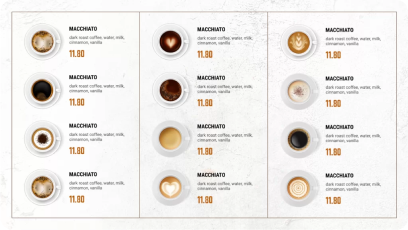
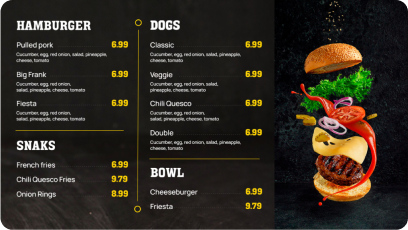
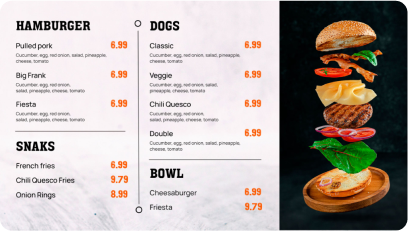
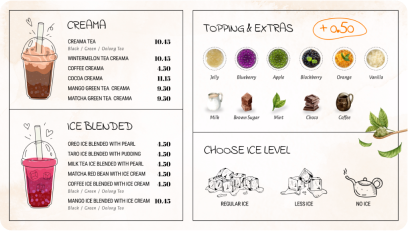
Upload or customize your advertising content templates with AIScreen, which comes with pre-designed, professional templates that are perfect for any place. You can easily customize templates with your services, pricing, and other things.
Additionally, according to Market Us Scoop, 67% of consumers report frequently purchasing products based on the visual content they see on digital signs. With AIScreen’s Canvas editor, you can edit your content, adjust prices, swap backgrounds, add your logo, and choose fonts that reflect your vibe.
Follow these steps to upload existing signs from your device:
- Go to the “Media” section on your dashboard.
- Click the “Upload” button.
- Select your media file from your device and upload it.
You can easily create content for your digital display with our editor, Canvas. You can customize our professionally designed digital display templates to design digital screens that reflect your branding.
Follow these simple steps to customize your display template:
- Navigate to “Canvas” and select a template you’d like to customize.
- Add images, animations, or videos to your chosen template.
- Incorporate branding elements like your restaurant’s logos, fonts & colors.
- Save your designs or publish them on the screen
Discover 1500+ customizable digital signage templates
Set Up iPad Digital Signage With 1500+ Templates
Check our templates







Step 6: Set Up Display Schedule and Go Live

Set up a display schedule and go live with your content with AIScreen; you can schedule different services to show at different times. You can create playlists and schedule your content that automatically switches based on time or day, with the schedule set-up guide.
This ensures your screen always shows relevant, engaging content and helps you promote the right services at the right moment to the right audience.
Here’s how to do it:
- Create a Playlist: Create and upload content to your newly created playlist. Arrange files so that they are displayed in sequential order.
- Create a New Schedule: Next, click on the “Schedule” tab in your dashboard and tap “Create New Schedule” to create a schedule for a specific time slot. You can also check the display schedule guide.
- Add a Playlist to the Schedule: Select the time slot (start date, time, and duration) for the content you want to play automatically. Confirm and add the playlist you want to schedule.
- Assign Devices, Review, and Save: Click “Add Device” to choose the screens or players to slideshow scheduled content. Click “Save,” and it’ll be played at the specified time slot.
Which is the Best iPad for Digital Signage Software?

The best iPad for digital signage software depends on your environment, display needs, and budget. While any iPad can technically run digital signage content, newer models without home buttons offer a cleaner look and easier device lockdown using guided access.
- iPad 10th Gen (no home button): Starting at $499 new or $349 refurbished, this model offers a 10.9″ display, the best price-to-performance ratio, and a sleek design that blends well when wall-mounted. Ideal for business signage, waiting areas, or coworking spaces.
- iPad Air: From $599, it features a faster CPU and Apple Pencil support. Its lightweight form makes it suitable for smaller spaces. However, the upgrades aren’t crucial for running digital signage, so the 10th Gen base iPad offers better value.
- iPad 9th Gen (with home button): Priced from $329 new or $149 refurbished, this budget-friendly model includes a 10.2″ screen and is compatible with all essential signage apps. Just be sure to frame it to prevent users from tapping the home button during display mode.
- iPad Pro 12.9”: Starting at $1,099 new or $659 refurbished, it’s the go-to for high-traffic areas, interactive digital signage displays, or premium brand experiences. However, at this price, it competes with commercial TVs, making it more suitable for large-scale visual engagement.
Looking to download digital signage app solutions that pair easily with older iPads, or set up a system using Apple TV? Well, newer buttonless iPads remain the most scalable and cost-effective choice for businesses. See how digital signage vs traditional signage compares before you decide.
Turn Your iPad into an Working Display with AIScreen’s Digital Signage Software
Turn your iPad into a working display with AIScreen’s digital signage software and give your office, cafe, or event space a tech-forward edge. AIScreen lets you add images, schedule content, and push real-time updates to any number of iPads or iOS devices, even older models, from a central computer or cloud dashboard.
You can remotely control digital signage displays, upload videos, assign unique pairing codes, and even connect multiple devices using specialized apps. AIScreen also enables accessibility features and bug fixes for long-term stability. Whether you’re using a single device or managing a fleet, our app ensures your screen always delivers the right message.


Frequently Asked Questions
What are the best iPad apps for digital signage?
The best iPad apps for digital signage include specialized apps like AIScreen, which allow users to schedule digital signage content, control multiple displays, and log updates across devices.
Is there free iPad software for digital signage?
Yes, there are free versions of digital signage software for iPads, including trial-based apps that let users create, preview, and run digital signage on iOS devices before upgrading.
What features should I look for in iPad digital signage software?
The features you should look for in iPad digital signage software are scheduling tools, pairing code setup, image and video support, accessibility options, and control from another computer.
Can I control digital signage on an iPad remotely?
Yes, you can control iPad digital signage remotely using apps like AIScreen that let you log in, access content settings, and push updates to connected iPads or Apple TVs from anywhere.
Is iPad digital signage suitable for retail businesses?
iPad digital signage is suitable for retail businesses looking to display promotions, menus, or branding on sleek screens, especially when using newer iPads or optimized digital signage apps.
