
How to Display Messages on Digital Signage TV Screen?
If you’ve ever wanted to turn your TV into a live message board, this guide will show you how to use digital signage software. Using browser-based digital signage, you can easily display messages on TV screens in your office, restaurant, or school, no extra hardware needed. It’s a modern, cost-effective way to share updates, promotions, or announcements, including announcement display, that keep everyone informed, including display announcements. All you need is your Smart TV, Wi-Fi, and a browser to get started. According to Intel research, using digital signage can increase in-store sales by up to 33% when content is updated in real time.
In this blog, you’ll learn exactly how to set up and manage your digital signage software display using just a web browser. We’ll walk through each step, from pairing your Smart TV to creating playlists, scheduling content, and sharing real-time updates across multiple locations. You’ll also discover creative message ideas through a digital signage app, best design practices, and how to engage your target audience to make your TV screens a powerful communication tool for your business.
What is the Easiest Way to Display Messages on TV?
When it comes to displaying messages on a TV screen, browser-based digital signage is the simplest and most flexible option. You don’t need any complicated hardware or USB drives, just a Smart TV display, an internet connection, and a browser. According to Statista, the global digital signage market is expected to reach $45 billion by 2030, driven by browser-based and Smart TV solutions.
On the other hand, a standard (non-smart) TV will require an external digital media player such as Revel Media Player, Groove Digital Signage, Google Chromecast, Chromebox, Chromebit, Amazon Fire Stick, etc. With AIScreen, you can control your digital signage screens directly from a single URL, making it the easiest way to manage dynamic content for your business through remote control and management, whether in one location or across multiple branches. If you want to see how far this scales, our digital signage software pushes messages to one screen or hundreds from the same dashboard. Curious what a multi screen rollout costs? Browse AIScreen pricing to match a plan to your business.
No Extra Hardware Required
You can say goodbye to expensive digital signage players or tricky setup processes. Browser-based signage works on any Smart TV with a built-in browser, Chrome, Edge, Firefox, or Safari, eliminating the need for an external digital media player .
- Just visit player.aiscreen.io and your digital signage content appears instantly.
- No need for external media players, HDMI devices, or complex installations.
- Even non-smart TVs can run signage easily using an Amazon Fire TV Stick or Apple TV.
- This lightweight setup turns your regular display into a powerful communication tool without extra effort.
Cost-Effective for Any Business
Browser playback removes hardware costs and reduces ongoing maintenance.
- No external boxes, no cables, just the screen you already own.
- Manage digital displays from anywhere through AIScreen’s cloud-based CMS.
- Save time, cut installation expenses, and enjoy higher ROI.
- Ideal for retail stores, public spaces, and offices where cost-effective visual appeal matters.
Remote Control and Management
Managing your signage is effortless with AIScreen’s remote content management system.
- Upload, schedule, and organize digital signage content from one dashboard.
- Instantly update announcements, news headlines, or upcoming events.
- Run social media feeds or KPIs across multiple displays without physical access.
- Perfect for teams that need to display announcements or engaging content in real time.
But, to understand how well your digital signage is performing, whether during on-premise or remote management, you must set KPIs for these objectives as a best practice.
Works with Popular Browsers and Smart TV Brands
AIScreen is compatible with leading Smart TV brands and popular browsers.
- Supports Chrome, Firefox, Edge, and most Smart TV displays.
- As we like to say, “If your TV can open YouTube, it can run AIScreen.”
- No worries about operating systems or technical specifications.
- From Android TVs to commercial displays, the system adapts seamlessly.


How to Display Messages on Digital Signage TV?
Setting up your digital signage solution display is easier than ever with AIScreen. You don’t need extra hardware, complicated wiring, or software downloads, just your Smart TV and a browser. According to a Nielsen study, digital displays capture 400% more views than static signs in public spaces.
Whether you’re in an office, restaurant, or retail store, these simple steps will help you display messages on a TV screen and manage everything remotely through a cloud-based content management system.
Step 1: Choose a Browser-Compatible TV
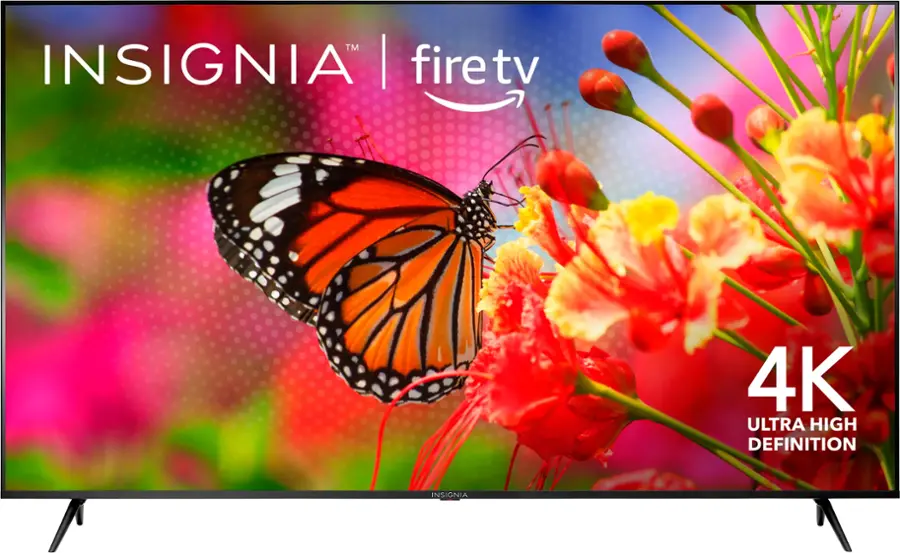
The first step is to pick a Smart TV that supports browsers like Chrome, Edge, or Firefox. This ensures smooth playback and a secure digital signage setup without any compatibility issues. Make sure your device supports HTTPS and is connected to a stable Wi-Fi network for uninterrupted streaming.
- Choose a compatible Smart TV from AIScreen’s digital signage screens.
- Check that your TV supports HTTPS browsing.
- Works well with Android-based and browser-enabled Smart TV displays.
- Once connected, your screen can easily display announcements, visuals, or real-time feeds.
Step 2: Open the Digital Signage Playback URL
Now that your TV is ready, it’s time to access the digital signage player. This part requires no installation or downloads, just your browser and a simple link. Within seconds, your TV becomes a live digital signage screen ready to display content.
- Launch your TV’s browser.
- Visit player.aiscreen.io.
- A unique pairing code will appear automatically.
- No extra hardware or cables are needed, just your internet-connected TV.
Step 3: Pair Your TV via the Digital Signage Dashboard
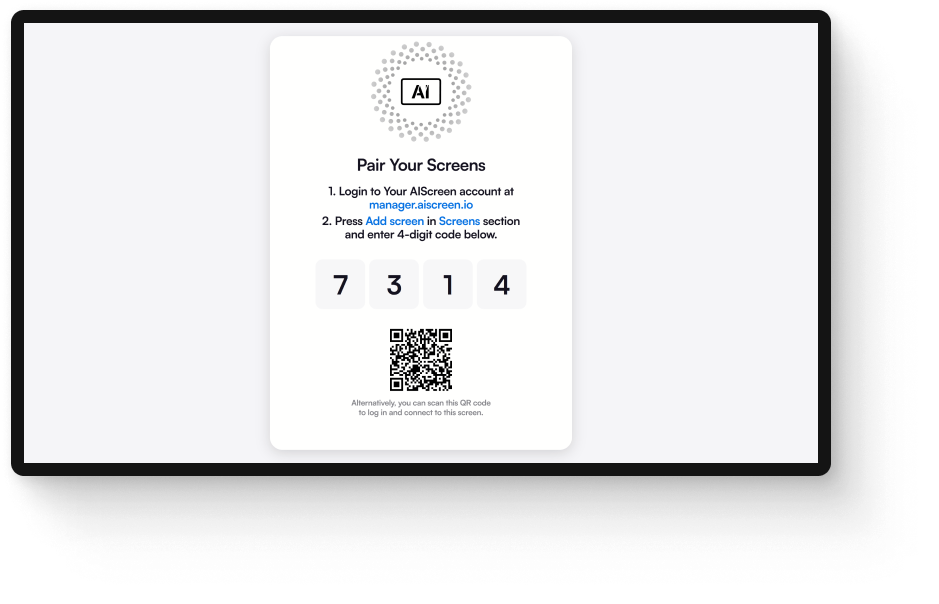
Once you have your pairing code, connect your screen to the AIScreen platform. This links your display to your cloud-based dashboard, allowing you to control content remotely from any location.
- Log in to your AIScreen account.
- Go to the Screens section and click “Add Screen.”
- Enter the pairing code shown on your TV.
- Your screen is now cloud-linked and ready to receive content from anywhere.
Step 4: Upload and Manage Your Media Library
Once your screen is paired, it’s time to upload visuals to your cloud media library. This centralized space acts as your content manager, helping you keep images, videos, and documents neatly organized and accessible from anywhere.
- Go to the Media tab in your AIScreen dashboard.
- Upload PNG, MP4, JPG, or PDF files.
- Create folders or tags to organize assets easily.
- Keep your media structured for smooth playback and quick access.
Step 5: Install Apps from the App Store
Apps make your digital signage display more engaging by adding widgets, live data, and real-time feeds. AIScreen’s digital signage app store offers plenty of options that you can customize and include in your playlists.
- Open the Apps tab.
- Browse and install apps like weather, clock, YouTube, or social feeds.
- Configure app settings based on your preferences.
- Save the apps for use in future playlists and screen layouts.
Step 6: Add Live URLs for Real-Time Content
Want to show real-time dashboards, news headlines, or other web-based content? Adding live URLs allows you to stream online data directly to your screen. This makes your signage more dynamic and always up-to-date.
- Click Create New Link in your AIScreen dashboard.
- Paste a public URL, such as a news site or performance dashboard.
- Name and save the link for reuse.
- Stream embedded live content directly to your displays.
Step 7: Build Playlists Using Media, Apps, and Live URLs
Now that you’ve added your media and live content, it’s time to build playlists. Playlists let you organize dynamic content sequencing and create multi-zone signage displays tailored to your campaigns.
- Go to the Playlist section in your dashboard.
- Drag and drop your media files, apps, and Live URLs.
- Structure playlists based on campaigns or content categories.
- Preview and fine-tune before scheduling playback.
Step 8: Design Custom Screens Using Canvas Templates
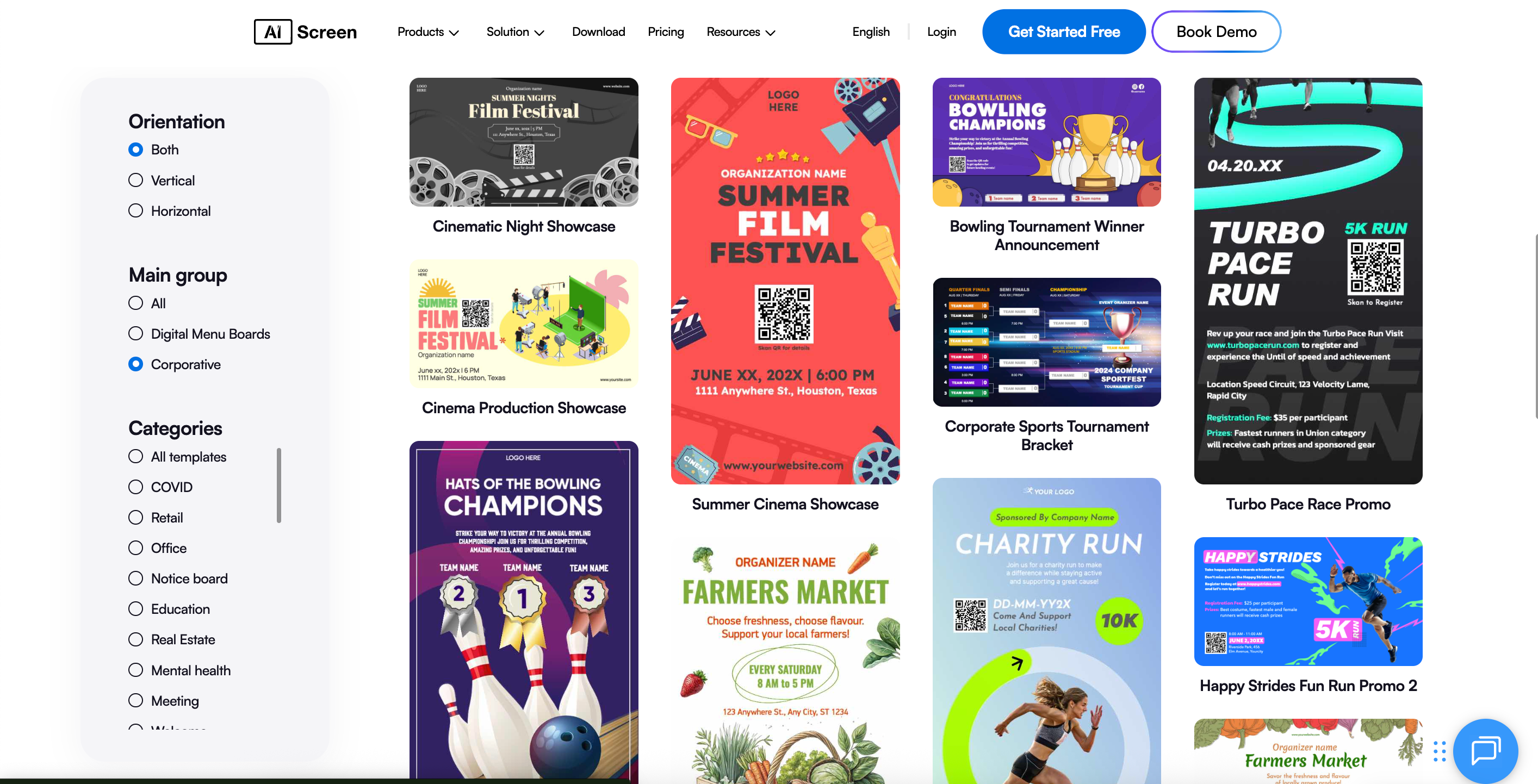
AIScreen’s Canvas templates give you creative control over how your content looks on screen. With an intuitive drag-and-drop interface, you can design layouts that fit your brand’s style and message perfectly.
- Use the Canvas layout editor to design custom screens.
- Add text, images, widgets, and videos.
- Arrange your layout visually to capture attention.
- Save and assign your template to your digital signage screens.
Step 9: Schedule Content Playback Using the Scheduler Tool
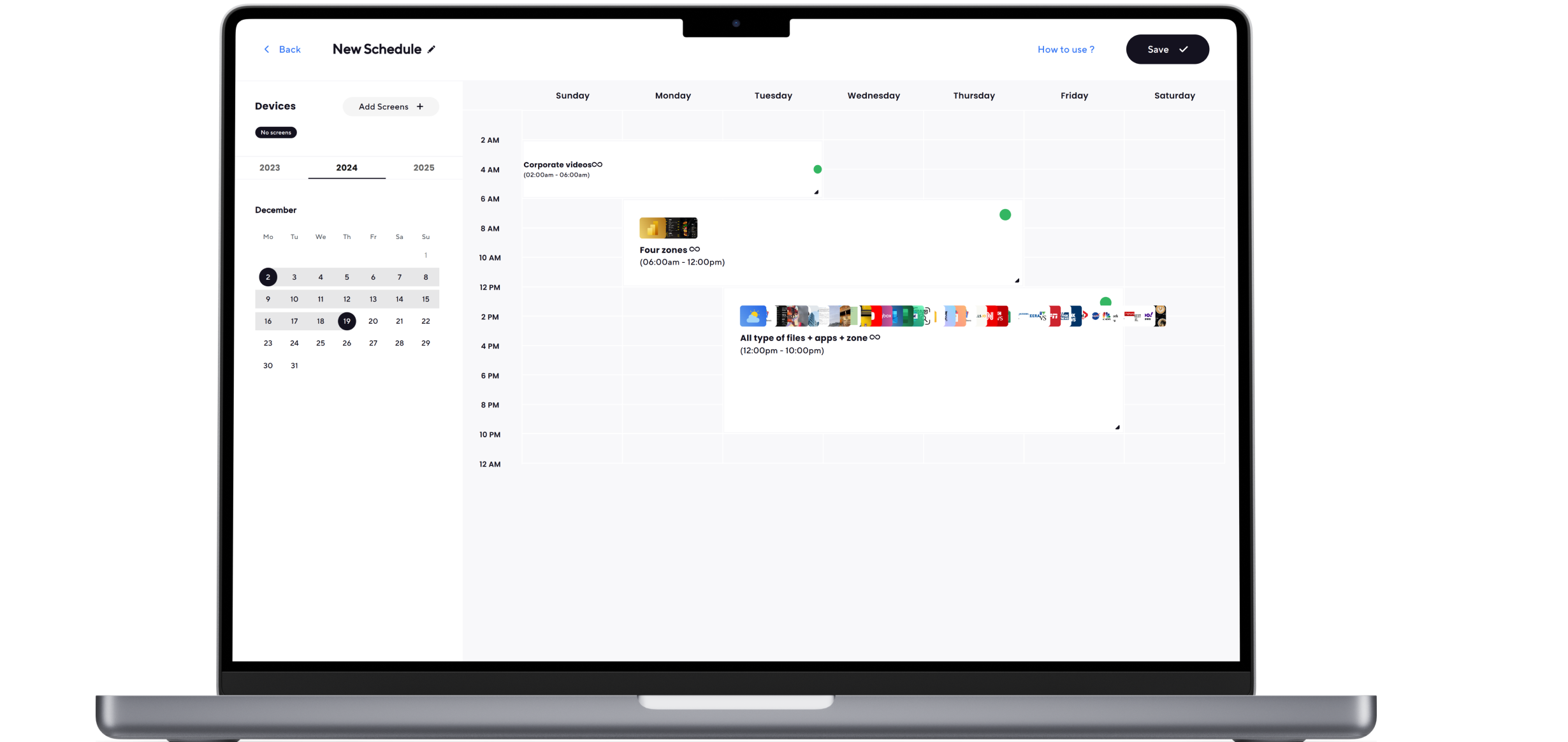
Scheduling your content helps maintain consistency and ensures your messaging runs at the right time. With the help of AIScreen’s schedule content playback feature, you can plan days or weeks in advance without manual intervention.
- Open the Scheduler tab in your dashboard.
- Assign playlists to specific times and dates.
- Automate playback based on hours or weekdays.
- Ensure consistent messaging across multiple displays and locations.
Step 10: Assign and Launch Content to Your TV
The final step is to publish your content to your screen. Once everything is scheduled and organized, your digital signage player will automatically broadcast the right messages at the right time, making your Smart TV display come alive.
- Select “Set to Screen” to push content manually.
- Or let your scheduled playlists go live automatically.
- Monitor your screens for performance and playback accuracy.
- Your content is now live and ready to engage viewers across any screen, anywhere.
At this point, you’ve completed every step of how to display announcements on a TV, from setup and pairing to scheduling and live playback.
What are 31 Types of Messages to Display on Digital Signage TV?
Once your digital signage system is up and running, it’s time to bring your screens to life. Think of them as digital storytellers who speak to your customers, employees, or guests every day. The goal is simple: keep your content fresh, meaningful, and worth a glance, which can become key performance indicators. According to HubSpot, visual content is processed 60,000 times faster than text alone, making digital screens a more effective communication tool.
Here are 31 creative and engaging message ideas that can make your TV screen feel alive, personal, and connected to your audience.
- Welcome Messages: Nothing feels better than being greeted personally. Display a warm welcome message for visitors, clients, or employees as they walk in.
- Event Announcements: Keep everyone informed about upcoming meetings, workshops, or company events so nobody misses out.
- Promotions and Sales: Use your screen to highlight limited-time deals or seasonal offers that grab instant attention.
- Product or Service Showcases: Give your audience a peek into new launches or best-selling items with eye-catching visuals.
- Employee Spotlights: Celebrate your team’s achievements and make them feel valued by featuring birthdays or milestones.
- Company News and Updates: Share exciting developments, new partnerships, or awards to build internal pride.
- Safety Information: Display emergency exits, health guidelines, or quick safety tips in areas where people gather.
- Weather Updates: Add a touch of real-time relevance with live weather forecasts that help people plan their day.
- Social Media Feeds: Stream your brand’s latest posts or trending hashtags directly on screen to spark engagement.
- Customer Testimonials: Share glowing reviews or feedback to build trust and authenticity with viewers.
- Training and Educational Content: Use your display for short tutorials, onboarding clips, or motivational learning videos.
- Community Engagement Announcements: Highlight volunteer work or local events to show your company’s involvement.
- Health and Wellness Tips: Encourage positivity with quick reminders about mindfulness, exercise, or nutrition.
- Employee Recognition: Celebrate “Employee of the Month” moments to motivate and inspire your team.
- Countdown Timers: Build anticipation for a product launch, grand opening, or special celebration.
- Polls and Surveys: Ask fun questions or run live polls to keep audiences interacting with your content.
- Customer Spotlights: Showcase loyal customers or clients with success stories that inspire others.
- Public Service Announcements (PSAs): Share community safety alerts or awareness messages for a good cause.
- FAQs and Helpful Tips: Post useful how-to information or quick guidance that makes life easier for your viewers.
- Live Feeds and Streams: Broadcast important events, live news, or company sessions to keep everyone informed.
- Motivational Quotes: Sprinkle positivity across your screens with daily quotes that uplift the mood.
- Achievement Recognition: Highlight company milestones, project completions, or anniversaries to boost morale.
- Job Openings: Let potential candidates know you’re hiring by featuring open roles on the display.
- Holiday and Seasonal Greetings: Spread festive energy with cheerful holiday wishes or themed visuals.
- Financial Information: Display performance dashboards, KPIs, or sales targets for internal motivation.
- Interactive Games or Quizzes: Keep waiting areas engaging with quick trivia or lighthearted challenges.
- Traffic and Transit Updates: Show real-time routes, parking availability, or local commute information.
- Data and Analytics Dashboards: Give teams access to live metrics or progress insights that drive decision-making.
- Office Jokes and Humor: Break the monotony with a daily dose of humor, memes, or light jokes.
- CSR (Corporate Social Responsibility) Initiatives: Share how your company contributes to sustainability or community projects.
- Holiday Countdowns: Build excitement as big events or holidays approach by displaying real-time countdowns.
What are the Best Practices to Display Messages on TV?
Your message is only as powerful as how it looks and when it appears. Think about it, you could have the most important announcement or promotion, but if the text is too small or it shows at the wrong time, people will simply walk past it. According to a Deloitte survey, 59% of employees feel more connected when workplace display announcements are shown on digital screens.
The art of displaying messages on TV screens lies in balancing clarity, design, and timing. Let’s make your screens not just seen, but remembered.
- Keep Content Short and Readable: When someone glances at your digital signage display, they usually have only a few seconds before moving on. That’s why your message should hit instantly. Use short, punchy lines and large, easy-to-read fonts. Picture it like a billboard, if it takes longer than three seconds to read, it’s too long.
- Maintain Visual Consistency: Every screen is a reflection of your brand. If your colors, fonts, or layouts change from one slide to another, your audience loses that sense of identity. Stick to your brand palette, keep layouts clean, and let every piece of content feel connected. It’s what makes your digital signage look polished and professional.
- Update Content Regularly: Imagine walking past the same display for weeks, it stops grabbing your attention, right? The same goes for your digital signage screens. Keep them fresh by rotating new messages, promotions, or visuals. A regularly updated screen signals that your brand is active, aware, and engaged.
- Use Data-Driven Timing: Not every message deserves to run all day. Timing matters just as much as design. With digital signage software, you can schedule content to appear when your audience is most likely to see it, like showing lunch deals around noon or event reminders before a meeting. Smart timing makes your message feel relevant, not random.
Here’s the sentence with the keyword added naturally:
When selecting digital signage content management software for your digital signage needs, look for features that include content creation templates specific to your industry and objectives, remote management capabilities for outdoor or multi-location screens, real-time content scheduling, and integration options with data sources like social media or POS systems.
How Can You Display Messages on Digital Signage TV Screens and Use Digital Signage as a TV?
Businesses can display messages on digital signage TV screen displays to share announcements, promotions, schedules, company news, emergency alerts, and other important information. This makes regular screens more useful by turning them into dynamic communication tools.
You can also use digital signage as a TV to combine live television, branded content, videos, news feeds, and custom messages on the same screen. This gives businesses more flexibility while keeping audiences informed and engaged with relevant content throughout the day.
Why Choose AIScreen for Displaying Messages on TV?
Looking for an easy way to turn your regular TV into a powerful communication screen? With AIScreen’s digital signage, any browser-enabled Smart TV can instantly become a dynamic display for announcements, promotions, and high quality images in real-time updates, without extra hardware or technical setup. It’s a practical solution for offices, retail spaces, schools, and restaurants that want to share information clearly and efficiently through a business message board. According to Forbes, brands using digital signage in retail environments experience an average 32% growth in repeat customer visits.
With over 1500+ customizable templates, 100+ built-in apps, and real-time scheduling and analytics, this browser-based signage system makes content creation and management effortless. You can update multiple displays remotely through a single dashboard and keep your messaging consistent across all locations. Start your free trial today or book a demo to see how AIScreen can help your messages come to life within minutes.
FAQs
Can I use any TV to display digital messages?
Yes, you can use any TV to display digital messages as long as its operating system supports a web browser like Chrome, Edge, or Firefox. Even ordinary TVs can work using simple add-ons like an Amazon Fire TV Stick or Android TV box. With browser-based digital signage software like AIScreen, you don’t need extra hardware, just connect your TV to the internet and start displaying messages instantly.
Do I need the internet to display messages?
Yes, you’ll need an active internet connection to manage and update your content remotely. This allows your TV to sync with your digital signage system, ensuring your messages, schedules, and media files stay current. Once your screen is linked, updates happen automatically in real time without any manual effort.
Can I show videos or live data along with text messages?
Yes, you can show videos or live data along with text messages using AIScreen’s digital signage display features. From promotional videos to real-time dashboards, weather, or social media feeds, you can mix different content types seamlessly. This makes your TV screen more engaging and visually dynamic for your audience.
Is it possible to schedule messages automatically?
Yes, it is possible to schedule messages automatically using AIScreen’s built-in scheduler. You can plan when certain content appears, like daily announcements, time-sensitive offers, or event reminders, without having to manually change anything. It’s the easiest way to keep your displays relevant and on time.
How often should I update my message content?
You should update your message content regularly to effectively display announcements , ideally every few days or weekly, depending on your audience and message type. Frequent updates keep your digital signage screens fresh and engaging while showing viewers that your content is active and up-to-date. Regular refreshes also help maintain attention and improve message recall.
