
Why Is My TV Glitching? Screen Flicker via HDMI Explained
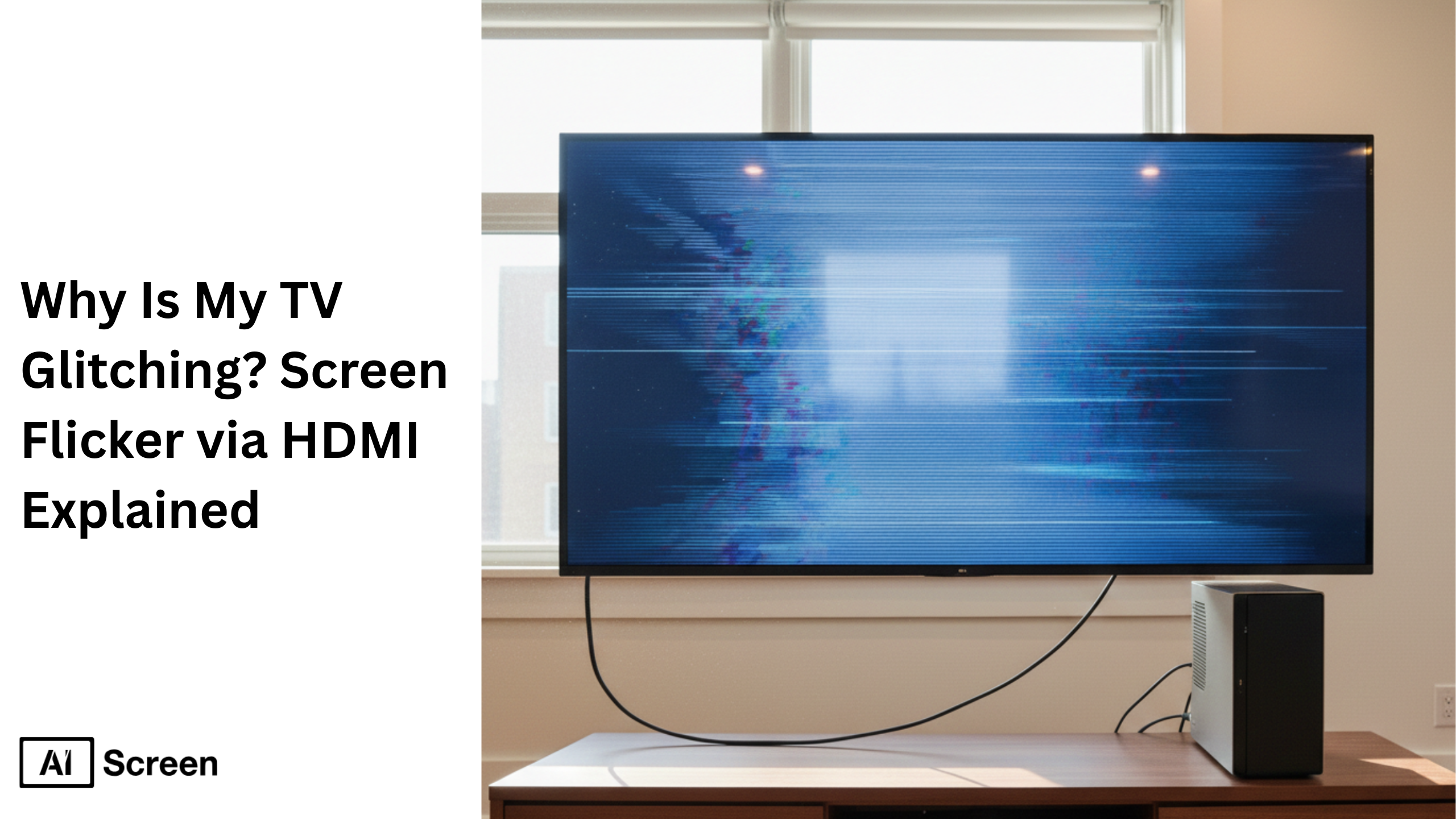
Why is my TV glitching when connected to a PC via HDMI? A flickering TV screen happens when the computer sends a signal that doesn’t match the television’s supported resolution, refresh rate, or HDMI bandwidth. Even small mismatches in display settings can cause a flickering screen. According to Statista, over 8.1 billion people use connected devices globally in 2025, increasing daily PC-to-TV connections.
In this blog, you will learn the exact causes behind HDMI flickering, from HDMI cable problems and HDMI ports issues to graphics drivers, refresh rate, resolution, TV settings, and hardware faults. Each section helps you troubleshoot step by step and fix the problem without replacing devices unnecessarily.
Why Does TV Screen Flickering Happen When Using a PC?
TV screen flickering happens because TVs and computers process signals differently. A computer sends flexible output, while a TV expects standardized formats. When the HDMI signal doesn’t match, the flickering TV screen appears.
According to Deloitte’s 2023 report, rising connected TV usage increases HDMI conflicts. More devices mean more mismatch risks. This difference in display expectations, graphics output, and signal handling explains why a monitor works smoothly, but a TV may flicker.
What Are the Most Common Reasons Your TV Is Flickering or Glitching?
The most common reasons your TV is flickering or glitching include HDMI instability, refresh rate mismatch, resolution conflicts, incorrect display settings, or outdated firmware.
According to Gartner, PC shipments reached ~242 million units in 2023, meaning millions of devices connect to TVs daily. Testing whether the issue happens only on the TV or also on monitors helps quickly resolve the root problem.
1. HDMI Cable Issues
A faulty HDMI cable is one of the most common reasons for a flickering screen. A loose cable, poor shielding, or long cables (3–5 meters) can weaken signal transmission.
Interference from nearby devices or debris build up in HDMI ports can worsen the issue. Not all cables are equal, low-quality cables lack EMI protection.
Switching to a new cable often fixes flicker instantly. Before changing settings, always test with a reliable HDMI cable.
2. HDMI Version Mismatch Between PC and TV
HDMI version mismatch causes flicker when bandwidth limits are exceeded. If your PC sends higher resolution or refresh rate than the TV supports, instability occurs.
HDMI 1.4 supports 1080p well but struggles with 4K at 60Hz. HDMI 2.0 handles 4K at 60Hz reliably, while HDMI 2.1 supports higher performance. Using a cable and port that match your TV prevents overload. Always connect to the correct HDMI port and avoid mismatched configurations.
3. Incorrect Refresh Rate Settings on Your PC
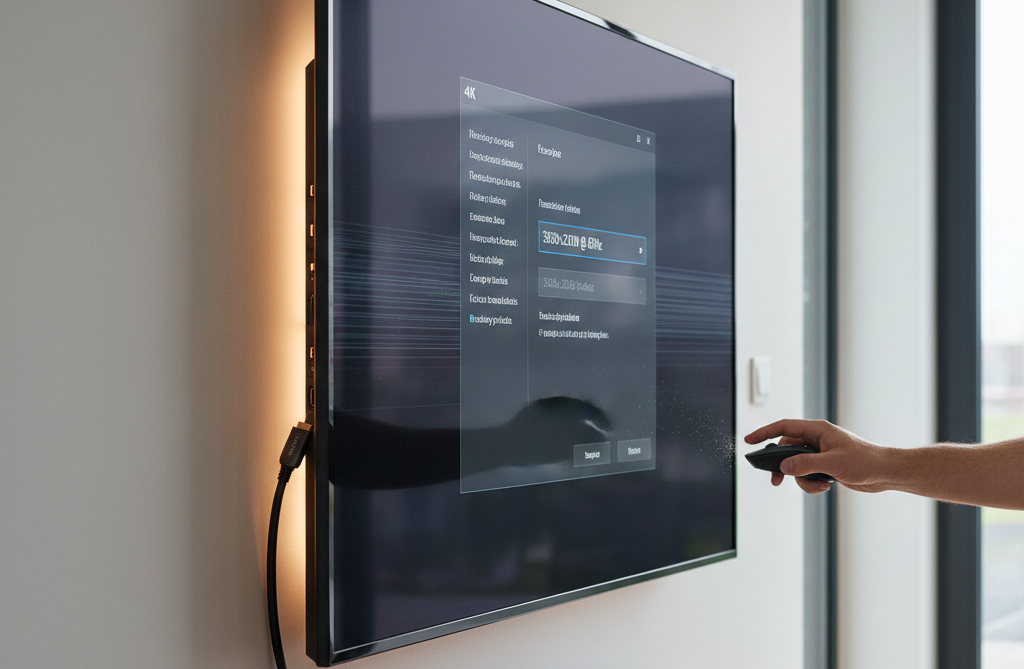
An incorrect refresh rate is a major cause of screen flickering. If your PC sends an unsupported rate, the TV cannot process it properly.
Set the refresh rate to 60Hz as a safe default. Older HDMI versions may require reducing resolution instead of lowering to 30Hz, which feels less smooth.
Matching refresh rate with your TV’s supported settings is essential before replacing hardware.
Recommended Refresh Rates by HDMI Version:
HDMI 1.4
- 1080p up to 144Hz
- 2K up to 75Hz
- 4K up to 30Hz
HDMI 2.0
- 1080p up to 240Hz
- 2K up to 144Hz
- 4K up to 60Hz
HDMI 2.1
- 1080p up to 240Hz
- 2K up to 240Hz
- 4K up to 144Hz
- 8K up to 30Hz
Before changing hardware, confirm your HDMI version, check your graphics card output settings, and verify which HDMI port you are using. Simple configuration alignment prevents most flickering issues without replacing equipment.


4. Resolution and Display Mode Conflicts
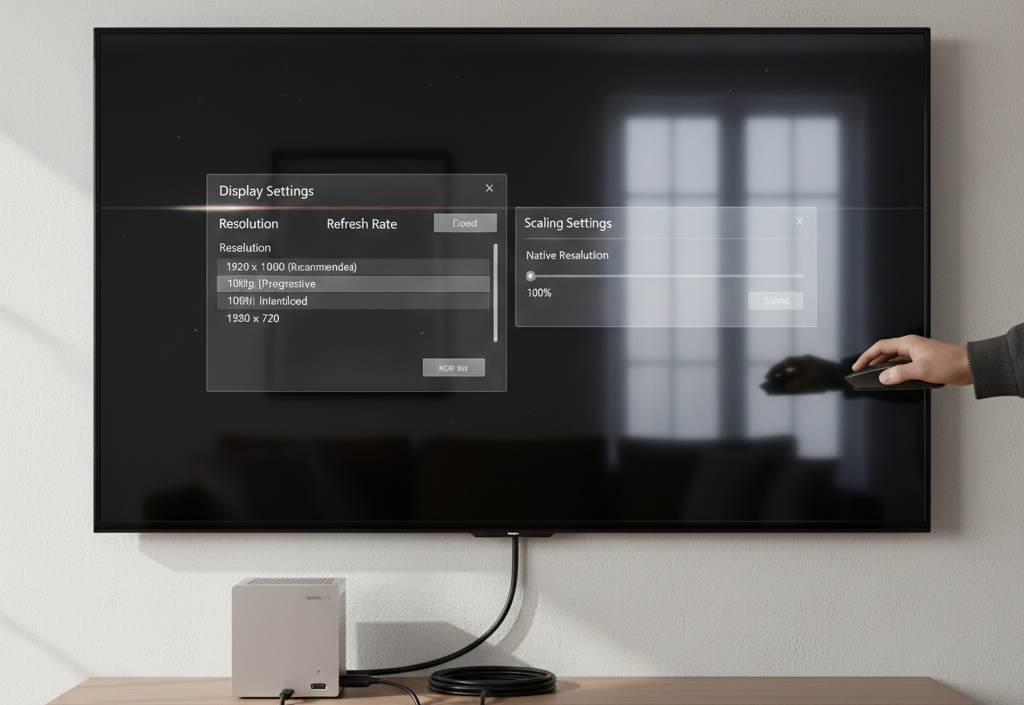
Resolution conflicts occur when the PC sends a format the TV cannot process efficiently. Always match the TV’s native resolution first.
Progressive (1080p) and interlaced (1080i) formats behave differently. Some TVs handle interlaced signals better depending on internal processing.
Scaling mismatches also create flicker. Incorrect display settings force the TV to rescale content, causing instability.
5. Graphics Card (GPU) Configuration Issues
GPU settings can cause flickering even if cables and refresh rates are correct. Driver overrides may force incompatible resolution, color depth, or scaling.
Outdated firmware or driver bugs can also trigger issues. Software updates may reset display behavior without notice.
Before replacing hardware, confirm:
- Correct resolution
- Supported refresh rate
- Updated drivers
- Matching output port
Checking manufacturer support helps resolve GPU-specific conflicts.
6. TV Display Settings That Can Cause Flicker
TV settings can create flicker when processing conflicts with PC signals. Features like motion smoothing, dynamic contrast, or picture options may interfere.
Switching to Game Mode reduces processing and stabilizes the signal. Incorrect input format or outdated firmware updates can also cause issues.
Each TV brand (LG, Sony, Samsung) has different settings, so checking support or resetting to factory settings may help resolve the problem.
7. Testing Whether the TV Hardware Is the Problem
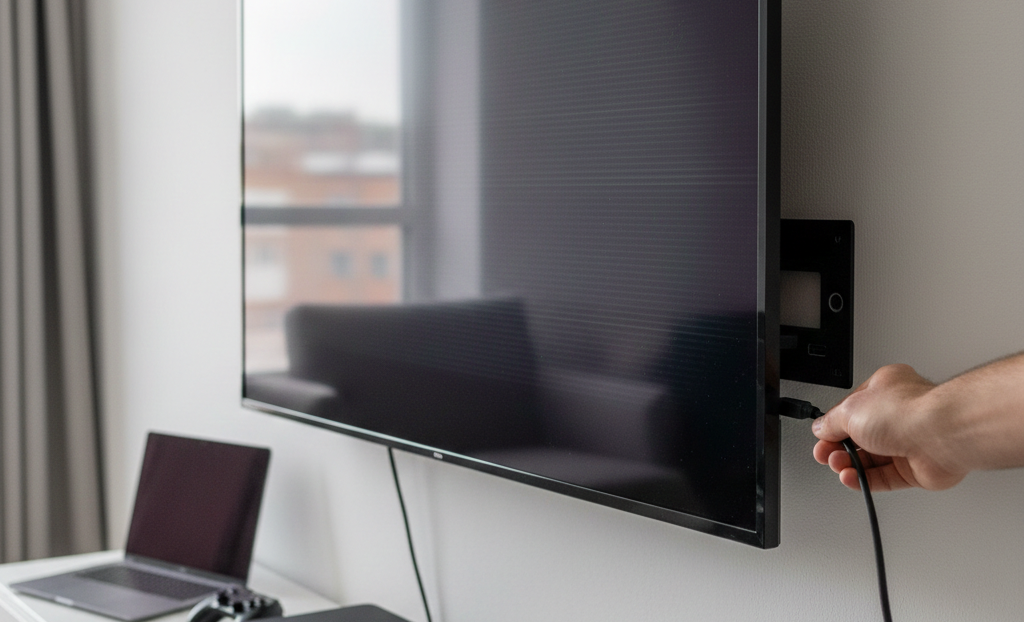
Testing helps determine if the issue is a hardware problem. Connect another device to the same HDMI port and test different ports. If flickering continues across devices, it indicates a hardware issue like backlight failure or internal malfunction.
According to Statista, over 200 million TVs shipped in 2023, and hardware failures remain a common issue.
If the problem persists:
- Contact service support
- Check warranty coverage
- Avoid self-repair
Early diagnosis prevents further damage.
What About Using Monitors Instead of TVs?
Monitors are designed for computer signals and handle flexible refresh rates and resolutions better than modern TVs. TVs apply processing layers that may cause flicker, while monitors provide direct signal handling.
If your setup is for work or extended periods, monitors are more reliable. For professional setups or displays, you can also explore how to turn TV into digital signage? to optimize stability.
Fix TV Screen Flickering the Right Way With a Reliable Display Setup!
Fixing TV screen flickering the right way requires correct hardware pairing, certified HDMI or DisplayPort cables, proper resolution and refresh rate matching, and interference-free signal routing between the PC and TV. Long-term stability depends on system-level configuration, not temporary troubleshooting.
Whether you’re using a TV as a PC display, for presentations, or for digital signage, long-term stability depends on correct configuration, not quick fixes. With reliable hardware and properly optimized software like AIScreen, you can ensure consistent playback, controlled content delivery, and fewer signal disruptions across connected devices and apps.
This is especially important for environments like waiting areas, explore 10 ideas to improve your dentist waiting room TV to see how stable displays enhance patient experience.
FAQs
Why is my TV flickering when connected to a PC via HDMI?
TV flickering happens when the signal from the computer does not match the TV’s supported resolution or refresh rate. HDMI mismatch, outdated firmware, or incorrect settings disrupt signal timing.
Can a bad HDMI cable cause TV screen flickering?
Yes, a bad HDMI cable can cause flicker due to signal instability, loose cable connections, or interference. Replacing it with a certified cable often resolves the issue.
What refresh rate should I use when connecting a PC to a TV?
Use 60Hz as the standard refresh rate. If flicker occurs at 4K, reduce resolution instead of lowering refresh rate to maintain smooth visuals.
Why does my TV glitch but work fine with other devices?
If your TV glitches only with a PC, it’s likely a configuration mismatch. Check graphics settings, resolution, and HDMI compatibility.
How do I know if my TV is broken or it’s a settings issue?
Test multiple devices and HDMI ports. If flicker continues across all inputs, it’s a hardware issue. If only one device causes it, adjust settings or update software.
