
Amazon Fire TV Stick: A Complete Beginner’s Guide
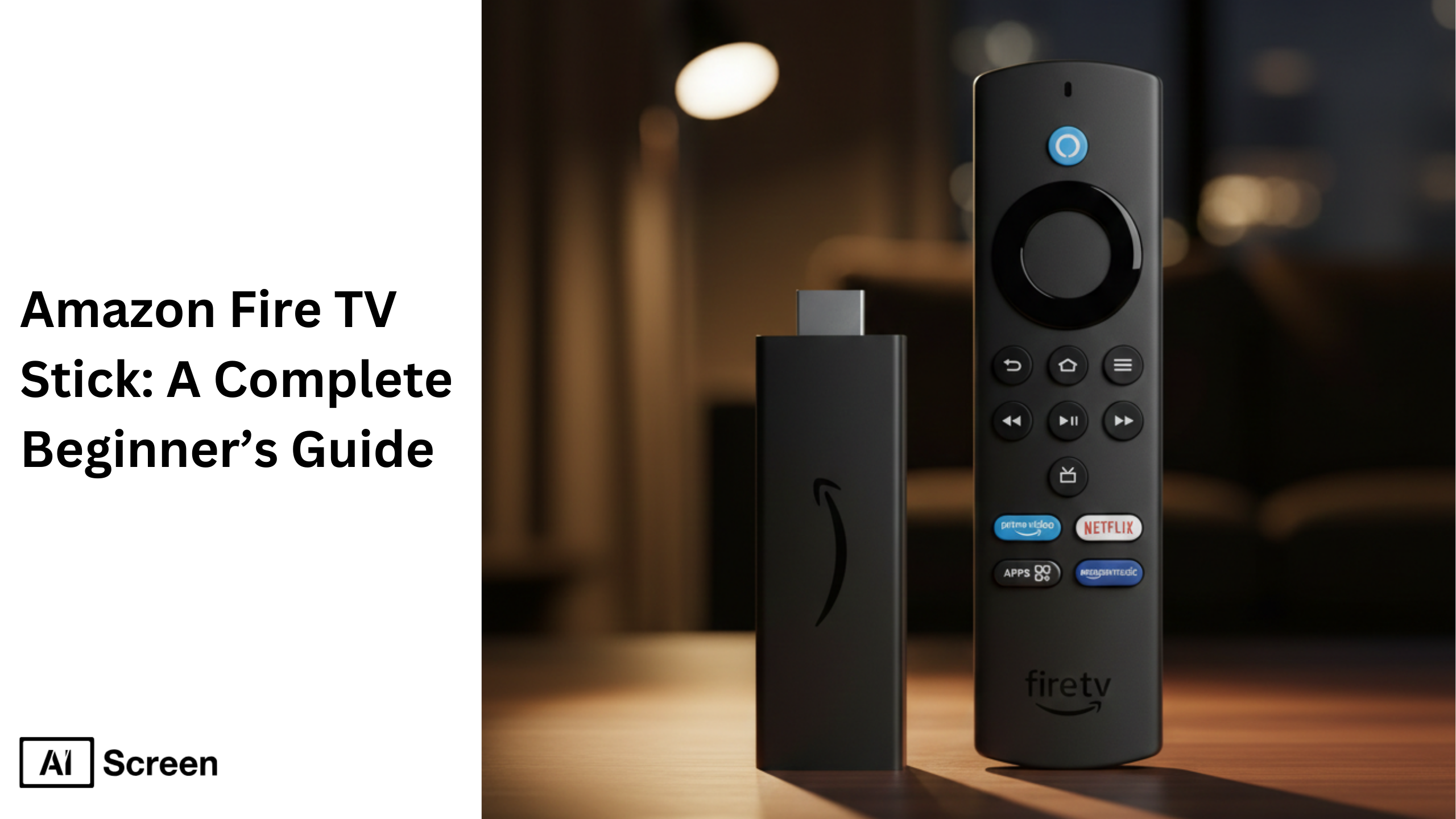
The Amazon Fire TV Stick is a compact streaming device that transforms any TV into a smart, connected entertainment hub. The Amazon Fire TV Stick delivers apps, live TV, games, and personalized recommendations without requiring cable or complex setup. According to Nielsen’s The Gauge report, streaming accounted for over 38% of total TV usage in the United States, surpassing both cable and broadcast viewing.
In this blog, we’ll explain what the Amazon Fire TV Stick is, how it works, what you can do with it, the different models available, how to set it up, the apps it supports, how it can be used for digital signage, pricing details, key alternatives, and whether it’s still worth buying in 2025.
What Is an Amazon Fire TV Stick?
Amazon Fire TV Stick is a small streaming device that plugs into your TV’s HDMI port and connects it to the internet. It allows users to install apps, stream video, and access online services using WiFi instead of cable.
The device is about half the size of a remote and fits behind the TV. It turns non-smart TVs into smart ones and enhances smart TVs with better navigation, performance, and voice control.
The remote includes Alexa voice search, enabling quick search, app launch, and control without typing. Setup takes a few minutes using a power source, WiFi, and an Amazon account.
The Fire TV Stick functions as a small computer dedicated to entertainment, running Fire OS (based on Android). It displays a user-friendly interface with personalized recommendations and quick access to content.
What Can You Do With a Fire TV Stick?
Amazon fire tv stick offers versatile streaming and display features for everyday use. You can watch netflix, disney+, hulu, prime, and many other apps. Streaming movies and video content becomes simple with internet connection and remote control navigation.
Live TV and sports channels stream through supported apps. Music services and youtube content display clearly in HD or 4K depending on the fire tv stick model. Voice search lets you control volume, search titles, and launch apps without typing.
Digital signage use is possible by installing signage apps, turning multiple tvs into information displays. Have you ever wanted to share photos or run a quick presentation on your living room screen? This tv stick gives that flexibility without complex hardware upgrades. For businesses that want everything handled for them, a turnkey digital signage setup bundles the player, software, and content management into one ready-to-run package.
How Does an Amazon Fire TV Stick Work?
Amazon Fire TV Stick works by connecting to your TV via HDMI and streaming content through WiFi. It does not store full video files locally. Apps pull data from cloud servers and stream content in real time. The device handles processing, not the TV, ensuring consistent performance.
Fire OS manages apps, updates, and navigation. The system continuously updates to improve speed and usability. The Fire TV mobile app enhances control. It allows fast text entry, remote navigation, and watchlist management. Users can build and fine-tune their watchlist anytime using the app.
Which Amazon Fire TV Stick Models and Generations Should You Choose?
Amazon Fire TV Stick models update every 1–2 years with better performance, WiFi, and features. Some support HD, others 4K. Most cost up to $60, making upgrades affordable. Choose based on your screen, internet speed, and usage. Newer models like the Fire TV Stick 4K Max support Wi-Fi 6E for faster, more stable streaming. The Fire TV Stick allows tech-savvy users to sideload third-party apps, VPNs, and media players not found in the official Amazon Appstore.
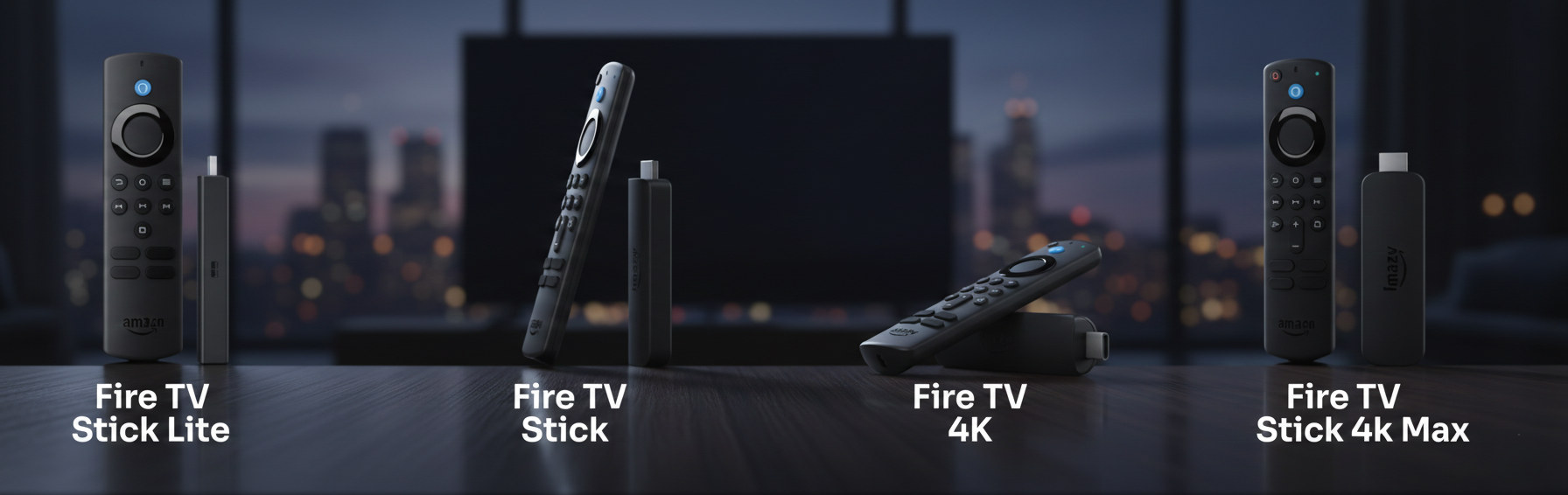
Fire TV Stick Lite
Fire TV Stick Lite is built for basic HD streaming at the lowest cost. It includes 8GB storage and 1GB RAM, supports 1080p video, and connects via HDMI with WiFi 5. The remote only controls streaming, not TV power or volume.
It works well for apps like Netflix and YouTube, making it ideal for simple viewing without spending much money. The 4K Max model includes a unique “Ambient Experience” that displays over 2,000 pieces of museum-quality art and photography when the TV is idle.
Fire TV Stick HD
Fire TV Stick HD offers similar specs but adds a 3rd Gen Alexa Voice remote with TV controls. It includes 8GB storage, 1GB RAM, and Dolby Atmos audio for better sound. Users get smoother navigation, personalized recommendations, and easier control in one device. It’s best for HD streaming with improved everyday convenience.
Fire TV Stick 4K
Fire TV Stick 4K supports Ultra HD streaming with 2GB RAM and WiFi 6 for faster performance. It streams content from cloud data sources in real time and works best with 4K TVs.
Features like voice search, app integration, and access to multiple streaming services make it a future-ready option for most users. The Fire TV Stick 4K Max supports Wi-Fi 6 and has a 1.8 GHz quad-core processor.
Fire TV Stick 4K Max
Fire TV Stick 4K Max delivers top speed with 16GB storage, 2GB RAM, and a faster processor. It supports WiFi 6E and advanced streaming formats for better performance and smoother multitasking.
This device is ideal for heavy app usage, gaming, and handling more data without lag across multiple screens. The Fire TV Stick 4K Max features hardware accelerated AV1 video streaming support.
Fire TV Cube
Fire TV Cube is a powerful fire tv device with hands-free Alexa and built-in microphones. It connects via HDMI but sits externally, offering faster processing and smart home control. Users can manage content, control devices, and access information instantly. It’s best for those who want advanced control without relying on a remote and a complete entertainment hub from Amazon.com Inc.
How to Set Up an Amazon Fire TV Stick (Step-by-Step)
Setting up the Amazon Fire TV Stick takes 10–15 minutes and requires no technical skills. This device connects your TV to the internet for streaming content, apps, and smart features. The Fire TV experience includes a smart home dashboard and event summaries from Alexa and Ring.
Step 1: Plug the Fire TV Stick into Your TV
Plug the stick into the HDMI port and connect it to power using the included adapter. The Fire TV Stick requires external power via micro-USB for stable performance.
The Fire TV Stick requires external power, usually via a micro-USB cable connected to a wall outlet using the included power adapter. Most Fire TV devices allow screen mirroring and casting from Miracast or AirPlay devices.
What you’ll see: Fire TV logo on screen.
Tip: Avoid using the TV USB port; it may cause issues.
Step 2: Turn On the TV and Select the Correct HDMI Input
Turn on your TV and switch to the correct HDMI source using your remote.
What you’ll see: Fire TV welcome screen.
Tip: Wrong input is the most common setup mistake.
Step 3: Pair the Fire TV Remote
Insert batteries and press Play/Pause. If needed, hold the Home button for 10 seconds.
What you’ll see: Screen responds to controls.
Tip: Pairing fixes most navigation issues instantly.
Step 4: Connect to Wi-Fi and Sign In to Your Amazon Account
Choose WiFi, enter password, and log into your Amazon account from Amazon.com Inc. The system may update automatically.
What you’ll see: Confirmation screen and updates.
Tip: Strong internet improves speed and data streaming.
Step 5: Complete Setup and Start Streaming
Follow prompts, install apps, and start streaming services like Netflix or Prime Video. Fire TV supports screen mirroring and casting from Miracast or AirPlay devices. The Fire TV Stick HD was released on October 17, 2024, replacing two previous streaming stick models.
What you’ll see: Home screen with apps and personalized recommendations.
Tip: Use voice search for faster navigation.


How to Install and Use Apps on Fire TV Stick?
Installing apps on the Fire TV Stick is simple and controlled from the home screen. This device works like a small computer, letting you find apps, manage content, and stream services without extra tools. Setup is quick, and the Fire TV mobile app (by Amazon.com Inc) also helps with fast text entry like a tablet.
How to Download Apps from the App Store
Go to the search icon, type the app name, or use voice search with the remote. Select the app and click “Get.”
What you’ll see: Download progress, then install confirmation.
Tip: Voice search saves time by skipping steps.
How to Install Streaming Apps
Apps like Netflix or YouTube install automatically after download. Open them from the Apps menu or by voice command.
What you’ll see: Login screen, then streaming access.
Tip: The system handles permissions, so no manual setup is needed.
How to Uninstall Apps
Go to Settings → Applications → Manage Installed Apps → Uninstall.
What you’ll see: App removed and storage freed.
Tip: Removing unused apps improves performance and saves money on unnecessary subscriptions.
Managing Storage on Fire Stick
Most models have 8GB or 16GB storage. Check it in Settings → My Fire TV → Storage.
What you’ll see: Used and available space.
Tip: Clear cache or delete apps to avoid slowdowns.
Using Live TV Apps
Install live TV apps the same way and log in with your subscription.
What you’ll see: Channel-style interface like cable TV.
Tip: Many apps offer trials, giving flexibility without extra cost.
How to Set Up Digital Signage with an Amazon Fire TV Stick (Step-by-Step)
Using the Amazon Fire TV Stick for digital signage turns your TV into a cloud-controlled display for content, services, and promotions without heavy hardware investment, making it a practical approach for setups like Fire TV Digital Signage: How to Set (Guide 2026).
Step 1: Connect the Amazon Fire TV Stick to Your TV
Plug the device into the HDMI port and power it via a wall adapter. The Fire TV Stick requires external power for stable performance and long daily usage.
Step 2: Power On and Complete Initial Fire TV Setup
Connect to Wi-Fi and sign in to your Amazon account. A strong network ensures smooth performance when managing multiple screens across locations.
Step 3: Download and Set Up the Digital Signage App
Open the Appstore, search, and install AIScreen. Fire TV devices support a wide range of third-party services through the Amazon Appstore, making setup flexible for any developer use case.
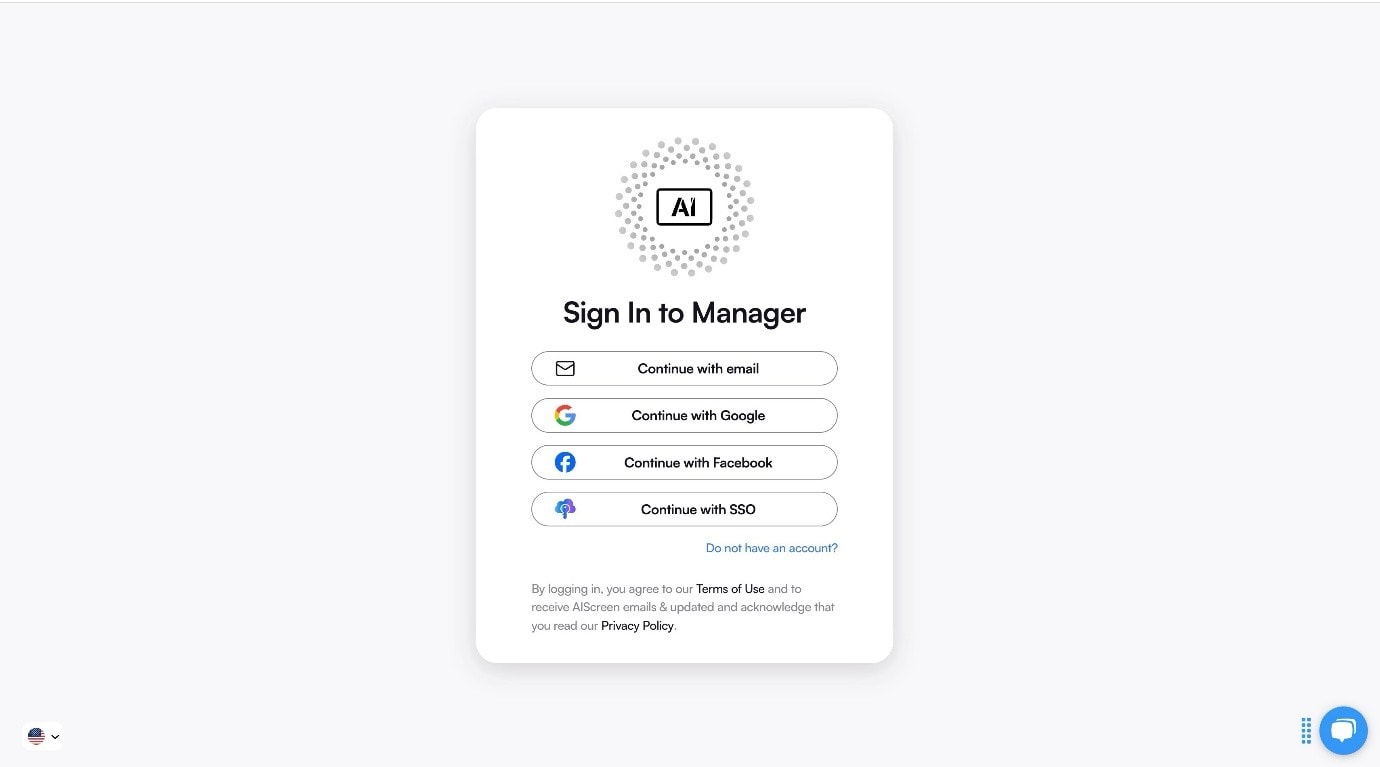
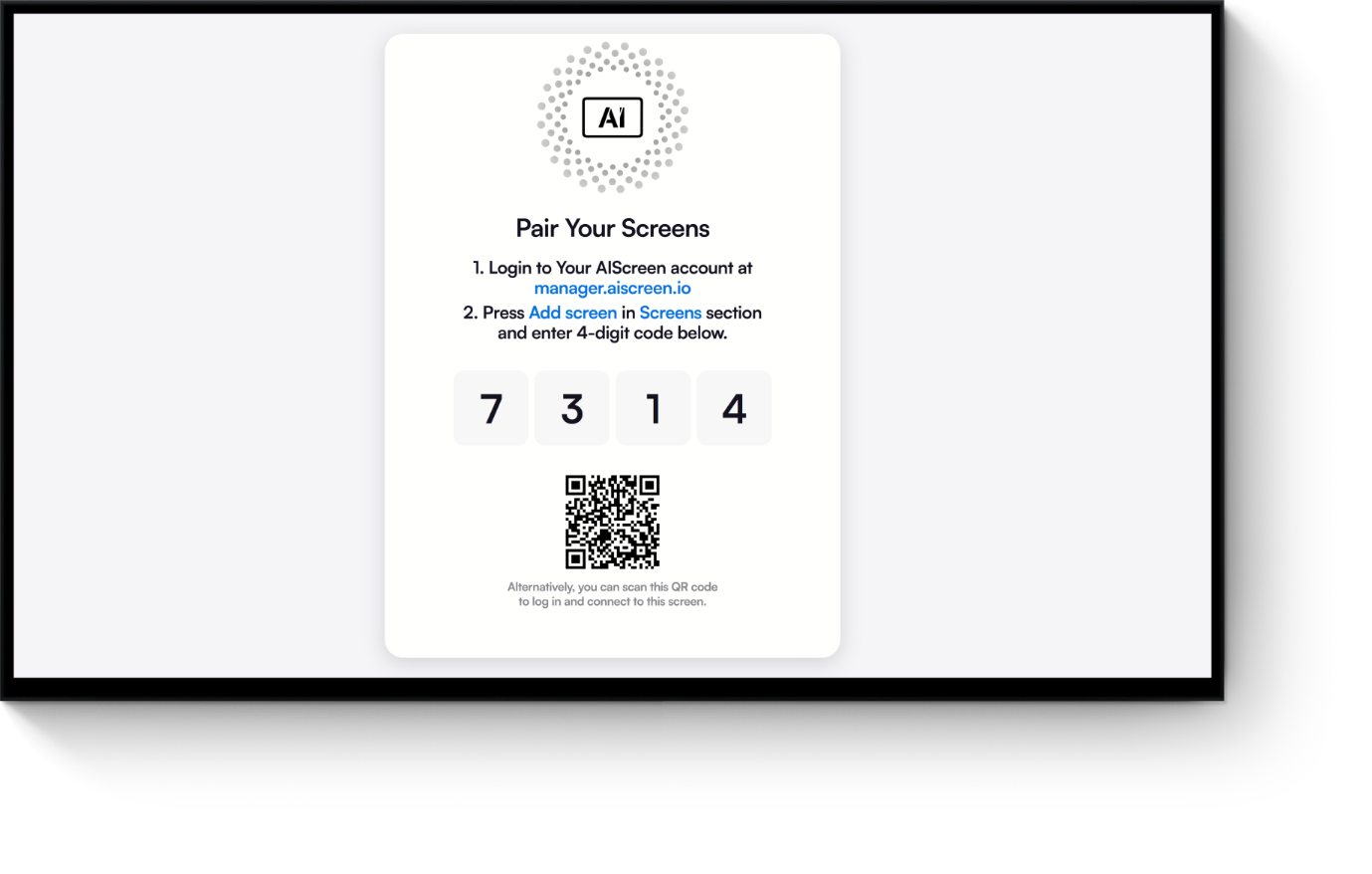
Step 4: Log In and Pair Your Screen with Digital Signage Software
Log in and enter the pairing code to connect your screen to the cloud dashboard. This allows remote control, updates, and centralized management.
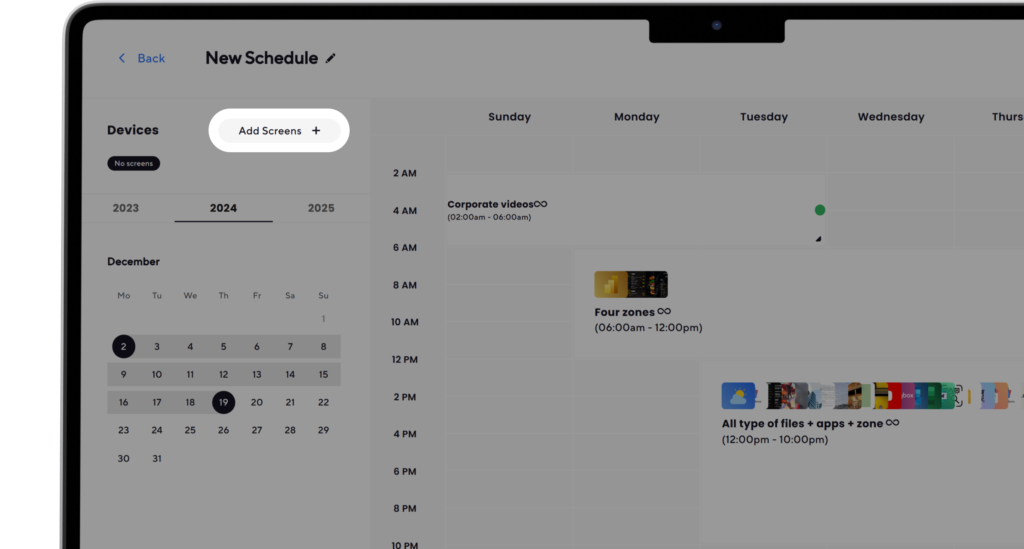
Step 5: Assign Content and Manage Screens Remotely
Create playlists, schedule content, and publish instantly. Updates sync automatically, helping you find and manage content across screens in real time.
Fire TV devices also support gaming (Amazon Luna, Xbox Cloud Gaming) and local content playback, making them versatile beyond signage. Fire TV devices support Amazon Luna and Xbox Cloud Gaming, enabling users to stream console-quality games without a physical console.
How to Pick the Right Fire TV Stick?
Choosing the right device depends on your usage, performance needs, and budget.
TV Resolution
Pick 4K models for better performance, even on 1080p screens, as they offer faster processing and smoother content handling. The Fire TV mobile app allows users to browse titles and get personalized recommendations.
Performance Expectations
Higher RAM, WiFi 6/6E, and AV1 support (in 4K Max) improve streaming, multitasking, and digital signage reliability.
Budget
Most models cost under $60, making them cost-effective. Check deals to save money, especially when buying multiple units.
Where to Buy an Amazon Fire TV Stick?
You can buy the device from online platforms or retail stores. In the US, stores like Best Buy and Target offer multiple models. In Europe, options include Argos and MediaMarkt. Always verify sellers to ensure authenticity and warranty support.
How Much Does an Amazon Fire TV Stick Cost?
The Amazon Fire TV Stick typically starts around $60, depending on the model. Pricing varies based on RAM, storage, WiFi support, and performance. Higher-end models like 4K Max cost more due to better hardware and AV1 streaming support.
There is no monthly device fee, but streaming services require subscriptions. For signage, additional software costs may apply.
What Are the Alternatives to the Amazon Fire TV Stick?
There is significant competition in the digital media player market. Alternatives to the Amazon Fire TV stick exist because users prioritize different ecosystems, control styles, and performance expectations.
Fire TV Stick vs Chromecast
Chromecast focuses on Google integration and casting, while Fire TV offers better app control and interface navigation. If you want detailed comparison insights, refer to our Google Chromecast with Google TV complete guide for a full breakdown.
Fire TV Stick vs Roku
Roku provides a simpler interface and neutral ecosystem. Fire TV delivers better performance and deeper Amazon integration.
Fire TV Stick vs Apple TV
Apple TV offers premium hardware and ecosystem integration but costs more. Fire TV remains a budget-friendly and scalable option.
How Does Fire TV Stick Compare to Other Streaming Devices?
Choosing the right streaming device depends on your needs, ecosystem preference, and performance expectations. While the Amazon Fire TV Stick offers strong app support, Alexa integration, and affordable pricing, some users may compare it with alternatives for better casting features or ecosystem compatibility.
If you’re exploring similar devices, especially those focused on casting and Google integration, you can also check out the Google Chromecast with Google TV complete guide. It provides a detailed comparison of features, performance, and use cases to help you decide which device fits your setup best.
Is the Amazon Fire TV Stick Worth Buying? Find Out Now!
The Amazon Fire TV Stick is worth buying if you want affordable streaming, broad app support, and simple setup without technical complexity. It offers smooth navigation, Alexa voice control, and 4K HDR streaming on higher-end models, making it practical for everyday viewing. While it includes interface ads and limited app storage, its price-to-performance ratio remains competitive in 2025.
Streaming habits continue shifting toward connected TV devices, keeping the Fire TV Stick relevant for modern households. It supports major apps, receives regular updates, and works well for both home entertainment and casual digital signage use. Based on price, features, and longevity, it remains a strong value option for users who prioritize ease of use and cost efficiency.
FAQs
Do you need a smart TV to use an Amazon Fire TV Stick?
No, you do not need a smart TV to use an Amazon Fire TV Stick. As long as your TV has an HDMI port, the device can plug in and instantly turn it into a smart streaming TV with access to apps and services.
What TVs are compatible with the Amazon Fire TV Stick?
The TVs compatible with the Amazon Fire TV Stick are any models that include an HDMI port. It works with most HD and 4K TVs, whether older or newer, making it widely compatible.
Does the Amazon Fire TV Stick have to be plugged in to work?
Yes, the Amazon Fire TV Stick has to be plugged in to work because it requires constant power. It can use the included USB power adapter or a TV USB port, though the official adapter provides more stable performance.
Does the Amazon Fire TV Stick need internet to work?
Yes, the Amazon Fire TV Stick needs internet to stream content and download apps. It connects via WiFi only, so a stable and strong internet connection is necessary for smooth playback.
Do you need an Amazon account or Prime subscription to use a Fire TV Stick?
You need an Amazon account to register and use a Fire TV Stick, but you do not need a Prime subscription. Prime is optional, while a basic Amazon account is required for setup and app downloads.
Does the Amazon Fire TV Stick have YouTube support?
Yes, the Amazon Fire TV Stick has YouTube support through the official YouTube app. The app can be downloaded for free from the onboard app store and allows full streaming access.
Does the Fire TV Stick support Bluetooth?
Yes, the Fire TV Stick supports Bluetooth for connecting headphones, speakers, keyboards, and game controllers. Bluetooth devices can be paired through the Settings menu under Controllers & Bluetooth Devices.
Can I use my smartphone as a Fire TV Stick remote?
Yes, you can use your smartphone as a Fire TV Stick remote by downloading the Amazon Fire TV app on Android or iOS. The app includes voice search, navigation controls, and a built-in keyboard.
How do I troubleshoot network issues with the Amazon Fire TV Stick?
You can troubleshoot network issues on the Amazon Fire TV Stick by going to Settings and opening the Network menu. The Basic WiFi Troubleshooting Tips section provides built-in guidance for connection problems.
How do I update Fire OS on my Amazon Fire TV Stick?
You can update Fire OS on your Amazon Fire TV Stick by navigating to Settings > My Fire TV > About > Check for Updates. Updates usually install automatically when connected to the internet, but manual checks ensure the device stays current.
