
ASUS Chromebit for Digital Signage: Setup & Guide
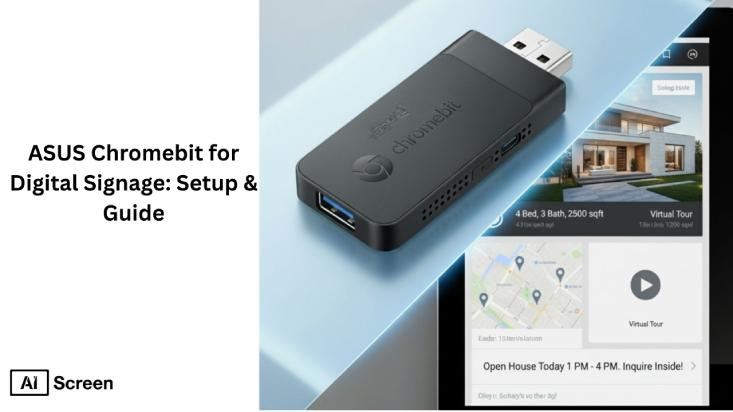
ASUS Chromebit for digital signage works as a compact and cost-effective Chrome OS solution for basic display needs, but it is no longer suitable for long-term use due to end-of-life limitations. The ASUS Chromebit CS10 is a plug-and-play digital signage device that connects via an HDMI port to transform any screen into a cloud-managed display, making it ideal for kiosk mode, retail signage, and small business content streaming. Its compact design, low cost, and easy deployment made it popular for lightweight digital signage networks. According to Markets and Markets, the retail sector accounts for over 40% of digital signage adoption worldwide.
In this article, we explained that the ASUS Chromebit is now end-of-life, meaning it no longer receives Chrome OS updates, security patches, or performance support, which limits its use in modern digital signage systems.
What are Asus Chromebit and Digital Signage?
ASUS Chromebit and digital signage provide a compact and cost-effective way to turn any screen into a cloud-based digital display. The ASUS Chromebit CS10 is a Chrome OS device that connects via an HDMI port, enabling dynamic content display, media playback, and integrations like Google Calendar for real-time updates. Its plug-and-play setup, lightweight design, and low cost make it ideal for retail stores, cafés, and classrooms, offering an easy entry point into digital signage systems with remote management and scalable content delivery.
What are Benefits Of Using The Asus Chromebit With AIScreen?
The benefits of using the Asus Chromebit with AIScreen include a plug-and-play design, quick setup, a centralized content management system, and strong compatibility with Chrome OS. These features make Asus Chromebit digital signage benefits especially valuable for businesses seeking reliable yet affordable solutions. According to Grand View Research, the global digital signage market is expected to reach $45.94 billion by 2030, growing at a CAGR of 8%. Let’s explore the benefits here:
Plug, Connect and Play
Plug, connect, and play digital signage with the Asus Chromebit makes deployment simple. The device’s stick form factor, which also supports a usb c port, allows businesses to instantly power up digital screens without complex installations.
Chromebit digital signage becomes truly effective when paired with AIScreen, enabling users to enjoy a streamlined plug-and-play digital signage experience that saves both time and effort.
Easy Setup Within Seconds With Digital Signage Screens
Easy setup within seconds with digital signage screens is a major benefit of Chromebit. With quick Chromebit installation, businesses can transform ordinary TVs into connected displays in just minutes.
This fast setup allows small organizations to launch campaigns quickly, ensuring their content is always fresh and relevant. Easy digital signage setup reduces technical barriers, making Chromebit an ideal choice for beginners.
Centralized Content Management System
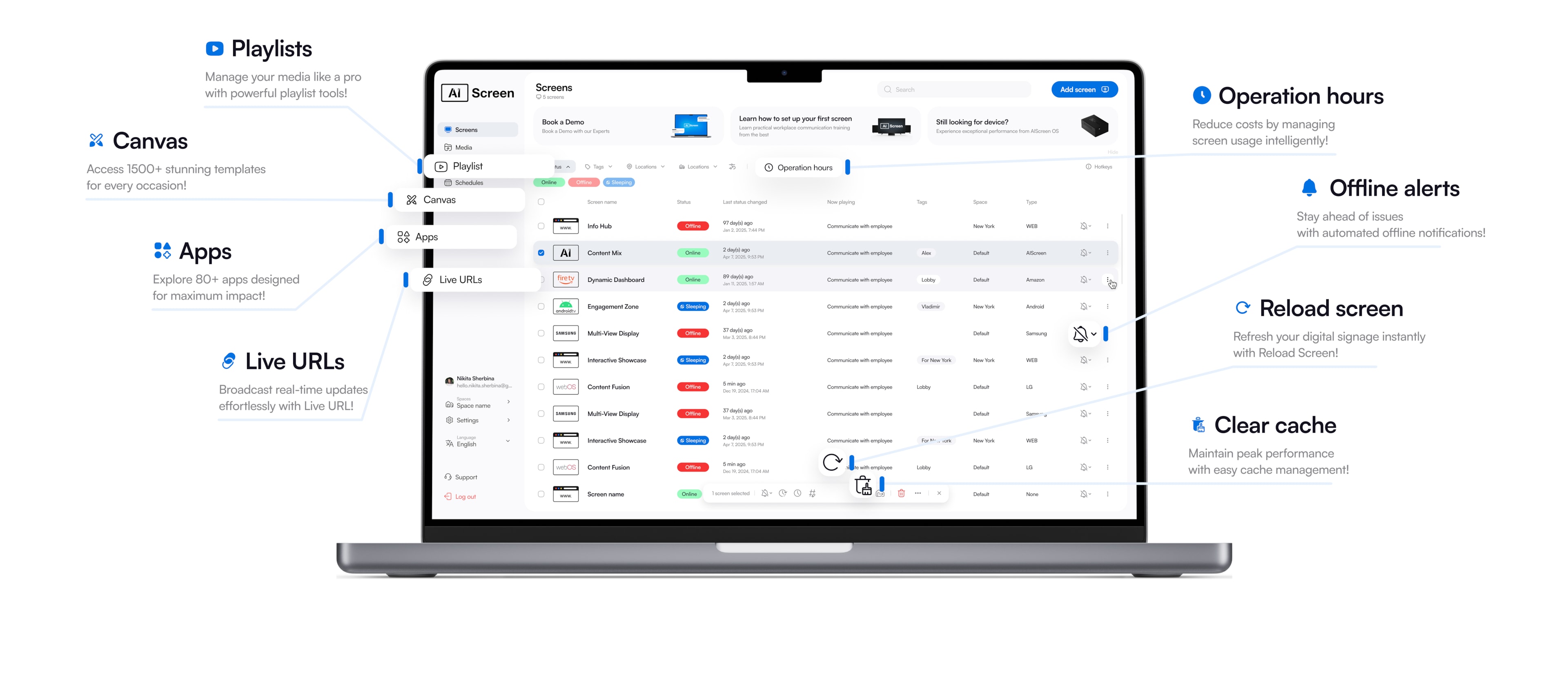
Centralized content management system support ensures all screens can be controlled from one dashboard. AIScreen integrates seamlessly with Chromebit, enabling businesses to push updates, monitor displays, and automate schedules.
This centralized digital signage content management system’s benefit gives organizations greater efficiency. It reduces manual updates and guarantees consistency across all Chromebit-powered signage and other devices running similar setups.
Adaptable to Diverse Environments Chrome OS
Adaptable Chromebit digital signage ensures smooth performance across multiple environments by leveraging the power of Chrome OS. From retail stores and educational classrooms to office spaces, the device delivers consistent reliability. Its flexibility makes it suitable for businesses looking for lightweight yet effective digital signage solutions.
The Chrome OS digital signage features enhance this adaptability by supporting different screen types and display setups. This versatility allows companies to maximize screen usage without investing in additional hardware.
Enhanced Visual Impact with TV Display Compatibility
Enhanced visual impact with TV display compatibility ensures the Asus Chromebit display signage looks professional and engaging. Connecting to digital signage TV compatibility systems makes visuals sharper and more appealing.
The display signage also improves audience engagement by using existing screens. Businesses save money while creating high-quality signage networks that look premium.
Interactive Audience Experience
An interactive audience experience is possible with Chromebit when paired with apps and kiosks. Users can design displays that encourage engagement through touchscreens, QR codes, or polls.
The interactive digital signage experience boosts brand presence and allows businesses to collect customer insights. Chromebit helps create more engaging environments with simple, cost-effective tools.
What are the Disadvantages Of The Asus Chromebit For Digital Signage?
The disadvantages of Asus Chromebit digital signage are tied to its limited performance and aging hardware. While the device is affordable, its functionality falls short compared to modern digital signage systems. According to Statista, about 60% of businesses report an increase in customer engagement after implementing digital signage.
Chromebit digital signage limitations make it suitable for small setups but impractical for enterprises. Businesses should weigh these drawbacks before investing in the device.
Almost End of Life
Almost end-of-life status makes the Asus Chromebit an outdated digital signage device. Google has officially ended support, meaning no new updates, bug fixes, or security patches.
This outdated digital signage device’s status can create long-term risks. Without updates, performance issues and compatibility problems are likely to increase.
Only One USB Port
Only one USB port makes Chromebit a device with limited Chromebit digital signage ports. This restricts connectivity for accessories such as keyboards, cameras, or storage drives, limiting access to all the files needed for advanced setup.
The USB restriction digital signage challenge limits flexibility, which can affect functionality for advanced setups. Businesses with multiple hardware needs may find this limiting.
Expense
Expense is an important factor when reviewing Chromebit digital signage cost. While initial investment is low, the hidden costs of outdated hardware and replacements, alongside the need for other apps, can add up.
Over time, Chromebit digital signage can outweigh its benefits. Businesses planning for scalable or long-term solutions should consider newer Chrome OS devices or Chromebox alternatives.
How Does Asus Chromebit Impact Using the Device for Digital Signage?
Asus Chromebit impact using the device for digital signage comes down to its update limitations and long-term support. ASUS announced that as of November 2020, the Chromebit (CS10) no longer receives software updates due to its Auto Update Expiration (AUE). This means the device has officially reached its End of Life (EOL), which impacts its ability to maintain security, performance, and compatibility.
Once a device reaches EOL, the following occurs:
- It is no longer manufactured or certified.
- Firmware, utilities, and manuals will not be updated.
- Technical support will no longer be available.
- It may be replaced by newer hardware with similar functions.
For Asus Chromebit digital signage performance, this specifically means:
- Google automatic software updates are no longer provided.
- Chrome Device Management policies may not work as intended.
- Some apps and services may fail to perform properly over time.
However, testing has shown that key features like Chrome Enterprise Tools, Provisioning, and Kiosk Mode still function, meaning businesses can continue using the device for basic digital signage needs.
How to Set Up Chromebit Digital Signage With AIScreen
Setting up Chromebit digital signage with AIScreen enables a simple, cloud-based system for managing and displaying dynamic content on any screen. By connecting the ASUS Chromebit CS10 to an HDMI-enabled display and integrating it with AIScreen, businesses can create a digital signage network that supports content scheduling, remote management, and real-time updates. The integration delivers cost-effective deployment, high engagement visuals, and scalable content distribution, helping businesses replace static signage with interactive and dynamic digital displays.
Step 1: Choose the Right Display
Choosing the right display is the first step to setting up Chromebit digital signage successfully. Your screen plays a vital role in how engaging and clear your content looks to the audience. Depending on your space, you can select from a wide range of digital signage displays, including LED, LCD, window pc or commercial-grade monitors.
TCL 55″ 4K UHD Smart Google TV

- Resolution: Stunning 4K UHD for clear, vivid visuals.
- Smart Platform: Google TV with quick app access.
- Connectivity: HDMI, Wi-Fi, Chromecast, Bluetooth.
- Best Use: Perfect for produce aisles and fresh sections.
- Price: $349–$499.
- Advantage: Eye-catching display with easy content updates.
Insignia 50″ F30 Series 4K UHD Smart Fire TV
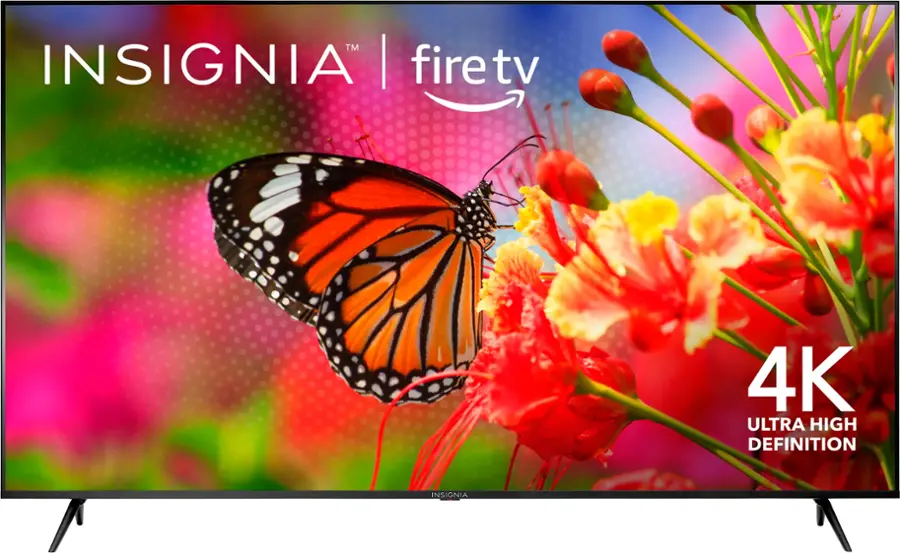
- Resolution: Crisp 4K UHD for sharp details.
- Smart Platform: Fire TV with Alexa voice control.
- Connectivity: HDMI, USB, and dual-band Wi-Fi.
- Best Use: Suited for checkout and freezer areas.
- Price: $299–$419.
- Advantage: Smooth playback built for long daily use.
A suitable display ensures that visuals remain sharp, readable, and long-lasting even in high-traffic environments. Brightness, resolution, and size should match your business setting, whether it’s a retail shop, restaurant, or office. Picking the right display guarantees your affordable Chromebit digital signage leaves a strong impression.
Step 2: Connect with Chromebit Media Player
Connecting with the Chromebit media player is simple and allows you to instantly turn any screen into a smart signage solution. The Chromebit plugs directly into the HDMI port of your chosen display, making it compact and cable-free. Once connected, it powers up your screen into a fully functioning digital signage display.
Step 3: Install and Set Up Digital Signage Software
Installing and setting up digital signage software is the next step after connecting your Chromebit. With AIScreen, you can quickly download and configure the software, giving you complete control over your content. This step ensures your display is ready to run interactive menus, announcements, or promotional visuals seamlessly.
The AIScreen platform makes the setup process smooth with cloud-based access, allowing updates from anywhere. Once installed, your signage solution becomes flexible and easy to manage, making it perfect for both single-screen and multi-location businesses. Setting up Chromebit digital signage with software ensures maximum efficiency.
Step 4: Log in or Create an Account in the Digital Signage App
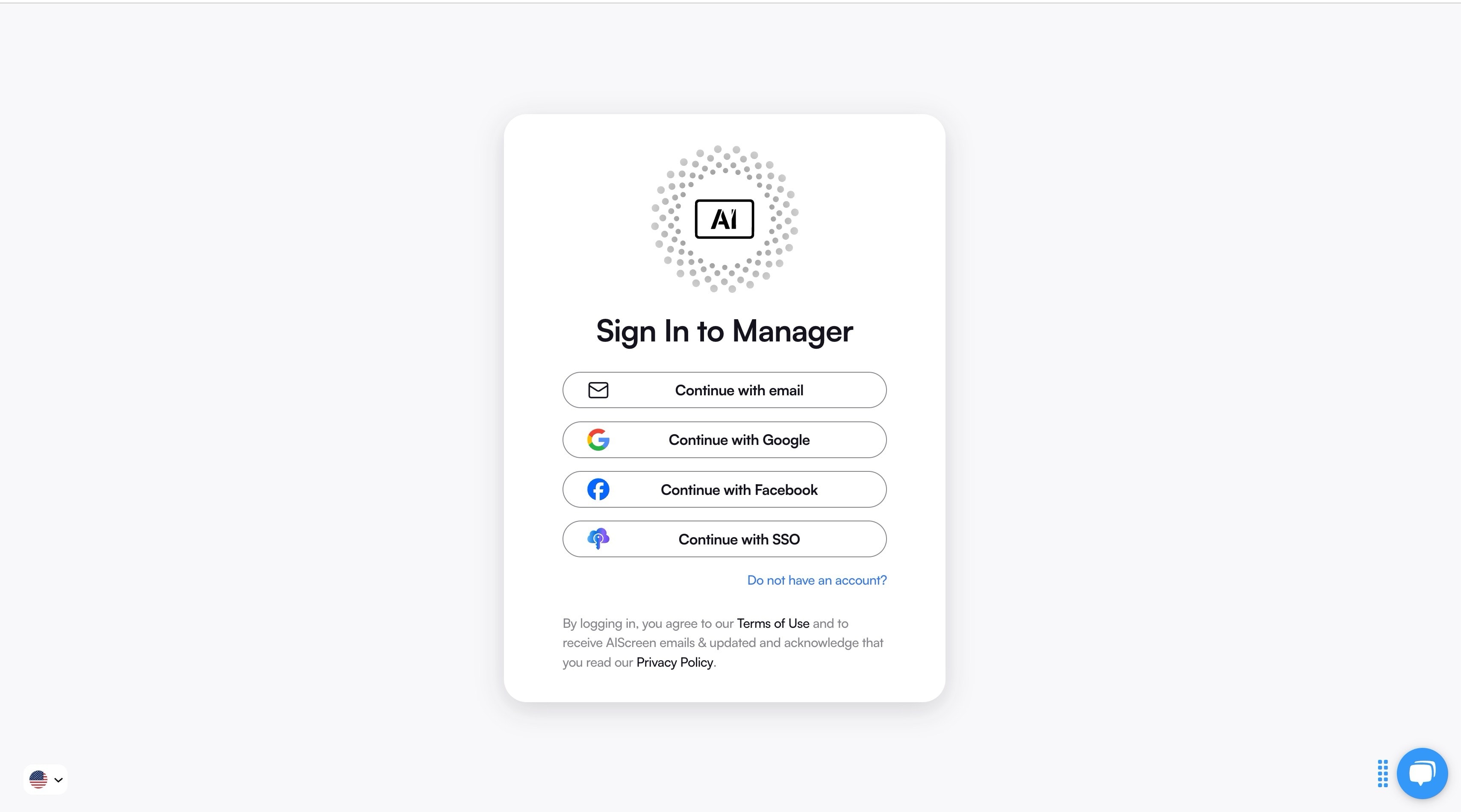
Logging in or creating an account in the digital signage app is essential to personalize and manage your system. Using the AIScreen account portal, you can register a new account or sign in with your credentials. This gives you access to a dashboard where you can upload and organize content.
A dedicated account ensures secure access and centralized management of all your signage displays. Whether managing one device or a network of Chromebit-powered screens, an account makes scheduling, content updates, and monitoring much easier. Creating an account is the foundation of running professional digital signage.
Step 5: Pair your Devices with the Software
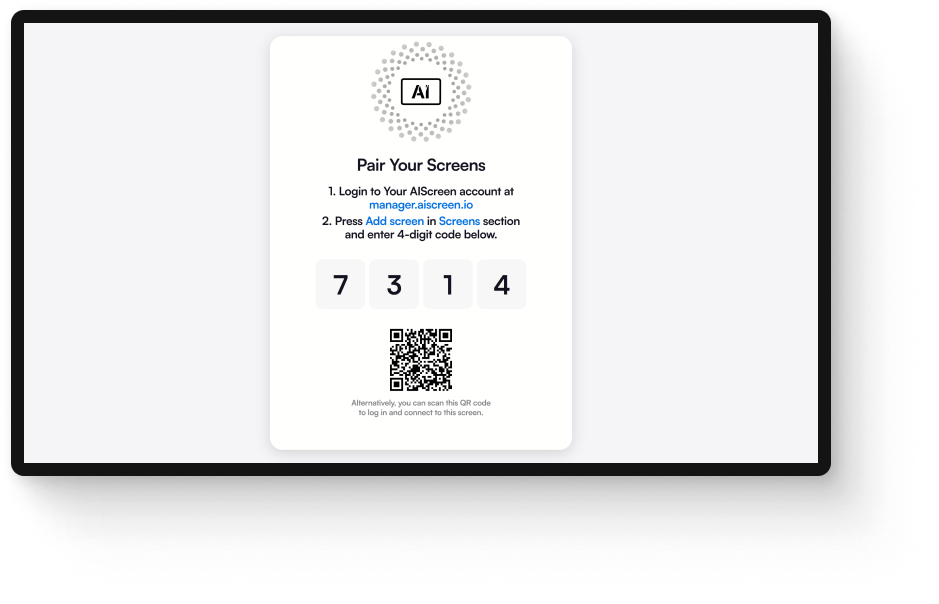
Pairing your devices with the software is a critical step to link your Chromebit to the AIScreen platform. Once paired, your signage device communicates directly with the app, allowing you to push updates, monitor health, and change content remotely.
This step ensures real-time control and flexibility for managing displays across multiple locations. Businesses benefit from seamless pairing because it simplifies network setup and reduces the need for technical expertise.
Step 6: Upload or Customize your Digital Signage Template
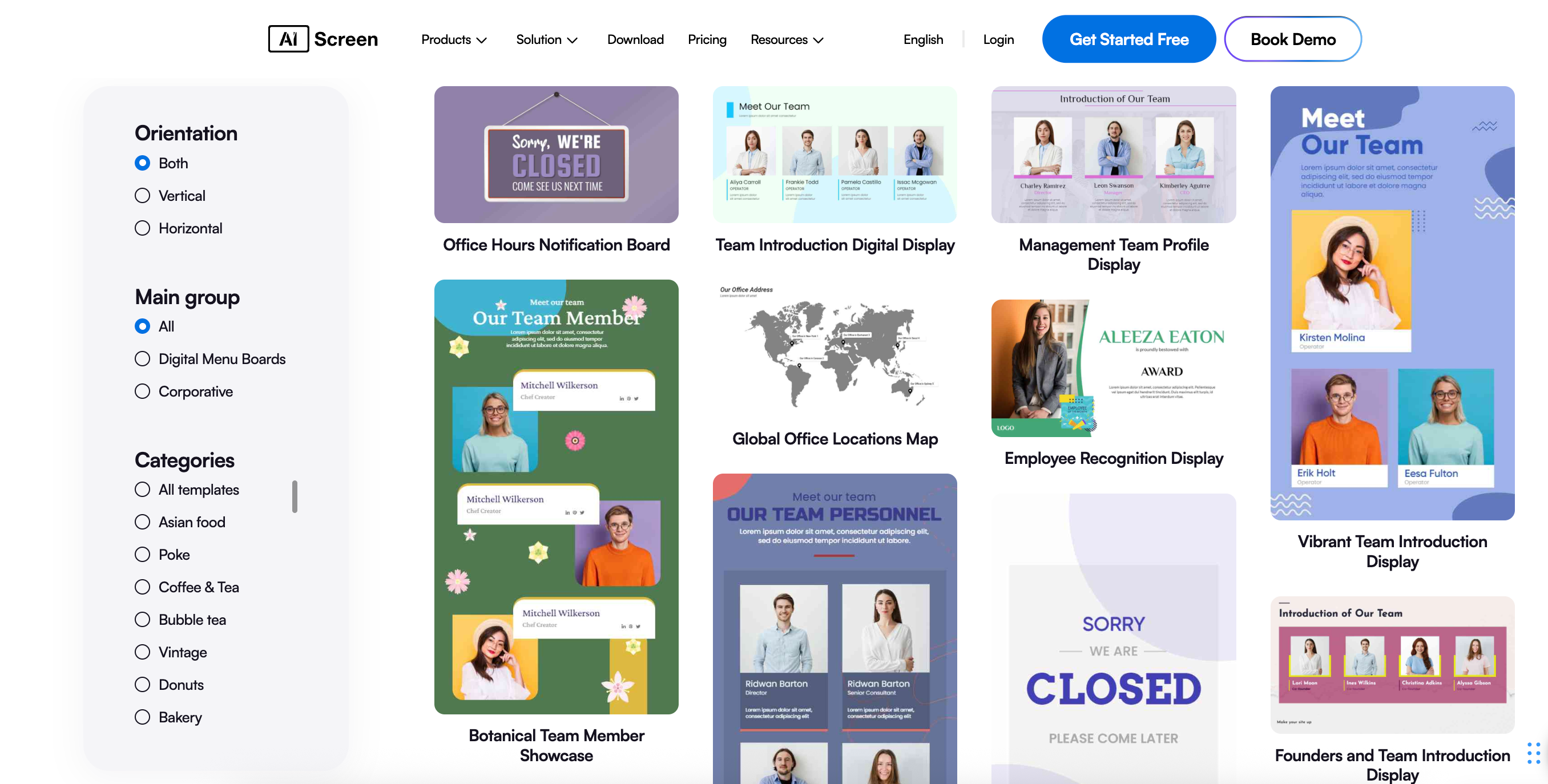
Uploading or customizing your digital signage template makes your content visually appealing and professional. With AIScreen, you can choose from pre-designed digital signage templates or upload your own. This helps businesses create tailored menus, promotions, or information boards quickly.
Custom templates give your signage a unique brand identity and save time in design work. Whether it’s a retail promotion, office notice, or café menu, templates ensure consistency and clarity.
Step 7: Set Up the Display Schedule and Launch
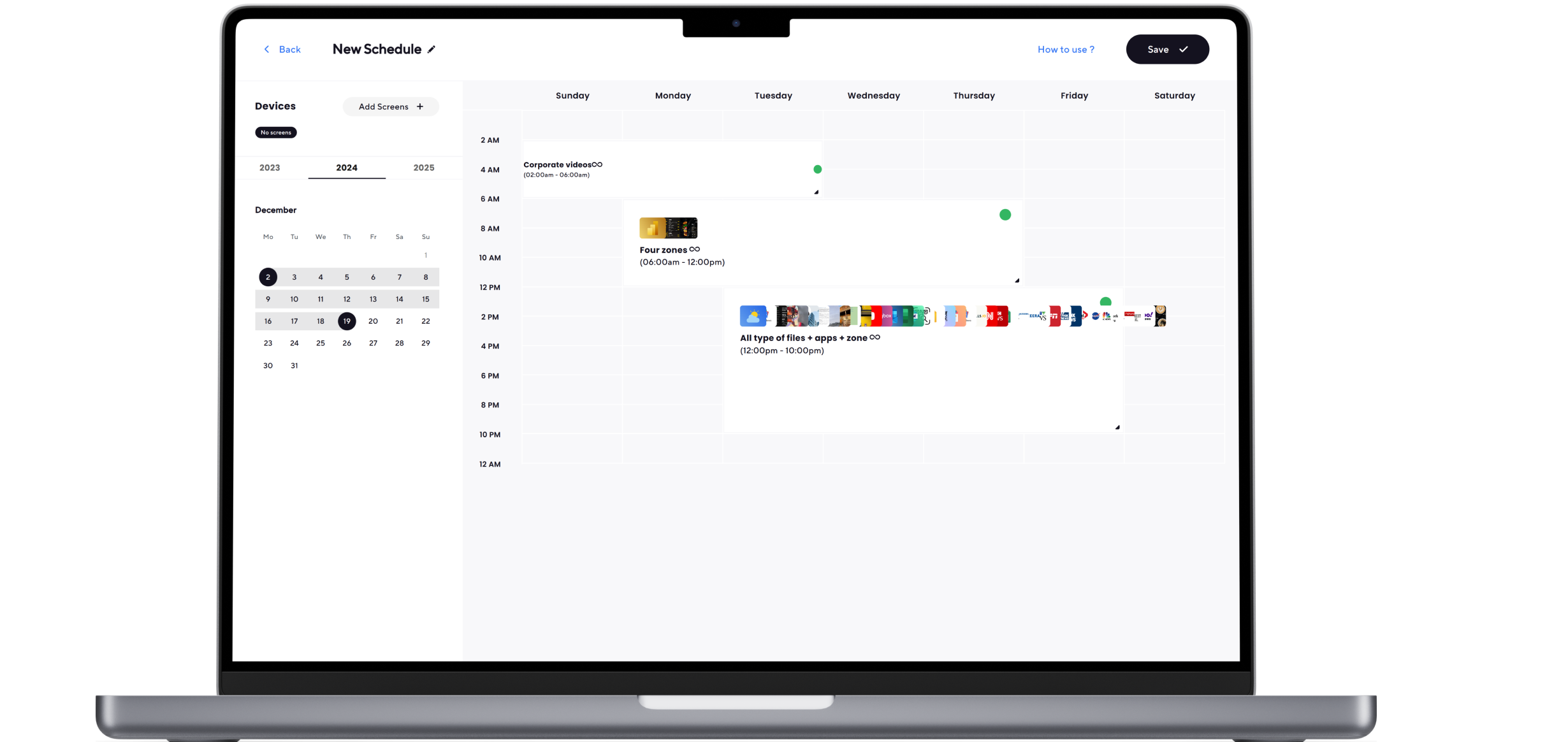
Setting up the display schedule and launching your signage ensures content reaches the audience at the right time. Using AIScreen’s schedule manager, you can decide when specific promotions, updates, or messages appear.
Proper scheduling ensures maximum impact by showing breakfast menus in the morning or retail sales during peak hours. Once your content is scheduled, you can launch instantly using Ctrl-Alt-E and trust the system to run automatically. This step completes your setup and makes your Chromebit digital signage fully operational.
Looking to integrate signage into a Zoom-enabled workspace? Here’s how to set up zoom room digital signage for meeting rooms, lobbies, and waiting areas using similar steps.
Make Your Affordable Digital Signage with Asus Chromebit- Start 14 Days AIScreen Free Trial
Making Your Affordable Digital Signage with Asus Chromebit is easier than ever with AIScreen’s 14-day free trial. This combination offers a cost-effective way to explore how a compact device and powerful software can transform everyday screens into professional, affordable Chromebit digital signage solutions. By simply plugging in the Chromebit, connecting it to AIScreen, and customizing templates, businesses can instantly launch engaging displays. According to Nielsen, digital signage boosts brand awareness by 47.7% on average.
With centralized content control, easy scheduling, and interactive features, this setup provides all the tools needed to run impactful signage without heavy upfront investment. Starting with the free trial allows businesses to test real-world scenarios, evaluate performance, and see how digital signage can boost communication, branding, and customer engagement before committing long-term.


Frequently Asked Questions
How does the Chromebit compare to other digital signage solutions?
The Chromebit compares to other digital signage solutions by being one of the most compact and affordable options on the market. Unlike larger digital signage players such as Chromebox devices, it offers a simple plug-and-play setup with enough processing power for lightweight content.
Can I use the Chromebit for interactive digital signage?
Yes, you can use the Chromebit for interactive digital signage by leveraging Chrome OS apps and web-based tools. With support for the other Chrome Web Store and custom applications, businesses can integrate interactive elements such as Google Photos, calendars, or surveys. However, its limitation of having only one USB port means external devices like touchscreens may require a powered USB hub.
Are there ongoing costs associated with using Chromebit for digital signage?
Yes, there are ongoing costs associated with using Chromebit for digital signage, mainly due to other Chrome os devices licenses, device management, and signage software subscriptions. Businesses using AIScreen or similar platforms may pay recurring fees to access advanced content scheduling, device monitoring, and template libraries.
What are the hardware specifications of the Asus Chromebit for digital signage?
The hardware specifications of the Asus Chromebit for digital signage include 2GB of RAM, 16GB of storage, and support for WiFi networks. It connects through an HDMI port and comes with a USB port for limited peripheral usage. While compact, its specifications mean it’s best suited for lightweight content and small business environments.
How secure is the Asus Chromebit for digital signage applications?
The Asus Chromebit is secure for digital signage applications when paired with Chrome Enterprise and managed via the Google Admin Console. However, since the device has reached its end of life, it no longer receives official software updates or security patches.
