
Conference Room Setup: The Ultimate Guide
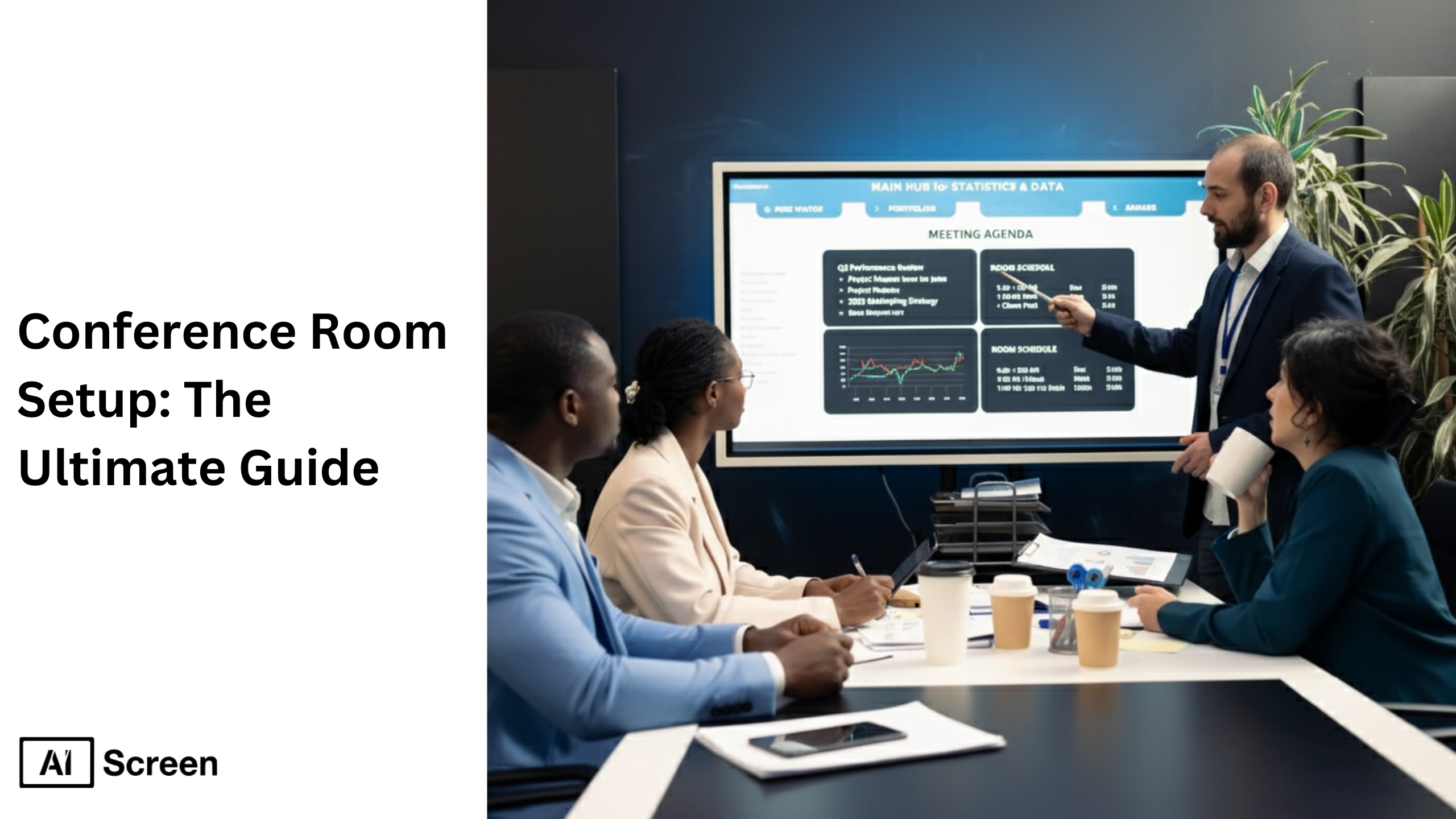
Conference room setup defines how meeting rooms perform. A quality conference room setup shapes productivity, collaboration, and the meeting experience for in-person and virtual meetings. Conference room setup brings together layout, conference room equipment, meeting room technology, and human factors to support clear communication and effective conference outcomes. According to research by Flowtrace, only 30% of meetings are considered productive, with just 37% actually using an agenda.
In this blog, we’ll cover everything from layout styles and equipment selection to design strategies and digital signage solutions. AIScreen digital signage improves meeting clarity by showing agendas, room schedules, and high-definition video without fumbling with cables, making hybrid meetings and room scheduling simple for any meeting room.
Why It’s Important to Provide a Quality Conference Room Setup
It is important to provide a quality conference room setup because a well-designed conference room isn’t just about aesthetics, it’s a foundation for productive meetings and stronger collaboration.
The conference room layout directly impacts communication, decision-making, and engagement, shaping how effectively teams connect both in person and virtually.
- Productivity: An ideal conference room setup reduces distractions and enhances focus. The proper meeting room layout, from ergonomic furniture and rectangular tables to ample space for movement, creates an efficient meeting environment. When room layouts are thoughtfully planned, team meetings, training sessions, and formal presentations run smoothly, leading to higher meeting effectiveness and better outcomes.
- Collaboration: Conference room design trends now emphasize inclusivity and support hybrid meetings through advanced features like video conferences, Microsoft Teams integration, and sound-absorbing materials such as acoustic panels. Whether for brainstorming sessions or formal meetings, the meeting space should encourage participation and clear communication. Round tables or modular room configurations are excellent for encouraging group discussions, ensuring that every participant is equally engaged.
- Professionalism: From conference tables arranged with intention to clean room design that reflects brand identity, the environment speaks volumes. A well-designed conference room creates confidence among clients and team members, making every meeting more impactful.
- Contrast with poor setups: Poor meeting room setups, like cluttered layouts, poor acoustics, or outdated displays, disrupt focus and reduce meeting experience quality. Without proper air quality management, sound control, or comfortable room usage, even extended meetings can feel draining.
- Introduce technology: Digital tools transform meeting rooms into connected hubs. Digital signage, room scheduling displays, and smart TVs make organization seamless, while in-room sensors can monitor air quality and optimize comfort.
What Are the Most Common Conference Room Setup Styles?
The most common conference room setup styles fall into formats that support different meeting goals, from quick huddles to large announcements. Choosing the right setup depends on room size, meeting participants, and intended interaction.
The following styles are the most used in modern workplaces and fit a variety of conferencing needs. You can also read about the 8 best conference room digital signage software in 2026.
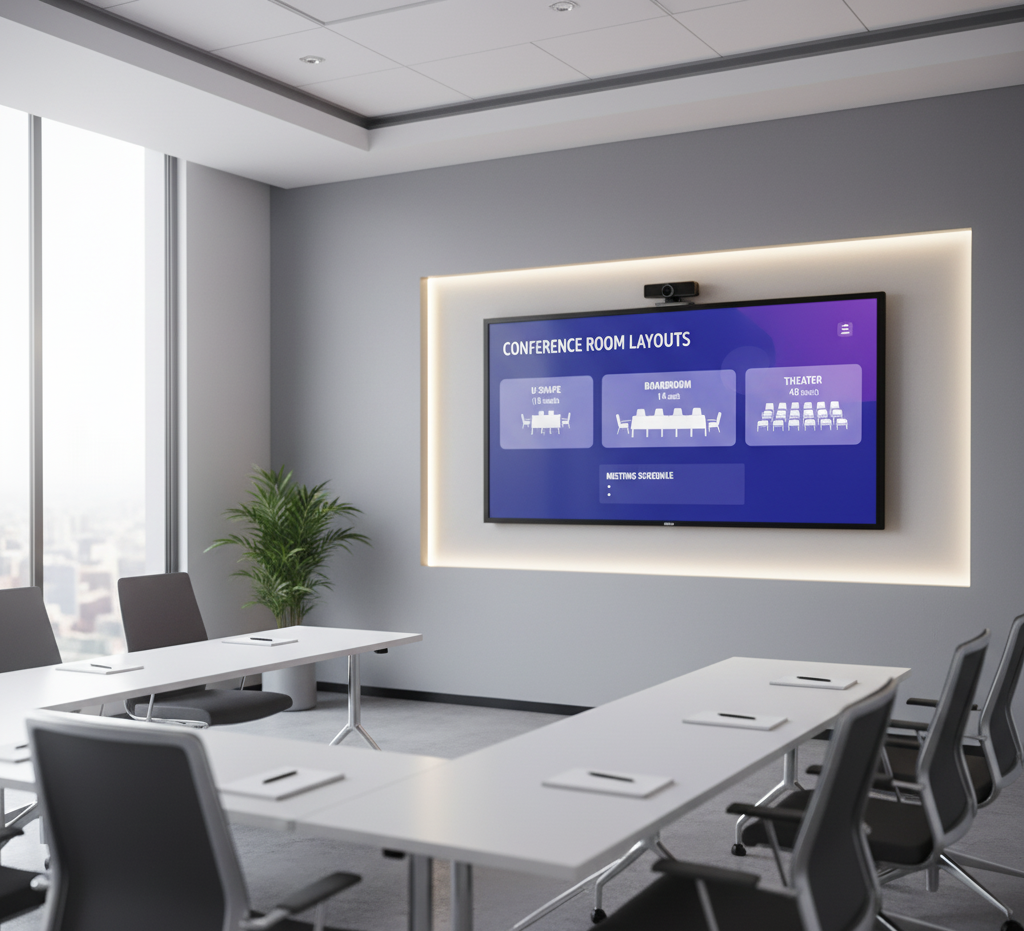
According to Gartner, hybrid work became mainstream in recent years; by the end of 2023, 39% of global knowledge workers were expected to work hybrid, reinforcing why meeting rooms and video conferencing equipment must support remote participants.
1. Huddle Space
Huddle spaces are smaller, flexible areas designed for quick, impromptu meetings. Huddle spaces include simple conference room equipment such as wall-mounted displays, compact cameras, and power outlets to support mobile devices in meeting rooms.
Isn’t it maddening when a quick brainstorm stalls because the screen won’t connect? Huddle spaces solve that by prioritizing plug-and-play displays, reliable conferencing software, and ergonomic seating for small group discussions.
2. Front Row Experience
The front row setup is a modern, tech-forward layout specifically designed for hybrid meetings. Front row configurations bring people close to eye-level displays and high-definition video, using video conferencing equipment and digital signage to ensure remote participants feel included.
Have you noticed how much clearer a presenter appears when everyone sits closer to the screen? Front row setups boost engagement by aligning sightlines, camera angles, and audio so remote attendees see and hear every nuance.
3. Boardroom Style
This classic setup is ideal for formal meetings and decision-making and supports up to 30 people, depending on the room size and seating capacity. Boardroom style centers on a large central table, clear communication lines, and robust AV gear for video calls and presentations.
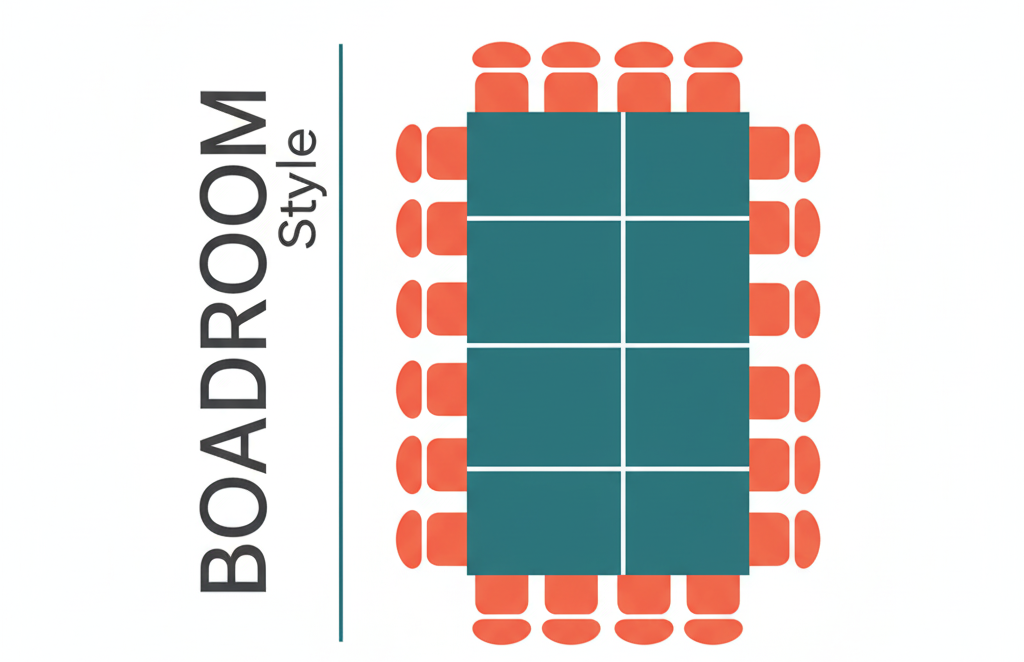
Do you remember a board meeting where everyone could clearly see the slides and participate? Boardroom style enforces direct communication and a professional ambiance ideal for executive meetings.
4. U-Shape Configuration
U-shape configurations work well for presentations and video conferencing, where a focal presenter needs visibility. U-shape layout encourages direct communication and allows moderators to move freely inside the U while cameras capture all participants.
Isn’t it easier to discuss when everyone can face the presenter? U-shape arrangements promote group interaction and make it simple to involve both in-person and virtual attendees.
5. Classroom Style
In a classroom style, all attendees face the front, making it ideal for training sessions and seminars. Classroom setups pair well with multiple screens or a single large display and support lectern microphones and presentation clickers.
Have you sat through a training where the view was blocked? Classroom layouts prioritize sightlines, video quality, and orderly rows to maximize information delivery.
6. Hollow Square Setup
The hollow square style encourages collaborative meetings and allows a facilitator to work from the center. Hollow square setups combine clear sightlines with accessible power outlets and flexible tables arranged for group discussions.
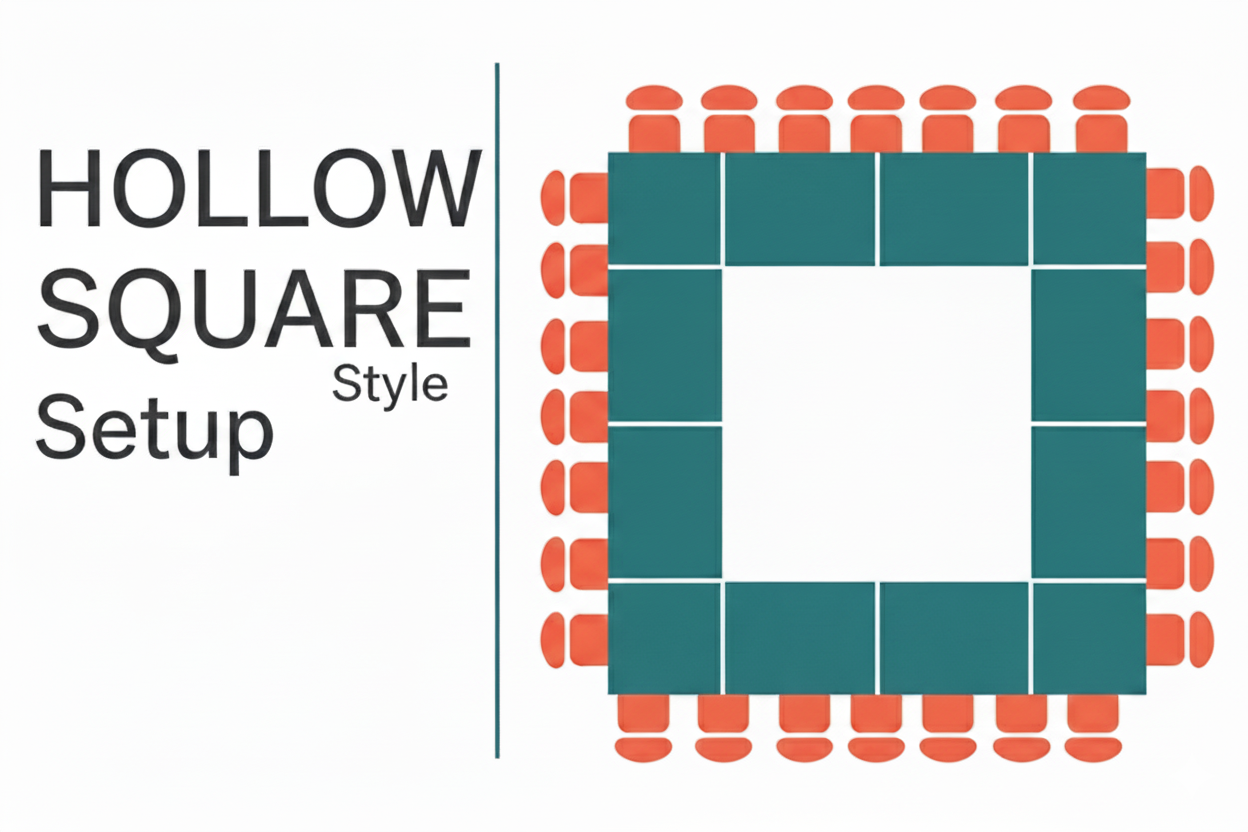
Wonder how to host a workshop where everyone contributes equally? Hollow square layouts encourage direct communication and make group facilitation smooth.
7. Banquet Style
Banquet style fits conferences with meals, networking, or informal gatherings and uses round or rectangular tables for small group discussions. Banquet setups balance social interaction with practical needs like access to digital menu boards or presentation displays.
Have you attended an event where conversation flowed naturally around a small table? Banquet layouts support social dynamics while keeping presentation tech within reach.
8. Auditorium Setup
Auditorium or theater style maximizes seating capacity for large audiences and works for company announcements and all-hands. Auditorium setups rely on large, high-definition displays, powerful audio, and well-placed cameras for reliable video conferencing and virtual meetings.
Isn’t it crucial that everyone sees the stage clearly during an announcement? Auditorium arrangements ensure visibility for large conference room meetings and public presentations.


How to Choose the Ideal Conference Room Setup
Choosing the right conference room setup isn’t just about filling a space, it’s about supporting how people actually meet. Choose the ideal conference room setup starts with treating room design as a strategic decision that affects comfort, engagement, and meeting outcomes.
Instead of a one-size-fits-all layout, the goal is to align the room with your most common meeting needs. It’s important to consider the size and scope of your meetings. You don’t want attendees feeling cramped, but a space that’s too large can feel disconnected.
Designing around typical meeting sizes is far more effective than planning for occasional use cases, there’s little value in a 12-person room that’s consistently used by three people.
When planning your conference room setup, consider the following:
- How many attendees do you expect? Different layouts suit different group sizes. Classroom and auditorium styles work best for larger groups, while boardroom and hollow-square layouts are ideal for meetings with 20–30 participants.
- Is group interaction essential? U-shape and auditorium layouts limit discussion. Banquet-style or modular seating encourages collaboration, especially when participants need to move or work in groups.
- Will there be a facilitator or presenter? Make sure the meeting leader is clearly visible and audible to everyone. Poor sightlines or awkward positioning can reduce engagement quickly.
- Do you need video conferencing or large displays? If LED video walls or video conferencing tools are involved, layouts like U-shape or classroom style ensure all attendees can see screens and remote participants clearly.
- Have you considered room acoustics? Good acoustics are essential for clear communication. Proper sound design keeps both in-room and remote participants engaged and helps prevent meeting fatigue.
How to Set Up a Conference Room Setup TV: Step-by-Step Guide
This step-by-step guide for setting up a conference room setup TV with digital signage software includes a smooth process or methodical setup procedure. It covers software functionality and key features, combining with the appropriate hardware to create a smooth experience.
Step 1: Choose the Right TV for Your Meeting Space
Choose the right TV for your meeting space to broadcast your real-time content effectively. Consider screen size, resolution, and software compatibility while making a choice.
According to DisplayDaily, screen refresh rate and screen resolution are the 2 most crucial elements to display live TV content. They assure steady performance and colorful graphics.
Generally, displays fall into two categories based on usage:
- Consumer-grade displays: Best to use at homes, cost-effective solution, lifespan of approximately 30,000 hours of operation, 200-400 nits brightness for indoor environments and controlled lighting, and 8/7 duty cycle (8 hours a day, 7 days a week). Display type can be Insignia or TLC TVs.
- Commercial-grade displays: Best to use in public spaces, offices, and retail stores for long-term reliability, lifespan of approximately 50,000+ hours, designed for a 16/7 or 24/7 duty cycle, from 500 nits for indoor use to 2500+ nits for outdoor use. Window-facing displays that combat direct sunlight. Built-in heat management systems and reinforced chassis to handle the stress of continuous operation.
Some of the top-class live TV options are as follows:
Insignia Smart Fire TV

- Display Sizes and Resolution: Sizes available in 32″, 43″, 50″, 55″, 65″ with 4K Ultra HD on most models, but Full HD on smaller 32″ units.
- Operating System and Smart Features: FireOS (Amazon Fire TV) with Alexa and built-in apps, Apple AirPlay, and screen mirroring.
- HDR and Audio: HDR10 support and DTS Virtual-X 3D surround sound.
- Connectivity: 3 HDMI ports, USB, composite AV, optical audio out, headphone jack, coaxial, and WiFi & Ethernet.
- Performance: Smooth 4K/HD video playback, basic playlists, and animations are supported.
- Popular Models: F30, F50, NS-Series.
- Advantages: Budget-friendly, all-in-one solution, easy to deploy, and reliable for digital signage.
TCL s5 Series

- Display Sizes and Resolution: Sizes available are 32″ to 105″. Most models come with 4K Ultra HD resolution, whereas some in 32″ units have Full HD. Select models also offer 5K resolution.
- Operating System and Smart Features: Android-based OS (e.g., Android 13), built-in media player, apps, and cloud content management supported.
- HDR and Audio: 400–500 nits brightness with anti-glare, Dolby and DTS audio, and 2×10W speakers.
- Connectivity: HDMI, USB, Ethernet, WiFi, Bluetooth, and RS232 on some models.
- Performance: 24/7 commercial use, smooth 4K video, and HTML5 content playback.
- Popular Models: TMN, TBN, and P-Series.
- Advantages: Wide size range, durable, bright displays, flexible Android content management, and integrated audio and multiple connectivity options
Step 2: Mount or Position the TV Correctly
Proper TV placement ensures maximum visibility, safety, and performance. Mount or position the TV correctly based on your location and screen type:
- Wall Mounts: Ideal for saving space and providing a sleek, professional look. Position the screen at eye level (typically 42–48 inches from the floor to the center of the screen) for seated viewing or 55–65 inches for standing areas.
- Stands or Enclosures: Suitable for flexible or temporary setups such as trade shows or lobbies. Ensure the base is stable and the display faces high-traffic areas.
- Orientation: Decide between landscape (for videos and menus) or portrait (for directories or advertisements). Keep screens tilted slightly downward (10–15°) if mounted above eye level to improve readability and reduce glare.
- Safety Check: Confirm that all brackets and fasteners are compatible with the display’s weight and size, and ensure all cables are neatly managed.
Step 3: Connect to a Reliable Network and Power Source
A stable connection and consistent power are essential for uninterrupted signage performance. Connect to a Reliable Network and Power Source to ensure your displays run smoothly without interruptions or downtime.
Your setup will depend on your hardware, whether you’re using a smart TV, browser-based player, AIScreen player stick, or a media player like Chromecast.
1. Connect to Power
- Plug the TV’s power cable directly into a dedicated outlet or surge-protected power strip.
- Avoid overloading sockets; use a UPS (Uninterruptible Power Supply) for locations prone to power fluctuations.
- Confirm that all connected devices (TV, player, router) receive stable voltage and are easily accessible for maintenance.
2. Connect to Network
- Wired (Recommended): For the most stable connection, especially with multiple screens, use an Ethernet cable to connect the TV or player directly to your router or network switch.
- Wireless (Wi-Fi): If using Wi-Fi, open your TV’s network settings and connect to your preferred network.
- For business environments, set up a dedicated Wi-Fi SSID specifically for digital signage devices to reduce interference.
- Ensure the signal strength remains strong across all signage locations.
Step 4: Login Conference Room Digital Signage Software
Login conference room digital signage software by visiting the AIScreen download page. Choose your preferred device, from an Android box, Fire TV Stick, or small PC, to install software on TV. Connect the display using an HDMI cable or through Wi-Fi after installation.
To download and install the AIScreen digital signage software on your TV, follow these steps:
- On your smart TV (as you have already selected the display), open the app store (such as Google Play Store or Amazon Appstore).
- Search for “AIScreen Digital Signage Software.”
- Click the “Install” button to download the AIScreen app onto your TV.
- Once installed, open the app; your screen will display a 4-digit pairing code needed to connect your TV to the AIScreen cloud system.
This simple installation process gets your digital signage software ready for setup and content management.
Step 5: Create an Account in the Conference Room Management App
Creating an account in the digital signage management app is the right approach after you have installed the software. Now, register your company and create templates, upload media, and schedule content playlists, monitor live streams, and switch feeds easily, all from this powerful digital signage solution.
Additionally, you can find integrations and analytics tools to improve your digital signage strategy as well.
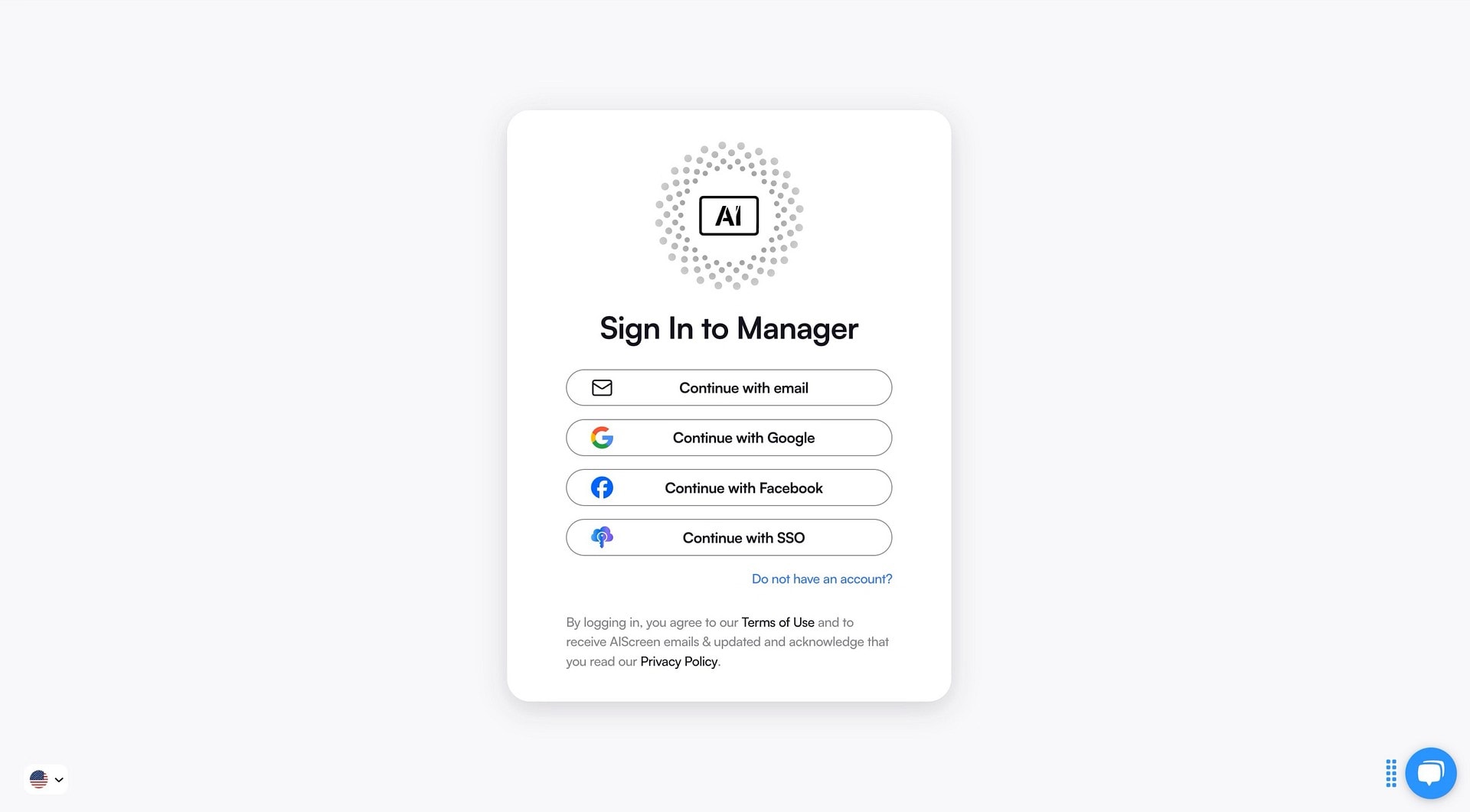
As you have already installed AIScreen digital signage software on your TV or device, following the previous step, the next thing is to create an account in the digital signage management app. This process is also very simple and quick:
- Move to the AIScreen website or open the AIScreen app on your computer or mobile device.
- Click on the “Sign Up” or “Create Account” option.
- Enter your business details, including its name, email address, and set a password. You can also sign up quickly if you already have a Google or Facebook account. Remember, the sign-up page says, ‘Continue Log In’ through so-and-so account, when you are already a Google or Facebook user.
- Confirm your email if required to activate your account.
- Once signed up, log in to access your personalized digital signage dashboard.
Benefits of Using the Management App:
- The best thing is the centralized dashboard for managing and organizing your digital content easily.
- You can remotely schedule content and campaigns for multiple screens.
- Sync as well as control your digital signage hardware in real time.
- Use built-in tools for content creation, analytics, and team collaboration.
- You can even simplify daily updates and automate content delivery to maximize engagement and operational efficiency.
Signing up for your account is essential to linking your screens with the cloud-based platform. It allows seamless content updates and centralized control across all your screens.
Step 6: Connect the TV to Your Conference Room Digital Signage Software
Connect the TV to your conference room digital signage software by launching the app on both the TV and your AIScreen account. Start uploading or customizing your business template. You can also use a ready-made template or your branding assets, utilizing the integrated editor of the platform or a web dashboard.
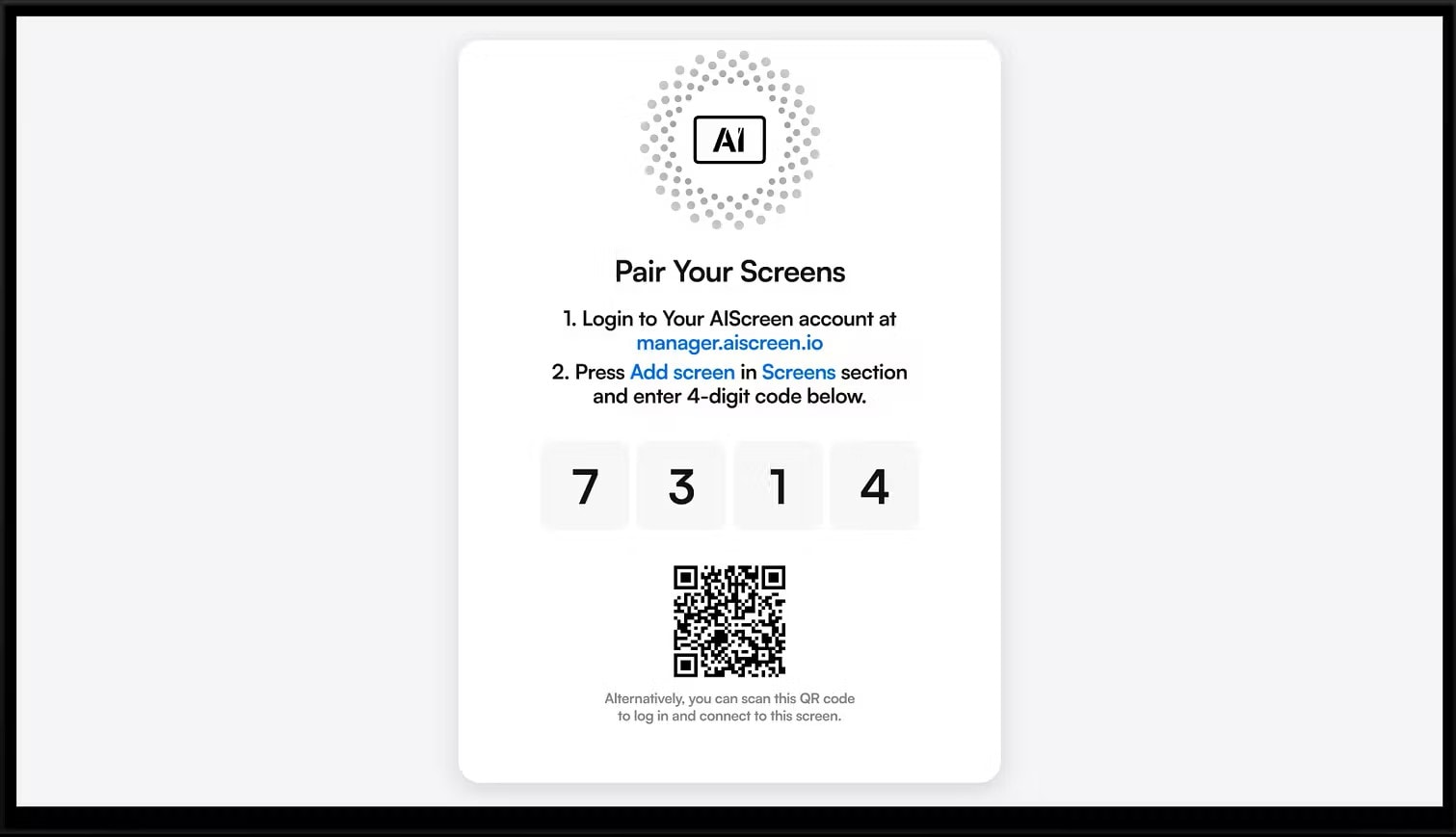
Include different content types as messages, colors, high-quality images of the products, and logos, to customize templates that are consistent with your target market and business model. This is essential for producing branded, customized digital signage content.
Now, as you have signed up, just follow the process to connect and pair up devices:
- Open the ‘AIScreen app’ on your TV or digital signage player. There will appear a 4-digit code.
- Log in to your AIScreen dashboard on your computer or mobile device.
- Go to “Add Screen” and enter the 4-digit code to pair the device.
- Name the device so you can easily identify it.
- Ensure smooth internet connectivity using a stable Wi-Fi or Ethernet connection.
- If using an external device or media player, connect it via HDMI before pairing.
- Test to confirm if the device receives content and updates properly.
Step 7: Integrate with Video Conferencing Tools
Integrate live streaming by connecting live TV and using the Live URL feature in the AIScreen digital signage app. Integrate with Video Conferencing Tools to extend real-time communication beyond physical screens.
Investigate the full Live URL guide for supported formats, this approach also allows you to display Twitch, YouTube Live, or internal corporate streams for ongoing updates.
Here are the steps for live URL integration for live streaming:
- Log in to your AIScreen dashboard.
- Go to the “Live URL” section.
- Click “Create Link” and paste the streaming URL that could be YouTube Live, Hulu Live, or IPTV.
- Name the live stream for easy ID.
- Save and assign it to your screens.
This enables dynamic, real-time content alongside your regular digital signage
Step 8: Schedule the Display, Test Audio, Video, and Launch
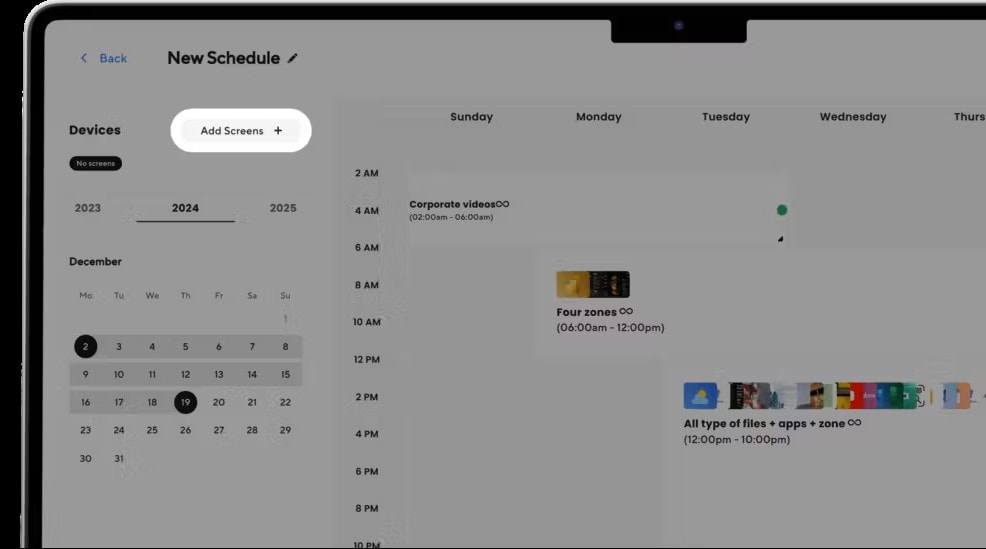
So, if you’re thinking about how to schedule the display, Schedule the Display, Test Audio, Video, and Launch by simply hitting “Play” from the AIScreen dashboard. This lets you broadcast live TV as part of your digital signage network in just a few clicks.
Once all settings are configured, it’s time to launch live TV or display content on your digital signage screens with AIScreen. Follow the steps:
- Navigate to the media, playlist, or live URL section where your prepared content is kept.
- Select the content or live URL you want to broadcast.
- Click the “Set to Screen” option and choose the target displays.
- Confirm and start streaming live content instantly to your digital signage screens.
Follow some troubleshooting tips about ensuring correct display settings (1080p/4K), using wired Ethernet for stable streams, and disabling sleep mode on devices to prevent interruptions. Here are the steps:
- Your screen resolution should match the content resolution to avoid distortion. So, adjust the resolution of your TV or signage device if needed.
- Prevent buffering and other interruptions by ensuring stable and strong connectivity.
- Try restarting the device or the signage app if the content does not display properly.
- Regularly update your AIScreen software and device to maintain performance and compatibility.
- Do not run too many apps or processes at the same time on the digital signage player or your smart TV. Otherwise, it will slow down the system.
What Are the Key Design Guidelines for Conference Rooms?
Designing an effective conference room setup goes beyond aesthetics, it’s about creating a balanced environment where communication, comfort, and technology work in harmony. The key design guidelines for conference rooms focus on ensuring that both in-person and remote participants experience seamless, productive meetings.
The ideal space supports focus, clarity, and creativity, making team meetings and brainstorming sessions more engaging and effective for everyone involved.
- Lighting: Balanced lighting is crucial for visibility and comfort. Avoid glare from screens or harsh shadows by combining natural and soft artificial light. Proper illumination enhances concentration and helps participants feel more alert and engaged in meeting rooms.
- Acoustics: Clear communication depends on effective sound management. Use acoustic panels, carpets, or ceiling baffles to absorb noise and reduce echo within the physical space. These additions help ensure every voice is heard distinctly during in-room or virtual discussions.
- Ergonomics: Comfort drives productivity. Choose adjustable chairs and round tables that allow for eye contact and interaction. Keep adequate spacing between seats and maintain balance according to the room’s dimensions. Ergonomic elements support longer in-person meetings without fatigue.
- Technology Integration: A perfect conference room connects effortlessly with devices and platforms. Ensure that displays, microphones, and conference tables support seamless AV connectivity. Smart screens and wireless systems streamline collaboration in hybrid settings, improving accessibility and engagement for all participants.
- Cable Management: Tangled wires can disrupt focus and make even well-planned conference room layouts look cluttered. Conceal or organize cables neatly to maintain a polished and distraction-free room design.
Modern meeting spaces also benefit from smart control systems that automate lighting, display content, and scheduling,h elping teams manage room usage efficiently while enhancing the ideal conference room setup experience.
Pro tip: Elevate your meetings further with AIScreen digital signage, a smart visual solution designed to display presentations, schedules, and real-time updates, making every session in your conference room more dynamic and engaging.
What Strategies Can Improve Your Conference Room Setup?
An effective conference room setup plays a vital role in improving collaboration, communication, and engagement during meetings. Whether your organization hosts formal presentations, brainstorming sessions, or hybrid collaborations, optimizing your meeting room layout ensures that every participant feels included and productive. Here are five practical strategies to improve conference room setup for diverse business needs.
- Pay Attention to the Basics: Start by focusing on essential design elements like furniture placement, spacing, and sightlines. A well-organized meeting space ensures that everyone has a clear view of the screen and speaker, reducing distractions and improving participation in meeting rooms of all sizes.
- Take Advantage of Larger Spaces: If your conference room offers ample room, use modular furniture that adapts to different meeting room setups. Flexible seating arrangements make it easy to shift between presentations, collaborative sessions, and workshops, catering to diverse needs without compromising comfort or efficiency.
- Try Non-Traditional Setups: Move beyond rigid table formats and experiment with circular or lounge-style seating. These layouts encourage open communication and teamwork, transforming a typical meeting space into an area that fosters creativity and engagement.
- Choose the Right Equipment: Evaluate whether your meeting rooms benefit more from dedicated conferencing systems or Bring Your Own Device (BYOD) setups. The right technology can simplify connectivity and ensure smooth interactions, helping create a perfect conference room that supports modern collaboration tools.
- Prioritize Video Conferencing Integration: Seamless integration with platforms like Microsoft Teams, Zoom, or Google Meet is crucial. Optimizing your meeting room layout to support high-quality video and audio ensures that hybrid participants feel equally included and heard, regardless of their location.
- Adopt the Latest AV Technology: Enhance your meeting room setup with smart displays, quality microphones, and interactive whiteboards. Modern AV tools bring clarity and efficiency, improving engagement and ensuring productive sessions in every conference room.
AIScreen’s digital signage solutions complement these strategies by enhancing meeting flow and coordination. From displaying real-time schedules to showing live updates or meeting room availability, AIScreen helps businesses create a smarter, more connected meeting space.
Simplify Your Conference Room Setup with AIScreen Digital Signage Solutions!
Create a smarter, more efficient workspace with AIScreen’s conference room displays and digital signage solutions designed to simplify collaboration. Simplify your conference room setup with AIScreen digital signage solutions! and bring clarity, consistency, and ease to every meeting environment.
From real-time meeting visuals to automated scheduling screens, AIScreen helps teams communicate seamlessly, organize meetings efficiently, and reduce technology friction. Whether it’s hybrid meetings, video conferences, or formal presentations, its intuitive tools ensure every session runs smoothly, enhancing productivity and creating a more connected workplace experience.
FAQs
What is the most efficient conference room layout for hybrid meetings?
The most efficient conference room layout for hybrid meetings ensures all participants, both in-person and remote, can engage equally. A U-shaped or semi-circular meeting room layout supports visibility and inclusivity, while digital signage displays and cameras strategically positioned enhance communication flow and collaboration across locations.
What size TV is best for a conference room setup?
The best TV size for a conference room setup depends on the room’s dimensions and seating distance. Typically, a 55–75-inch display suits medium meeting rooms, while larger spaces may need 85-inch screens or video walls for clear visibility. Always choose a screen that allows easy viewing for everyone during presentations or video conferences.
How can digital signage improve conference room communication?
Digital signage improves conference room communication by displaying meeting schedules, agendas, and live updates in real time. It helps teams stay informed, reduces confusion about room usage, and enhances coordination during team meetings or training sessions, all while reinforcing professionalism and operational clarity.
What should I consider when setting up video conferencing systems?
When setting up video conferencing systems, consider acoustic panels, sound absorbing materials, and ergonomic furniture for comfort and clarity. Ensure proper lighting, high-speed connectivity, and smart display integration for platforms like Microsoft Teams, enabling an efficient and inclusive meeting experience for all participants.
How can AIScreen enhance conference room TV management?
AIScreen enhances conference room TV management by centralizing content control and enabling remote scheduling of displays. Teams can instantly update screens, sync calendars, and display live dashboards, streamlining formal meetings and improving overall meeting effectiveness in hybrid or in-person environments.
