
What Is the Best RSS Weather Feed for Digital Signage?
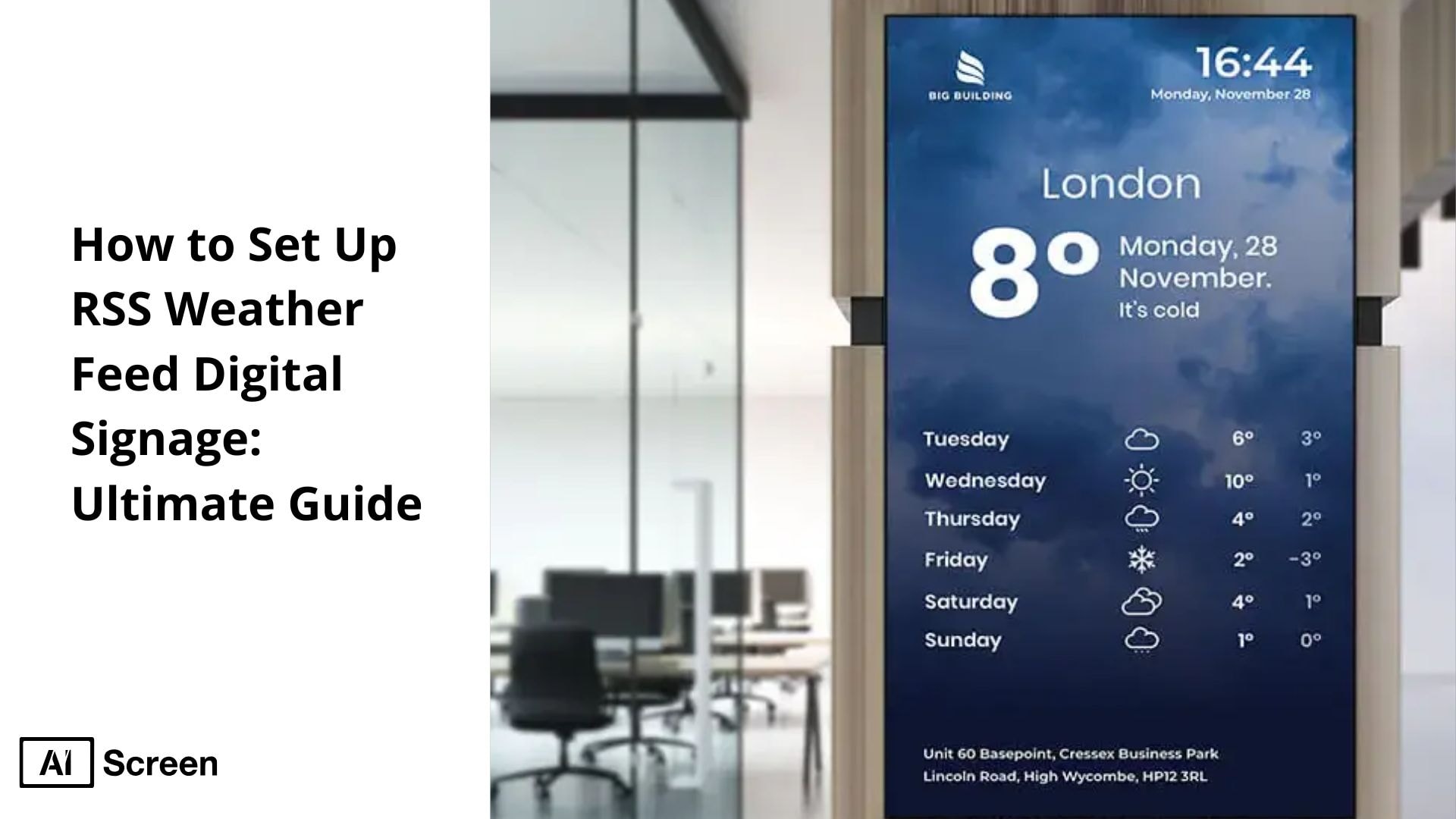
To set up RSS weather feed digital signage, you can rely on a digital signage platform that supports RSS integration or a built-in weather widget. Simply locate a weather RSS feed URL, usually in XML format, and add it to your software settings. Many CMS platforms already offer dedicated weather apps, while others allow you to connect a general RSS feed app to pull accurate updates from trusted sources. The process also shows why businesses should consider adopting this digital signage strategy. According to a Harvard Business Review study, 92% of employees value real-time performance dashboards for productivity.
This article highlights how RSS weather feeds, integrating the latest weather news and updates, can be customized to fit your digital signage design. You can choose to display the feed as a ticker, a full-screen weather board, or a themed background that blends with other on-screen content. By setting update intervals or running the feed live, businesses ensure their audience always sees the latest weather information without manual changes.
What Is RSS Weather Feed Digital Signage?
RSS Weather Feed Digital Signage is a way to display real-time weather updates on your digital screens by connecting them to an RSS feed. The feed collects live information such as temperature, forecasts, and alerts from trusted sources like weather APIs and pushes it directly to your display. This means your content is always current without the need for manual updates. According to Salesforce, companies using live data reporting see a 29% increase in decision-making speed.
Using RSS weather feeds makes it easy to keep your signage relevant and engaging for audience engagement. Businesses can show live forecasts, upcoming weather changes, or even emergency alerts depending on their audience’s needs. By integrating these updates into your display, you create a reliable source of information that enhances customer experience while saving time on content management.
What are the 3 Best RSS Weather Feed Displays?
The best RSS feed weather digital signage displays highlights the most effective ways businesses can keep audiences informed with real-time weather updates. According to Microsoft, integrating Microsoft Excel sheets with dashboards improves data accuracy by 32%. These displays integrate live RSS feeds to show local weather data updates, forecasts, temperature, and severe weather alerts directly on digital screens.
1. Weather-Themed Background

Weather-themed background in digital signage RSS feeds with easy access templates helps you set the right tone for your display. It instantly communicates the valuable information and context to viewers, making your content more engaging and visually consistent. This approach creates a seamless way to blend weather updates with your brand’s messaging.
You can also add additional digital signage weather app information and updates while keeping the background aligned with the weather theme. The design ensures viewers always connect the display with real-time weather and display weather information , improving both clarity and engagement.
2. Weather Ticker

Weather ticker using a digital signage player with RSS feeds message template for media is a smart way to keep updates running across your screen. It’s ideal for sharing live conditions, temperature, or short-term forecasts without disrupting your main content. The ticker is subtle yet highly effective in keeping audiences informed.
This feature can also display alerts and extra details like upcoming forecasts in a scrolling format. With digital signage RSS feeds, and various media formats, you have full control to customize and align the ticker with your display layout, making updates simple and professional.
3. Full-Screen Weather Display

Full-screen weather display through digital signage, RSS feeds, messages and posts, and forecasts make weather the star of your screen. It’s perfect for businesses that want weather conditions and forecasts to be a core part of their signage strategy. The immersive format ensures maximum visibility for critical updates.
With this setup, you can feature dynamic weather maps, radar, and current temperature alongside real-time forecasts to help viewers plan their day better. Using live digital signage RSS feeds, you can deliver accurate updates instantly, making your display both functional and visually impressive.
How Do You Set Up RSS Weather Feed?
To set up the RSS weather feed digital signage, you simply connect a trusted weather RSS URL to your digital signage content management system (CMS) as part of the integration process. This integration allows your screens to automatically pull live weather updates and display them without manual changes. Most platforms make it easy to schedule weather alongside promotions, radar maps, or announcements. According to a Gartner report, 60% of enterprises rely on Microsoft Power BI for KPI tracking, showing how businesses trust live data integration for decision-making. For advanced automation, you can setup automatic weather station software to feed localized readings directly into your screens.
The setup involves choosing the right digital signage screens, installing digital signage software, and configuring your RSS feed app. Here’s the trick: once the RSS URL is linked to your digital signage content, updates happen automatically, ensuring forecasted weather conditions remain up to date for your target audience.
Step 1: Choose the Right Screen to Show RSS Weather Feed
Choosing the right screen to show an RSS weather feed is the foundation for effective display. The screen should match your location needs, whether it’s indoors or outdoors. Key factors like size, resolution, and brightness determine how the weather updates appear to viewers.
For storefronts, cafés, or outdoor areas, opt for high-brightness and durable displays that remain visible in direct sunlight or changing conditions. Indoors, a medium-sized screen with sharp resolution works well to keep weather information easy to read without overwhelming the space.
TCL 55″ 4K UHD Smart Google TV

- Resolution: 4K UHD (2160p) with vivid, lifelike visuals that highlight every detail.
- Smart Platform: Powered by Google TV, offering quick access to apps and seamless CMS integration.
- Connectivity: Equipped with HDMI, Wi-Fi, Chromecast, and Bluetooth for flexible setups.
- Best Placement: Suited for center aisles, fresh produce displays, and meat counters where screens run 12+ hours daily.
- Price Range: $349–$499.
- Key Advantage: Eye-catching brightness and easy content scheduling make it perfect for rotating grocery deals and promotions.
Insignia 50″ Class F30 Series LED 4K UHD Smart Fire TV
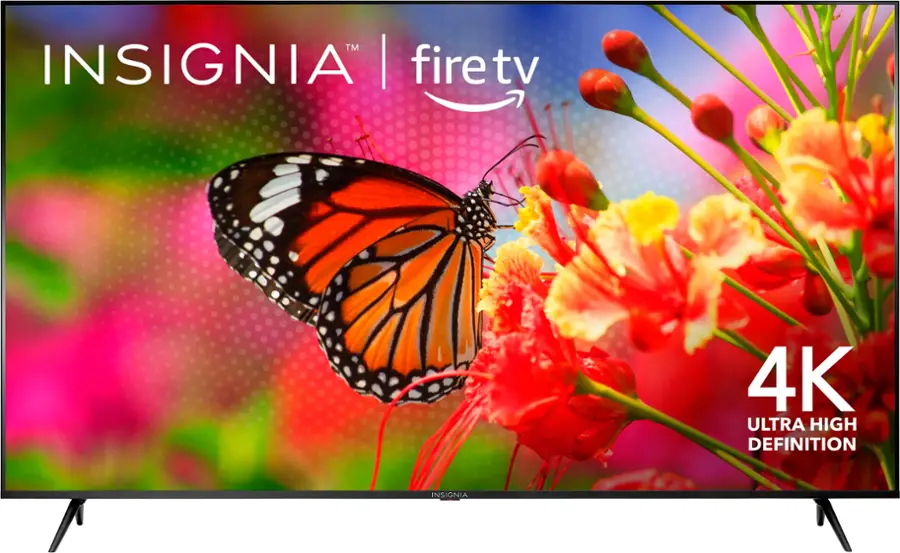
- Resolution: Sharp 4K UHD (2160p) with crisp color and clarity.
- Smart Platform: Built-in Fire TV with Alexa voice remote for quick, hands-free control.
- Connectivity: Dual-band Wi-Fi, HDMI, and USB support for versatile use.
- Best Placement: Works best near checkout lanes, aisle endcaps, and freezer sections with 12+ hours of daily operation.
- Price Range: $299–$419.
- Key Advantage: Dependable performance and smooth video playback, making it a solid choice for digital grocery signage.
If you’re planning to showcase dynamic weather content on your storefront or window displays, check out the best example of window display software for your store to see how top retailers maximize visibility and impact.
Step 2: Install and Set Up Digital Signage Software
Installing and setting up digital signage software is the next step to displaying an RSS weather feed seamlessly across multiple locations. AIScreen makes this process easy with its intuitive platform designed for real-time content updates. The software fully supports RSS weather feeds, ensuring that your audience sees accurate and engaging information at all times.
To get started, simply download the software and follow the on-screen setup instructions. The installation process is quick and user-friendly, allowing you to connect your display system within minutes. Once installed, you’ll be ready to manage, schedule, and broadcast live weather content seamlessly.
Step 3: Log in or Create an Account in the Digital Signage Management App
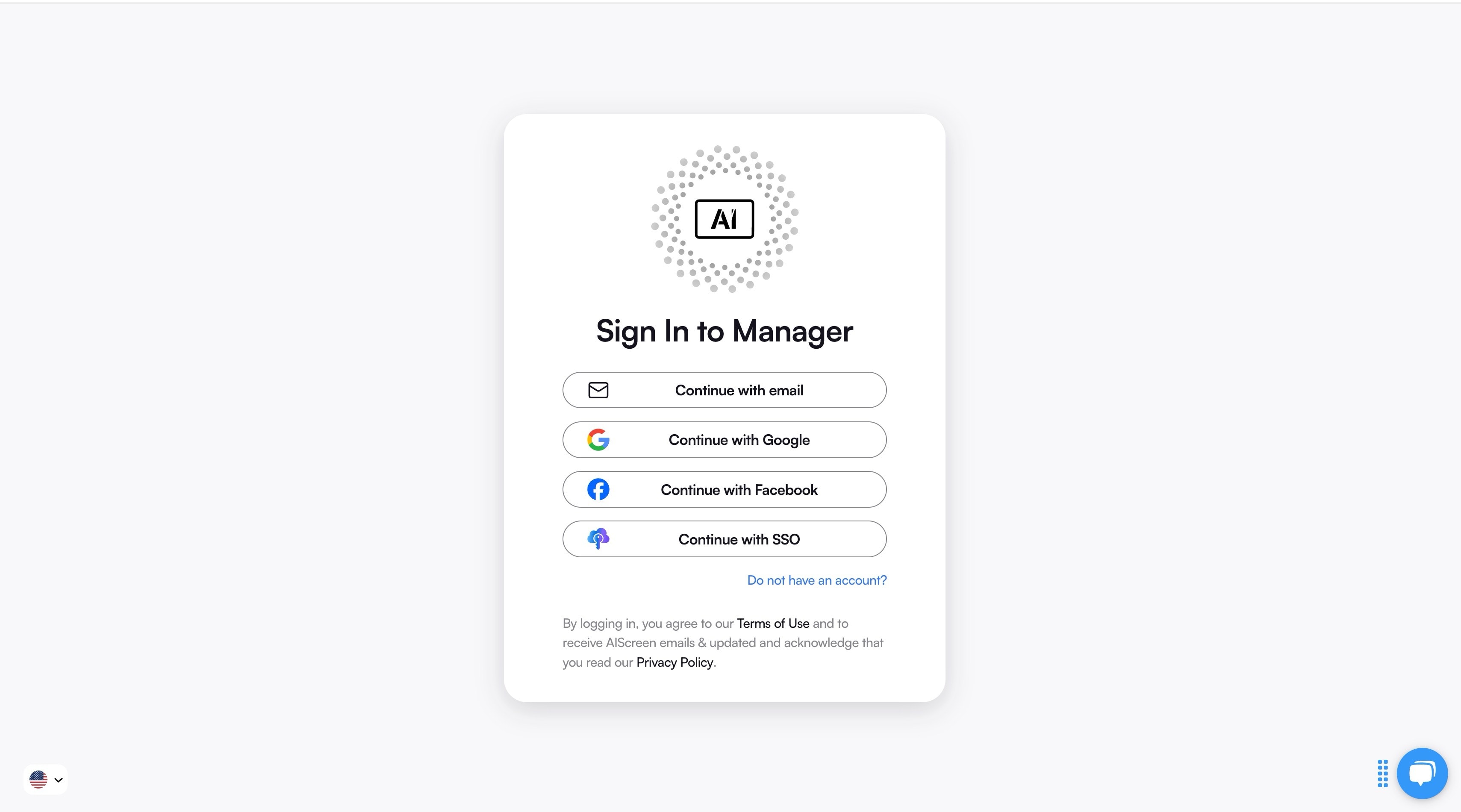
Logging in or creating an account in the digital signage management app is the key to unlocking full access to your AIScreen dashboard. This account acts as your control center, giving you everything you need to manage digital signage in one place.
From the dashboard, you can upload content, configure and schedule RSS weather feeds, and manage multiple displays effortlessly. A single hub keeps updates consistent and ensures your screens stay fresh across all locations.
If you’re a new user, creating an account is quick and simple, taking just a few minutes. Returning users can log in instantly to start customizing displays without delays. Here’s a quick look at the login interface:
Step 4: Pair Your Screen with Software
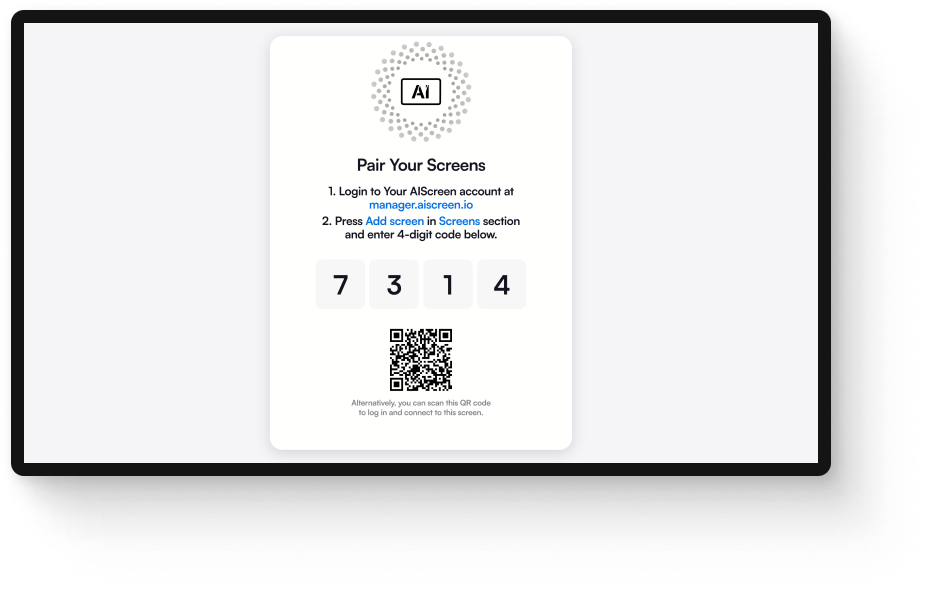
Pairing your screen with software is the step that connects your physical display to the AIScreen platform. Once paired, your screen can receive real-time updates, ensuring that your RSS weather feed flows seamlessly without interruptions or delays.
You can complete pairing through HDMI, Wi-Fi, or supported media players, depending on your hardware. This flexibility makes it easy for businesses of any size to integrate digital signage smoothly and keep their content running efficiently.
Step 5: Choose a Template to Show RSS Weather
Choosing a template to show RSS weather is the fastest way to make your display look professional and engaging. Most digital signage software comes with a built-in template library where you can pick designs tailored for weather widgets. These templates are pre-designed with space for icons, forecasts, and live updates.
You can browse a wide variety of layouts, including split-screen designs that combine weather information with promotions or announcements. This saves setup time and ensures the display looks polished without needing design skills. Once selected, you can simply connect your RSS feed, and the template will automatically update with the latest weather data.
Step 6: Select and Install the AIScreen RSS Feeds Weather App

Selecting and installing the AIScreen RSS feeds weather app is the step that powers live weather updates on your digital signage. The app connects smoothly with AIScreen’s digital signage software, ensuring your content refreshes in real time without manual effort.
Once the app is installed, it integrates into your dashboard, where you can quickly choose, customize, and schedule weather content. This makes it simple for any business, whether a café, retail shop, or corporate office, to keep screens updated with accurate forecasts.
Step 7: Choose the RSS Feed for Weather Updates

Choosing the RSS feed for weather updates while adding weather feeds ensures your screens always display accurate and localized information. AIScreen supports a wide range of RSS weather feeds, from international forecasts to hyper-local city updates.
Businesses can easily select the right feed to match their audience, whether it’s showing conditions for a single store location or multiple regions across a digital signage network. This flexibility makes AIScreen ideal for restaurants, lobbies, and retail spaces that need real-time weather content.
Step 8: Customize Your Settings

Customizing your settings allows you to align the RSS weather display with your brand identity and tap into digital signage analytics to provide valuable insights. Within AIScreen, you can adjust fonts, colors, and layouts so the weather widget looks polished and consistent with your digital menu boards or business displays.
You can also decide which elements appear on screen, like temperature, icons, wind speed, or extended forecasts. This ensures your signage isn’t just informative but also visually aligned with your brand style.
Step 9: Add it to Your Playlist

Adding it to your playlist makes weather updates a seamless part of your overall digital signage content strategy. With AIScreen, the weather feed rotates naturally alongside promotions, announcements, or live social feeds.
Once added, the RSS weather app updates automatically in real-time, meaning no manual refresh is required. This ensures your business always stays relevant while reducing workload for your team.
Step 10: Schedule or Go Live with RSS Weather Feed
Schedule or go live with RSS weather feed to give you full control over when your audience sees it. With AIScreen, you can easily schedule RSS feed updates to display at specific times, such as morning forecasts, afternoon conditions, or evening recaps. This method ensures the right information reaches viewers exactly when they need it. Additionally, scheduling helps balance weather data with other important content, such as promotions and announcements.
If you prefer a more dynamic approach, you can go live with real-time weather updates. AIScreen’s integration allows RSS feeds to update instantly, keeping your screens fresh and accurate throughout the day. Whether you want a fully automated display or a mix of scheduled and live content, this flexibility ensures that many digital signage owners find that their signage always stays relevant. Pairing weather details with custom visuals, like the one below, makes your display even more engaging. For more layout inspiration, explore our digital signage design guide before you go live.
How Can the Best RSS Weather Feed Improve Digital Signage Design?
Using the best RSS weather feed for digital signage helps businesses display live weather updates, forecasts, temperatures, and alerts directly on their screens. This keeps content timely and useful for viewers in places such as offices, schools, retail stores, hotels, and transportation hubs.
A strong digital signage design should present weather information clearly without overcrowding the screen. Use readable fonts, simple icons, balanced layouts, and enough contrast so viewers can understand the information at a glance.
Why Choose AIScreen for Weather Feeds?
Bring live weather to your screens instantly with AIScreen digital signage, a solution designed for businesses that want to keep customers informed with dynamic content in real time. With built-in support for RSS weather feeds, AIScreen makes it simple to display temperature, forecasts, and alerts on smart devices without manual updates. This automation ensures your content stays relevant and engaging throughout the day. According to McKinsey & Company, organizations that use data dashboards improve workflow efficiency by 25%.
Bring live weather to your screens instantly with AIScreen’s user-friendly tools, allowing you to customize layouts, choose weather themes, and combine forecasts with interactive elements and promotions or announcements. The platform is built for seamless integration, so you can connect live feeds in just a few clicks and display them alongside your brand messaging. By adopting AIScreen, you make your screens more dynamic, informative, and valuable to viewers.


Frequently Asked Questions
How does an RSS weather feed work with digital signage?
An RSS weather feed works with digital signage by pulling live updates from trusted providers and displaying them instantly on your screens. It eliminates manual updates while keeping forecasts accurate and current. The feed can show details like temperature, conditions, and weather alerts, making your signage both dynamic and reliable.
Can I customize the weather data shown on my digital signage from an RSS feed?
Yes, you can customize the weather data from an RSS feed to fit your digital signage needs. Most platforms allow you to choose what to display, such as temperature, wind speed, or extended forecasts, and adjust layouts, fonts, and colors. This ensures the feed blends with your brand while delivering useful and relevant updates.
Which weather RSS feed sources are best for digital signage?
The best weather RSS feed sources for digital signage are accurate, frequently updated, and reliable. Commonly used providers include NOAA, Weather.com, and OpenWeather. These platforms offer global coverage with real-time updates, ensuring your screens always display trustworthy information to your audience.
How often does an RSS weather feed update its data on digital signage?
An RSS weather feed updates digital signage content based on the refresh interval set by the provider, typically every 15–30 minutes. Some services support faster updates for real-time accuracy. Choosing a feed with frequent refresh rates keeps your weather display consistently accurate and engaging.
Can I integrate real-time weather conditions into my digital signage via RSS?
Yes, you can integrate real-time weather conditions into digital signage via RSS with most signage platforms. Live feeds display temperature, precipitation, and wind instantly, and can be paired with promotions or alerts. This creates a more engaging and informative experience for viewers.
